

Admins: to place this page and control which options appear on it, see Setting Up the Renewal Options Page.
Start a Renewal
1
Open your subscriptions
As a logged-in member, go to the portal page that hosts the Subscription Hub.
2
Click Renew
On a subscription that is inside its renewal window, click Renew.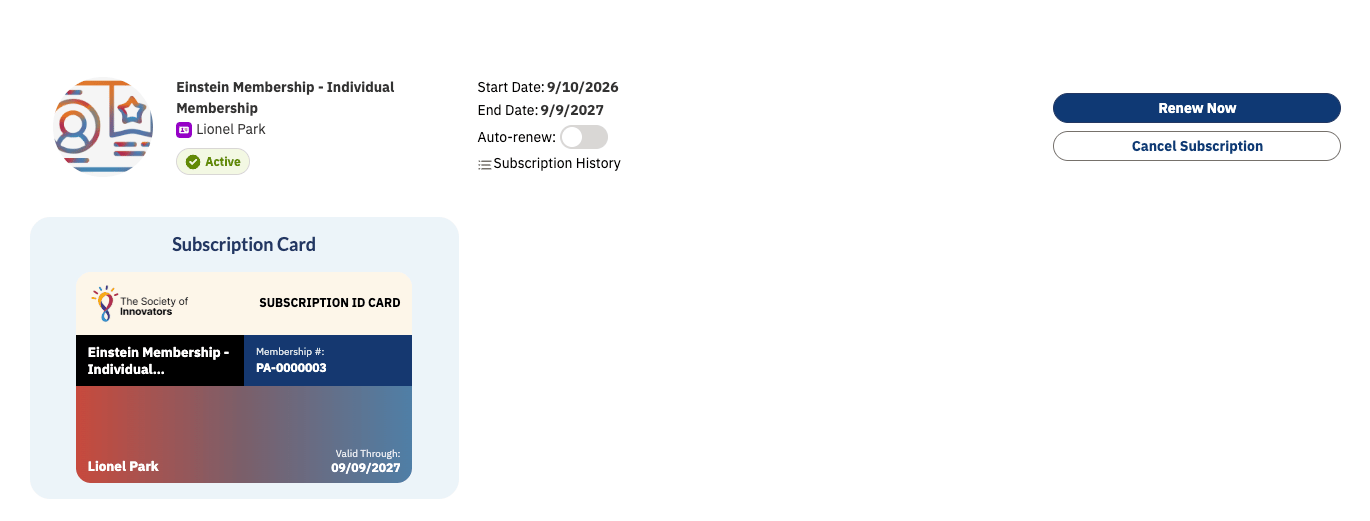
You can also reach the same place from Renew Now inside Manage Subscription.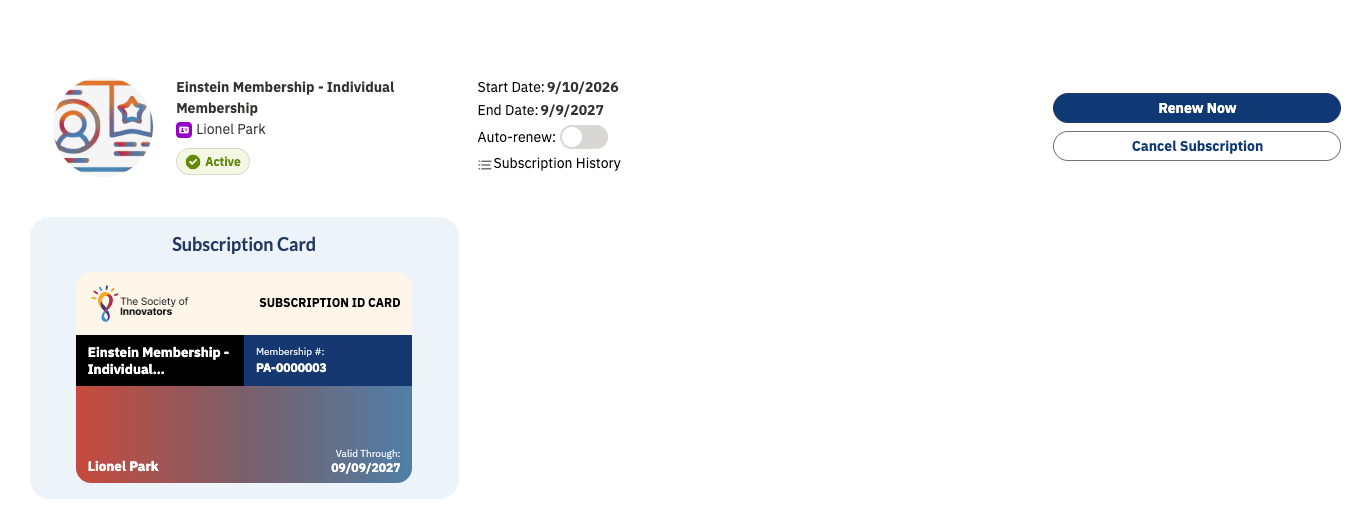
| Your subscription | Where you land | |
|---|---|---|
| A renewal invoice already exists | The Renew Subscription page, where you review the document and pay | 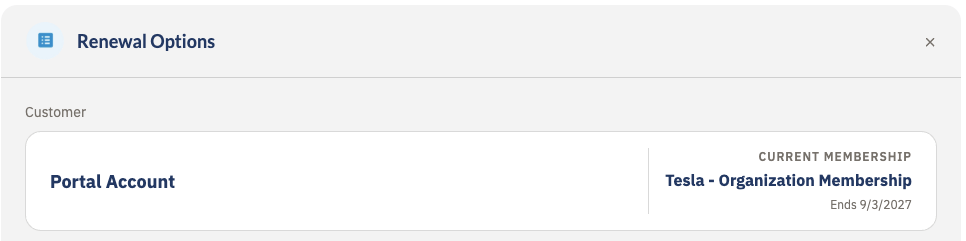 |
| No renewal invoice yet | The Renewal Options page, described below | 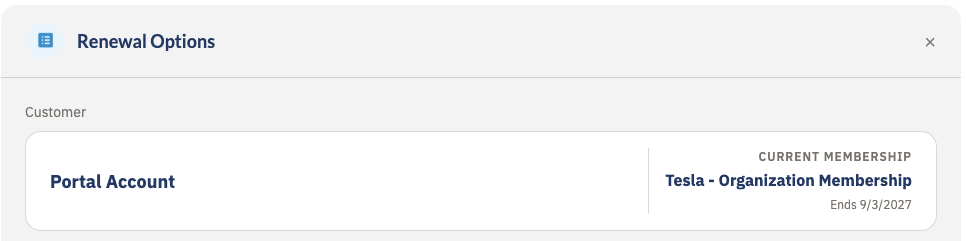 |
Choose Your Renewal
The Renewal Options page shows your current subscription at the top, the memberships you can renew into, and the subscription plans available for whichever membership you have selected.1
Check your current subscription
The Customer card at the top names you, your Current Membership, and the date it Ends.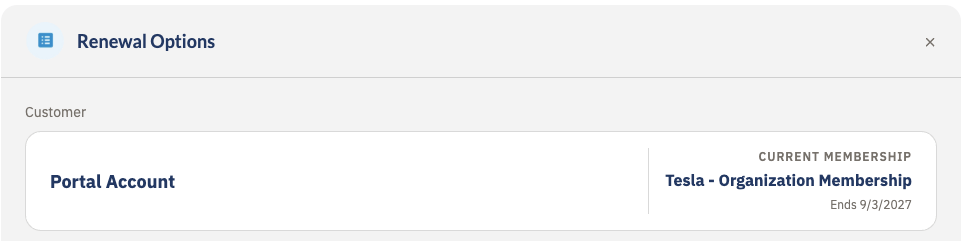
2
Pick the membership you are renewing into
Each membership you qualify for appears as a card with its image, name, short description, and price. Click a card to select it.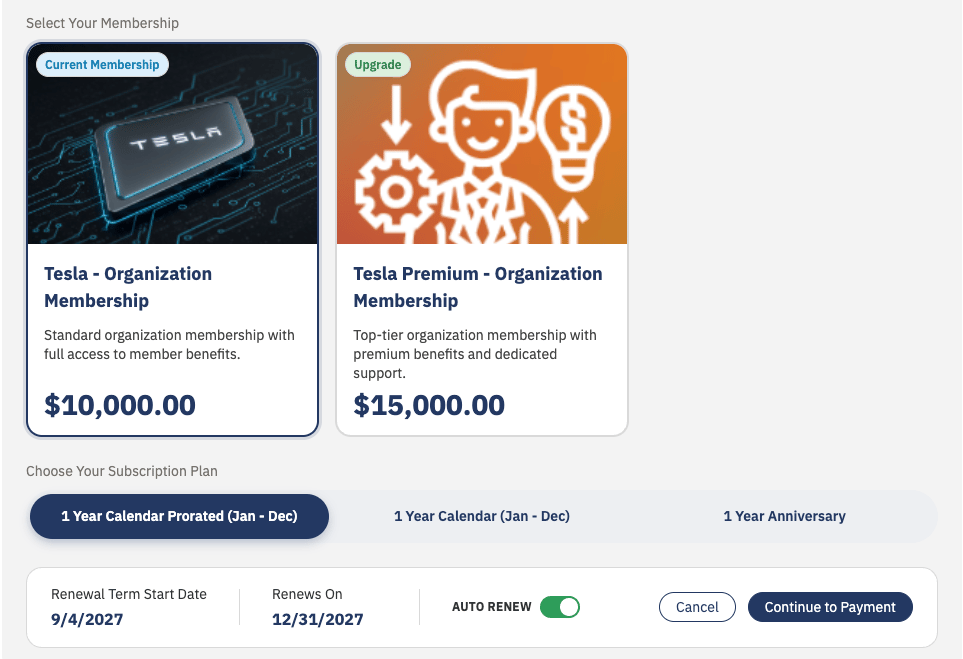
Cards are ordered Downgrade, then Current Membership, then Upgrade, then anything unbadged. Within a group, they follow the renewal path’s Priority, lowest first, then product name.
Your current membership is selected when the page opens. If it is not among your options — because the renewal paths point elsewhere — the first card is selected instead.
3
Pick a subscription plan
The Choose Your Subscription Plan section lists the plans available for the membership you selected — these set the length of your renewed term.The plan you are currently on is preselected whenever the membership you picked still offers it. If it does not, the membership’s default plan is used.
4
Review the term and set auto-renew
The footer summarizes what you are about to buy:
Whether the Auto Renew toggle appears at all is set on the subscription plan:
Because the setting lives on the plan, switching plans can change the toggle.
5
Continue to payment
Click Continue to Payment. fusionCore creates your renewal Order and takes you to checkout, where you pay as usual.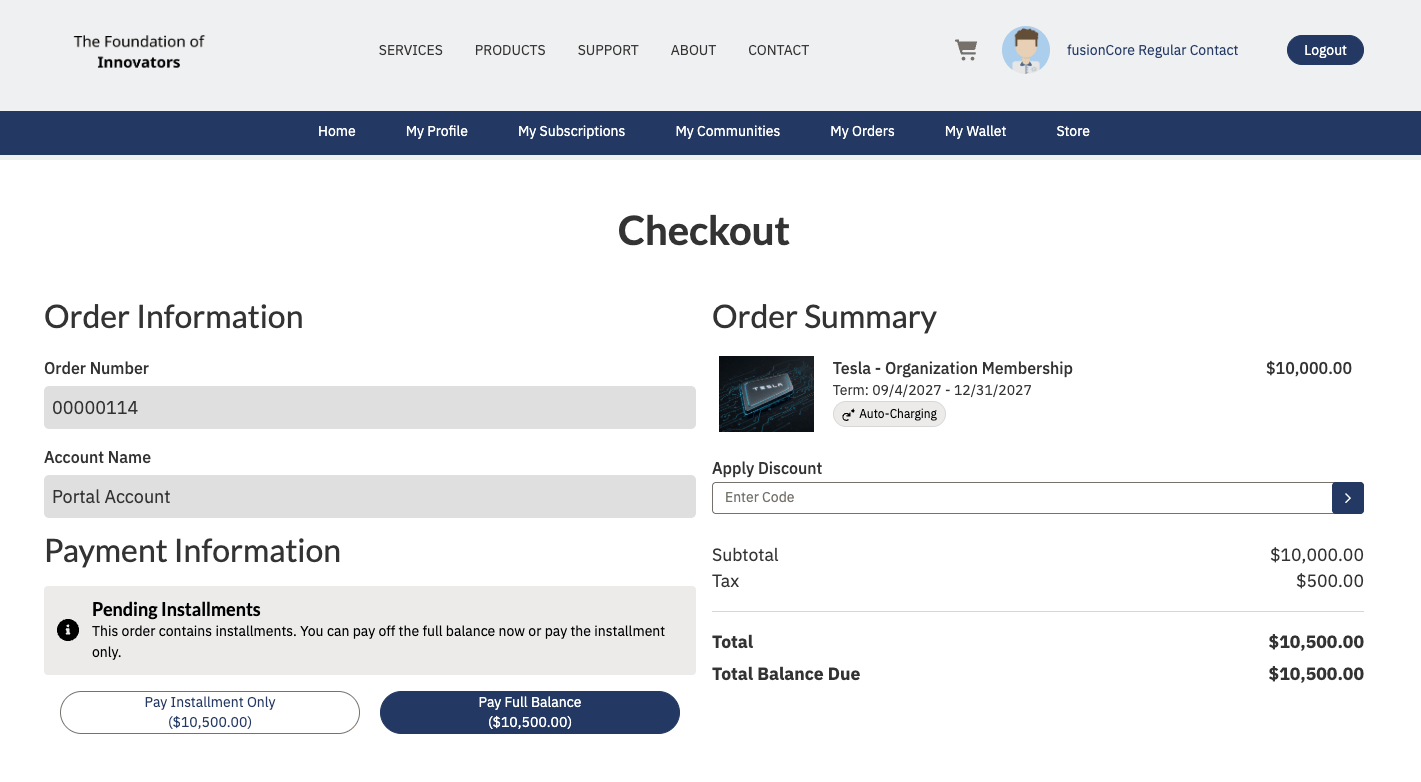
The button disables and shows a spinner from the moment you click until checkout loads. Clicking twice cannot create two orders — if a renewal Order already exists, you are simply taken to it. So if you abandon checkout and come back later, you resume the same order rather than starting a second one.
When There Is Nothing to Renew
If no renewal options can be offered, the page shows No renewal options available with the message “There are no renewal options available for this subscription right now.” Opening the page for a subscription that is not eligible — for example, one that already has a renewal Order — reports “This subscription is not available for renewal.” instead.Limitations and Common Pitfalls with Portal Renewals
- Prices on renewal page exclude tax. Tax is added at checkout, so the total there can be higher than the price on the card.
- The Renew button is missing. Either the subscription is outside its renewal window, it is cancelled or set to Do Not Renew, its product is flagged Is Not Renewable, its renewal Order is already Activated or in Draft, you do not have manage rights on it — or an admin has not set the hub’s Renewal Options Page URL.
- A membership you expected is not offered. Renewal paths are filtered by condition and by whether the renewal product is active, so you only ever see what you qualify for. If nothing qualifies, only your current membership is offered.
- A price is blank on a card. That product-and-plan combination has no resolvable price. The button keeps its payment wording rather than treating it as free — raise it with your administrator before continuing.
- The Renews On row is missing. The selected plan’s term end date could not be calculated. The renewal still works; the page omits the row rather than showing a guessed date.
- “You’re not eligible to manage this subscription.” Your contact role is not in the product’s Manage Subscription setting. Seeing a subscription in the hub and being allowed to renew it are two separate permissions.