

Overview
Stripe is the payment processor that fusionCore uses to charge cards and bank accounts. In the default setup, fusionCore uses one central platform Stripe account, and each organization you onboard becomes a connected account beneath it. A connected account is a separate Stripe account that the platform account can create payments for on the organization’s behalf. This page covers two parts of onboarding:- How you (the vendor) create the connected account and send the client a one-time onboarding link.
- How the client uses that link to finish Stripe onboarding, configure payment methods, and set up webhooks — see Stripe Connected Account Set-Up Guide.
Prerequisites
- Access to the central fusionCore Stripe account (the platform account, not the client’s own Stripe account).
- The country of the company you are setting up.
Create the Connected Account and Send the Link
Log into the fusionCore Stripe account
Open Connected Accounts
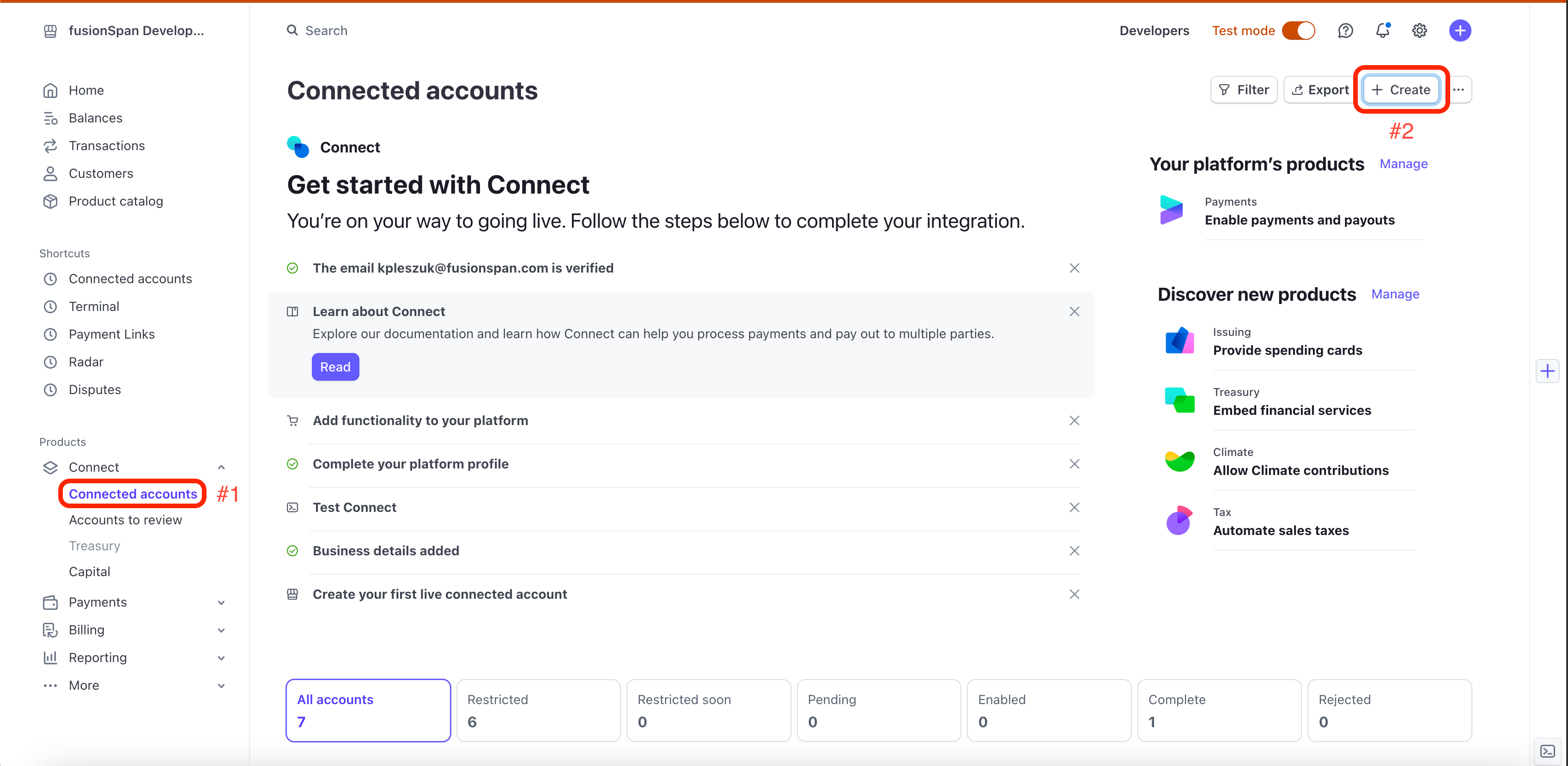
ConnectedAccounts_Stripe.png
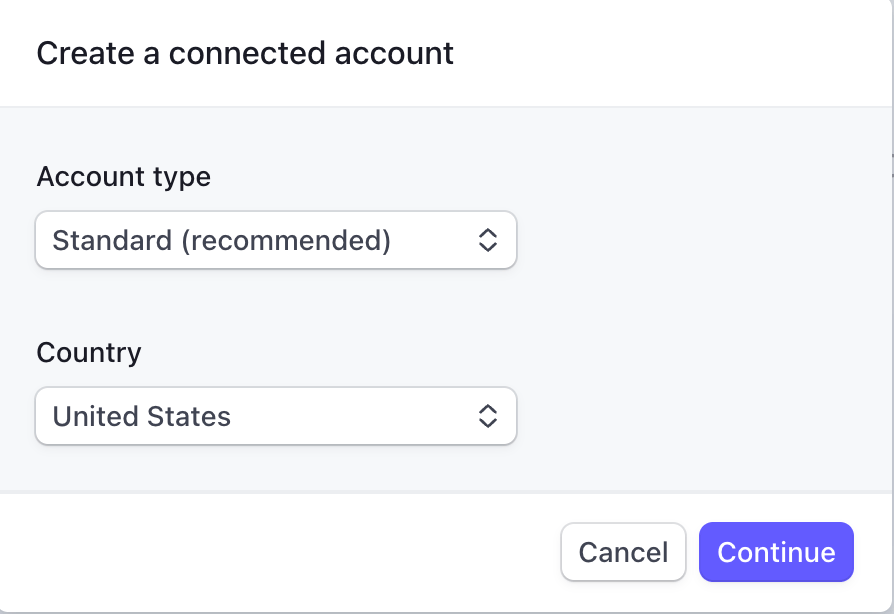
Choose the account type and country
- For Account Type, choose Standard.
- For Country, choose the country of the company you are creating the account for. This is most often the United States.
Copy and send the onboarding link
- If you are the client, follow the Stripe Connected Account Set-Up Guide below.
- If you are the vendor, send the link and let the client follow the Stripe Connected Account Set-Up Guide below.
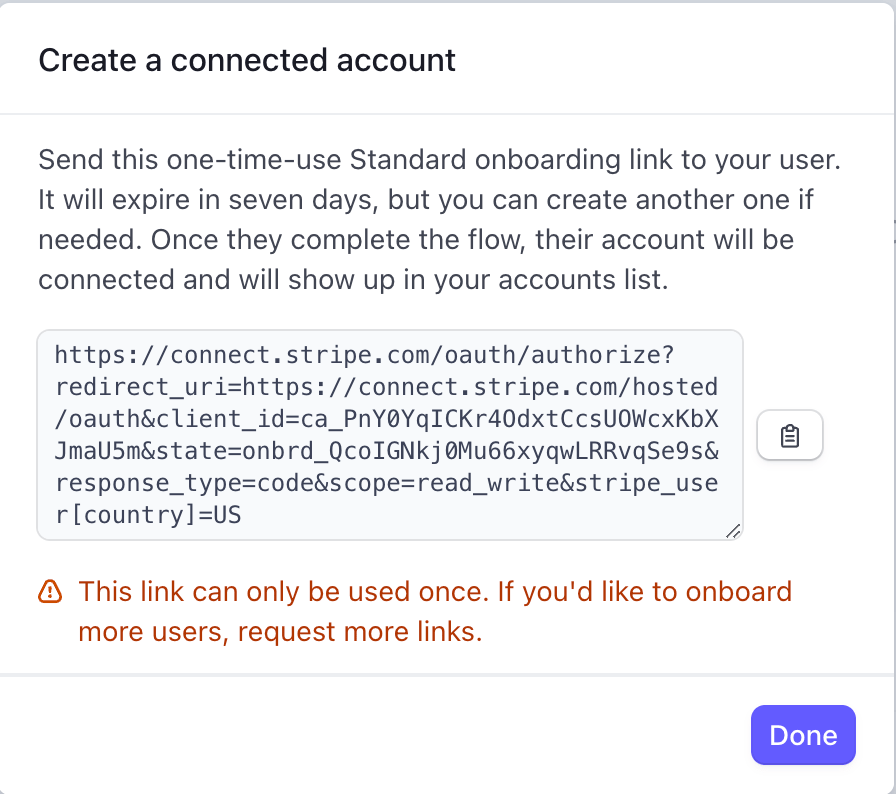
one-time-use-stripeonboarding.png
Stripe Connected Account Set-Up Guide
This section is the client-facing walkthrough for completing your Stripe account and connecting it to fusionCore. Stripe is the payment processor that actually charges cards and bank accounts when someone pays on an order. fusionCore runs inside Salesforce, the CRM that stores your orders, members, and payments. To link the two, you complete Stripe’s onboarding, then set up webhooks — URLs that Stripe calls to push payment events (a payment succeeded, a refund posted) back into Salesforce automatically. The fusionCore implementation team normally drives this process with you. Your part is to complete Stripe onboarding, set up the webhooks, and hand the resulting signing secrets back to the team.Before You Start
Gather the following data points before you open the onboarding link. Having everything ready lets you finish Stripe onboarding in a single sitting.Business Data Points
Information about the business itself.- Country
- Business type
- Legal business name
- Business name (optional)
- Employer identification number (EIN)
- Registered business address (street, apt/unit/other, state/province, ZIP code)
- Business phone number
- Industry
- Business website
- Product description
Business Representative Info
Information about the person representing the business.- Legal name
- Email address
- Job title
- Date of birth
- Home address (street, apt/unit/other, state/province, ZIP code)
- Phone number
- Last 4 digits of SSN
Public Details
Details that are visible to your customers.- Statement descriptor
- Shortened descriptor
- Customer support phone number
- Customer support address
Bank Info
Details for your financial institution.- Institution name
- Account number
- Routing number
How Stripe Fits In
Stripe is an online payment processing platform that lets your organization accept payments, manage subscriptions, and run financial operations. It connects customer interactions to financial transactions, so payment workflows — donations, membership renewals, ticket sales, e-commerce purchases — are secure, trackable, and recorded in your CRM. With Stripe linked to fusionCore, payments process in real time, receipts go out automatically, and transaction details flow into Salesforce.Set Up Your Stripe Account
Open the onboarding link
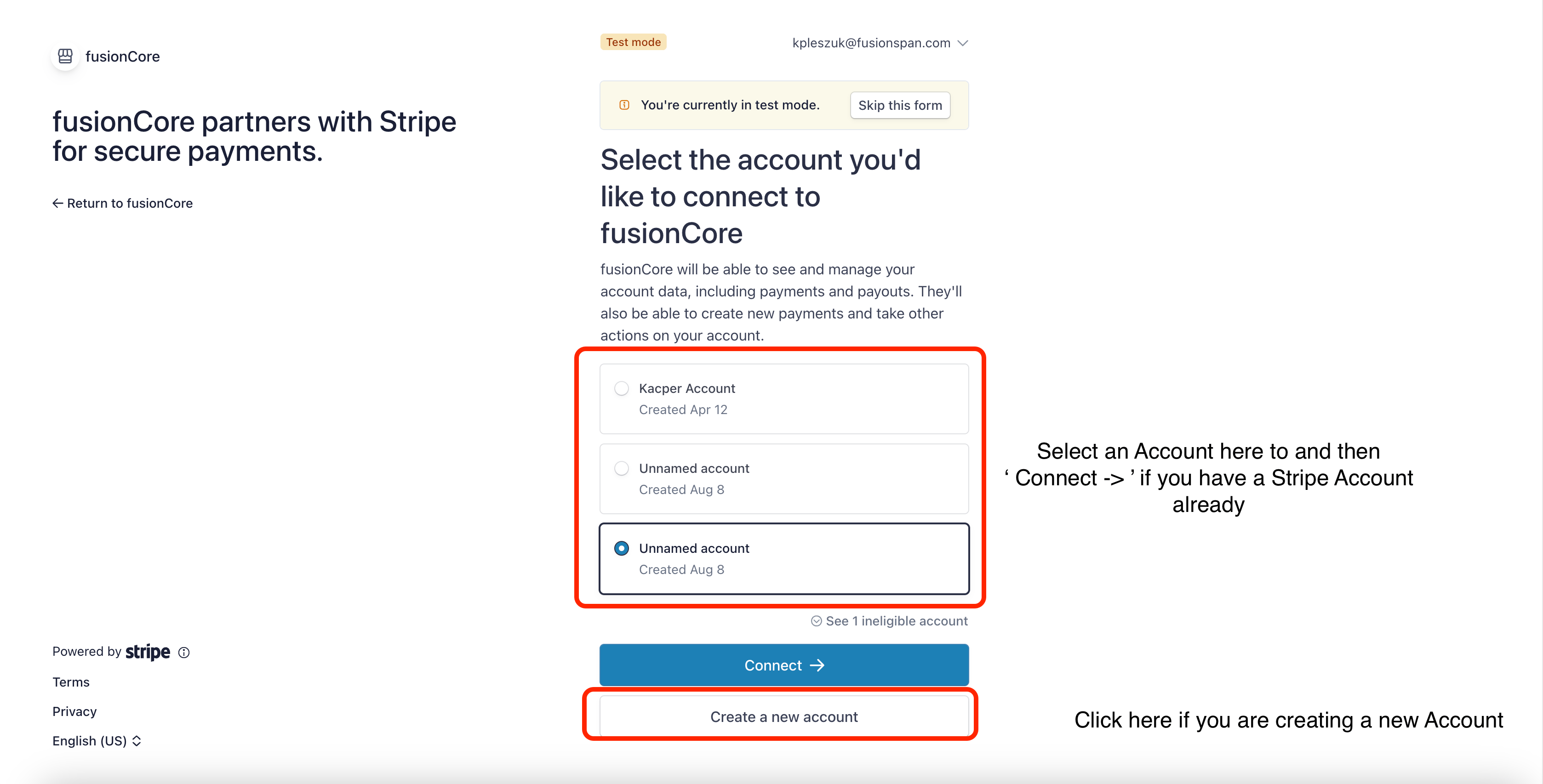
Opening the Stripe onboarding link
Choose new or existing account
- Create a new account on Stripe.
- Select your pre-existing Stripe account to connect to fusionCore. If you have a pre-existing account, skip ahead to completing the Stripe information section.
Complete the Stripe information
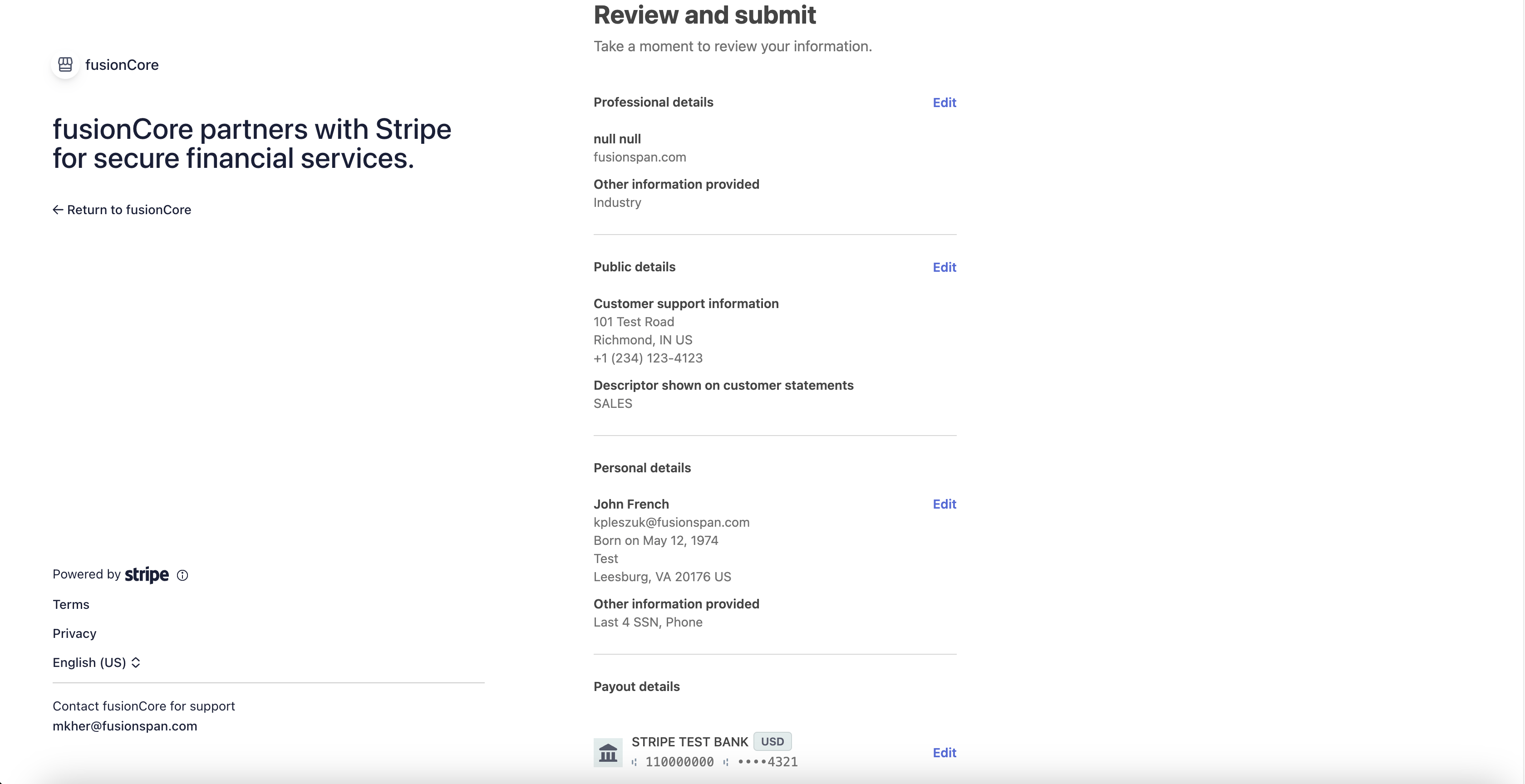
Completing the Stripe information section
Submit
Configure Your Payment Methods
After your account is onboarded, configure the payment methods you want to accept.Open Settings
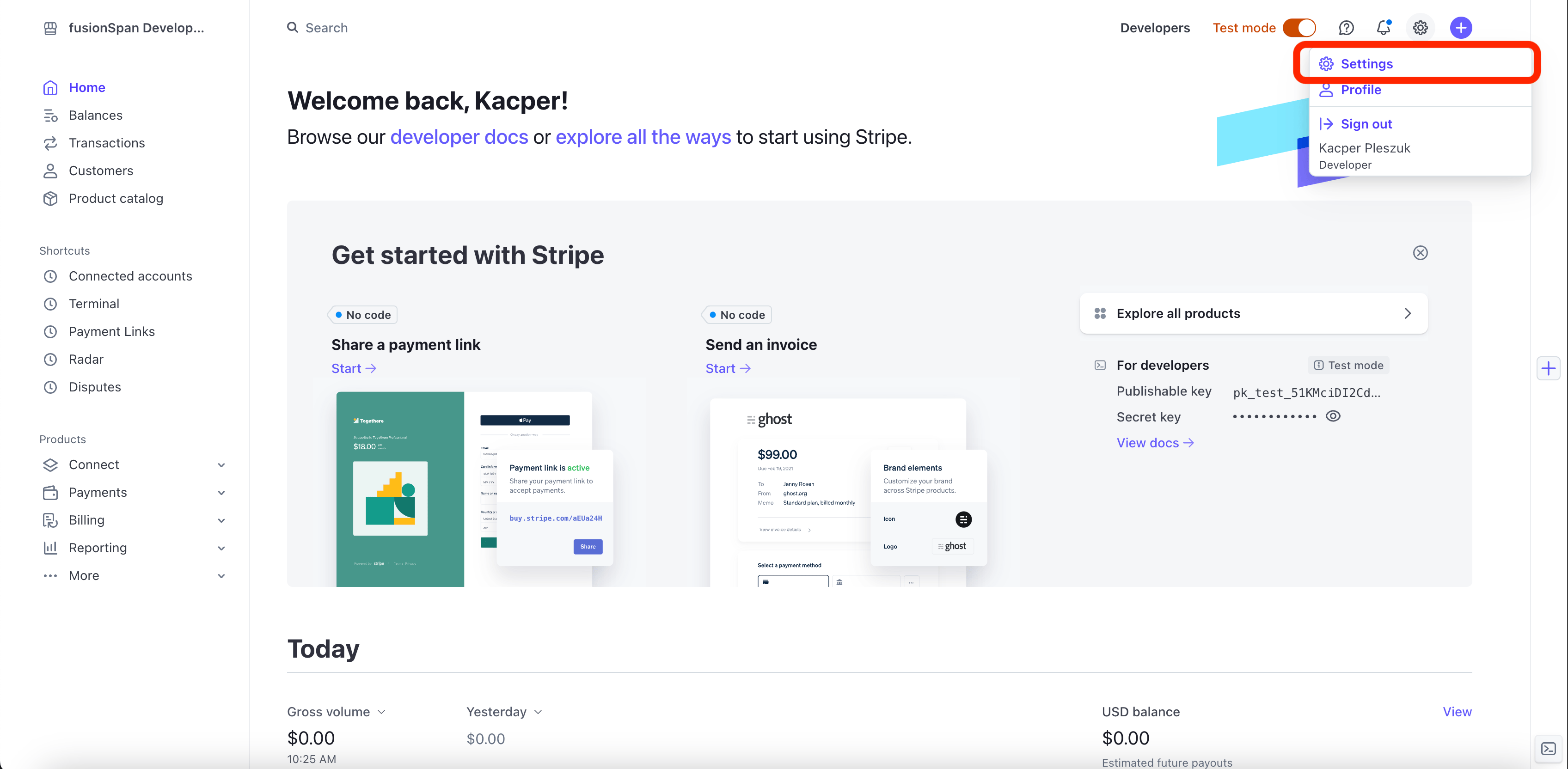
Opening Settings in Stripe
Open Payments
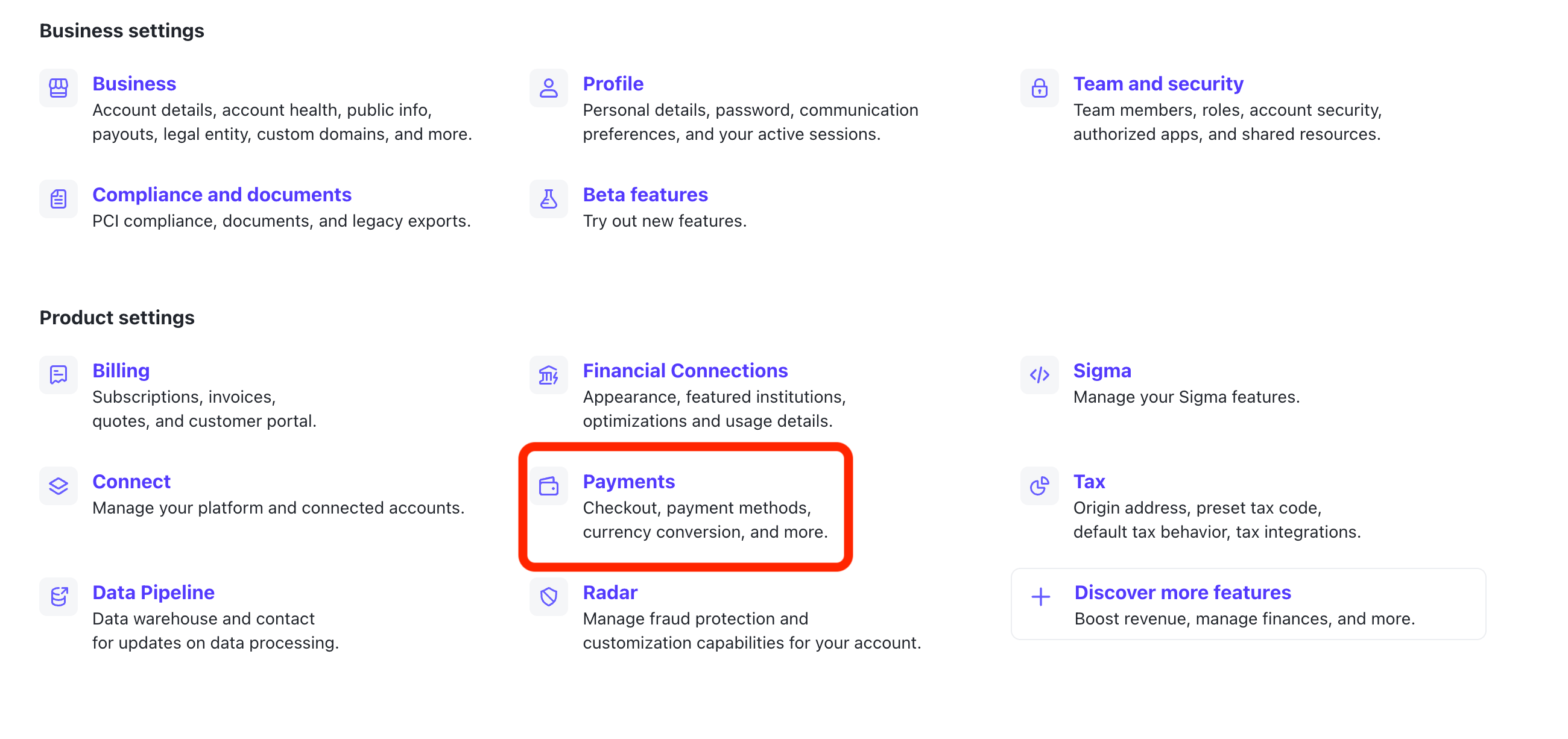
Opening Payments in Stripe settings
Confirm Card is active

Card payments active by default in Stripe
Activate ACH
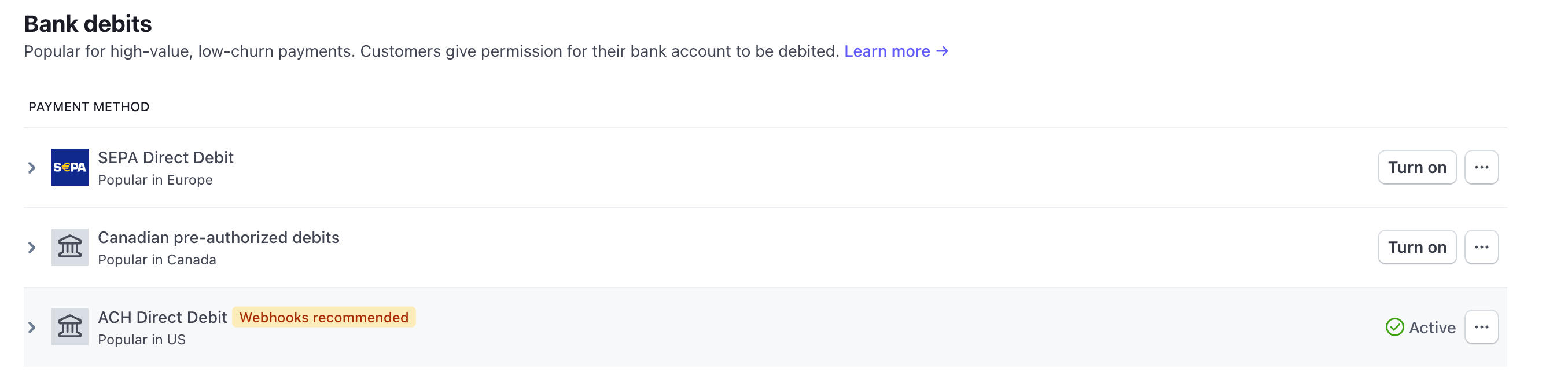
Activating ACH payments in Stripe
Set Up Live Webhooks for Your Salesforce Org
A webhook is the URL Stripe calls to send payment events back to your Salesforce org. Set up the live webhook against your live Stripe account.Log into Stripe
Open Developers
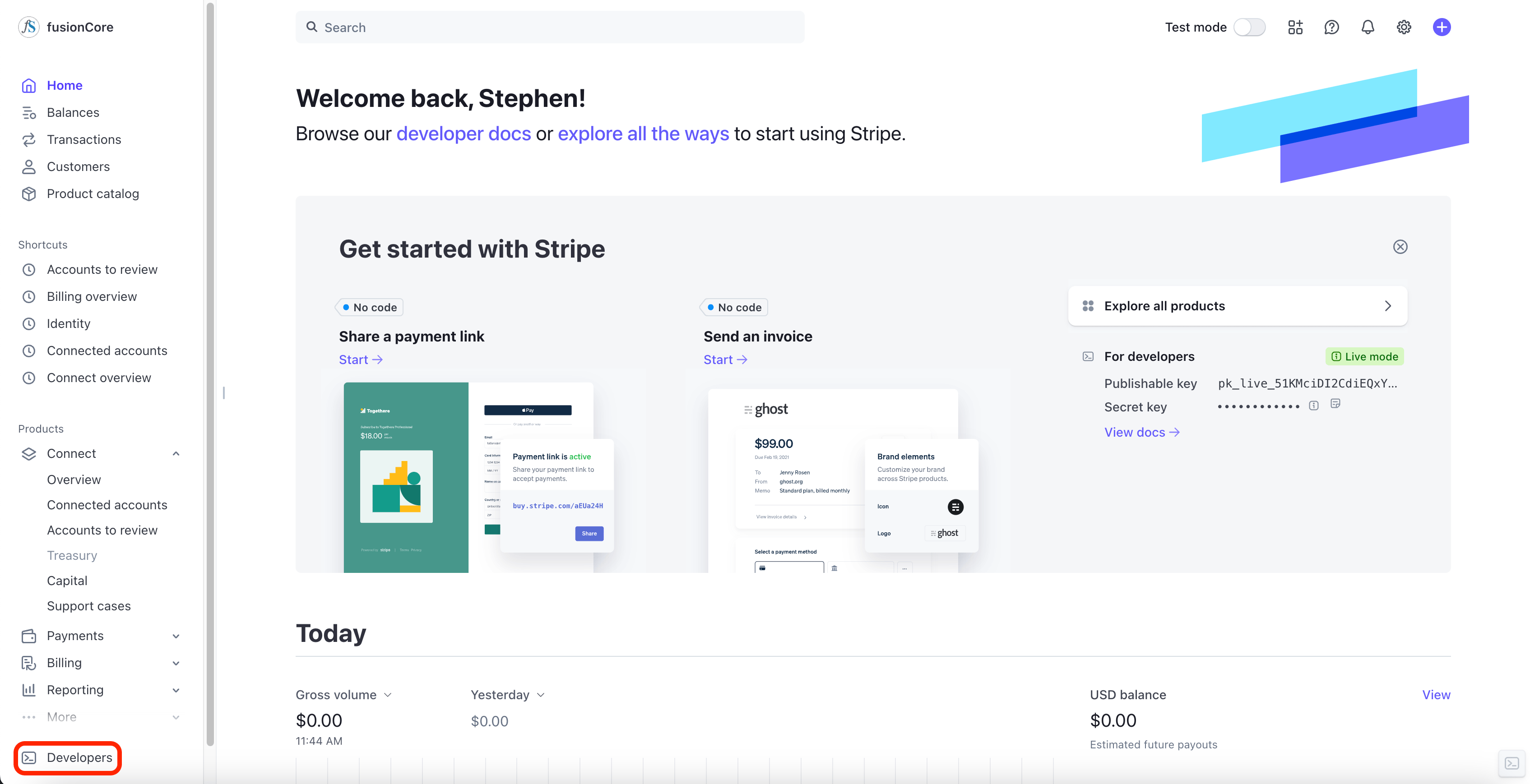
Developers menu in Stripe
Open Webhooks
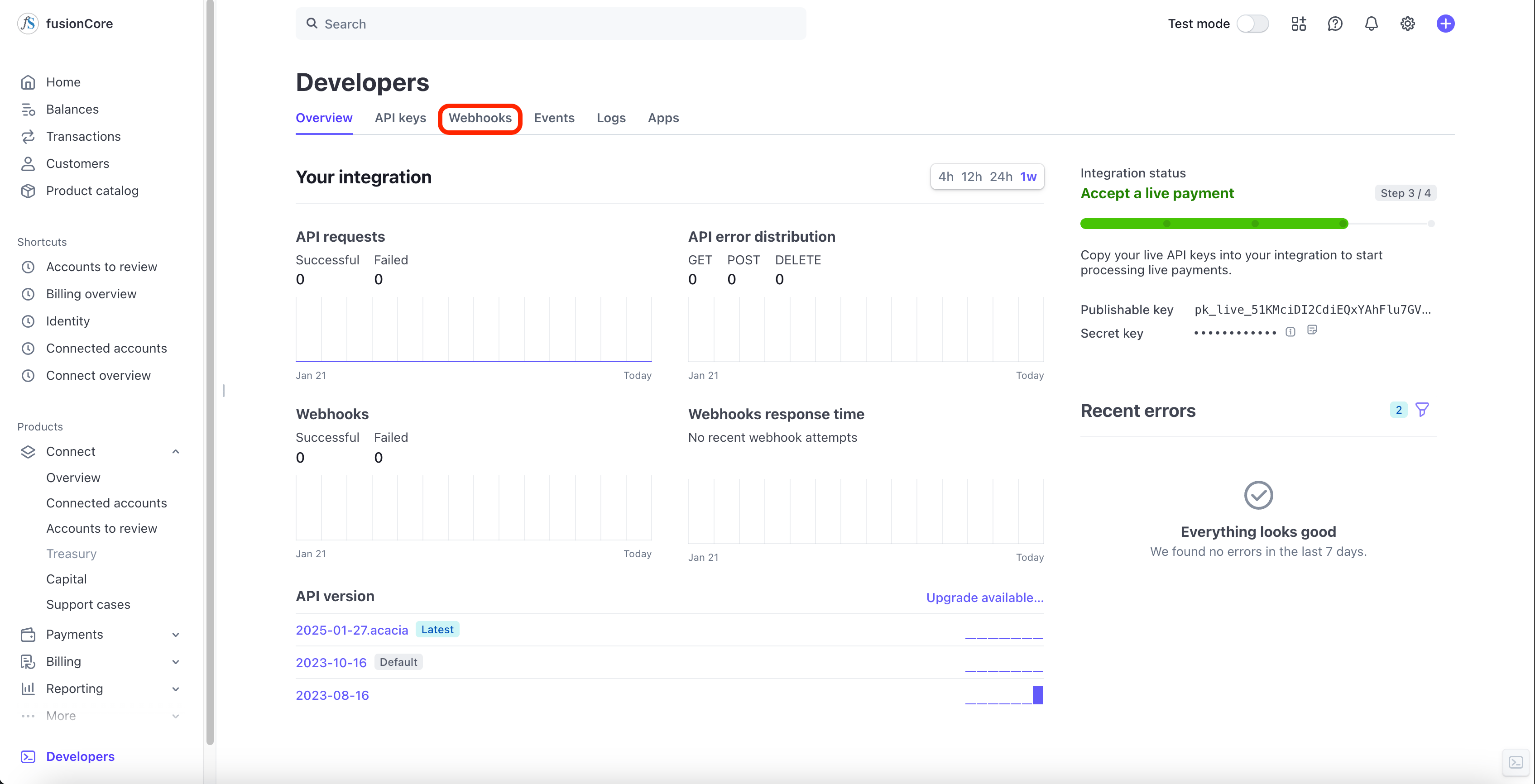
Webhooks in the Stripe Developers menu
Create an event destination
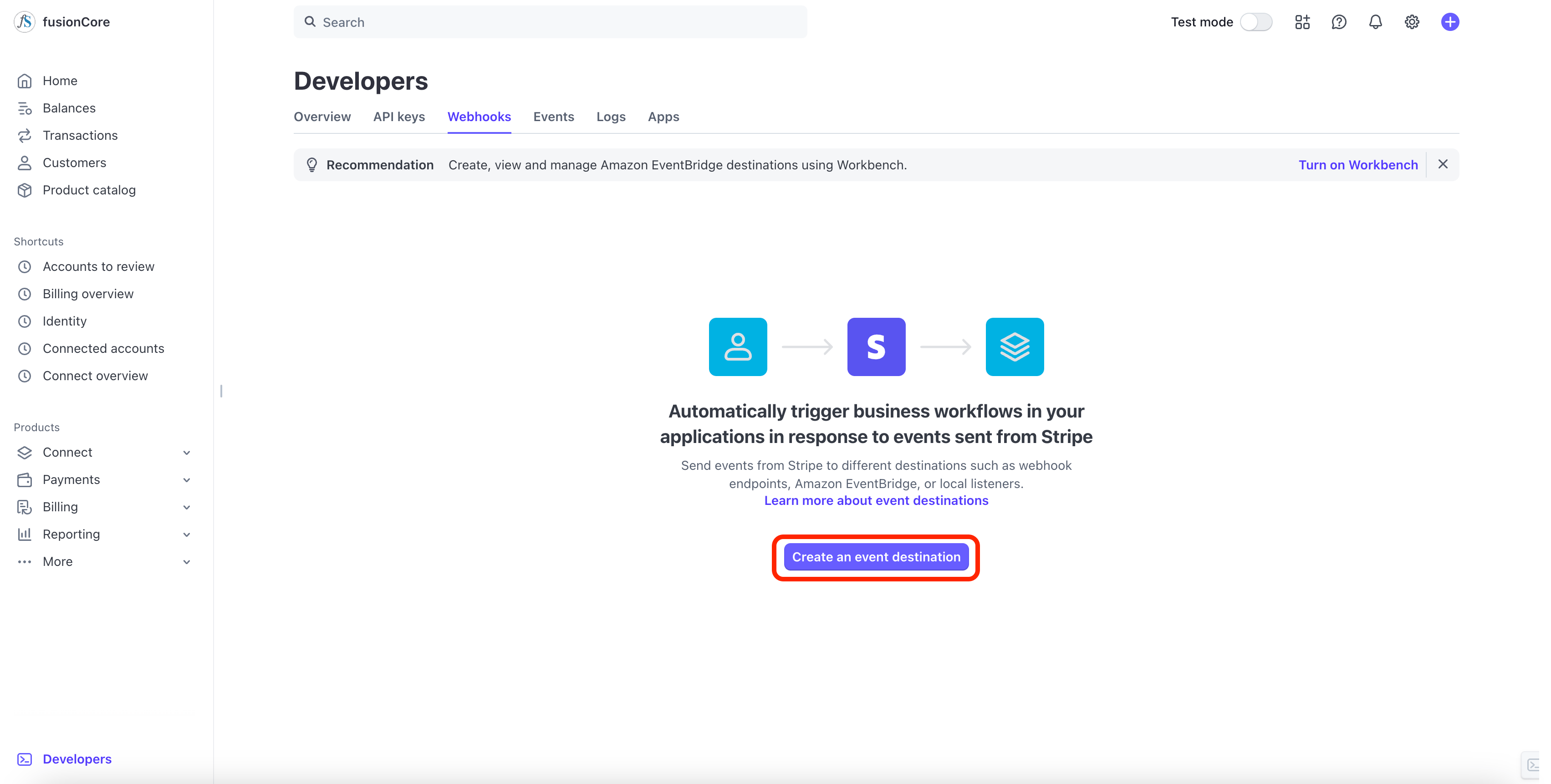
Create an event destination in Stripe
Enter the endpoint URL
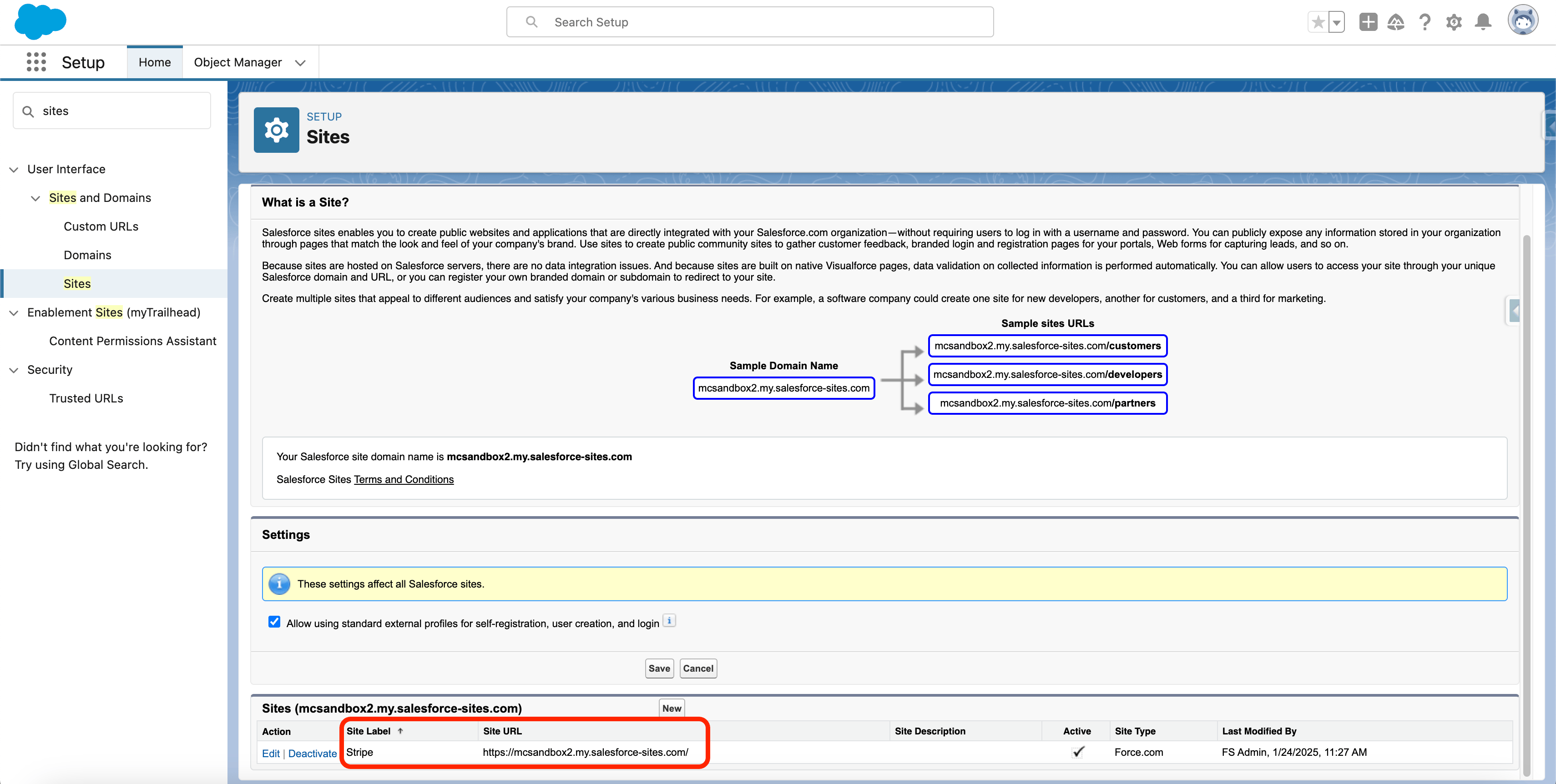
Endpoint URL field in Stripe
Select the events
charge.refund.updatedpayment_intent.canceledpayment_intent.payment_failedpayment_intent.processingpayment_intent.requires_actionpayment_intent.succeededcustomer.createdcustomer.updatedsetup_intent.canceledsetup_intent.requires_actionsetup_intent.setup_failedsetup_intent.succeededpayment_method.updatedpayment_method.automatically_updatedpayment_method.detached
payment_method.card_automatically_updated, so you may see 16 in the list — that is expected.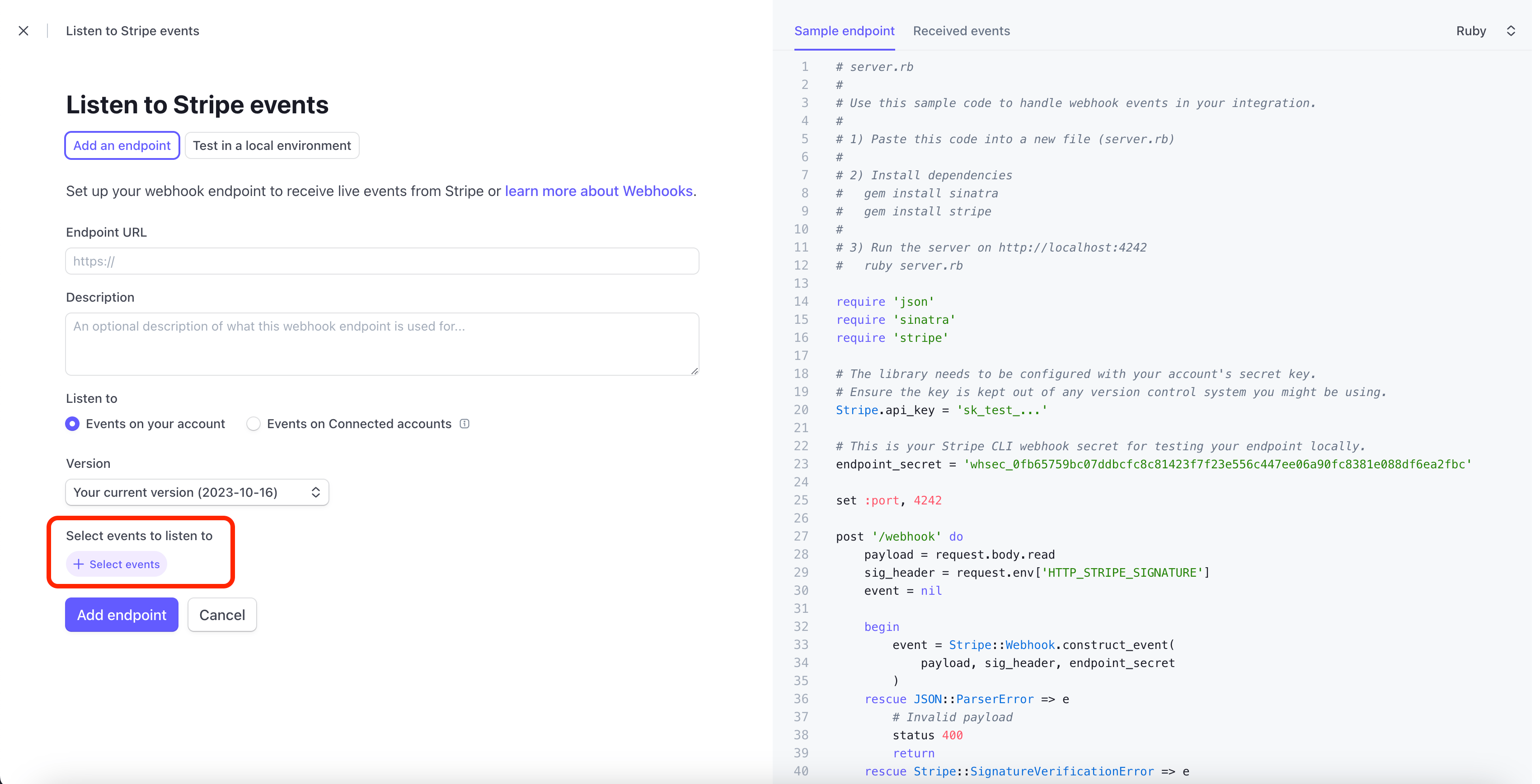
Selecting the events in Stripe
Add the endpoint
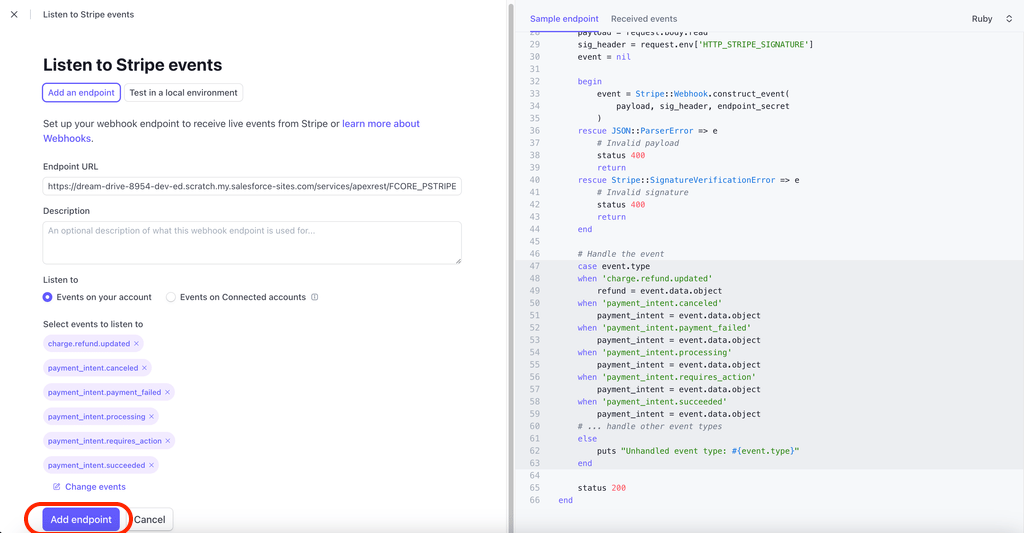
Adding the webhook endpoint in Stripe
Copy the signing secret
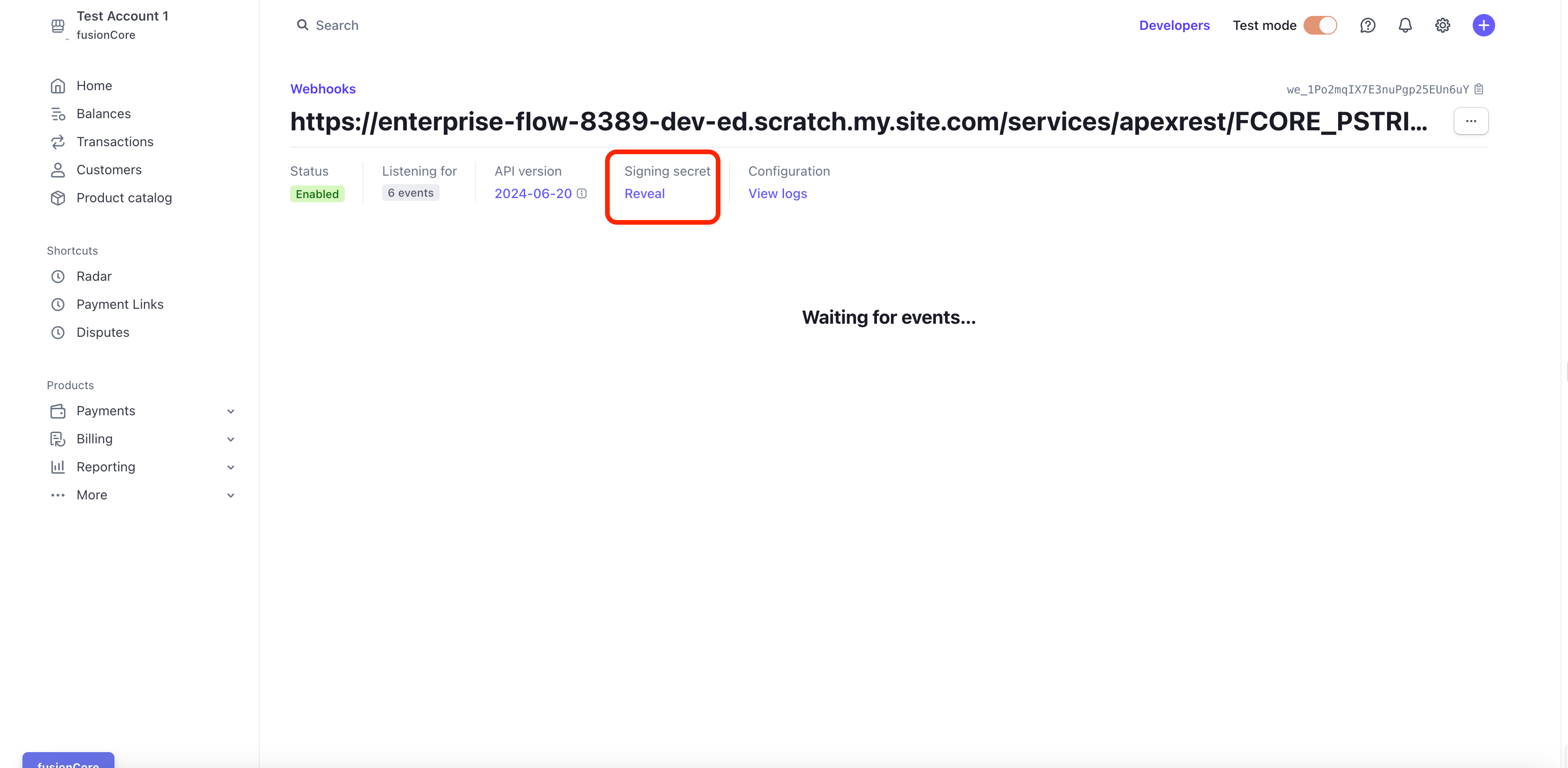
Locating the webhook signing secret in Stripe
Set Up Test Webhooks for Your Salesforce Org
Set up a test webhook so the team can verify the connection without moving real money. Create a separate test webhook for each Salesforce environment you use (production, partial sandbox, full sandbox).Log into Stripe
Switch to Test mode
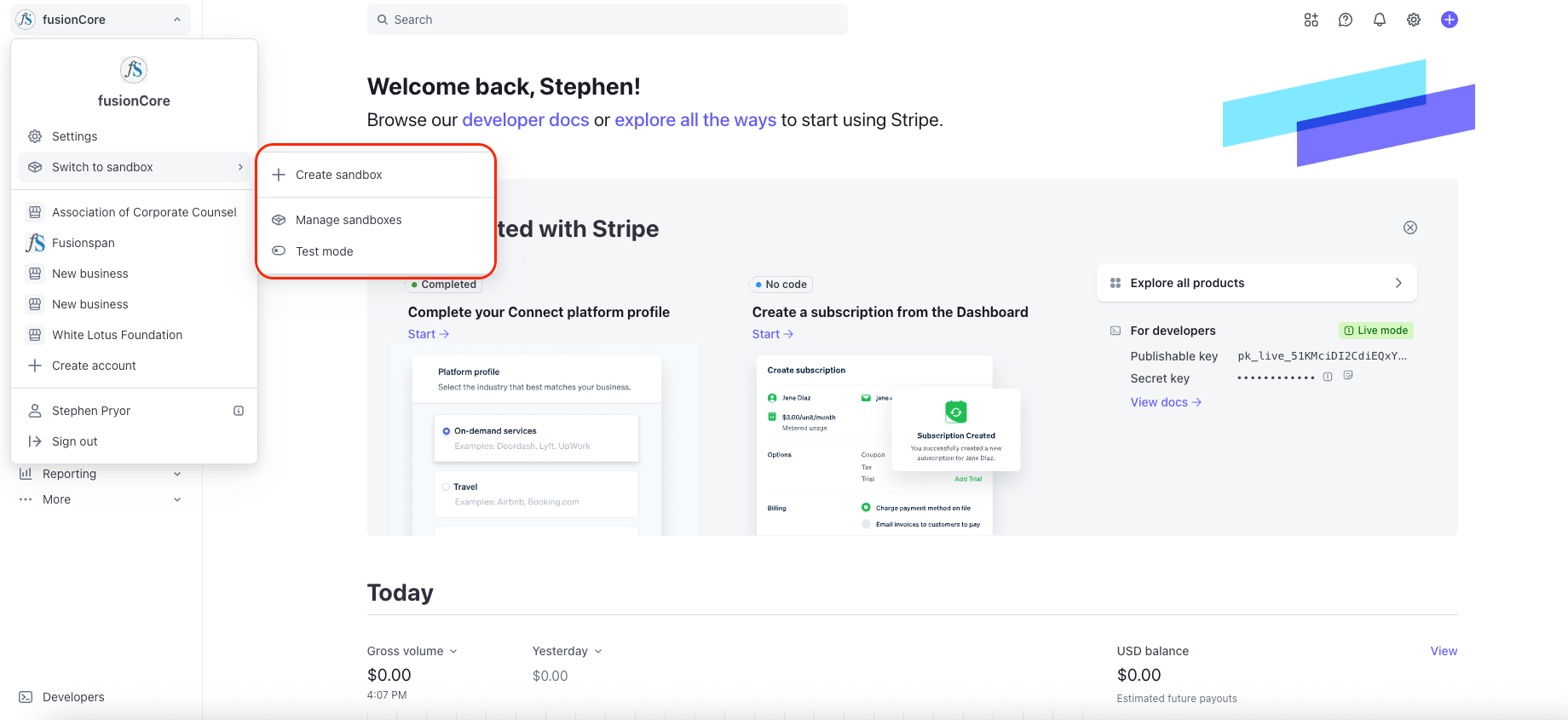
Switching to Test mode in Stripe
Repeat the live webhook steps
Next Steps
Once the account is fully set up and your live and test webhooks are in place, notify the fusionCore team and hand over the signing secret for each webhook through a secure channel. The team then completes the setup of your Payment Provider Accounts in fusionCore, including configuring the webhook so Stripe can send payment events back into Salesforce.Limitations and Common Pitfalls
- Use the platform account, not the client’s account. Create the connected account from the central fusionCore Stripe account. Do not create it from the client’s own Stripe account — the webhook and payment flow expect the connected-account model.
- The link is one-time-use. The onboarding link can only be used once. If the client loses it or it expires before they finish, generate a new connected account link rather than reusing the old one.
- Match Test Mode for test accounts. A connected account created in Test Mode is only usable for testing. If you intend to take real payments, create the account while in live mode.
- Use Card and ACH only on a standard setup. Configuring Alipay or WeChat Pay on a standard connected-account setup is blocked and validation fails. Those methods require a Stripe Direct account, which the fusionCore team enables before install.
- Endpoint URL must be exact. Enter the webhook URL with no extra slashes or spaces, ending in
/services/apexrest/FCORE_PSTRIPE/Stripe. A wrong URL means events never reach Salesforce, and your account never finishes validating. - Validation depends on the webhook. The fusionCore team validates your Payment Provider Account after the webhook is in place. Validation is not instant — it completes only after Stripe sends the
customer.createdorcustomer.updatedevent through your webhook. If the webhook is misconfigured, validation never finishes even when your keys are correct. - Set the webhook on the correct account. Set the webhook on your own Stripe account (the one the team is connecting), not on the fusionCore platform account. A webhook on the wrong account can make the Card/ACH payment screen hang on loading.
- Keep environments separate. Do not reuse a webhook endpoint or signing secret between production and a sandbox. Set up a separate test webhook per Salesforce environment.
- Re-send the signing secret if config changes. If the team later changes key configuration on your Payment Provider Account, validation resets and they re-run it. If you regenerate the webhook signing secret in Stripe, send the new value securely so the connection keeps working.