

Overview
Simple Conditions leverage Condition Lines for their logic and can handle less complex use cases. They can be created by an admin user or a standard user in the Salesforce user interface. A Simple Condition has two parts: the Condition record itself, and the Condition Lines that hold its no-code logic. Create the Condition record first, then add its lines.Create a Simple Condition
1
Fill out the Simple Condition information
Enter the appropriate Simple Condition information:
- Name
- Record/Product Connection
- Record Logic
- Record Custom Logic — only required if you choose Custom for Record Logic
- Description
2
Save the Condition
Click Save.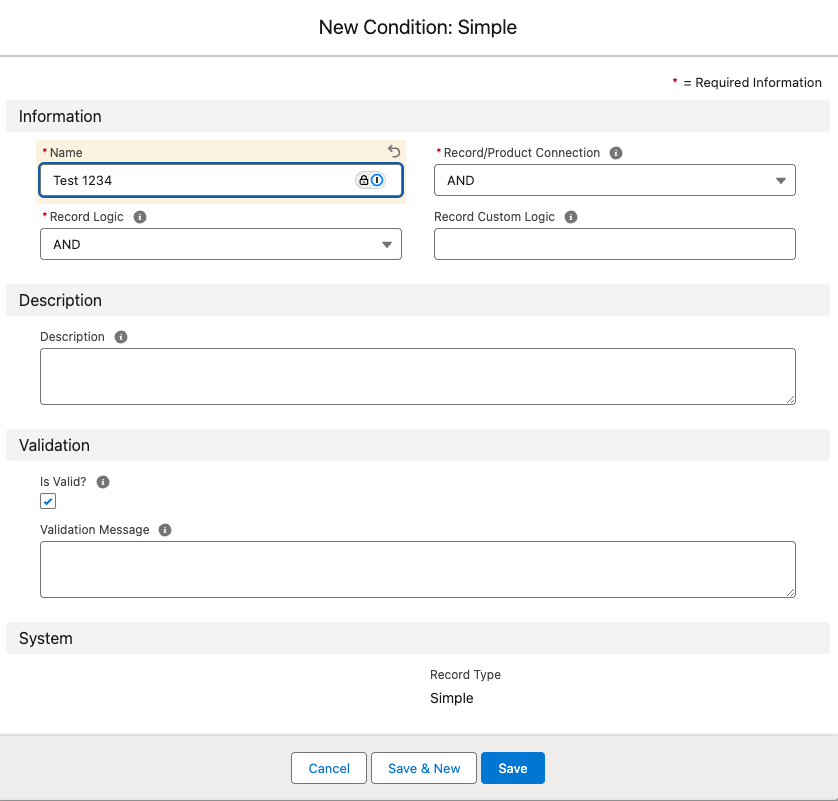
3
Add Condition Lines
Once the Simple Condition has been created, add its Condition Lines — see Condition Lines below.
Once your condition records have been created, add them to a Price Book, a Tax Product, or a Renewal Path. To configure conditions specifically for taxes, refer to the Taxes End User Guide for setting up tax-related condition lines.
Condition Lines
Condition lines are the criteria that drive a Simple Condition’s logic. Each line evaluates a field, value, and operator to decide whether a pricing or business rule applies, so membership, event registration, sponsorship, and other services align with your organization’s policies.- Definition: detailed criteria determining when a pricing or business rule applies.
- Combination: multiple condition lines can be combined with logical operators (AND/OR) to define complex scenarios.
- Application: applied to pricing rules, product configurations, discounting, or quote logic.
- Membership Discount Rules: Members get discounted pricing for conference registration.
- Condition Lines:
- Field:
Account Membership Type
Operator:Equals
Value:Member - Field:
Product
Operator:Equals
Value:Conference Registration - Logical Operator:
AND
- Field:
- Condition Lines:
- Early Bird Event Pricing: Discounted rates apply for registrations before a specific date.
- Condition Lines:
- Field:
Registration Date
Operator:Less Than
Value:2025-03-01 - Field:
Event Type
Operator:Equals
Value:Annual Conference - Logical Operator:
AND
- Field:
- Condition Lines:
- Bulk Discounts for Group Purchases: Discounts apply if more than 10 event tickets are purchased.
- Condition Lines:
- Field:
Quantity
Operator:Greater Than
Value:10 - Field:
Product
Operator:Equals
Value:Event Ticket - Logical Operator:
AND
- Field:
- Condition Lines:
Add Condition Lines
1
Open the Conditions app
Click the App Launcher and type in Conditions.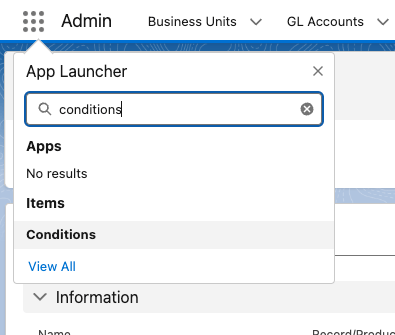
- The App Launcher is the nine dots at the top left-hand side.
2
Open the Condition Lines editor
Choose a Condition, scroll down to the Condition Lines component, and click Edit Conditions.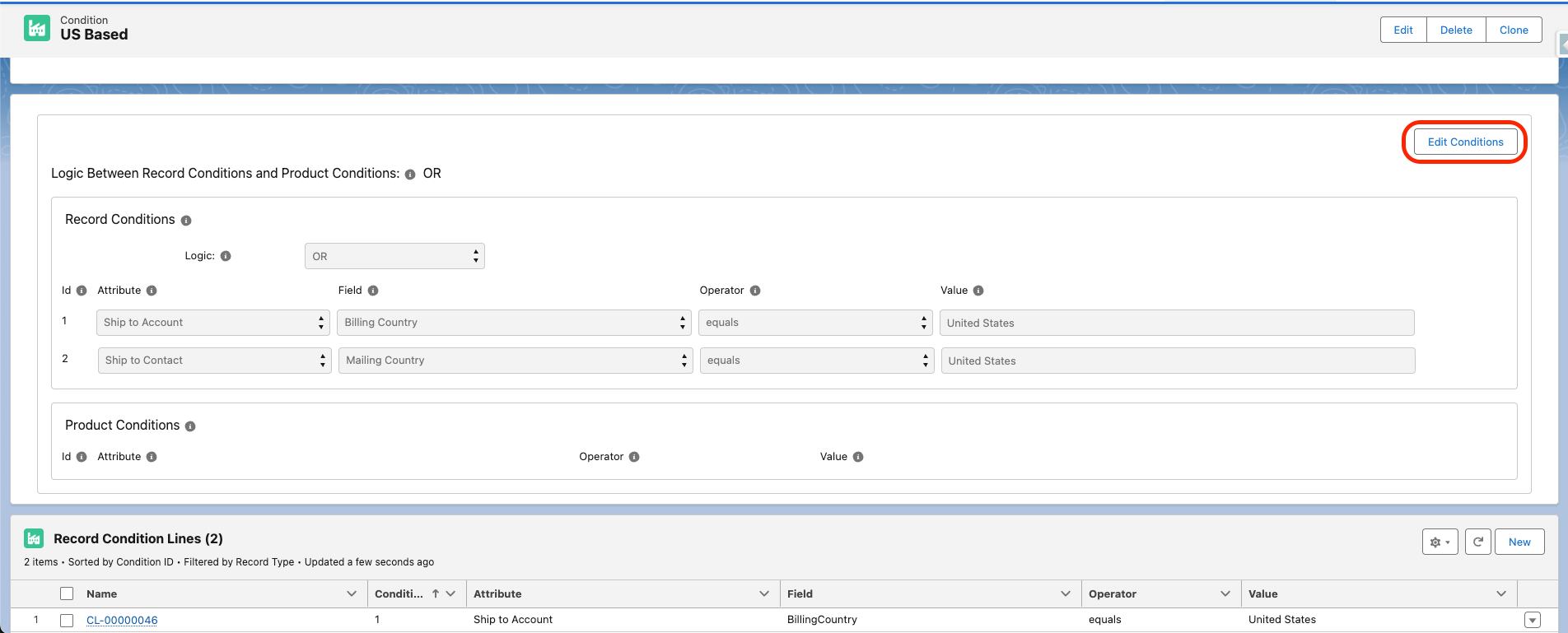
3
Add or remove condition lines
From here, you can freely add or remove condition lines by clicking Add Row for either Record or Product Conditions.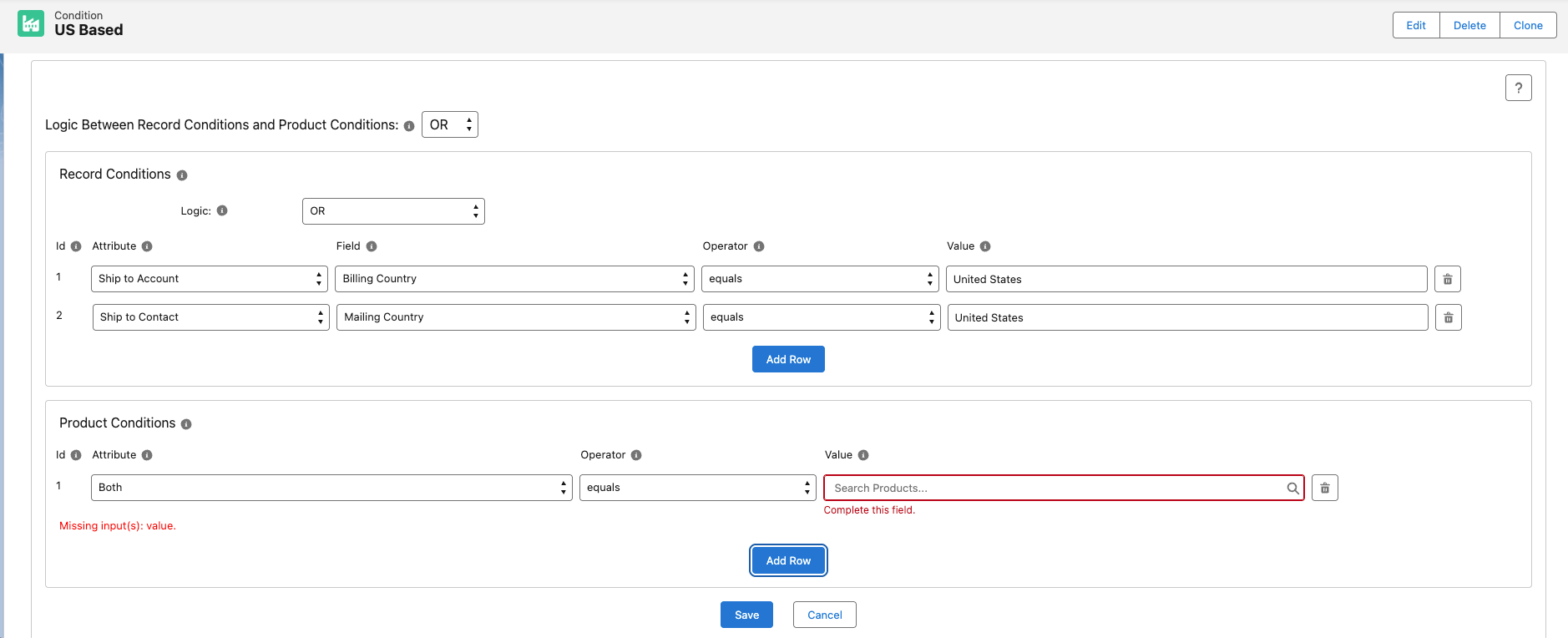
Condition Line Fields
- Attribute - What the Condition Line looks at when evaluating
- For Product Conditions, the Attributes are Owned, In Cart, or Owned/In Cart
- Owned looks at Purchase Activities related to the current customer for the Product
- In Cart looks at whether the Product is in the current cart
- Owned/In Cart looks at either
- For Record Conditions, the Attributes are Order, Opportunity, Ship to Account, and Ship to Contact
- Order and Opportunity are best for use cases such as taxes
- These look at the related Order or Opportunity
- Ship to Account and Ship to Contact are best for use cases such as location-based pricing
- These look at the Account or Contact the order ships to
- Order and Opportunity are best for use cases such as taxes
- For Product Conditions, the Attributes are Owned, In Cart, or Owned/In Cart
- Field - The field on the Attribute that you wish to evaluate
- Only for Record Condition Lines
- Operator - How the Condition will evaluate. Things such as Equals, Not Equals, Greater Than, Less Than, etc.
- Value - That for which you want to evaluate the Condition Line
The Record/Product Connection setting on the Condition controls how the Record condition lines and the Product condition lines are combined: AND requires both groups to pass, while OR requires only one of them. If you configure just one group of lines (only Record, or only Product), either setting works — the group you leave empty is ignored.
Limitations and Common Pitfalls
- Product condition lines are always combined with OR. You cannot require multiple Product condition lines together with AND; only Record condition lines honor the Record Logic setting (AND / OR / Custom).
- The Record/Product Connection only matters when both groups exist. AND vs OR between the Record and Product groups only changes the outcome when you have configured both kinds of lines.