

Paying with a Wallet Item as a Staff User
Prerequisites
- The
FC Commerce - Access To Pay With Wallet Itemspermission set is assigned to the staff user taking the payment. - The contact has at least one active Wallet Item.
1
Choose Saved Payments
On the Payment page, select Saved Payments as the payment type.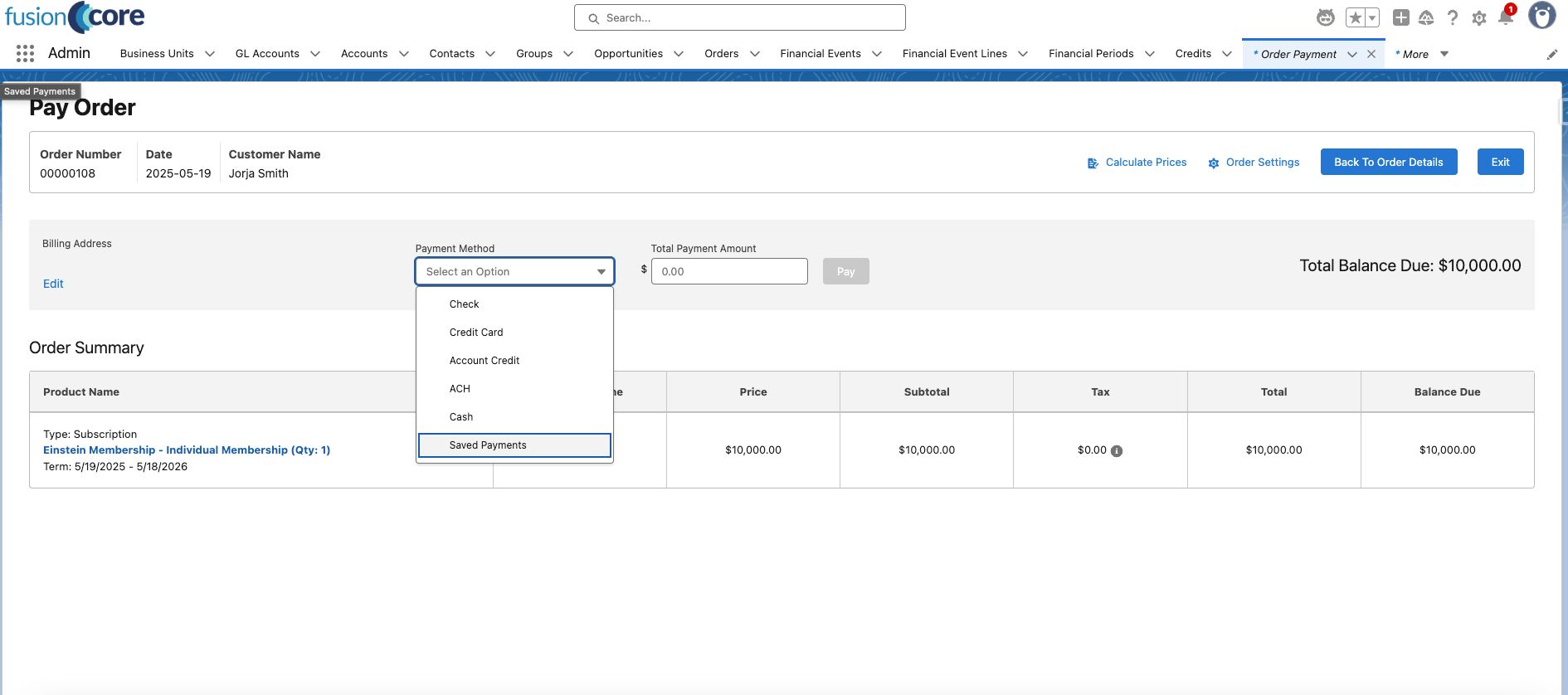
2
Select a saved method and pay
Select one of the saved payment methods, then click Pay.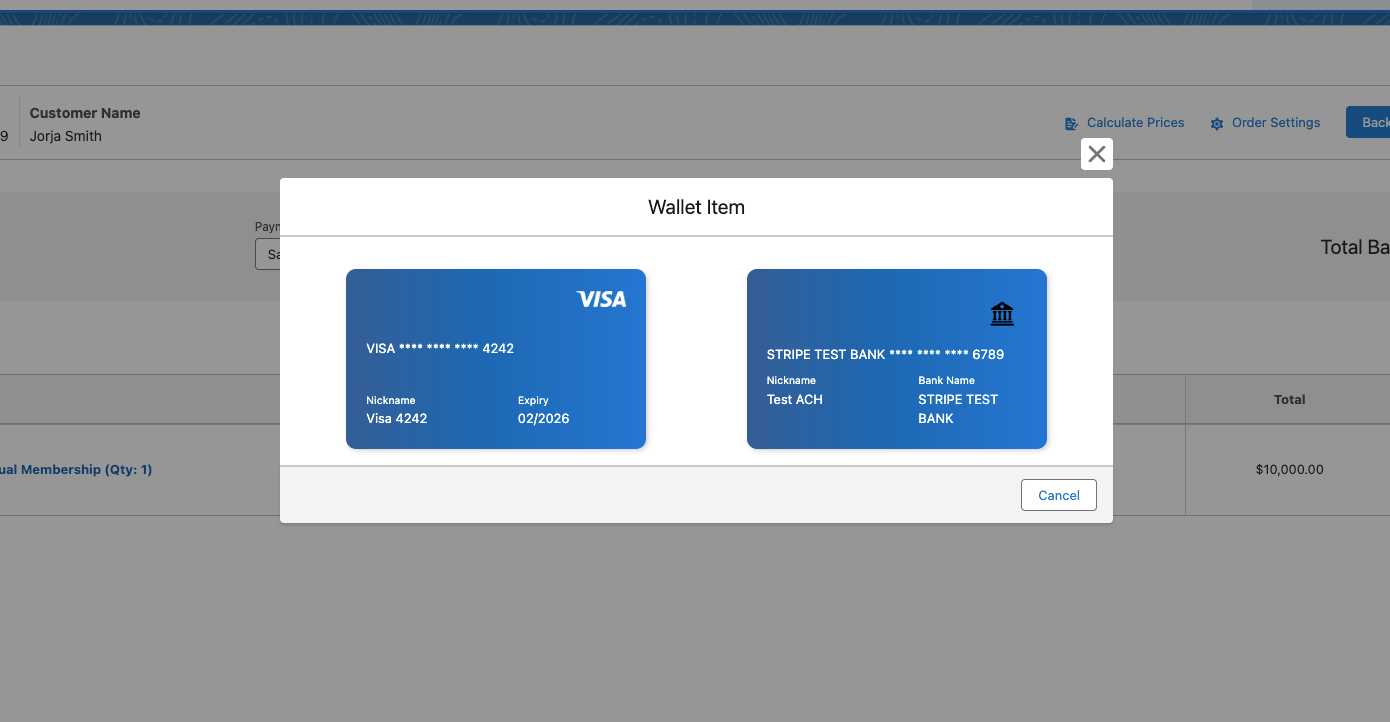
Paying with a Wallet Item as a Portal User
Prerequisites
- The
FC_Portal_My_Walletpermission set is assigned to the portal user. - The portal user has at least one active Wallet Item.
1
Choose a saved method at checkout
On the checkout page, choose Saved Payment Methods as your payment method and select the Wallet Item to pay with.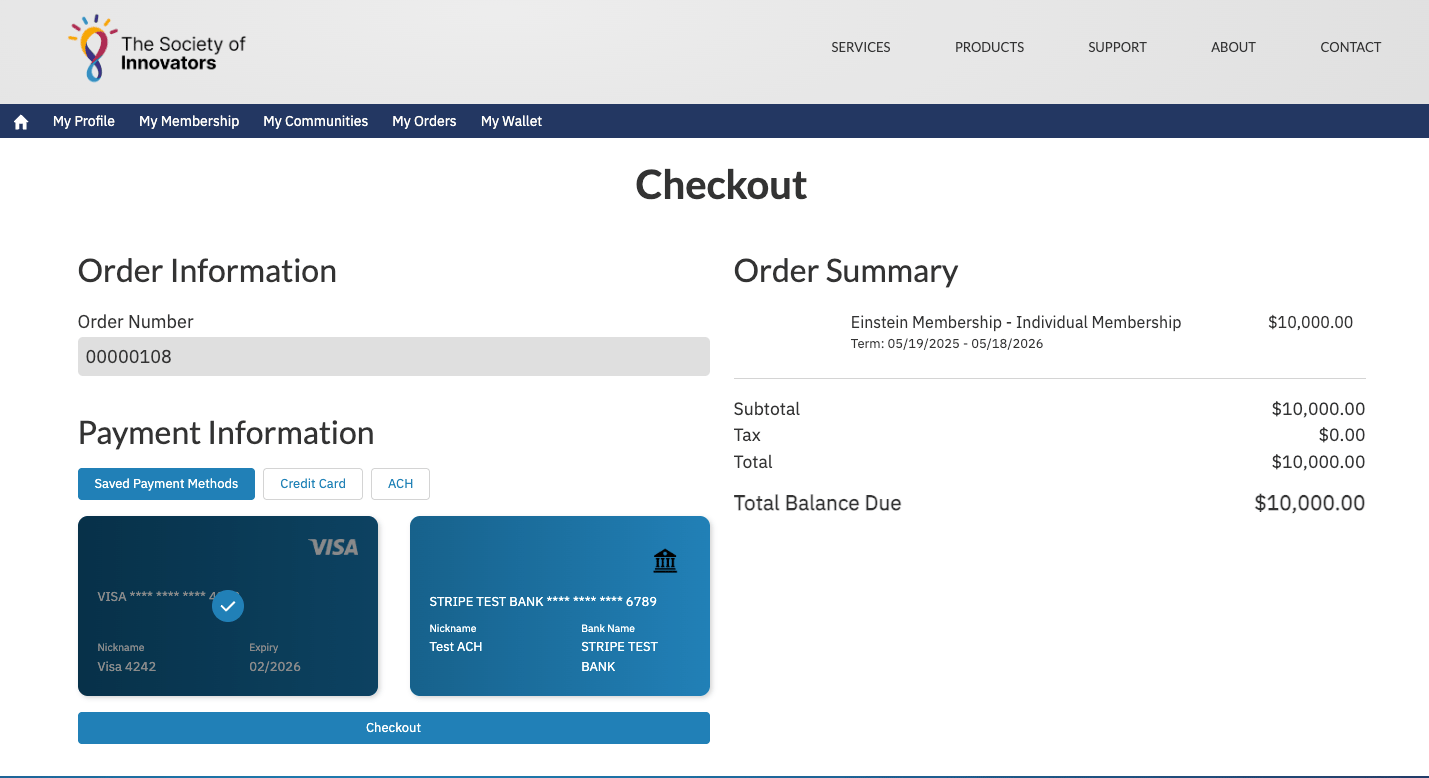
2
Check out
Click Checkout to complete the payment.
Limitations and Common Pitfalls
- Staff need the pay-with-wallet permission set. Without
FC Commerce - Access To Pay With Wallet Items, the Saved Payments option does not appear for a staff user. - An out-of-date method fails the charge. If a saved card has expired or its details have changed at the provider, paying with it errors. Update the Wallet Item first — see Editing Wallet Items.
- Removed methods cannot pay. A removed Wallet Item is detached at the provider and no longer charges, even though its record still exists. Save a new method instead.