

CurrencyIsoCode field) to records and tracks conversion rates between your org’s corporate currency and each currency you activate. The corporate currency is the single currency your org rolls everything up to for consolidated reporting.
Prerequisites
- Multi-currency must already be enabled in your org. See Enabling Multi-currency. The Currency field only appears on records after this is done.
- The currency you plan to assign must be activated in Setup > Currency Setup.
- You need permission to edit Business Unit records.
How to Define Business Unit Currency
1
Open the Business Unit tab
In your Salesforce instance, click the Business Unit tab. You can also find Business Units by searching in the App Launcher.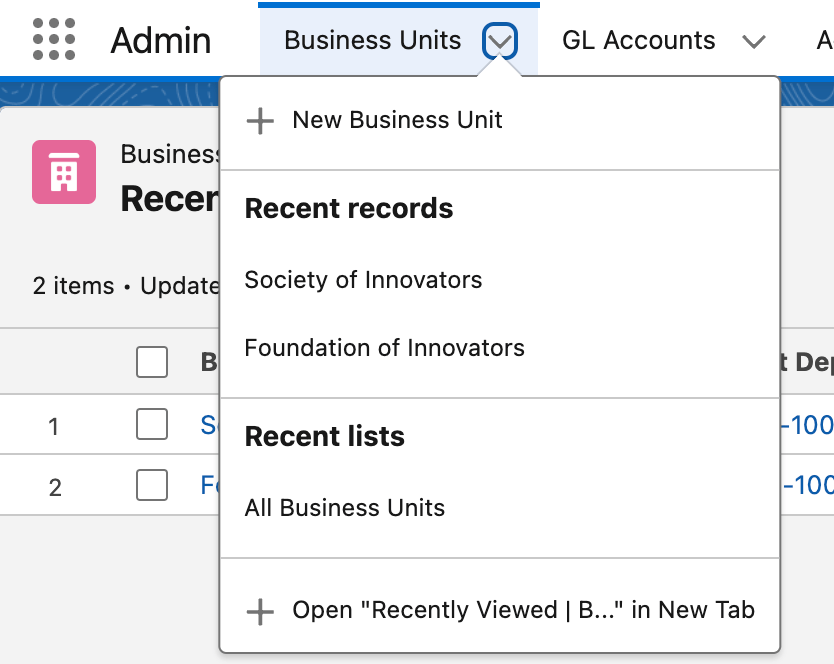
2
Choose a Business Unit
Select the Business Unit you want to update from the list.
3
Edit the Currency field
On the Business Unit detail page, click the pencil icon next to the Currency field.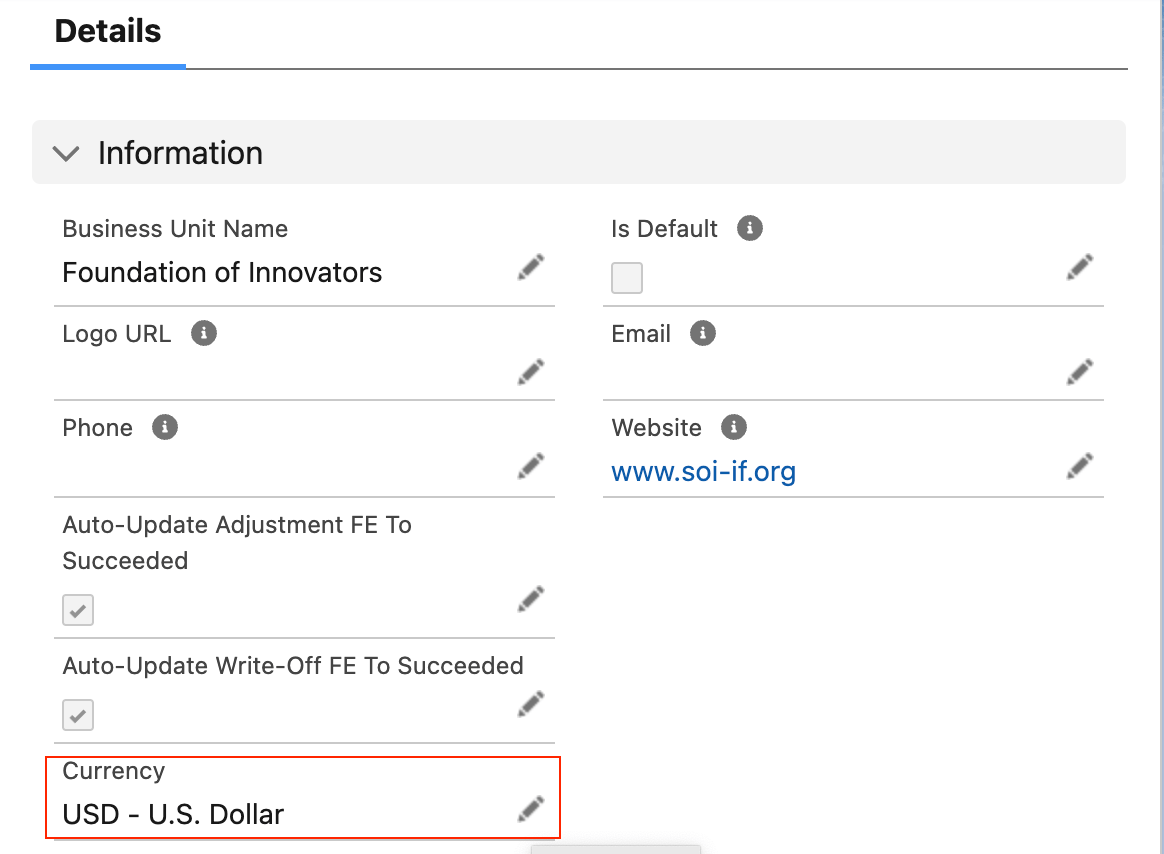
The Currency field only appears after multi-currency has been enabled. If you just enabled multiple currencies and do not see the Currency field — or you see it but it is missing recently added values — refresh the screen.
4
Select the currency and save
Choose the appropriate Currency, then click Save.
A Business Unit only transacts cleanly with records in its own currency. fusionCore filters products so an order or opportunity sees only products in the same currency as that record. Because of this, a Business Unit that sells in more than one currency needs its own Products and Payment Types for each of those currencies, with each of those records set to the matching currency.
Limitations and Common Pitfalls
- The order currency is taken from the Account or Contact the order is created from — not from the Business Unit. When you use the Create Order quick action, the new order inherits the source record’s currency automatically and you are not prompted to pick a currency. Set the Account Currency or Contact Currency correctly before creating orders. See Creating Multi-Currency Orders.
- A product is only available on an order or opportunity when the product’s currency matches that record’s currency. If a Business Unit’s currency has no products set to that currency, those products will not appear when staff build orders.
- A currency must be activated and rated in Setup > Currency Setup before you can transact in it. Selecting a currency that is not activated leads to conversion errors elsewhere in fusionCore.