

Overview
The Payment Confirmation component shows a Portal user a summary of their transaction after a successful payment, including a link to their receipt. It is the managedpaymentConfirmation component (Portal, FCORE_PORTAL), and it is the page the checkout component redirects to after payment (via its Payment Confirmation URL property, default FC_Payment_Confirmation__c).
The component reads the relevant Financial Event from a UUID passed in the page URL, then displays its details and a receipt link. The confirmation number it shows is the Financial Event’s name with the FE- prefix removed.
Prerequisites
- A published Experience Cloud page for payment confirmation. See Creating Portal Site Pages.
- A field on
FCORE_PAY__Financial_Event__cthat holds the receipt URL, populated before the user is redirected. The default field isFS_Portal_View_Document_URL__c.
How to Configure the Payment Confirmation Page
1
Add the component to your confirmation page
Open your payment confirmation page in Experience Builder. Click the Components icon, search for Confirmation, and drag the fusionCore: Payment Confirmation component onto the page.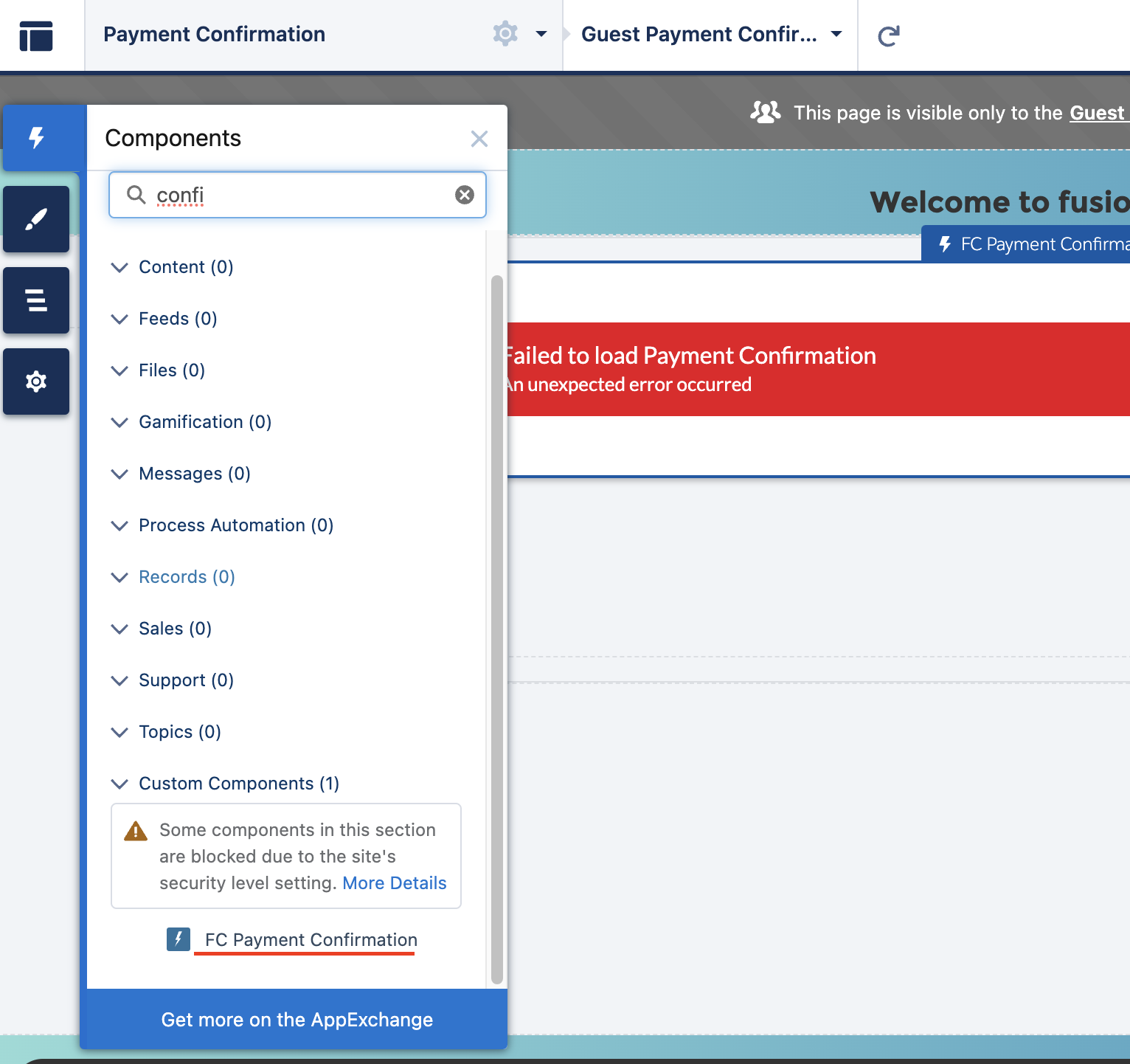
2
Set the receipt URL field
Select the component and set the Receipt Document URL Field API Name property (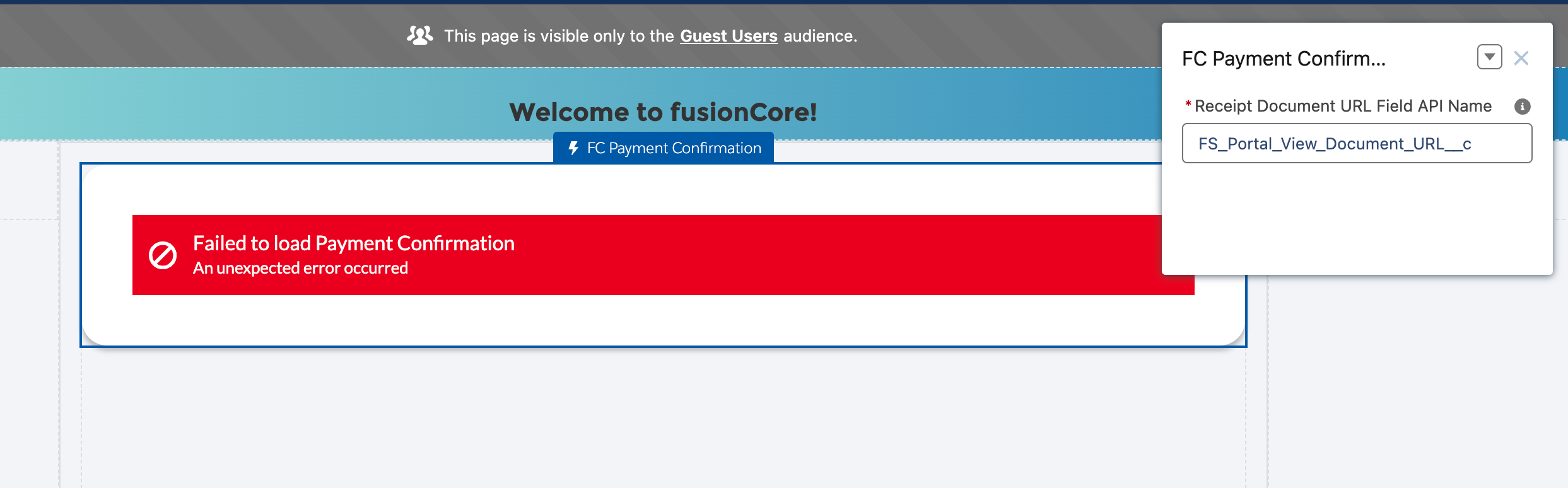
receiptDocumentUrlFieldApiName) to the API name of the field on FCORE_PAY__Financial_Event__c that holds the receipt URL. The default value is FS_Portal_View_Document_URL__c, which links to the financial-document Visualforce pages on the Financial Event. Click Publish.Limitations and Common Pitfalls
- The receipt URL field must be populated before the redirect, or the page errors. The component expects the field named in
receiptDocumentUrlFieldApiNameto already hold a value when the user lands on the page. Make sure your install order and automation populate that field before checkout redirects the user. - The configured field must be a real, queryable field on the Financial Event. If
receiptDocumentUrlFieldApiNamenames a field that does not exist onFCORE_PAY__Financial_Event__c, the component cannot load. Confirm the field exists before publishing. - The Financial Event must be
Type = Payment. The component throws an error for a Financial Event of any other type, because confirmation is meaningful only for a completed payment. - The receipt URL must be a real web link. The value must begin with
http://orhttps://; a path or bare text will not produce a working receipt link. - The page needs a UUID parameter. The component loads its Financial Event from a UUID passed in the page URL. If the redirect omits that parameter, the page cannot find the transaction. Letting the checkout component handle the redirect supplies this automatically.