

FS_Community_Member__c) links a Contact (a person) to a Community. Adding a member records that the person belongs to the Community and when their involvement started.
For background on the Community feature and the objects it uses, see Communities.
Before You Start
- The Community already exists. If it does not, create the Community first.
- The person you want to add already has a Contact record.
Add a Community Member
1
Open the Community
Open the Community record you want to add a member to.
2
Start a new Community Member
On the Community record, find the Community Members related list and click New Community Member.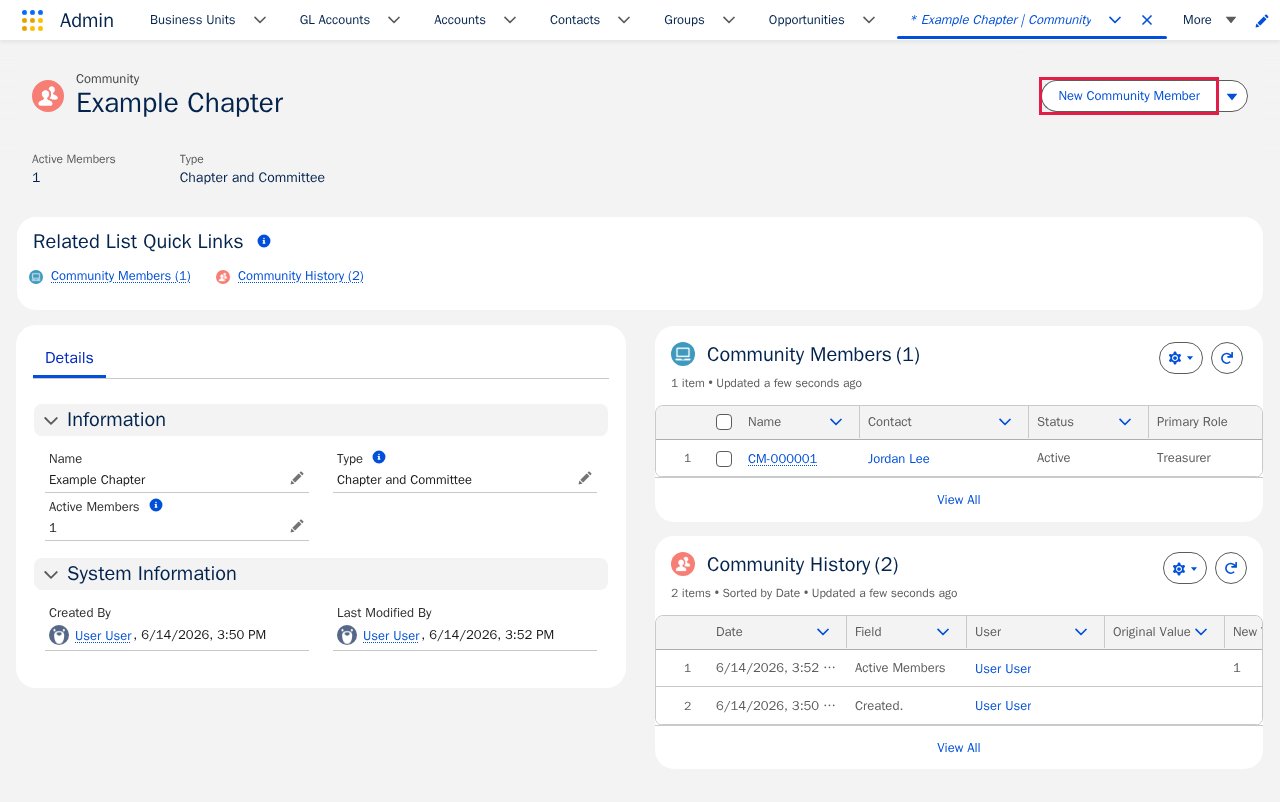
3
Fill in the member details
Complete the form: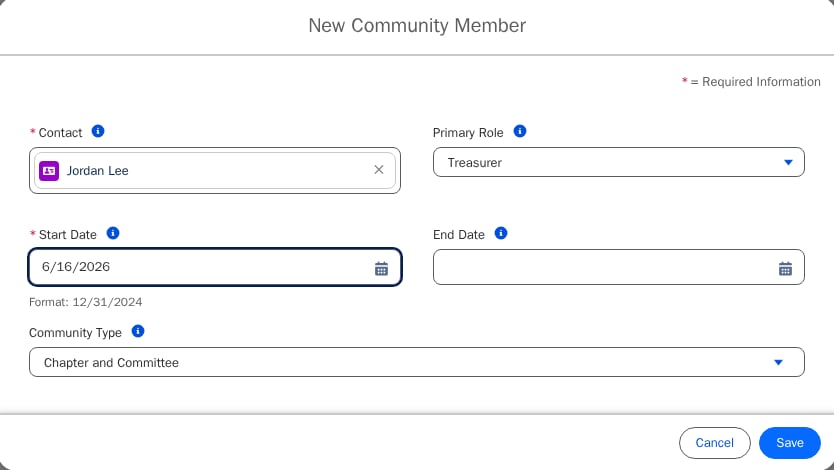
- Contact (required) — the person you are adding.
- Start Date (required) — when the person’s involvement begins.
- Community Type — read-only; fusionCore fills this in from the Community.
- Primary Role (optional) — the role this member holds.
- End Date (optional) — when involvement ends. Leave it blank for ongoing (lifetime) membership.
4
Save
Click Save.
When you save, fusionCore automatically creates a matching Community Position for the member, using the Start Date and Primary Role you entered. If you leave Primary Role blank, the position is created with the role configured as your org’s default (typically Member). A position therefore appears even if you did not add one by hand.
- A person can be a member of a given Community only once — fusionCore blocks you from adding the same Contact to the same Community twice.
- Leaving End Date blank treats the membership as ongoing (a lifetime membership) until you change it.
Member Status Is Automatic
The member Status — Active, Future, or Expired — is set automatically from the Start Date and End Date. Do not edit it by hand; let fusionCore calculate it from the dates.Community Member Fields Quick Reference
Community Position
A Community Position (FS_Community_Position__c) is a dated role that a Community member holds — for example, Chair, Treasurer, or Member. A single member can hold more than one position over time.
fusionCore usually creates a position for you automatically when you add a Community member, as described above. Follow the steps below when you want to add an additional position.
Before You Start
- The Community member already exists. If not, add the member first.
Add a Community Position
1
Open the Community Member
Open the Community Member record you want to add a position to.
2
Start a new position
Find the Community Positions related list and click New Position.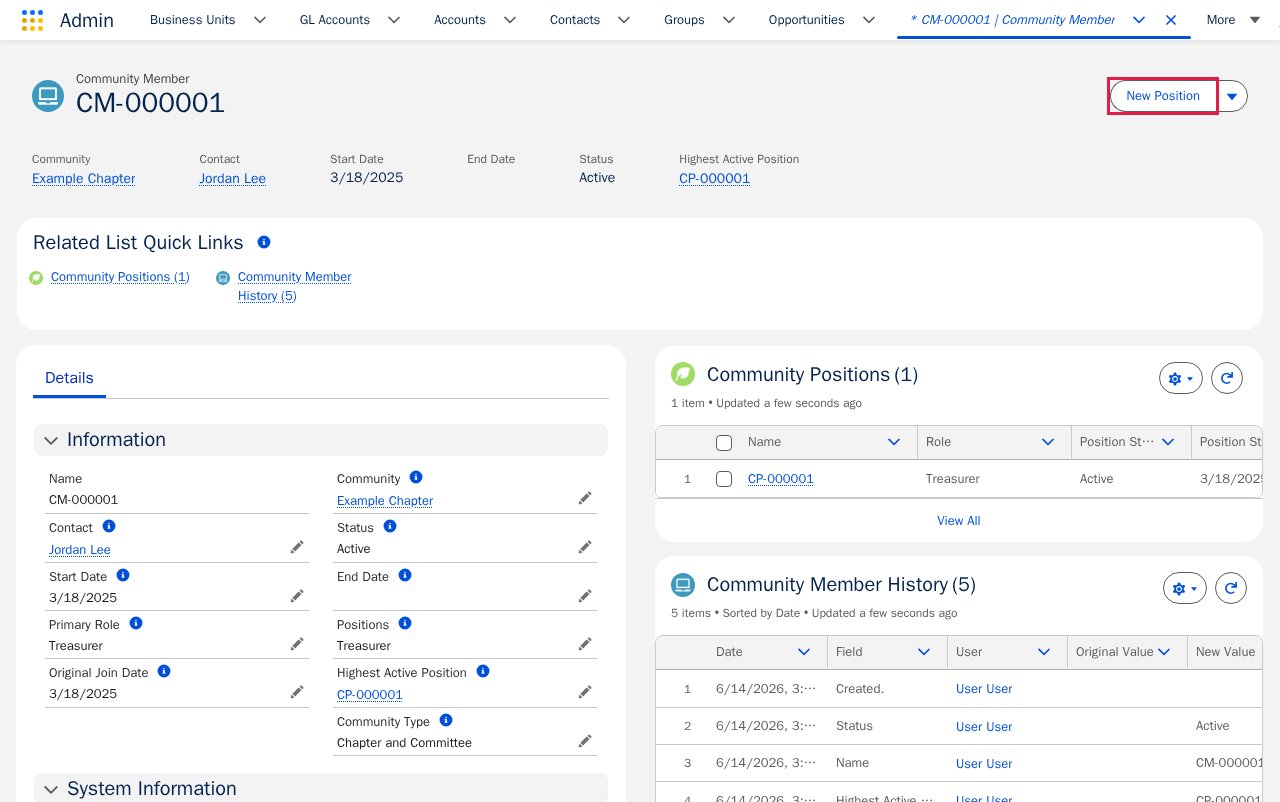
3
Fill in the position details
Complete the form: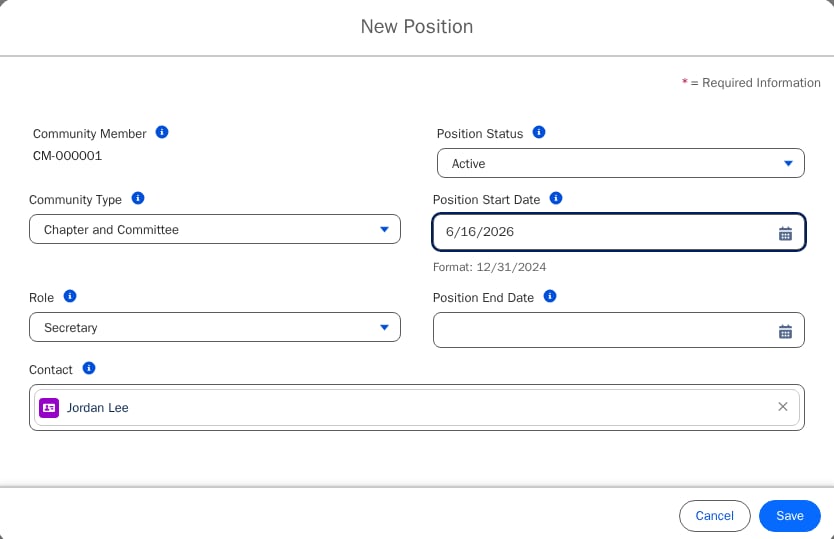
- Role (required) — the role the member holds. The available values depend on the Community Type.
- Start Date (required) — when the member begins this role.
- End Date (optional) — when the role ends.
4
Save
Click Save.
The values in the Role picklist depend on the Community Type. If you do not see the role you expect, check the Community’s Type.
Position Status Is Automatic
The position Status — Active, Future, or Expired — is set automatically from the Start Date and End Date. You do not need to set it. For example, if both dates are in the future, the status becomes Future, even if you tried to set something else when creating the record.Limitations and Common Pitfalls
Keep these in mind when you add members and positions. The callouts above also cover two of them: a person can belong to a given Community only once, and saving a member automatically creates a matching Community Position.- You cannot save a member without a Community, but you can save one without a Contact. Community is required, while Contact is not. It is possible to save a member with no person attached, which leaves an empty membership. Always fill in Contact before you save.
- Do not edit Member Status by hand. As covered in Member status is automatic, the member Status is calculated from the Start Date and End Date. Change the dates to change the status; editing the status directly will not stick.
- The available Role values depend on the Community Type. As noted above, the Role list on a position is limited by the Community’s Type. Set the Type on the Community first; otherwise the role you want may not appear. See Communities for how the Type is set.
- Do not set Position Status by hand. As covered in Position status is automatic, the position Status is calculated from the Start Date and End Date. Change the dates to change the status.
Related Features
A member is always tied to a Contact and belongs to a Community. These guides cover what you need next.Communities
How Communities work and the objects they use. Create a Community here if you don’t have one yet.
Contacts
The person record behind every member. Each Community Member links to a Contact.