

A fusionCore Community is not the same as a Salesforce “Community”, “Digital Experience”, or “Experience Cloud” site. Those are public-facing web portals. A fusionCore Community is an internal grouping feature built on three custom objects, and the fusionCore member-facing portal is a separate product. This guide covers only the fusionCore Community feature.
How the Data Fits Together
The Community feature uses three custom objects.- A Community (
FS_Community__c) is the group itself — for example, the Membership Committee. - A Community Member (
FS_Community_Member__c) links a Contact (the person) to a Community. - A Community Position (
FS_Community_Position__c) is a dated role that a member holds, such as Chair or Member. One member can hold more than one position over time.
Create a Community
These steps create the Community record itself. You add members afterward.1
Open the Communities list
Click the App Launcher (the nine dots at the top left), type Communities, and click Communities.
2
Click New
On the Communities list view, click New.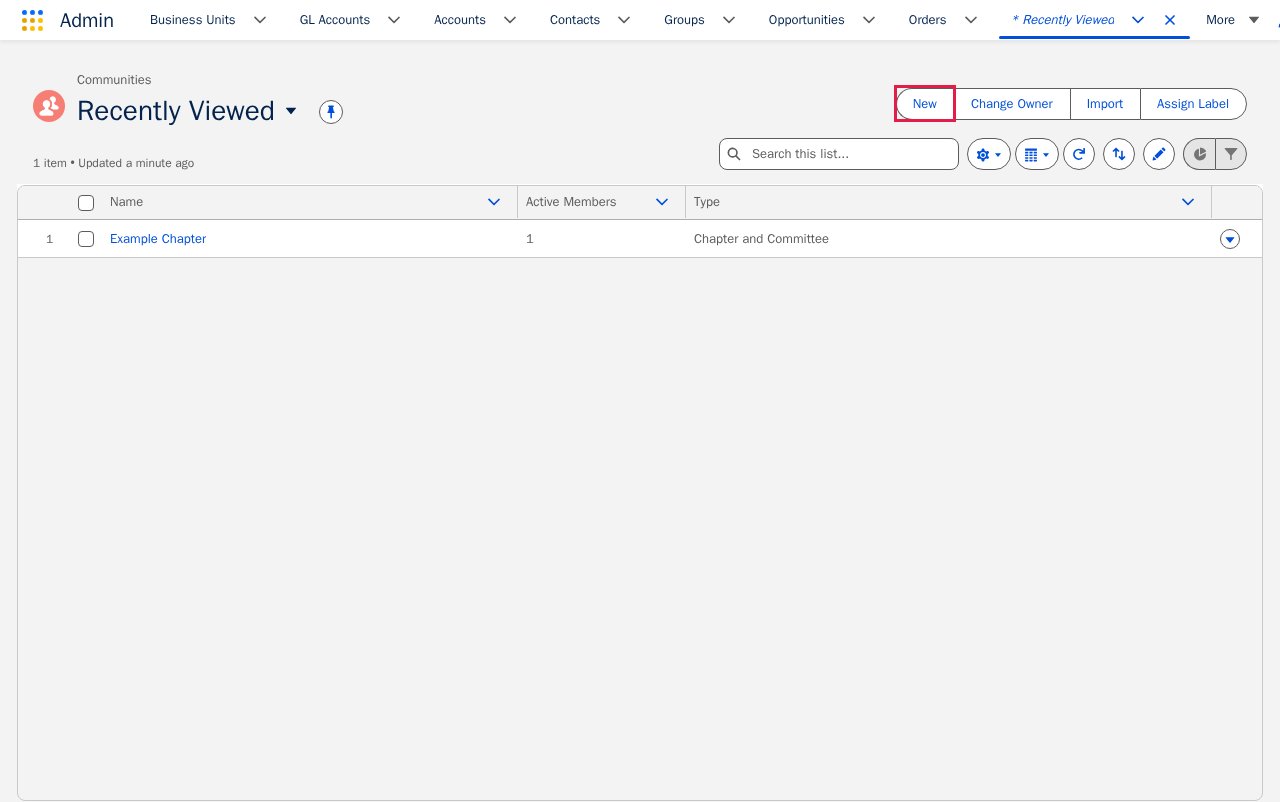
3
Enter a Name and choose a Type
Enter a Name for the Community. Then choose a Type — either Chapter and Committee or Task-Force and Working Group.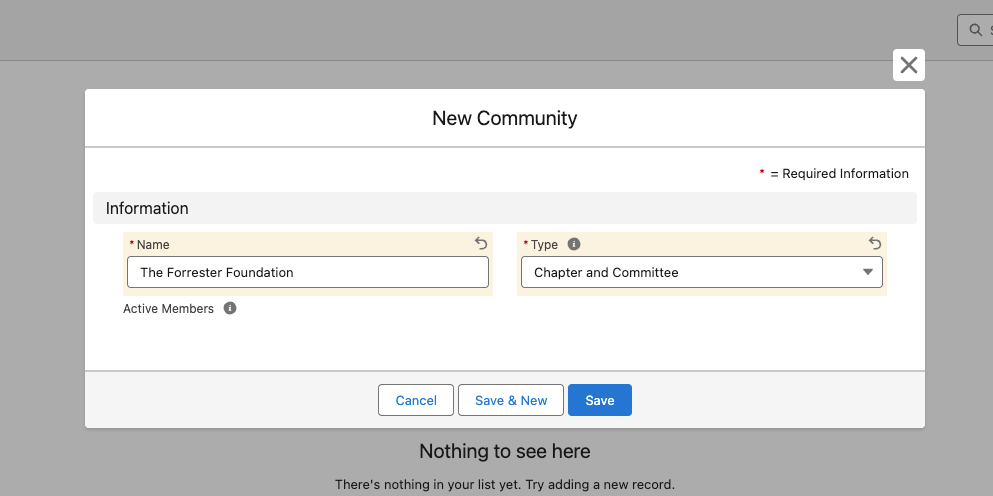
4
Save
Click Save.
The Community Name must be unique. fusionCore blocks you from saving a Community with the same name as an existing one.
The Community Type you choose determines which Role values are available when you add positions to members in this Community. Choose the Type that matches the kind of group you are creating.
Next Steps
Once the Community exists, add the people who belong to it.Limitations and Common Pitfalls
Related Features
- Contacts — every Community Member links to a Contact, so the people you add here are existing Contact records.