

FCORE_PAY__Financial_Period__c) is a record that represents an accounting date range you want to close out, such as a calendar month. fusionCore does not post journal entries or create debit/credit transactions itself. Instead, a Financial Period organizes and locks the supporting financial data for a timeframe so your general ledger (GL) system can import it. Locking that period is how you signal the data is final.
How Locking Works
When you click Lock, fusionCore runs validations, then starts a batch job. On success, the job setsIs_Locked__c = true on the parent Financial Events and flips the period’s Status__c to Closed.
Because the work runs in the background, the period does not close the instant you click the button. It closes only when the batch job finishes successfully. You can track progress in the Batch_Job_Status__c field on the record, which moves from Processing Lock to Completed Lock. If something fails, it shows Lock Error and the reason appears in the Batch_Job_Error_Message__c field.
Prerequisites
- The Lock quick action must be added to the Financial Period record page.
- The period’s
Status__cmust beOpen. You cannot lock a period that is alreadyClosed. - You must Fetch the Financial Event Lines first. See Fetching Financial Event Lines.
Lock a Financial Period
Your Financial Event Lines must be fetched before you lock the period.
1
Open the Financial Period record
Open a Financial Period record by clicking its name in the list view.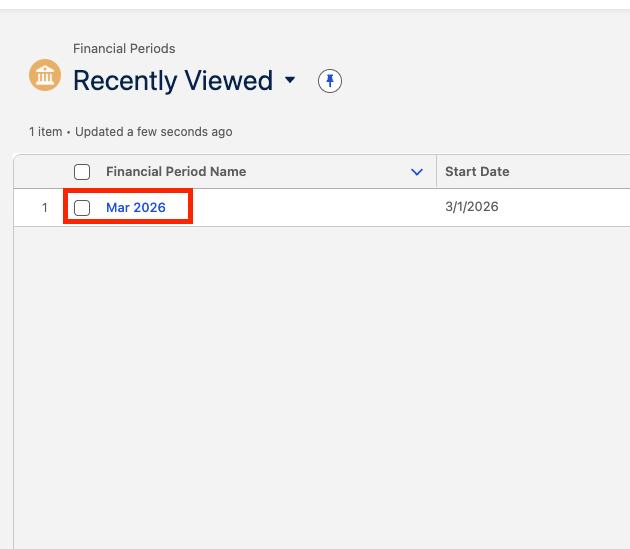
2
Click Lock
At the top right-hand side of the record, click Lock.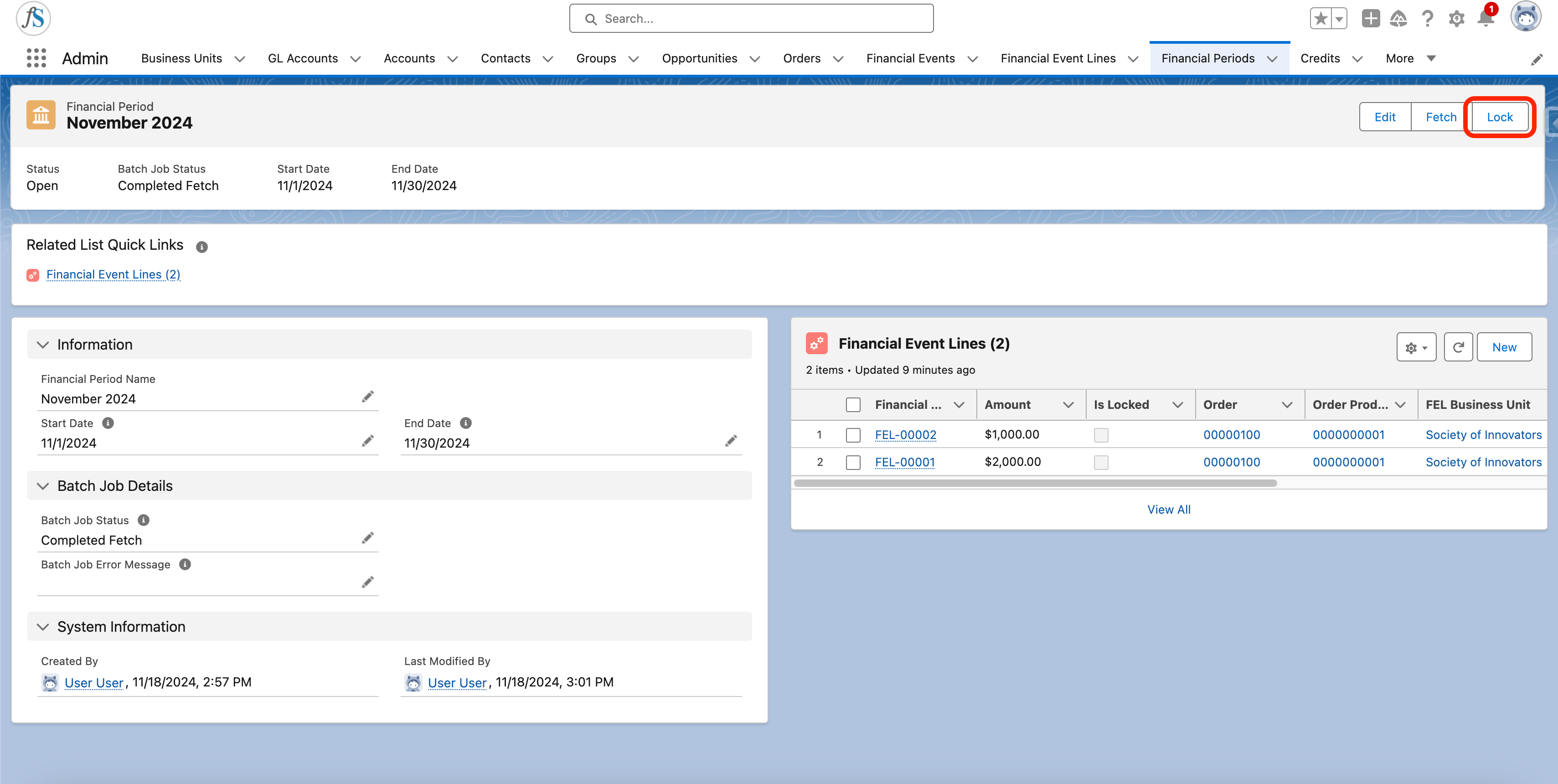
3
Wait while the lock runs
A pop-up appears with a progress message while the lock batch job runs.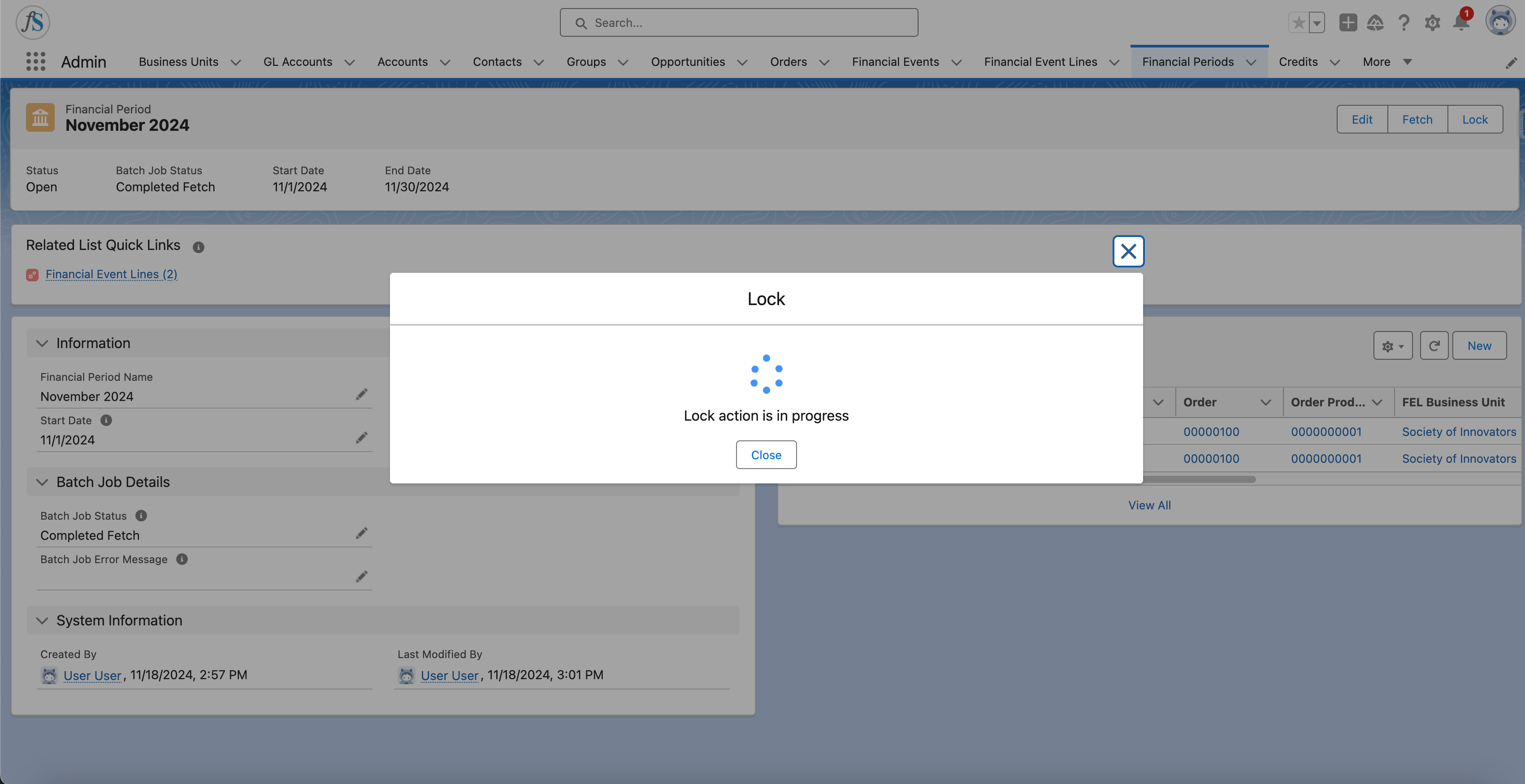
4
Confirm the success message
When the lock completes, a pop-up appears with a success message.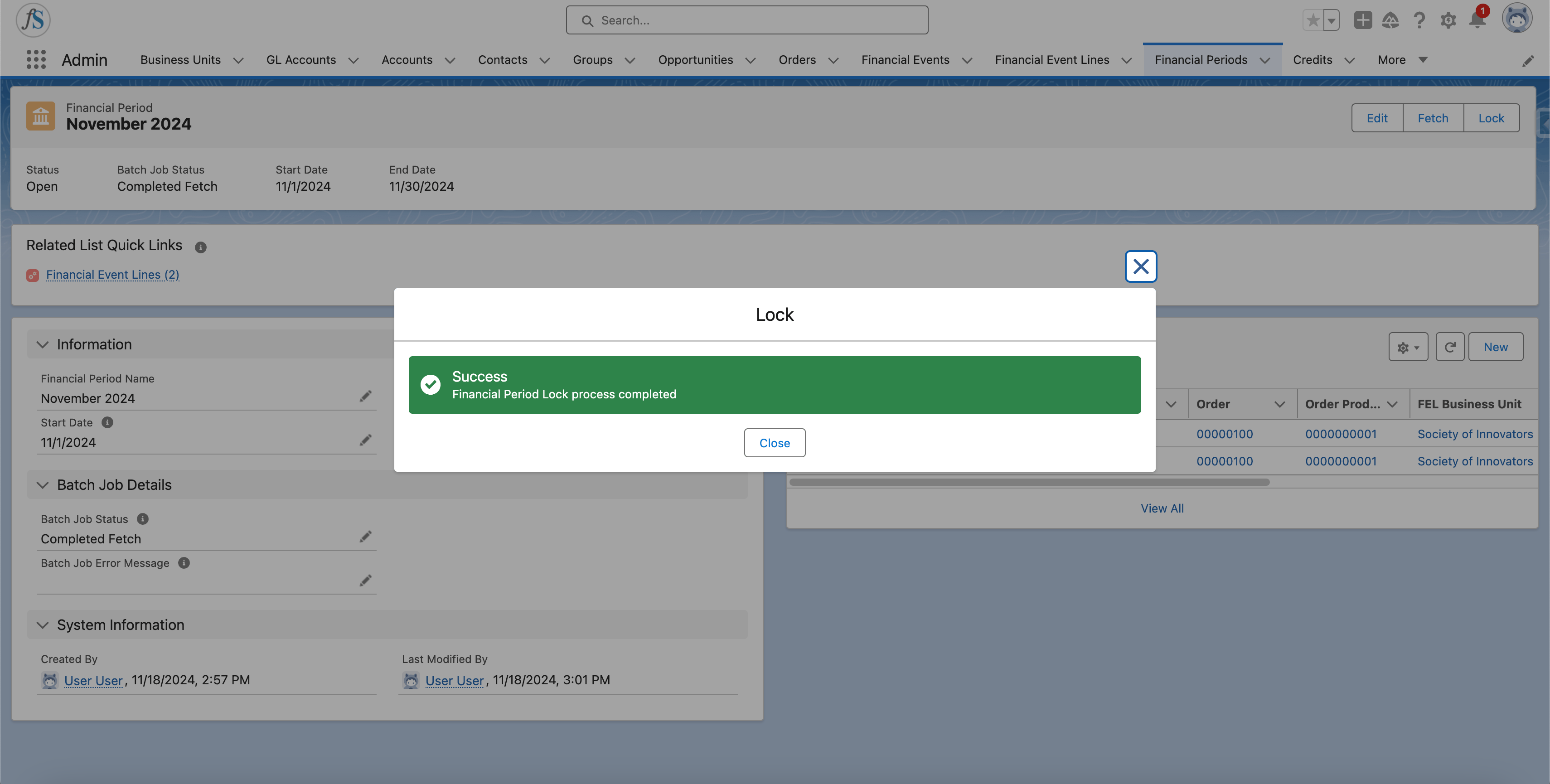
5
Refresh to confirm the locked lines
Click the refresh icon on the Financial Event Lines section. The lines now display as Locked.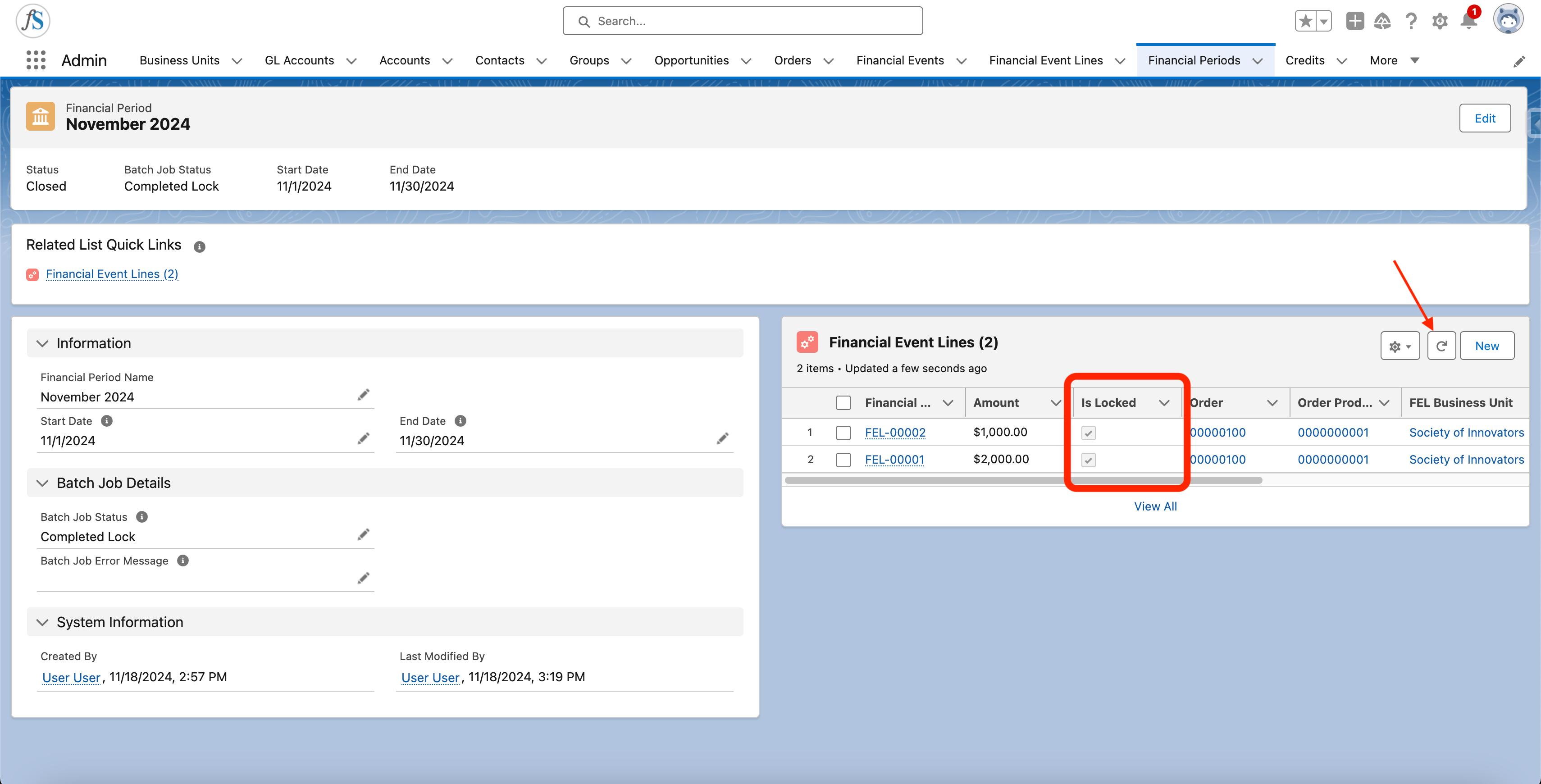
Limitations and Common Pitfalls
-
Locking is effectively irreversible from the record page. Once a period is
Closed, you cannot edit itsStart_Date__c,End_Date__c, orStatus__c, and you cannot edit or delete the locked Financial Event Lines. This package ships no “reopen” button. -
You can only lock an Open period. If
Status__cis alreadyClosed, the Lock button reportsAction is available only for Open Financial Periods. -
No concurrent runs. You cannot start a second action while a fetch or lock is still running. Wait for
Batch_Job_Status__cto reachCompleted FetchorCompleted Lockbefore clicking again. -
Lock runs extra pre-flight checks beyond Fetch. Before freezing anything, fusionCore confirms every linked line’s parent event succeeded inside the period’s date range, that no succeeded line in the range was left unlinked, and that every linked event has a
Succeededstatus. If any check fails, the lock stops and the error message names the line that caused it. -
The period closes only on batch success. If the batch job errors, the period stays
Open,Batch_Job_Status__cbecomesLock Error, and the detail appears inBatch_Job_Error_Message__c. Check that field if a lock does not complete. - Partial success is possible. The job does not stop at the first bad row. Rows that succeed are committed even if others fail, and the period is flipped to the error status. Review the error message and re-check your lines before trying again.