Build and run a three-step Job Group that rates Prospect Accounts, creates Contacts, and stamps summaries, including an error and a retry.
This example builds a three-step Job Group end to end. It shows how steps depend on each other, how an error appears, and how a rerun succeeds after you fix the data.
Prerequisites
You have the FC Platform - Manage Async Jobs permission set.
You can create Accounts and Contacts in the org.
You can deploy Apex classes to your org (Setup, an IDE, or a deployment).
The Job Group is named Prospect Account Enrichment. Its description is “Rates Prospect Accounts, creates a primary Contact for Hot prospects, and stamps a summary on each Account.”
Step
Definition Name
Apex Class
Await
What it does
1
Update Account Rating
AccountRatingJob
On
Sets Rating on each Prospect Account to Hot if Annual Revenue is 1,000,000 or more, otherwise Warm.
2
Create Primary Contacts
PrimaryContactJob
On
For each Hot Prospect with no Contacts, creates a Contact named “Primary Contact” with the email info@ plus the Account’s website domain. An Account with no Website is reported as an error.
3
Stamp Account Descriptions
AccountDescriptionJob
Off
Sets Description to Rating: <Rating>. Contacts: <n>.
All three steps use a Batch Size of 200 and leave Parallel off.
Why Await Is On for Steps 1 and 2
Step 2 only finds Hot Accounts, so it needs the ratings from step 1. Step 3 counts Contacts, so it needs the Contacts from step 2. Sequence alone does not make a step wait, so Await on steps 1 and 2 holds the next step until the previous one finishes. Step 3 has no later step, so it does not need Await.
Harbor Light Society has no Website on purpose. It makes step 2 fail so you can see how errors appear.
The Apex Classes
Each class implements FCORE_BASE.JobExecutor, is declared global, and uses with sharing. Each one implements both the regular and retry methods. See For Developers for the interface.
Step 1: AccountRatingJob
This class reports a failed record through recordErrors. It updates with allOrNone set to false, so one bad record does not fail the whole batch. In executeRetry, it reports only successes.
/** * Step 1 of the example Job Group: rates every Prospect Account by Annual Revenue. */global with sharing class AccountRatingJob implements FCORE_BASE.JobExecutor { global Database.QueryLocator getQueryLocator(FCORE_BASE.JobRunStageContext context) { return Database.getQueryLocator([SELECT Id, AnnualRevenue FROM Account WHERE Type = 'Prospect']); } global Iterable<Object> getIterable(FCORE_BASE.JobRunStageContext context) { return null; // getQueryLocator is used instead } global FCORE_BASE.JobRunStageResult execute(List<Object> scope, FCORE_BASE.JobRunStageContext context) { FCORE_BASE.JobRunStageResult result = new FCORE_BASE.JobRunStageResult(context); List<Account> accounts = (List<Account>) scope; for (Account account : accounts) { account.Rating = account.AnnualRevenue >= 1000000 ? 'Hot' : 'Warm'; } // allOrNone = false: one bad record does not fail the whole chunk List<Database.SaveResult> saveResults = Database.update(accounts, false); for (Integer i = 0; i < saveResults.size(); i++) { if (!saveResults[i].isSuccess()) { FCORE_BASE.JobRunStageResult.RecordError error = new FCORE_BASE.JobRunStageResult.RecordError(); error.recordId = accounts[i].Id; error.errorMessage = saveResults[i].getErrors()[0].getMessage(); result.recordErrors.add(error); } } return result; } global Database.QueryLocator getRetryQueryLocator(FCORE_BASE.JobRunStageContext context) { // Context 1 of a retry stage holds the failed record IDs as a JSON list Set<Id> retryIds = String.isBlank(context.stage.FCORE_BASE__Context_1__c) ? new Set<Id>() : (Set<Id>) JSON.deserialize(context.stage.FCORE_BASE__Context_1__c, Set<Id>.class); return Database.getQueryLocator([SELECT Id, AnnualRevenue FROM Account WHERE Id IN :retryIds]); } global Iterable<Object> getRetryIterable(FCORE_BASE.JobRunStageContext context) { return null; } global FCORE_BASE.JobRunStageResult executeRetry(List<Object> scope, FCORE_BASE.JobRunStageContext context) { FCORE_BASE.JobRunStageResult result = new FCORE_BASE.JobRunStageResult(context); List<Account> accounts = (List<Account>) scope; for (Account account : accounts) { account.Rating = account.AnnualRevenue >= 1000000 ? 'Hot' : 'Warm'; } List<Database.SaveResult> saveResults = Database.update(accounts, false); for (Integer i = 0; i < saveResults.size(); i++) { // Report only successes; the original Job Error stays for records that fail again if (saveResults[i].isSuccess()) { result.successfullyRetriedRecordIds.add(accounts[i].Id); } } return result; }}
Step 2: PrimaryContactJob
This class reports an Account with no Website as a record error. That error is what triggers the retry.
/** * Step 2 of the example Job Group: creates a primary Contact for each Hot Prospect Account * that has no Contacts yet. The Contact's email uses the Account's Website domain. */global with sharing class PrimaryContactJob implements FCORE_BASE.JobExecutor { global Database.QueryLocator getQueryLocator(FCORE_BASE.JobRunStageContext context) { return Database.getQueryLocator([ SELECT Id, Name, Website FROM Account WHERE Type = 'Prospect' AND Rating = 'Hot' AND Id NOT IN (SELECT AccountId FROM Contact) ]); } global Iterable<Object> getIterable(FCORE_BASE.JobRunStageContext context) { return null; } global FCORE_BASE.JobRunStageResult execute(List<Object> scope, FCORE_BASE.JobRunStageContext context) { FCORE_BASE.JobRunStageResult result = new FCORE_BASE.JobRunStageResult(context); result.recordErrors.addAll(createContacts((List<Account>) scope)); return result; } global Database.QueryLocator getRetryQueryLocator(FCORE_BASE.JobRunStageContext context) { Set<Id> retryIds = String.isBlank(context.stage.FCORE_BASE__Context_1__c) ? new Set<Id>() : (Set<Id>) JSON.deserialize(context.stage.FCORE_BASE__Context_1__c, Set<Id>.class); return Database.getQueryLocator([SELECT Id, Name, Website FROM Account WHERE Id IN :retryIds]); } global Iterable<Object> getRetryIterable(FCORE_BASE.JobRunStageContext context) { return null; } global FCORE_BASE.JobRunStageResult executeRetry(List<Object> scope, FCORE_BASE.JobRunStageContext context) { FCORE_BASE.JobRunStageResult result = new FCORE_BASE.JobRunStageResult(context); Set<Id> failedIds = new Set<Id>(); for (FCORE_BASE.JobRunStageResult.RecordError error : createContacts((List<Account>) scope)) { failedIds.add(error.recordId); } for (Account account : (List<Account>) scope) { if (!failedIds.contains(account.Id)) { result.successfullyRetriedRecordIds.add(account.Id); } } return result; } private List<FCORE_BASE.JobRunStageResult.RecordError> createContacts(List<Account> accounts) { List<FCORE_BASE.JobRunStageResult.RecordError> errors = new List<FCORE_BASE.JobRunStageResult.RecordError>(); List<Contact> contacts = new List<Contact>(); for (Account account : accounts) { if (String.isBlank(account.Website)) { FCORE_BASE.JobRunStageResult.RecordError error = new FCORE_BASE.JobRunStageResult.RecordError(); error.recordId = account.Id; error.errorMessage = 'Website is required to create the primary Contact.'; errors.add(error); continue; } String domain = account.Website.removeStartIgnoreCase('https://').removeStartIgnoreCase('http://') .removeStartIgnoreCase('www.').substringBefore('/'); contacts.add(new Contact( AccountId = account.Id, FirstName = 'Primary', LastName = 'Contact', Email = 'info@' + domain )); } insert contacts; return errors; }}
Step 3: AccountDescriptionJob
This class returns null from execute because there is nothing for the coordinator to post-process.
/** * Step 3 of the example Job Group: stamps each Prospect Account's Description * with its Rating and Contact count. */global with sharing class AccountDescriptionJob implements FCORE_BASE.JobExecutor { global Database.QueryLocator getQueryLocator(FCORE_BASE.JobRunStageContext context) { return Database.getQueryLocator([ SELECT Id, Rating, (SELECT Id FROM Contacts) FROM Account WHERE Type = 'Prospect' ]); } global Iterable<Object> getIterable(FCORE_BASE.JobRunStageContext context) { return null; } global FCORE_BASE.JobRunStageResult execute(List<Object> scope, FCORE_BASE.JobRunStageContext context) { stampDescriptions((List<Account>) scope); return null; // nothing for the framework to post-process } global Database.QueryLocator getRetryQueryLocator(FCORE_BASE.JobRunStageContext context) { Set<Id> retryIds = String.isBlank(context.stage.FCORE_BASE__Context_1__c) ? new Set<Id>() : (Set<Id>) JSON.deserialize(context.stage.FCORE_BASE__Context_1__c, Set<Id>.class); return Database.getQueryLocator([ SELECT Id, Rating, (SELECT Id FROM Contacts) FROM Account WHERE Id IN :retryIds ]); } global Iterable<Object> getRetryIterable(FCORE_BASE.JobRunStageContext context) { return null; } global FCORE_BASE.JobRunStageResult executeRetry(List<Object> scope, FCORE_BASE.JobRunStageContext context) { FCORE_BASE.JobRunStageResult result = new FCORE_BASE.JobRunStageResult(context); for (Account account : stampDescriptions((List<Account>) scope)) { result.successfullyRetriedRecordIds.add(account.Id); } return result; } private List<Account> stampDescriptions(List<Account> accounts) { for (Account account : accounts) { account.Description = 'Rating: ' + account.Rating + '. Contacts: ' + account.Contacts.size() + '.'; } update accounts; return accounts; }}
Test class
Deploying to production requires test coverage. This class covers all three steps and the retry methods.
@IsTestprivate class AsyncJobExampleTest { @IsTest static void runsAllThreeSteps() { Account withWebsite = new Account(Name = 'The Redwood Foundation', Type = 'Prospect', AnnualRevenue = 2000000, Website = 'www.example.com'); Account withoutWebsite = new Account(Name = 'Harbor Light Society', Type = 'Prospect', AnnualRevenue = 1500000); insert new List<Account>{ withWebsite, withoutWebsite }; FCORE_BASE.JobRunStageContext context = new FCORE_BASE.JobRunStageContext(); context.stage = new FCORE_BASE__Job_Run_Stage__c(); Test.startTest(); new AccountRatingJob().execute([SELECT Id, AnnualRevenue FROM Account], context); FCORE_BASE.JobRunStageResult contactResult = new PrimaryContactJob().execute( [SELECT Id, Name, Website FROM Account], context); new AccountDescriptionJob().execute([SELECT Id, Rating, (SELECT Id FROM Contacts) FROM Account], context); Test.stopTest(); System.assertEquals(1, contactResult.recordErrors.size()); System.assertEquals(withoutWebsite.Id, contactResult.recordErrors[0].recordId); System.assertEquals('info@example.com', [SELECT Email FROM Contact WHERE AccountId = :withWebsite.Id].Email); System.assertEquals('Rating: Hot. Contacts: 1.', [SELECT Description FROM Account WHERE Id = :withWebsite.Id].Description); System.assertEquals('Rating: Hot. Contacts: 0.', [SELECT Description FROM Account WHERE Id = :withoutWebsite.Id].Description); } @IsTest static void retriesOnlyTheFailedRecords() { Account fixed = new Account(Name = 'Harbor Light Society', Type = 'Prospect', AnnualRevenue = 1500000, Rating = 'Hot', Website = 'https://www.example.org/about'); Account stillBroken = new Account(Name = 'Cedar Ridge Alliance', Type = 'Prospect', AnnualRevenue = 1200000, Rating = 'Hot'); insert new List<Account>{ fixed, stillBroken }; FCORE_BASE.JobRunStageContext context = new FCORE_BASE.JobRunStageContext(); context.stage = new FCORE_BASE__Job_Run_Stage__c( FCORE_BASE__Is_Retry__c = true, FCORE_BASE__Context_1__c = JSON.serialize(new List<Id>{ fixed.Id, stillBroken.Id }) ); AccountRatingJob ratingJob = new AccountRatingJob(); PrimaryContactJob contactJob = new PrimaryContactJob(); AccountDescriptionJob descriptionJob = new AccountDescriptionJob(); Test.startTest(); System.assertEquals(null, ratingJob.getIterable(context)); System.assertEquals(null, ratingJob.getRetryIterable(context)); System.assertEquals(null, contactJob.getIterable(context)); System.assertEquals(null, contactJob.getRetryIterable(context)); System.assertEquals(null, descriptionJob.getIterable(context)); System.assertEquals(null, descriptionJob.getRetryIterable(context)); System.assertNotEquals(null, ratingJob.getQueryLocator(context)); System.assertNotEquals(null, contactJob.getQueryLocator(context)); System.assertNotEquals(null, descriptionJob.getQueryLocator(context)); System.assertNotEquals(null, ratingJob.getRetryQueryLocator(context)); System.assertNotEquals(null, contactJob.getRetryQueryLocator(context)); System.assertNotEquals(null, descriptionJob.getRetryQueryLocator(context)); FCORE_BASE.JobRunStageResult ratingResult = ratingJob.executeRetry( [SELECT Id, AnnualRevenue FROM Account], context); FCORE_BASE.JobRunStageResult contactResult = contactJob.executeRetry( [SELECT Id, Name, Website FROM Account], context); FCORE_BASE.JobRunStageResult descriptionResult = descriptionJob.executeRetry( [SELECT Id, Rating, (SELECT Id FROM Contacts) FROM Account], context); Test.stopTest(); System.assertEquals(2, ratingResult.successfullyRetriedRecordIds.size()); System.assertEquals(new Set<Id>{ fixed.Id }, contactResult.successfullyRetriedRecordIds); System.assertEquals(2, descriptionResult.successfullyRetriedRecordIds.size()); System.assertEquals('info@example.org', [SELECT Email FROM Contact WHERE AccountId = :fixed.Id].Email); }}
Open the Job Groups tab from the App Launcher and click New. Enter the NameProspect Account Enrichment and the description above. Leave Version at 1 and Is Active off.
2
Add the three steps
Click Add New Definition three times. Fill in the rows from the table in The Goal, and turn Await on for steps 1 and 2.
The three example steps
3
Save and activate
Click Save. Then turn Is Active on, leave Frequency as None (you start the run from code), and click Save again.
Run the Job Group
To start a run, either set a Frequency and wait for the schedule, or start one from code. To start from code, open the Developer Console, click Debug, then Open Execute Anonymous Apex Window. Run the following:
Id jobGroupId = 'a0X...'; // copy the Id from the Job Group record's URLFCORE_BASE.JobRunService.createAndRunJob(jobGroupId);
The run takes a few seconds with this demo data.
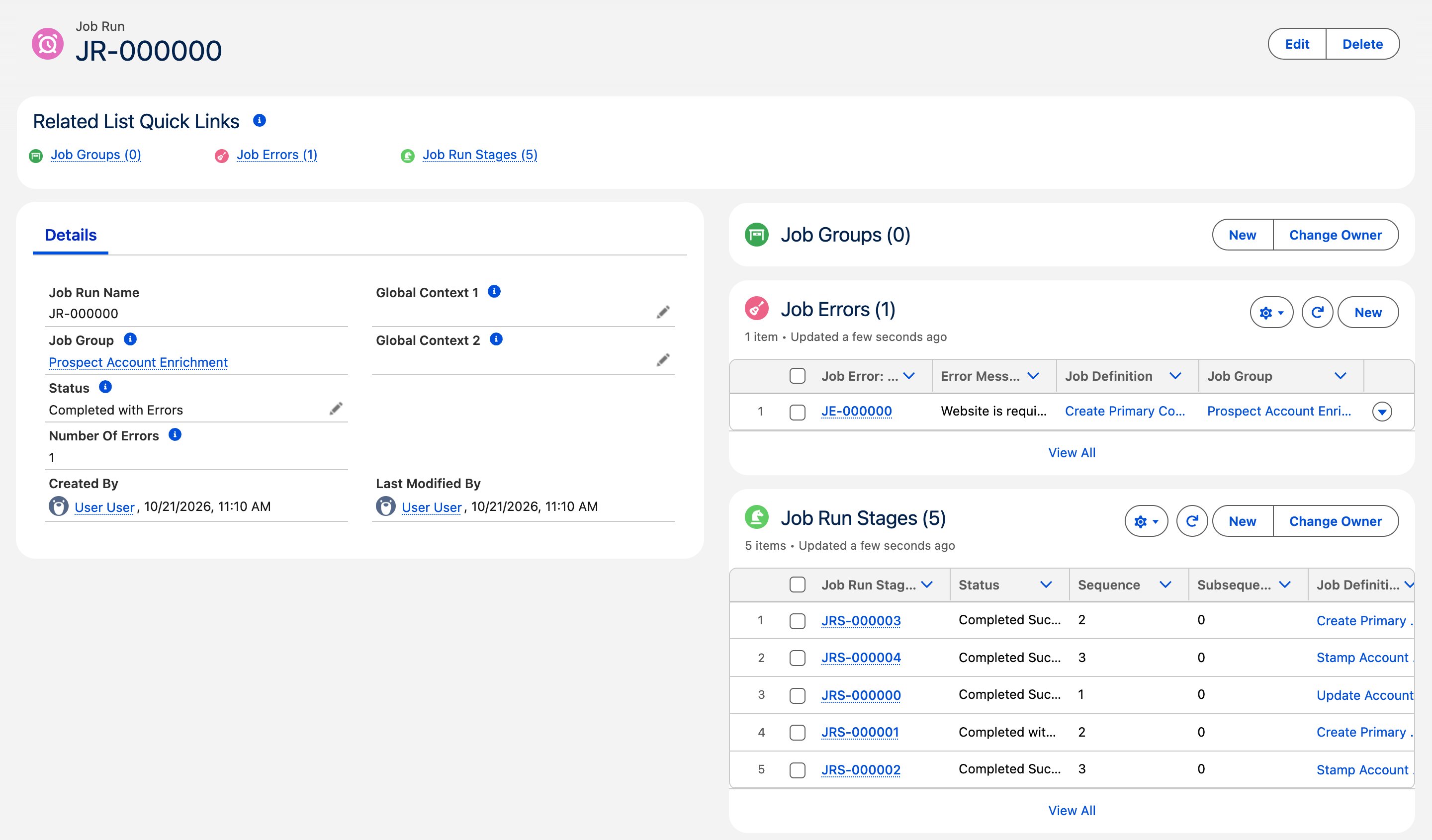
Read the First Run
Open the Job Group and click Last Run.
Status: Completed with Errors
Number Of Errors: 1
The Job Run Stages show this:
Stage
Step
Status
Why
First
1, Update Account Rating
Completed Successfully
All four Accounts were rated.
Second
2, Create Primary Contacts
Completed with Errors
Harbor Light Society has no Website.
Third
3, Stamp Account Descriptions
Completed Successfully
Descriptions were stamped.
Fourth (retry)
2, Create Primary Contacts
Completed Successfully
The retry ran for Harbor Light Society and failed again, but shows Completed Successfully because it logged no new error.
Fifth (retry)
3, Stamp Account Descriptions
Completed Successfully
No records were forwarded from the step 2 retry, so this stage had nothing to process and completed immediately.
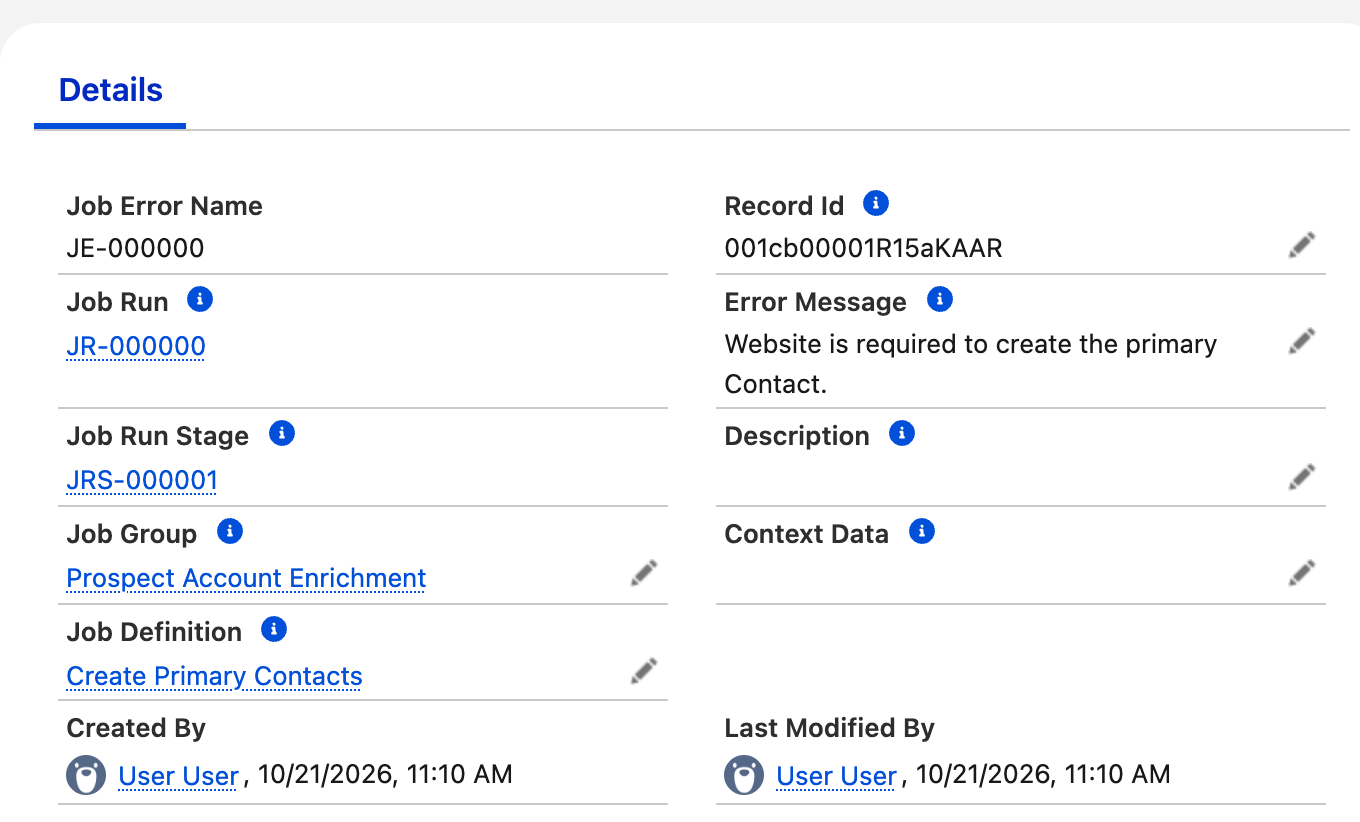
The Job Error on Harbor Light Society reads Website is required to create the primary Contact.
The first run: Completed with Errors
The Job Error for Harbor Light Society
Fix the Account and Rerun
1
Fix the data
Open the Harbor Light Society Account, set Website to www.harborlight.example.com, and click Save.
2
Rerun
Run the same snippet from Run the Job Group again in Execute Anonymous.
Read the Clean Result
Open the Job Group and click Last Run, which now points to the second run.
Status: Completed Successfully
Number Of Errors: 0
Job Run Stages: the three regular stages only. No retry stages were needed.
Harbor Light Society now has a Contact and the Description “Rating: Hot. Contacts: 1.”
Limitations and Common Pitfalls
Leaving Await off on step 1 or 2. A later step can start before the earlier one finishes and find no records to process.
Failing to report successes in a retry. If executeRetry does not list the successful record Ids, their Job Errors stay on the run.
Reporting errors from executeRetry. This logs additional Job Errors instead of keeping the original ones.
Pasting the classes without the global keyword. The class does not appear in the Apex Class dropdown.
Editing the group while it is active. Deactivate and save first. See Managing Job Groups.
Related Features
Managing Job Groups
Create, schedule, and change Job Groups.
Monitoring Job Runs
Read statuses, stages, and errors.
{"docsConfig":{"theme":"mint","$schema":"https://mintlify.com/docs.json","name":"fusionCore Documentation","colors":{"primary":"#1C80B7","light":"#3FA5DC","dark":"#233862"},"logo":{"light":"https://mintcdn.com/fusionspan/YOJThutruL_JRsTc/logo/fusioncore-light.png?fit=max\u0026auto=format\u0026n=YOJThutruL_JRsTc\u0026q=85\u0026s=214aa6cf854bb355a6f04da3ddfb0d60","dark":"https://mintcdn.com/fusionspan/YOJThutruL_JRsTc/logo/fusioncore-dark.png?fit=max\u0026auto=format\u0026n=YOJThutruL_JRsTc\u0026q=85\u0026s=5fe44ccf31da1e75598fe04552459508"},"favicon":"https://mintcdn.com/fusionspan/EW_gg4_8FJ-921wF/favicon.png?fit=max\u0026auto=format\u0026n=EW_gg4_8FJ-921wF\u0026q=85\u0026s=bdfc3e35ed633844441de878cb99f125","navbar":{"links":[{"href":"mailto:fcsupport@fusionspan.com","label":"Support"}]},"footer":{"socials":{}},"contextual":{"options":["copy","view","chatgpt","claude","perplexity","mcp","cursor","vscode"],"display":"header"},"styling":{"latex":false},"navigation":{"pages":[]}},"deployment":{"deploymentMetadataValue":{"subdomain":"fusionspan","hasAudioNarration":false,"actualSubdomain":"fusionspan","customDomains":["docs.fusioncore.us"],"gitSource":{"type":"github","owner":"fusionspan-llc","repo":"fusioncore-documentation","deployBranch":"main","contentDirectory":"","isPrivate":true,"mountPath":"","label":""},"feedback":{"thumbs":false},"entitlements":{"AI_CHAT":{"status":"ENABLED"},"WEB_MCP":{"status":"ENABLED"},"NARRATION":{"status":"ENABLED"}},"buildId":"6ae22a0e12cf5a20bf490096","clientVersion":"0.0.4143","searchFilterCounts":[{"language":"default","tag":"End User Guides","count":187},{"language":"default","tag":"Accounting","count":44},{"language":"default","tag":"Orders and Opportunities","count":39},{"language":"default","tag":"Portal","count":31},{"language":"default","tag":"Product","count":28},{"language":"default","tag":"Orders","count":14},{"language":"default","tag":"Stripe","count":14},{"language":"default","tag":"Subscriptions","count":14},{"language":"default","tag":"Accelerators","count":13},{"language":"default","tag":"API Reference","count":11}]},"assistantConfig":{"enableAskAiButton":false,"enableStarterQuestions":false,"enableAskAiSearchBar":true,"deflection":{"enabled":true,"email":"fcsupport@fusionspan.com"}},"basePath":"","hasChatPermissions":false,"hasWebMcpPermissions":true,"toggles":[{"name":"kill-isr","enabled":true,"variant":{"name":"disabled","enabled":false,"feature_enabled":true},"impressionData":false},{"name":"custom-rbac-roles","enabled":true,"variant":{"name":"disabled","enabled":false,"feature_enabled":true},"impressionData":false},{"name":"agent-mintlify-slack","enabled":true,"variant":{"name":"disabled","enabled":false,"feature_enabled":true},"impressionData":false},{"name":"agent-integrations-settings","enabled":true,"variant":{"name":"disabled","enabled":false,"feature_enabled":true},"impressionData":false},{"name":"rbac-expansion","enabled":true,"variant":{"name":"disabled","enabled":false,"feature_enabled":true},"impressionData":false},{"name":"automations-pr-grouping","enabled":true,"variant":{"name":"disabled","enabled":false,"feature_enabled":true},"impressionData":false},{"name":"custom-prefix","enabled":true,"variant":{"name":"disabled","enabled":false,"feature_enabled":true},"impressionData":false},{"name":"analytics-v7","enabled":true,"variant":{"name":"disabled","enabled":false,"feature_enabled":true},"impressionData":false},{"name":"user-flows-analytics","enabled":true,"variant":{"name":"disabled","enabled":false,"feature_enabled":true},"impressionData":false},{"name":"no-publish-flow","enabled":true,"variant":{"name":"disabled","enabled":false,"feature_enabled":true},"impressionData":false},{"name":"workos-onboarding","enabled":true,"variant":{"name":"disabled","enabled":false,"feature_enabled":true},"impressionData":false},{"name":"snapshot-serving-live","enabled":true,"variant":{"name":"disabled","enabled":false,"feature_enabled":true},"impressionData":false},{"name":"stripTemperatureMiddleware","enabled":true,"variant":{"name":"disabled","enabled":false,"feature_enabled":true},"impressionData":false},{"name":"support-platform-pylon-zendesk","enabled":true,"variant":{"name":"disabled","enabled":false,"feature_enabled":true},"impressionData":false},{"name":"snapshot-serving","enabled":true,"variant":{"name":"disabled","enabled":false,"feature_enabled":true},"impressionData":false},{"name":"instant-rollback","enabled":true,"variant":{"name":"disabled","enabled":false,"feature_enabled":true},"impressionData":false},{"name":"granular-notifications-server","enabled":true,"variant":{"name":"disabled","enabled":false,"feature_enabled":true},"impressionData":false},{"name":"granular-notifications","enabled":true,"variant":{"name":"disabled","enabled":false,"feature_enabled":true},"impressionData":false},{"name":"automations-fable","enabled":true,"variant":{"name":"disabled","enabled":false,"feature_enabled":true},"impressionData":false},{"name":"fixed-ai-action-pricing","enabled":true,"variant":{"name":"disabled","enabled":false,"feature_enabled":true},"impressionData":false},{"name":"automation-resolve-merge-conflict","enabled":true,"variant":{"name":"disabled","enabled":false,"feature_enabled":true},"impressionData":false},{"name":"scoped-publishing","enabled":true,"variant":{"name":"disabled","enabled":false,"feature_enabled":true},"impressionData":false},{"name":"mintql","enabled":true,"variant":{"name":"disabled","enabled":false,"feature_enabled":true},"impressionData":false},{"name":"page-level-analytics","enabled":true,"variant":{"name":"disabled","enabled":false,"feature_enabled":true},"impressionData":false},{"name":"editor-version-history-v2","enabled":true,"variant":{"name":"disabled","enabled":false,"feature_enabled":true},"impressionData":false},{"name":"billing-page-v2","enabled":true,"variant":{"name":"disabled","enabled":false,"feature_enabled":true},"impressionData":false},{"name":"full-page-search","enabled":true,"variant":{"name":"disabled","enabled":false,"feature_enabled":true},"impressionData":false},{"name":"workspace-projects","enabled":true,"variant":{"name":"disabled","enabled":false,"feature_enabled":true},"impressionData":false},{"name":"assistant-v5","enabled":true,"variant":{"name":"disabled","enabled":false,"feature_enabled":true},"impressionData":false},{"name":"fork-pr-previews","enabled":true,"variant":{"name":"disabled","enabled":false,"feature_enabled":true},"impressionData":false},{"name":"revalidation-jwt","enabled":true,"variant":{"name":"disabled","enabled":false,"feature_enabled":true},"impressionData":false},{"name":"workos-sso-scim","enabled":true,"variant":{"name":"disabled","enabled":false,"feature_enabled":true},"impressionData":false},{"name":"hobby-abuse-scan","enabled":true,"variant":{"name":"disabled","enabled":false,"feature_enabled":true},"impressionData":false},{"name":"dashboard-inbox","enabled":true,"variant":{"name":"disabled","enabled":false,"feature_enabled":true},"impressionData":false},{"name":"workos-signup","enabled":true,"variant":{"name":"disabled","enabled":false,"feature_enabled":true},"impressionData":false},{"name":"turbopuffer-dual-write","enabled":true,"variant":{"name":"disabled","enabled":false,"feature_enabled":true},"impressionData":false},{"name":"workos-enabled","enabled":true,"variant":{"name":"disabled","enabled":false,"feature_enabled":true},"impressionData":false},{"name":"approve-review-flow","enabled":true,"variant":{"name":"disabled","enabled":false,"feature_enabled":true},"impressionData":false},{"name":"editor-metadata","enabled":true,"variant":{"name":"disabled","enabled":false,"feature_enabled":true},"impressionData":false},{"name":"sso-setup-deadline-banner","enabled":true,"variant":{"name":"disabled","enabled":false,"feature_enabled":true},"impressionData":false},{"name":"turbopuffer-serve","enabled":true,"variant":{"name":"disabled","enabled":false,"feature_enabled":true},"impressionData":false},{"name":"live-agents","enabled":true,"variant":{"name":"disabled","enabled":false,"feature_enabled":true},"impressionData":false},{"name":"llms-txt-v2","enabled":true,"variant":{"name":"disabled","enabled":false,"feature_enabled":true},"impressionData":false}],"googleFontsInlined":false},"customCss":[],"page":{"pagePath":"end-user-guides/platform-setup/async-job-coordinator/example","slug":"/end-user-guides/platform-setup/async-job-coordinator/example","pageMetadata":{"title":"Async Job Coordinator Example","description":"Build and run a three-step Job Group that rates Prospect Accounts, creates Contacts, and stamps summaries, including an error and a retry.","href":"/end-user-guides/platform-setup/async-job-coordinator/example"},"description":{"compiledSource":"\"use strict\";\nconst {jsx: _jsx} = arguments[0];\nconst {useMDXComponents: _provideComponents} = arguments[0];\nfunction _createMdxContent(props) {\n const _components = {\n p: \"p\",\n ..._provideComponents(),\n ...props.components\n };\n return _jsx(_components.p, {\n children: \"Build and run a three-step Job Group that rates Prospect Accounts, creates Contacts, and stamps summaries, including an error and a retry.\"\n });\n}\nfunction MDXContent(props = {}) {\n const {wrapper: MDXLayout} = {\n ..._provideComponents(),\n ...props.components\n };\n return MDXLayout ? _jsx(MDXLayout, {\n ...props,\n children: _jsx(_createMdxContent, {\n ...props\n })\n }) : _createMdxContent(props);\n}\nreturn {\n default: MDXContent\n};\n","frontmatter":{},"scope":{}},"pageType":"default","mdx":{"mdxSource":{"compiledSource":"\"use strict\";const{Fragment:_Fragment,jsx:_jsx,jsxs:_jsxs}=arguments[0];const{useMDXComponents:_provideComponents}=arguments[0];function _createMdxContent(props){const _components={a:`a`,code:`code`,li:`li`,p:`p`,pre:`pre`,span:`span`,strong:`strong`,tbody:`tbody`,td:`td`,th:`th`,thead:`thead`,tr:`tr`,ul:`ul`,..._provideComponents(),...props.components},{Accordion,Card,CardGroup,CodeBlock,Frame,Heading,OptimizedImage,Step,Steps,Table}=_components;if(!Accordion)_missingMdxReference(`Accordion`,true);if(!Card)_missingMdxReference(`Card`,true);if(!CardGroup)_missingMdxReference(`CardGroup`,true);if(!CodeBlock)_missingMdxReference(`CodeBlock`,true);if(!Frame)_missingMdxReference(`Frame`,true);if(!Heading)_missingMdxReference(`Heading`,true);if(!OptimizedImage)_missingMdxReference(`OptimizedImage`,true);if(!Step)_missingMdxReference(`Step`,true);if(!Steps)_missingMdxReference(`Steps`,true);if(!Table)_missingMdxReference(`Table`,true);return _jsxs(_Fragment,{children:[_jsx(_components.p,{children:`This example builds a three-step Job Group end to end. It shows how steps depend on each other, how an error appears, and how a rerun succeeds after you fix the data.`}),`\n`,_jsx(Heading,{level:`2`,id:`prerequisites`,children:`Prerequisites`}),`\n`,_jsxs(_components.ul,{children:[`\n`,_jsxs(_components.li,{children:[`You have the `,_jsx(_components.strong,{children:`FC Platform - Manage Async Jobs`}),` permission set.`]}),`\n`,_jsx(_components.li,{children:`You can create Accounts and Contacts in the org.`}),`\n`,_jsx(_components.li,{children:`You can deploy Apex classes to your org (Setup, an IDE, or a deployment).`}),`\n`,_jsxs(_components.li,{children:[`You understand the basics from `,_jsx(_components.a,{href:`/end-user-guides/platform-setup/async-job-coordinator/index`,children:`Async Job Coordinator Overview`}),`.`]}),`\n`]}),`\n`,_jsx(Heading,{level:`2`,id:`the-goal`,children:`The Goal`}),`\n`,_jsxs(_components.p,{children:[`The Job Group is named `,_jsx(_components.strong,{children:`Prospect Account Enrichment`}),`. Its description is “Rates Prospect Accounts, creates a primary Contact for Hot prospects, and stamps a summary on each Account.”`]}),`\n`,_jsxs(Table,{children:[_jsx(_components.thead,{children:_jsxs(_components.tr,{children:[_jsx(_components.th,{children:_jsx(_components.strong,{children:`Step`})}),_jsx(_components.th,{children:_jsx(_components.strong,{children:`Definition Name`})}),_jsx(_components.th,{children:_jsx(_components.strong,{children:`Apex Class`})}),_jsx(_components.th,{children:_jsx(_components.strong,{children:`Await`})}),_jsx(_components.th,{children:_jsx(_components.strong,{children:`What it does`})})]})}),_jsxs(_components.tbody,{children:[_jsxs(_components.tr,{children:[_jsx(_components.td,{\"data-numeric\":`true`,children:`1`}),_jsx(_components.td,{children:`Update Account Rating`}),_jsx(_components.td,{children:_jsx(_components.code,{children:`AccountRatingJob`})}),_jsx(_components.td,{children:`On`}),_jsxs(_components.td,{children:[`Sets `,_jsx(_components.strong,{children:`Rating`}),` on each Prospect Account to Hot if `,_jsx(_components.strong,{children:`Annual Revenue`}),` is 1,000,000 or more, otherwise Warm.`]})]}),_jsxs(_components.tr,{children:[_jsx(_components.td,{\"data-numeric\":`true`,children:`2`}),_jsx(_components.td,{children:`Create Primary Contacts`}),_jsx(_components.td,{children:_jsx(_components.code,{children:`PrimaryContactJob`})}),_jsx(_components.td,{children:`On`}),_jsxs(_components.td,{children:[`For each Hot Prospect with no Contacts, creates a Contact named “Primary Contact” with the email `,_jsx(_components.code,{children:`info@`}),` plus the Account’s website domain. An Account with no `,_jsx(_components.strong,{children:`Website`}),` is reported as an error.`]})]}),_jsxs(_components.tr,{children:[_jsx(_components.td,{\"data-numeric\":`true`,children:`3`}),_jsx(_components.td,{children:`Stamp Account Descriptions`}),_jsx(_components.td,{children:_jsx(_components.code,{children:`AccountDescriptionJob`})}),_jsx(_components.td,{children:`Off`}),_jsxs(_components.td,{children:[`Sets `,_jsx(_components.strong,{children:`Description`}),` to `,_jsx(_components.code,{children:`Rating: \u003cRating>. Contacts: \u003cn>.`})]})]})]})]}),`\n`,_jsxs(_components.p,{children:[`All three steps use a `,_jsx(_components.strong,{children:`Batch Size`}),` of 200 and leave `,_jsx(_components.strong,{children:`Parallel`}),` off.`]}),`\n`,_jsx(Heading,{level:`3`,id:`why-await-is-on-for-steps-1-and-2`,children:`Why Await Is On for Steps 1 and 2`}),`\n`,_jsxs(_components.p,{children:[`Step 2 only finds Hot Accounts, so it needs the ratings from step 1. Step 3 counts Contacts, so it needs the Contacts from step 2. Sequence alone does not make a step wait, so `,_jsx(_components.strong,{children:`Await`}),` on steps 1 and 2 holds the next step until the previous one finishes. Step 3 has no later step, so it does not need `,_jsx(_components.strong,{children:`Await`}),`.`]}),`\n`,_jsx(Heading,{level:`2`,id:`demo-data`,children:`Demo Data`}),`\n`,_jsxs(_components.p,{children:[`Create these Accounts with `,_jsx(_components.strong,{children:`Type`}),` set to `,_jsx(_components.strong,{children:`Prospect`}),`:`]}),`\n`,_jsxs(Table,{children:[_jsx(_components.thead,{children:_jsxs(_components.tr,{children:[_jsx(_components.th,{children:_jsx(_components.strong,{children:`Account Name`})}),_jsx(_components.th,{children:_jsx(_components.strong,{children:`Annual Revenue`})}),_jsx(_components.th,{children:_jsx(_components.strong,{children:`Website`})})]})}),_jsxs(_components.tbody,{children:[_jsxs(_components.tr,{children:[_jsx(_components.td,{children:`The Redwood Foundation`}),_jsx(_components.td,{\"data-numeric\":`true`,children:`2,500,000`}),_jsx(_components.td,{children:_jsx(_components.a,{href:`http://www.redwood.example.com`,children:`www.redwood.example.com`})})]}),_jsxs(_components.tr,{children:[_jsx(_components.td,{children:`Harbor Light Society`}),_jsx(_components.td,{\"data-numeric\":`true`,children:`1,200,000`}),_jsx(_components.td,{children:`(blank)`})]}),_jsxs(_components.tr,{children:[_jsx(_components.td,{children:`Maple Grove Association`}),_jsx(_components.td,{\"data-numeric\":`true`,children:`400,000`}),_jsx(_components.td,{children:_jsx(_components.a,{href:`http://www.maplegrove.example.com`,children:`www.maplegrove.example.com`})})]}),_jsxs(_components.tr,{children:[_jsx(_components.td,{children:`Cedar Ridge Alliance`}),_jsx(_components.td,{\"data-numeric\":`true`,children:`1,800,000`}),_jsx(_components.td,{children:_jsx(_components.a,{href:`https://cedarridge.example.com`,children:`https://cedarridge.example.com`})})]})]})]}),`\n`,_jsxs(_components.p,{children:[`Harbor Light Society has no `,_jsx(_components.strong,{children:`Website`}),` on purpose. It makes step 2 fail so you can see how errors appear.`]}),`\n`,_jsx(Heading,{level:`2`,id:`the-apex-classes`,children:`The Apex Classes`}),`\n`,_jsxs(_components.p,{children:[`Each class implements `,_jsx(_components.code,{children:`FCORE_BASE.JobExecutor`}),`, is declared `,_jsx(_components.code,{children:`global`}),`, and uses `,_jsx(_components.code,{children:`with sharing`}),`. Each one implements both the regular and retry methods. See `,_jsx(_components.a,{href:`/end-user-guides/platform-setup/async-job-coordinator/index#for-developers`,children:`For Developers`}),` for the interface.`]}),`\n`,_jsx(Heading,{level:`3`,id:`step-1-accountratingjob`,children:`Step 1: AccountRatingJob`}),`\n`,_jsxs(_components.p,{children:[`This class reports a failed record through `,_jsx(_components.code,{children:`recordErrors`}),`. It updates with `,_jsx(_components.code,{children:`allOrNone`}),` set to `,_jsx(_components.code,{children:`false`}),`, so one bad record does not fail the whole batch. In `,_jsx(_components.code,{children:`executeRetry`}),`, it reports only successes.`]}),`\n`,_jsx(CodeBlock,{filename:``,numberOfLines:`60`,language:`java`,children:_jsx(_components.pre,{className:`shiki shiki-themes github-light-default dark-plus`,style:{backgroundColor:`#ffffff`,\"--shiki-dark-bg\":`#0B0C0E`,color:`#1f2328`,\"--shiki-dark\":`#D4D4D4`},language:`java`,children:_jsxs(_components.code,{language:`java`,numberOfLines:`60`,children:[_jsx(_components.span,{className:`line`,children:_jsx(_components.span,{style:{color:`#6E7781`,\"--shiki-dark\":`#6A9955`},children:`/**`})}),`\n`,_jsx(_components.span,{className:`line`,children:_jsx(_components.span,{style:{color:`#6E7781`,\"--shiki-dark\":`#6A9955`},children:` * Step 1 of the example Job Group: rates every Prospect Account by Annual Revenue.`})}),`\n`,_jsx(_components.span,{className:`line`,children:_jsx(_components.span,{style:{color:`#6E7781`,\"--shiki-dark\":`#6A9955`},children:` */`})}),`\n`,_jsxs(_components.span,{className:`line`,children:[_jsx(_components.span,{style:{color:`#1F2328`,\"--shiki-dark\":`#D4D4D4`},children:`global with sharing `}),_jsx(_components.span,{style:{color:`#CF222E`,\"--shiki-dark\":`#569CD6`},children:`class`}),_jsx(_components.span,{style:{color:`#953800`,\"--shiki-dark\":`#4EC9B0`},children:` AccountRatingJob`}),_jsx(_components.span,{style:{color:`#CF222E`,\"--shiki-dark\":`#569CD6`},children:` implements`}),_jsx(_components.span,{style:{color:`#0550AE`,\"--shiki-dark\":`#4EC9B0`},children:` FCORE_BASE.JobExecutor`}),_jsx(_components.span,{style:{color:`#1F2328`,\"--shiki-dark\":`#D4D4D4`},children:` {`})]}),`\n`,_jsx(_components.span,{className:`line`}),`\n`,_jsxs(_components.span,{className:`line`,children:[_jsx(_components.span,{style:{color:`#1F2328`,\"--shiki-dark\":`#D4D4D4`},children:` global `}),_jsx(_components.span,{style:{color:`#1F2328`,\"--shiki-dark\":`#4EC9B0`},children:`Database`}),_jsx(_components.span,{style:{color:`#1F2328`,\"--shiki-dark\":`#D4D4D4`},children:`.`}),_jsx(_components.span,{style:{color:`#1F2328`,\"--shiki-dark\":`#4EC9B0`},children:`QueryLocator`}),_jsx(_components.span,{style:{color:`#8250DF`,\"--shiki-dark\":`#DCDCAA`},children:` getQueryLocator`}),_jsx(_components.span,{style:{color:`#1F2328`,\"--shiki-dark\":`#D4D4D4`},children:`(`}),_jsx(_components.span,{style:{color:`#1F2328`,\"--shiki-dark\":`#4EC9B0`},children:`FCORE_BASE`}),_jsx(_components.span,{style:{color:`#1F2328`,\"--shiki-dark\":`#D4D4D4`},children:`.`}),_jsx(_components.span,{style:{color:`#1F2328`,\"--shiki-dark\":`#4EC9B0`},children:`JobRunStageContext`}),_jsx(_components.span,{style:{color:`#953800`,\"--shiki-dark\":`#9CDCFE`},children:` context`}),_jsx(_components.span,{style:{color:`#1F2328`,\"--shiki-dark\":`#D4D4D4`},children:`) {`})]}),`\n`,_jsxs(_components.span,{className:`line`,children:[_jsx(_components.span,{style:{color:`#CF222E`,\"--shiki-dark\":`#C586C0`},children:` return`}),_jsx(_components.span,{style:{color:`#1F2328`,\"--shiki-dark\":`#9CDCFE`},children:` Database`}),_jsx(_components.span,{style:{color:`#1F2328`,\"--shiki-dark\":`#D4D4D4`},children:`.`}),_jsx(_components.span,{style:{color:`#8250DF`,\"--shiki-dark\":`#DCDCAA`},children:`getQueryLocator`}),_jsx(_components.span,{style:{color:`#1F2328`,\"--shiki-dark\":`#D4D4D4`},children:`([`}),_jsx(_components.span,{style:{color:`#1F2328`,\"--shiki-dark\":`#4EC9B0`},children:`SELECT`}),_jsx(_components.span,{style:{color:`#1F2328`,\"--shiki-dark\":`#9CDCFE`},children:` Id`}),_jsx(_components.span,{style:{color:`#953800`,\"--shiki-dark\":`#D4D4D4`},children:`, `}),_jsx(_components.span,{style:{color:`#1F2328`,\"--shiki-dark\":`#4EC9B0`},children:`AnnualRevenue`}),_jsx(_components.span,{style:{color:`#1F2328`,\"--shiki-dark\":`#4EC9B0`},children:` FROM`}),_jsx(_components.span,{style:{color:`#1F2328`,\"--shiki-dark\":`#4EC9B0`},children:` Account`}),_jsx(_components.span,{style:{color:`#1F2328`,\"--shiki-dark\":`#4EC9B0`},children:` WHERE`}),_jsx(_components.span,{style:{color:`#1F2328`,\"--shiki-dark\":`#9CDCFE`},children:` Type`}),_jsx(_components.span,{style:{color:`#CF222E`,\"--shiki-dark\":`#D4D4D4`},children:` =`}),_jsx(_components.span,{style:{color:`#0A3069`,\"--shiki-dark\":`#CE9178`},children:` 'Prospect'`}),_jsx(_components.span,{style:{color:`#1F2328`,\"--shiki-dark\":`#D4D4D4`},children:`]);`})]}),`\n`,_jsx(_components.span,{className:`line`,children:_jsx(_components.span,{style:{color:`#1F2328`,\"--shiki-dark\":`#D4D4D4`},children:` }`})}),`\n`,_jsx(_components.span,{className:`line`}),`\n`,_jsxs(_components.span,{className:`line`,children:[_jsx(_components.span,{style:{color:`#1F2328`,\"--shiki-dark\":`#D4D4D4`},children:` global `}),_jsx(_components.span,{style:{color:`#1F2328`,\"--shiki-dark\":`#4EC9B0`},children:`Iterable`}),_jsx(_components.span,{style:{color:`#1F2328`,\"--shiki-dark\":`#D4D4D4`},children:`\u003c`}),_jsx(_components.span,{style:{color:`#CF222E`,\"--shiki-dark\":`#4EC9B0`},children:`Object`}),_jsx(_components.span,{style:{color:`#1F2328`,\"--shiki-dark\":`#D4D4D4`},children:`> `}),_jsx(_components.span,{style:{color:`#8250DF`,\"--shiki-dark\":`#DCDCAA`},children:`getIterable`}),_jsx(_components.span,{style:{color:`#1F2328`,\"--shiki-dark\":`#D4D4D4`},children:`(`}),_jsx(_components.span,{style:{color:`#1F2328`,\"--shiki-dark\":`#4EC9B0`},children:`FCORE_BASE`}),_jsx(_components.span,{style:{color:`#1F2328`,\"--shiki-dark\":`#D4D4D4`},children:`.`}),_jsx(_components.span,{style:{color:`#1F2328`,\"--shiki-dark\":`#4EC9B0`},children:`JobRunStageContext`}),_jsx(_components.span,{style:{color:`#953800`,\"--shiki-dark\":`#9CDCFE`},children:` context`}),_jsx(_components.span,{style:{color:`#1F2328`,\"--shiki-dark\":`#D4D4D4`},children:`) {`})]}),`\n`,_jsxs(_components.span,{className:`line`,children:[_jsx(_components.span,{style:{color:`#CF222E`,\"--shiki-dark\":`#C586C0`},children:` return`}),_jsx(_components.span,{style:{color:`#0550AE`,\"--shiki-dark\":`#569CD6`},children:` null`}),_jsx(_components.span,{style:{color:`#1F2328`,\"--shiki-dark\":`#D4D4D4`},children:`; `}),_jsx(_components.span,{style:{color:`#6E7781`,\"--shiki-dark\":`#6A9955`},children:`// getQueryLocator is used instead`})]}),`\n`,_jsx(_components.span,{className:`line`,children:_jsx(_components.span,{style:{color:`#1F2328`,\"--shiki-dark\":`#D4D4D4`},children:` }`})}),`\n`,_jsx(_components.span,{className:`line`}),`\n`,_jsxs(_components.span,{className:`line`,children:[_jsx(_components.span,{style:{color:`#1F2328`,\"--shiki-dark\":`#D4D4D4`},children:` global `}),_jsx(_components.span,{style:{color:`#1F2328`,\"--shiki-dark\":`#4EC9B0`},children:`FCORE_BASE`}),_jsx(_components.span,{style:{color:`#1F2328`,\"--shiki-dark\":`#D4D4D4`},children:`.`}),_jsx(_components.span,{style:{color:`#1F2328`,\"--shiki-dark\":`#4EC9B0`},children:`JobRunStageResult`}),_jsx(_components.span,{style:{color:`#8250DF`,\"--shiki-dark\":`#DCDCAA`},children:` execute`}),_jsx(_components.span,{style:{color:`#1F2328`,\"--shiki-dark\":`#D4D4D4`},children:`(`}),_jsx(_components.span,{style:{color:`#1F2328`,\"--shiki-dark\":`#4EC9B0`},children:`List`}),_jsx(_components.span,{style:{color:`#1F2328`,\"--shiki-dark\":`#D4D4D4`},children:`\u003c`}),_jsx(_components.span,{style:{color:`#CF222E`,\"--shiki-dark\":`#4EC9B0`},children:`Object`}),_jsx(_components.span,{style:{color:`#1F2328`,\"--shiki-dark\":`#D4D4D4`},children:`> `}),_jsx(_components.span,{style:{color:`#953800`,\"--shiki-dark\":`#9CDCFE`},children:`scope`}),_jsx(_components.span,{style:{color:`#1F2328`,\"--shiki-dark\":`#D4D4D4`},children:`, `}),_jsx(_components.span,{style:{color:`#1F2328`,\"--shiki-dark\":`#4EC9B0`},children:`FCORE_BASE`}),_jsx(_components.span,{style:{color:`#1F2328`,\"--shiki-dark\":`#D4D4D4`},children:`.`}),_jsx(_components.span,{style:{color:`#1F2328`,\"--shiki-dark\":`#4EC9B0`},children:`JobRunStageContext`}),_jsx(_components.span,{style:{color:`#953800`,\"--shiki-dark\":`#9CDCFE`},children:` context`}),_jsx(_components.span,{style:{color:`#1F2328`,\"--shiki-dark\":`#D4D4D4`},children:`) {`})]}),`\n`,_jsxs(_components.span,{className:`line`,children:[_jsx(_components.span,{style:{color:`#1F2328`,\"--shiki-dark\":`#4EC9B0`},children:` FCORE_BASE`}),_jsx(_components.span,{style:{color:`#953800`,\"--shiki-dark\":`#D4D4D4`},children:`.`}),_jsx(_components.span,{style:{color:`#1F2328`,\"--shiki-dark\":`#4EC9B0`},children:`JobRunStageResult`}),_jsx(_components.span,{style:{color:`#1F2328`,\"--shiki-dark\":`#9CDCFE`},children:` result`}),_jsx(_components.span,{style:{color:`#CF222E`,\"--shiki-dark\":`#D4D4D4`},children:` =`}),_jsx(_components.span,{style:{color:`#CF222E`,\"--shiki-dark\":`#C586C0`},children:` new`}),_jsx(_components.span,{style:{color:`#1F2328`,\"--shiki-dark\":`#D4D4D4`},children:` FCORE_BASE.`}),_jsx(_components.span,{style:{color:`#8250DF`,\"--shiki-dark\":`#DCDCAA`},children:`JobRunStageResult`}),_jsx(_components.span,{style:{color:`#1F2328`,\"--shiki-dark\":`#D4D4D4`},children:`(context);`})]}),`\n`,_jsxs(_components.span,{className:`line`,children:[_jsx(_components.span,{style:{color:`#1F2328`,\"--shiki-dark\":`#4EC9B0`},children:` List`}),_jsx(_components.span,{style:{color:`#953800`,\"--shiki-dark\":`#D4D4D4`},children:`\u003c`}),_jsx(_components.span,{style:{color:`#CF222E`,\"--shiki-dark\":`#4EC9B0`},children:`Account`}),_jsx(_components.span,{style:{color:`#953800`,\"--shiki-dark\":`#D4D4D4`},children:`> `}),_jsx(_components.span,{style:{color:`#1F2328`,\"--shiki-dark\":`#9CDCFE`},children:`accounts`}),_jsx(_components.span,{style:{color:`#CF222E`,\"--shiki-dark\":`#D4D4D4`},children:` =`}),_jsx(_components.span,{style:{color:`#1F2328`,\"--shiki-dark\":`#D4D4D4`},children:` (`}),_jsx(_components.span,{style:{color:`#1F2328`,\"--shiki-dark\":`#4EC9B0`},children:`List`}),_jsx(_components.span,{style:{color:`#CF222E`,\"--shiki-dark\":`#D4D4D4`},children:`\u003c`}),_jsx(_components.span,{style:{color:`#1F2328`,\"--shiki-dark\":`#D4D4D4`},children:`Account`}),_jsx(_components.span,{style:{color:`#CF222E`,\"--shiki-dark\":`#D4D4D4`},children:`>`}),_jsx(_components.span,{style:{color:`#1F2328`,\"--shiki-dark\":`#D4D4D4`},children:`) scope;`})]}),`\n`,_jsxs(_components.span,{className:`line`,children:[_jsx(_components.span,{style:{color:`#CF222E`,\"--shiki-dark\":`#C586C0`},children:` for`}),_jsx(_components.span,{style:{color:`#1F2328`,\"--shiki-dark\":`#D4D4D4`},children:` (`}),_jsx(_components.span,{style:{color:`#1F2328`,\"--shiki-dark\":`#4EC9B0`},children:`Account`}),_jsx(_components.span,{style:{color:`#1F2328`,\"--shiki-dark\":`#9CDCFE`},children:` account`}),_jsx(_components.span,{style:{color:`#CF222E`,\"--shiki-dark\":`#C586C0`},children:` :`}),_jsx(_components.span,{style:{color:`#1F2328`,\"--shiki-dark\":`#D4D4D4`},children:` accounts) {`})]}),`\n`,_jsxs(_components.span,{className:`line`,children:[_jsx(_components.span,{style:{color:`#1F2328`,\"--shiki-dark\":`#9CDCFE`},children:` account`}),_jsx(_components.span,{style:{color:`#1F2328`,\"--shiki-dark\":`#D4D4D4`},children:`.`}),_jsx(_components.span,{style:{color:`#1F2328`,\"--shiki-dark\":`#9CDCFE`},children:`Rating`}),_jsx(_components.span,{style:{color:`#CF222E`,\"--shiki-dark\":`#D4D4D4`},children:` =`}),_jsx(_components.span,{style:{color:`#1F2328`,\"--shiki-dark\":`#9CDCFE`},children:` account`}),_jsx(_components.span,{style:{color:`#1F2328`,\"--shiki-dark\":`#D4D4D4`},children:`.`}),_jsx(_components.span,{style:{color:`#1F2328`,\"--shiki-dark\":`#9CDCFE`},children:`AnnualRevenue`}),_jsx(_components.span,{style:{color:`#CF222E`,\"--shiki-dark\":`#D4D4D4`},children:` >=`}),_jsx(_components.span,{style:{color:`#0550AE`,\"--shiki-dark\":`#B5CEA8`},children:` 1000000`}),_jsx(_components.span,{style:{color:`#CF222E`,\"--shiki-dark\":`#C586C0`},children:` ?`}),_jsx(_components.span,{style:{color:`#0A3069`,\"--shiki-dark\":`#CE9178`},children:` 'Hot'`}),_jsx(_components.span,{style:{color:`#CF222E`,\"--shiki-dark\":`#C586C0`},children:` :`}),_jsx(_components.span,{style:{color:`#0A3069`,\"--shiki-dark\":`#CE9178`},children:` 'Warm'`}),_jsx(_components.span,{style:{color:`#1F2328`,\"--shiki-dark\":`#D4D4D4`},children:`;`})]}),`\n`,_jsx(_components.span,{className:`line`,children:_jsx(_components.span,{style:{color:`#1F2328`,\"--shiki-dark\":`#D4D4D4`},children:` }`})}),`\n`,_jsx(_components.span,{className:`line`,children:_jsx(_components.span,{style:{color:`#6E7781`,\"--shiki-dark\":`#6A9955`},children:` // allOrNone = false: one bad record does not fail the whole chunk`})}),`\n`,_jsxs(_components.span,{className:`line`,children:[_jsx(_components.span,{style:{color:`#1F2328`,\"--shiki-dark\":`#4EC9B0`},children:` List`}),_jsx(_components.span,{style:{color:`#953800`,\"--shiki-dark\":`#D4D4D4`},children:`\u003c`}),_jsx(_components.span,{style:{color:`#CF222E`,\"--shiki-dark\":`#4EC9B0`},children:`Database`}),_jsx(_components.span,{style:{color:`#953800`,\"--shiki-dark\":`#D4D4D4`},children:`.`}),_jsx(_components.span,{style:{color:`#CF222E`,\"--shiki-dark\":`#4EC9B0`},children:`SaveResult`}),_jsx(_components.span,{style:{color:`#953800`,\"--shiki-dark\":`#D4D4D4`},children:`> `}),_jsx(_components.span,{style:{color:`#1F2328`,\"--shiki-dark\":`#9CDCFE`},children:`saveResults`}),_jsx(_components.span,{style:{color:`#CF222E`,\"--shiki-dark\":`#D4D4D4`},children:` =`}),_jsx(_components.span,{style:{color:`#1F2328`,\"--shiki-dark\":`#9CDCFE`},children:` Database`}),_jsx(_components.span,{style:{color:`#1F2328`,\"--shiki-dark\":`#D4D4D4`},children:`.`}),_jsx(_components.span,{style:{color:`#8250DF`,\"--shiki-dark\":`#DCDCAA`},children:`update`}),_jsx(_components.span,{style:{color:`#1F2328`,\"--shiki-dark\":`#D4D4D4`},children:`(accounts, `}),_jsx(_components.span,{style:{color:`#0550AE`,\"--shiki-dark\":`#569CD6`},children:`false`}),_jsx(_components.span,{style:{color:`#1F2328`,\"--shiki-dark\":`#D4D4D4`},children:`);`})]}),`\n`,_jsxs(_components.span,{className:`line`,children:[_jsx(_components.span,{style:{color:`#CF222E`,\"--shiki-dark\":`#C586C0`},children:` for`}),_jsx(_components.span,{style:{color:`#1F2328`,\"--shiki-dark\":`#D4D4D4`},children:` (`}),_jsx(_components.span,{style:{color:`#1F2328`,\"--shiki-dark\":`#4EC9B0`},children:`Integer`}),_jsx(_components.span,{style:{color:`#1F2328`,\"--shiki-dark\":`#9CDCFE`},children:` i`}),_jsx(_components.span,{style:{color:`#CF222E`,\"--shiki-dark\":`#D4D4D4`},children:` =`}),_jsx(_components.span,{style:{color:`#0550AE`,\"--shiki-dark\":`#B5CEA8`},children:` 0`}),_jsx(_components.span,{style:{color:`#1F2328`,\"--shiki-dark\":`#D4D4D4`},children:`; i `}),_jsx(_components.span,{style:{color:`#CF222E`,\"--shiki-dark\":`#D4D4D4`},children:`\u003c`}),_jsx(_components.span,{style:{color:`#1F2328`,\"--shiki-dark\":`#9CDCFE`},children:` saveResults`}),_jsx(_components.span,{style:{color:`#1F2328`,\"--shiki-dark\":`#D4D4D4`},children:`.`}),_jsx(_components.span,{style:{color:`#8250DF`,\"--shiki-dark\":`#DCDCAA`},children:`size`}),_jsx(_components.span,{style:{color:`#1F2328`,\"--shiki-dark\":`#D4D4D4`},children:`(); i`}),_jsx(_components.span,{style:{color:`#CF222E`,\"--shiki-dark\":`#D4D4D4`},children:`++`}),_jsx(_components.span,{style:{color:`#1F2328`,\"--shiki-dark\":`#D4D4D4`},children:`) {`})]}),`\n`,_jsxs(_components.span,{className:`line`,children:[_jsx(_components.span,{style:{color:`#CF222E`,\"--shiki-dark\":`#C586C0`},children:` if`}),_jsx(_components.span,{style:{color:`#1F2328`,\"--shiki-dark\":`#D4D4D4`},children:` (`}),_jsx(_components.span,{style:{color:`#CF222E`,\"--shiki-dark\":`#D4D4D4`},children:`!`}),_jsx(_components.span,{style:{color:`#1F2328`,\"--shiki-dark\":`#D4D4D4`},children:`saveResults[i].`}),_jsx(_components.span,{style:{color:`#8250DF`,\"--shiki-dark\":`#DCDCAA`},children:`isSuccess`}),_jsx(_components.span,{style:{color:`#1F2328`,\"--shiki-dark\":`#D4D4D4`},children:`()) {`})]}),`\n`,_jsxs(_components.span,{className:`line`,children:[_jsx(_components.span,{style:{color:`#1F2328`,\"--shiki-dark\":`#4EC9B0`},children:` FCORE_BASE`}),_jsx(_components.span,{style:{color:`#953800`,\"--shiki-dark\":`#D4D4D4`},children:`.`}),_jsx(_components.span,{style:{color:`#1F2328`,\"--shiki-dark\":`#4EC9B0`},children:`JobRunStageResult`}),_jsx(_components.span,{style:{color:`#953800`,\"--shiki-dark\":`#D4D4D4`},children:`.`}),_jsx(_components.span,{style:{color:`#1F2328`,\"--shiki-dark\":`#4EC9B0`},children:`RecordError`}),_jsx(_components.span,{style:{color:`#1F2328`,\"--shiki-dark\":`#9CDCFE`},children:` error`}),_jsx(_components.span,{style:{color:`#CF222E`,\"--shiki-dark\":`#D4D4D4`},children:` =`}),_jsx(_components.span,{style:{color:`#CF222E`,\"--shiki-dark\":`#C586C0`},children:` new`}),_jsx(_components.span,{style:{color:`#1F2328`,\"--shiki-dark\":`#D4D4D4`},children:` FCORE_BASE.`}),_jsx(_components.span,{style:{color:`#1F2328`,\"--shiki-dark\":`#9CDCFE`},children:`JobRunStageResult`}),_jsx(_components.span,{style:{color:`#1F2328`,\"--shiki-dark\":`#D4D4D4`},children:`.`}),_jsx(_components.span,{style:{color:`#8250DF`,\"--shiki-dark\":`#DCDCAA`},children:`RecordError`}),_jsx(_components.span,{style:{color:`#1F2328`,\"--shiki-dark\":`#D4D4D4`},children:`();`})]}),`\n`,_jsxs(_components.span,{className:`line`,children:[_jsx(_components.span,{style:{color:`#1F2328`,\"--shiki-dark\":`#9CDCFE`},children:` error`}),_jsx(_components.span,{style:{color:`#1F2328`,\"--shiki-dark\":`#D4D4D4`},children:`.`}),_jsx(_components.span,{style:{color:`#1F2328`,\"--shiki-dark\":`#9CDCFE`},children:`recordId`}),_jsx(_components.span,{style:{color:`#CF222E`,\"--shiki-dark\":`#D4D4D4`},children:` =`}),_jsx(_components.span,{style:{color:`#1F2328`,\"--shiki-dark\":`#D4D4D4`},children:` accounts[i].`}),_jsx(_components.span,{style:{color:`#1F2328`,\"--shiki-dark\":`#9CDCFE`},children:`Id`}),_jsx(_components.span,{style:{color:`#1F2328`,\"--shiki-dark\":`#D4D4D4`},children:`;`})]}),`\n`,_jsxs(_components.span,{className:`line`,children:[_jsx(_components.span,{style:{color:`#1F2328`,\"--shiki-dark\":`#9CDCFE`},children:` error`}),_jsx(_components.span,{style:{color:`#1F2328`,\"--shiki-dark\":`#D4D4D4`},children:`.`}),_jsx(_components.span,{style:{color:`#1F2328`,\"--shiki-dark\":`#9CDCFE`},children:`errorMessage`}),_jsx(_components.span,{style:{color:`#CF222E`,\"--shiki-dark\":`#D4D4D4`},children:` =`}),_jsx(_components.span,{style:{color:`#1F2328`,\"--shiki-dark\":`#D4D4D4`},children:` saveResults[i].`}),_jsx(_components.span,{style:{color:`#8250DF`,\"--shiki-dark\":`#DCDCAA`},children:`getErrors`}),_jsx(_components.span,{style:{color:`#1F2328`,\"--shiki-dark\":`#D4D4D4`},children:`()[`}),_jsx(_components.span,{style:{color:`#0550AE`,\"--shiki-dark\":`#B5CEA8`},children:`0`}),_jsx(_components.span,{style:{color:`#1F2328`,\"--shiki-dark\":`#D4D4D4`},children:`].`}),_jsx(_components.span,{style:{color:`#8250DF`,\"--shiki-dark\":`#DCDCAA`},children:`getMessage`}),_jsx(_components.span,{style:{color:`#1F2328`,\"--shiki-dark\":`#D4D4D4`},children:`();`})]}),`\n`,_jsxs(_components.span,{className:`line`,children:[_jsx(_components.span,{style:{color:`#1F2328`,\"--shiki-dark\":`#9CDCFE`},children:` result`}),_jsx(_components.span,{style:{color:`#1F2328`,\"--shiki-dark\":`#D4D4D4`},children:`.`}),_jsx(_components.span,{style:{color:`#1F2328`,\"--shiki-dark\":`#9CDCFE`},children:`recordErrors`}),_jsx(_components.span,{style:{color:`#1F2328`,\"--shiki-dark\":`#D4D4D4`},children:`.`}),_jsx(_components.span,{style:{color:`#8250DF`,\"--shiki-dark\":`#DCDCAA`},children:`add`}),_jsx(_components.span,{style:{color:`#1F2328`,\"--shiki-dark\":`#D4D4D4`},children:`(error);`})]}),`\n`,_jsx(_components.span,{className:`line`,children:_jsx(_components.span,{style:{color:`#1F2328`,\"--shiki-dark\":`#D4D4D4`},children:` }`})}),`\n`,_jsx(_components.span,{className:`line`,children:_jsx(_components.span,{style:{color:`#1F2328`,\"--shiki-dark\":`#D4D4D4`},children:` }`})}),`\n`,_jsxs(_components.span,{className:`line`,children:[_jsx(_components.span,{style:{color:`#CF222E`,\"--shiki-dark\":`#C586C0`},children:` return`}),_jsx(_components.span,{style:{color:`#1F2328`,\"--shiki-dark\":`#D4D4D4`},children:` result;`})]}),`\n`,_jsx(_components.span,{className:`line`,children:_jsx(_components.span,{style:{color:`#1F2328`,\"--shiki-dark\":`#D4D4D4`},children:` }`})}),`\n`,_jsx(_components.span,{className:`line`}),`\n`,_jsxs(_components.span,{className:`line`,children:[_jsx(_components.span,{style:{color:`#1F2328`,\"--shiki-dark\":`#D4D4D4`},children:` global `}),_jsx(_components.span,{style:{color:`#1F2328`,\"--shiki-dark\":`#4EC9B0`},children:`Database`}),_jsx(_components.span,{style:{color:`#1F2328`,\"--shiki-dark\":`#D4D4D4`},children:`.`}),_jsx(_components.span,{style:{color:`#1F2328`,\"--shiki-dark\":`#4EC9B0`},children:`QueryLocator`}),_jsx(_components.span,{style:{color:`#8250DF`,\"--shiki-dark\":`#DCDCAA`},children:` getRetryQueryLocator`}),_jsx(_components.span,{style:{color:`#1F2328`,\"--shiki-dark\":`#D4D4D4`},children:`(`}),_jsx(_components.span,{style:{color:`#1F2328`,\"--shiki-dark\":`#4EC9B0`},children:`FCORE_BASE`}),_jsx(_components.span,{style:{color:`#1F2328`,\"--shiki-dark\":`#D4D4D4`},children:`.`}),_jsx(_components.span,{style:{color:`#1F2328`,\"--shiki-dark\":`#4EC9B0`},children:`JobRunStageContext`}),_jsx(_components.span,{style:{color:`#953800`,\"--shiki-dark\":`#9CDCFE`},children:` context`}),_jsx(_components.span,{style:{color:`#1F2328`,\"--shiki-dark\":`#D4D4D4`},children:`) {`})]}),`\n`,_jsx(_components.span,{className:`line`,children:_jsx(_components.span,{style:{color:`#6E7781`,\"--shiki-dark\":`#6A9955`},children:` // Context 1 of a retry stage holds the failed record IDs as a JSON list`})}),`\n`,_jsxs(_components.span,{className:`line`,children:[_jsx(_components.span,{style:{color:`#1F2328`,\"--shiki-dark\":`#4EC9B0`},children:` Set`}),_jsx(_components.span,{style:{color:`#953800`,\"--shiki-dark\":`#D4D4D4`},children:`\u003c`}),_jsx(_components.span,{style:{color:`#CF222E`,\"--shiki-dark\":`#4EC9B0`},children:`Id`}),_jsx(_components.span,{style:{color:`#953800`,\"--shiki-dark\":`#D4D4D4`},children:`> `}),_jsx(_components.span,{style:{color:`#1F2328`,\"--shiki-dark\":`#9CDCFE`},children:`retryIds`}),_jsx(_components.span,{style:{color:`#CF222E`,\"--shiki-dark\":`#D4D4D4`},children:` =`}),_jsx(_components.span,{style:{color:`#1F2328`,\"--shiki-dark\":`#9CDCFE`},children:` String`}),_jsx(_components.span,{style:{color:`#1F2328`,\"--shiki-dark\":`#D4D4D4`},children:`.`}),_jsx(_components.span,{style:{color:`#8250DF`,\"--shiki-dark\":`#DCDCAA`},children:`isBlank`}),_jsx(_components.span,{style:{color:`#1F2328`,\"--shiki-dark\":`#D4D4D4`},children:`(`}),_jsx(_components.span,{style:{color:`#1F2328`,\"--shiki-dark\":`#9CDCFE`},children:`context`}),_jsx(_components.span,{style:{color:`#1F2328`,\"--shiki-dark\":`#D4D4D4`},children:`.`}),_jsx(_components.span,{style:{color:`#1F2328`,\"--shiki-dark\":`#9CDCFE`},children:`stage`}),_jsx(_components.span,{style:{color:`#1F2328`,\"--shiki-dark\":`#D4D4D4`},children:`.`}),_jsx(_components.span,{style:{color:`#1F2328`,\"--shiki-dark\":`#9CDCFE`},children:`FCORE_BASE__Context_1__c`}),_jsx(_components.span,{style:{color:`#1F2328`,\"--shiki-dark\":`#D4D4D4`},children:`)`})]}),`\n`,_jsxs(_components.span,{className:`line`,children:[_jsx(_components.span,{style:{color:`#CF222E`,\"--shiki-dark\":`#C586C0`},children:` ?`}),_jsx(_components.span,{style:{color:`#CF222E`,\"--shiki-dark\":`#C586C0`},children:` new`}),_jsx(_components.span,{style:{color:`#1F2328`,\"--shiki-dark\":`#4EC9B0`},children:` Set`}),_jsx(_components.span,{style:{color:`#1F2328`,\"--shiki-dark\":`#D4D4D4`},children:`\u003c`}),_jsx(_components.span,{style:{color:`#CF222E`,\"--shiki-dark\":`#4EC9B0`},children:`Id`}),_jsx(_components.span,{style:{color:`#1F2328`,\"--shiki-dark\":`#D4D4D4`},children:`>()`})]}),`\n`,_jsxs(_components.span,{className:`line`,children:[_jsx(_components.span,{style:{color:`#CF222E`,\"--shiki-dark\":`#C586C0`},children:` :`}),_jsx(_components.span,{style:{color:`#1F2328`,\"--shiki-dark\":`#D4D4D4`},children:` (`}),_jsx(_components.span,{style:{color:`#1F2328`,\"--shiki-dark\":`#4EC9B0`},children:`Set`}),_jsx(_components.span,{style:{color:`#CF222E`,\"--shiki-dark\":`#D4D4D4`},children:`\u003c`}),_jsx(_components.span,{style:{color:`#1F2328`,\"--shiki-dark\":`#D4D4D4`},children:`Id`}),_jsx(_components.span,{style:{color:`#CF222E`,\"--shiki-dark\":`#D4D4D4`},children:`>`}),_jsx(_components.span,{style:{color:`#1F2328`,\"--shiki-dark\":`#D4D4D4`},children:`) `}),_jsx(_components.span,{style:{color:`#1F2328`,\"--shiki-dark\":`#9CDCFE`},children:`JSON`}),_jsx(_components.span,{style:{color:`#1F2328`,\"--shiki-dark\":`#D4D4D4`},children:`.`}),_jsx(_components.span,{style:{color:`#8250DF`,\"--shiki-dark\":`#DCDCAA`},children:`deserialize`}),_jsx(_components.span,{style:{color:`#1F2328`,\"--shiki-dark\":`#D4D4D4`},children:`(`}),_jsx(_components.span,{style:{color:`#1F2328`,\"--shiki-dark\":`#9CDCFE`},children:`context`}),_jsx(_components.span,{style:{color:`#1F2328`,\"--shiki-dark\":`#D4D4D4`},children:`.`}),_jsx(_components.span,{style:{color:`#1F2328`,\"--shiki-dark\":`#9CDCFE`},children:`stage`}),_jsx(_components.span,{style:{color:`#1F2328`,\"--shiki-dark\":`#D4D4D4`},children:`.`}),_jsx(_components.span,{style:{color:`#1F2328`,\"--shiki-dark\":`#9CDCFE`},children:`FCORE_BASE__Context_1__c`}),_jsx(_components.span,{style:{color:`#1F2328`,\"--shiki-dark\":`#D4D4D4`},children:`, `}),_jsx(_components.span,{style:{color:`#1F2328`,\"--shiki-dark\":`#4EC9B0`},children:`Set`}),_jsx(_components.span,{style:{color:`#CF222E`,\"--shiki-dark\":`#D4D4D4`},children:`\u003c`}),_jsx(_components.span,{style:{color:`#1F2328`,\"--shiki-dark\":`#D4D4D4`},children:`Id`}),_jsx(_components.span,{style:{color:`#CF222E`,\"--shiki-dark\":`#D4D4D4`},children:`>`}),_jsx(_components.span,{style:{color:`#1F2328`,\"--shiki-dark\":`#D4D4D4`},children:`.`}),_jsx(_components.span,{style:{color:`#1F2328`,\"--shiki-dark\":`#9CDCFE`},children:`class`}),_jsx(_components.span,{style:{color:`#1F2328`,\"--shiki-dark\":`#D4D4D4`},children:`);`})]}),`\n`,_jsxs(_components.span,{className:`line`,children:[_jsx(_components.span,{style:{color:`#CF222E`,\"--shiki-dark\":`#C586C0`},children:` return`}),_jsx(_components.span,{style:{color:`#1F2328`,\"--shiki-dark\":`#9CDCFE`},children:` Database`}),_jsx(_components.span,{style:{color:`#1F2328`,\"--shiki-dark\":`#D4D4D4`},children:`.`}),_jsx(_components.span,{style:{color:`#8250DF`,\"--shiki-dark\":`#DCDCAA`},children:`getQueryLocator`}),_jsx(_components.span,{style:{color:`#1F2328`,\"--shiki-dark\":`#D4D4D4`},children:`([`}),_jsx(_components.span,{style:{color:`#1F2328`,\"--shiki-dark\":`#4EC9B0`},children:`SELECT`}),_jsx(_components.span,{style:{color:`#1F2328`,\"--shiki-dark\":`#9CDCFE`},children:` Id`}),_jsx(_components.span,{style:{color:`#953800`,\"--shiki-dark\":`#D4D4D4`},children:`, `}),_jsx(_components.span,{style:{color:`#1F2328`,\"--shiki-dark\":`#4EC9B0`},children:`AnnualRevenue`}),_jsx(_components.span,{style:{color:`#1F2328`,\"--shiki-dark\":`#4EC9B0`},children:` FROM`}),_jsx(_components.span,{style:{color:`#1F2328`,\"--shiki-dark\":`#4EC9B0`},children:` Account`}),_jsx(_components.span,{style:{color:`#1F2328`,\"--shiki-dark\":`#4EC9B0`},children:` WHERE`}),_jsx(_components.span,{style:{color:`#1F2328`,\"--shiki-dark\":`#4EC9B0`},children:` Id`}),_jsx(_components.span,{style:{color:`#1F2328`,\"--shiki-dark\":`#9CDCFE`},children:` IN`}),_jsx(_components.span,{style:{color:`#CF222E`,\"--shiki-dark\":`#C586C0`},children:` :`}),_jsx(_components.span,{style:{color:`#1F2328`,\"--shiki-dark\":`#D4D4D4`},children:`retryIds]);`})]}),`\n`,_jsx(_components.span,{className:`line`,children:_jsx(_components.span,{style:{color:`#1F2328`,\"--shiki-dark\":`#D4D4D4`},children:` }`})}),`\n`,_jsx(_components.span,{className:`line`}),`\n`,_jsxs(_components.span,{className:`line`,children:[_jsx(_components.span,{style:{color:`#1F2328`,\"--shiki-dark\":`#D4D4D4`},children:` global `}),_jsx(_components.span,{style:{color:`#1F2328`,\"--shiki-dark\":`#4EC9B0`},children:`Iterable`}),_jsx(_components.span,{style:{color:`#1F2328`,\"--shiki-dark\":`#D4D4D4`},children:`\u003c`}),_jsx(_components.span,{style:{color:`#CF222E`,\"--shiki-dark\":`#4EC9B0`},children:`Object`}),_jsx(_components.span,{style:{color:`#1F2328`,\"--shiki-dark\":`#D4D4D4`},children:`> `}),_jsx(_components.span,{style:{color:`#8250DF`,\"--shiki-dark\":`#DCDCAA`},children:`getRetryIterable`}),_jsx(_components.span,{style:{color:`#1F2328`,\"--shiki-dark\":`#D4D4D4`},children:`(`}),_jsx(_components.span,{style:{color:`#1F2328`,\"--shiki-dark\":`#4EC9B0`},children:`FCORE_BASE`}),_jsx(_components.span,{style:{color:`#1F2328`,\"--shiki-dark\":`#D4D4D4`},children:`.`}),_jsx(_components.span,{style:{color:`#1F2328`,\"--shiki-dark\":`#4EC9B0`},children:`JobRunStageContext`}),_jsx(_components.span,{style:{color:`#953800`,\"--shiki-dark\":`#9CDCFE`},children:` context`}),_jsx(_components.span,{style:{color:`#1F2328`,\"--shiki-dark\":`#D4D4D4`},children:`) {`})]}),`\n`,_jsxs(_components.span,{className:`line`,children:[_jsx(_components.span,{style:{color:`#CF222E`,\"--shiki-dark\":`#C586C0`},children:` return`}),_jsx(_components.span,{style:{color:`#0550AE`,\"--shiki-dark\":`#569CD6`},children:` null`}),_jsx(_components.span,{style:{color:`#1F2328`,\"--shiki-dark\":`#D4D4D4`},children:`;`})]}),`\n`,_jsx(_components.span,{className:`line`,children:_jsx(_components.span,{style:{color:`#1F2328`,\"--shiki-dark\":`#D4D4D4`},children:` }`})}),`\n`,_jsx(_components.span,{className:`line`}),`\n`,_jsxs(_components.span,{className:`line`,children:[_jsx(_components.span,{style:{color:`#1F2328`,\"--shiki-dark\":`#D4D4D4`},children:` global `}),_jsx(_components.span,{style:{color:`#1F2328`,\"--shiki-dark\":`#4EC9B0`},children:`FCORE_BASE`}),_jsx(_components.span,{style:{color:`#1F2328`,\"--shiki-dark\":`#D4D4D4`},children:`.`}),_jsx(_components.span,{style:{color:`#1F2328`,\"--shiki-dark\":`#4EC9B0`},children:`JobRunStageResult`}),_jsx(_components.span,{style:{color:`#8250DF`,\"--shiki-dark\":`#DCDCAA`},children:` executeRetry`}),_jsx(_components.span,{style:{color:`#1F2328`,\"--shiki-dark\":`#D4D4D4`},children:`(`}),_jsx(_components.span,{style:{color:`#1F2328`,\"--shiki-dark\":`#4EC9B0`},children:`List`}),_jsx(_components.span,{style:{color:`#1F2328`,\"--shiki-dark\":`#D4D4D4`},children:`\u003c`}),_jsx(_components.span,{style:{color:`#CF222E`,\"--shiki-dark\":`#4EC9B0`},children:`Object`}),_jsx(_components.span,{style:{color:`#1F2328`,\"--shiki-dark\":`#D4D4D4`},children:`> `}),_jsx(_components.span,{style:{color:`#953800`,\"--shiki-dark\":`#9CDCFE`},children:`scope`}),_jsx(_components.span,{style:{color:`#1F2328`,\"--shiki-dark\":`#D4D4D4`},children:`, `}),_jsx(_components.span,{style:{color:`#1F2328`,\"--shiki-dark\":`#4EC9B0`},children:`FCORE_BASE`}),_jsx(_components.span,{style:{color:`#1F2328`,\"--shiki-dark\":`#D4D4D4`},children:`.`}),_jsx(_components.span,{style:{color:`#1F2328`,\"--shiki-dark\":`#4EC9B0`},children:`JobRunStageContext`}),_jsx(_components.span,{style:{color:`#953800`,\"--shiki-dark\":`#9CDCFE`},children:` context`}),_jsx(_components.span,{style:{color:`#1F2328`,\"--shiki-dark\":`#D4D4D4`},children:`) {`})]}),`\n`,_jsxs(_components.span,{className:`line`,children:[_jsx(_components.span,{style:{color:`#1F2328`,\"--shiki-dark\":`#4EC9B0`},children:` FCORE_BASE`}),_jsx(_components.span,{style:{color:`#953800`,\"--shiki-dark\":`#D4D4D4`},children:`.`}),_jsx(_components.span,{style:{color:`#1F2328`,\"--shiki-dark\":`#4EC9B0`},children:`JobRunStageResult`}),_jsx(_components.span,{style:{color:`#1F2328`,\"--shiki-dark\":`#9CDCFE`},children:` result`}),_jsx(_components.span,{style:{color:`#CF222E`,\"--shiki-dark\":`#D4D4D4`},children:` =`}),_jsx(_components.span,{style:{color:`#CF222E`,\"--shiki-dark\":`#C586C0`},children:` new`}),_jsx(_components.span,{style:{color:`#1F2328`,\"--shiki-dark\":`#D4D4D4`},children:` FCORE_BASE.`}),_jsx(_components.span,{style:{color:`#8250DF`,\"--shiki-dark\":`#DCDCAA`},children:`JobRunStageResult`}),_jsx(_components.span,{style:{color:`#1F2328`,\"--shiki-dark\":`#D4D4D4`},children:`(context);`})]}),`\n`,_jsxs(_components.span,{className:`line`,children:[_jsx(_components.span,{style:{color:`#1F2328`,\"--shiki-dark\":`#4EC9B0`},children:` List`}),_jsx(_components.span,{style:{color:`#953800`,\"--shiki-dark\":`#D4D4D4`},children:`\u003c`}),_jsx(_components.span,{style:{color:`#CF222E`,\"--shiki-dark\":`#4EC9B0`},children:`Account`}),_jsx(_components.span,{style:{color:`#953800`,\"--shiki-dark\":`#D4D4D4`},children:`> `}),_jsx(_components.span,{style:{color:`#1F2328`,\"--shiki-dark\":`#9CDCFE`},children:`accounts`}),_jsx(_components.span,{style:{color:`#CF222E`,\"--shiki-dark\":`#D4D4D4`},children:` =`}),_jsx(_components.span,{style:{color:`#1F2328`,\"--shiki-dark\":`#D4D4D4`},children:` (`}),_jsx(_components.span,{style:{color:`#1F2328`,\"--shiki-dark\":`#4EC9B0`},children:`List`}),_jsx(_components.span,{style:{color:`#CF222E`,\"--shiki-dark\":`#D4D4D4`},children:`\u003c`}),_jsx(_components.span,{style:{color:`#1F2328`,\"--shiki-dark\":`#D4D4D4`},children:`Account`}),_jsx(_components.span,{style:{color:`#CF222E`,\"--shiki-dark\":`#D4D4D4`},children:`>`}),_jsx(_components.span,{style:{color:`#1F2328`,\"--shiki-dark\":`#D4D4D4`},children:`) scope;`})]}),`\n`,_jsxs(_components.span,{className:`line`,children:[_jsx(_components.span,{style:{color:`#CF222E`,\"--shiki-dark\":`#C586C0`},children:` for`}),_jsx(_components.span,{style:{color:`#1F2328`,\"--shiki-dark\":`#D4D4D4`},children:` (`}),_jsx(_components.span,{style:{color:`#1F2328`,\"--shiki-dark\":`#4EC9B0`},children:`Account`}),_jsx(_components.span,{style:{color:`#1F2328`,\"--shiki-dark\":`#9CDCFE`},children:` account`}),_jsx(_components.span,{style:{color:`#CF222E`,\"--shiki-dark\":`#C586C0`},children:` :`}),_jsx(_components.span,{style:{color:`#1F2328`,\"--shiki-dark\":`#D4D4D4`},children:` accounts) {`})]}),`\n`,_jsxs(_components.span,{className:`line`,children:[_jsx(_components.span,{style:{color:`#1F2328`,\"--shiki-dark\":`#9CDCFE`},children:` account`}),_jsx(_components.span,{style:{color:`#1F2328`,\"--shiki-dark\":`#D4D4D4`},children:`.`}),_jsx(_components.span,{style:{color:`#1F2328`,\"--shiki-dark\":`#9CDCFE`},children:`Rating`}),_jsx(_components.span,{style:{color:`#CF222E`,\"--shiki-dark\":`#D4D4D4`},children:` =`}),_jsx(_components.span,{style:{color:`#1F2328`,\"--shiki-dark\":`#9CDCFE`},children:` account`}),_jsx(_components.span,{style:{color:`#1F2328`,\"--shiki-dark\":`#D4D4D4`},children:`.`}),_jsx(_components.span,{style:{color:`#1F2328`,\"--shiki-dark\":`#9CDCFE`},children:`AnnualRevenue`}),_jsx(_components.span,{style:{color:`#CF222E`,\"--shiki-dark\":`#D4D4D4`},children:` >=`}),_jsx(_components.span,{style:{color:`#0550AE`,\"--shiki-dark\":`#B5CEA8`},children:` 1000000`}),_jsx(_components.span,{style:{color:`#CF222E`,\"--shiki-dark\":`#C586C0`},children:` ?`}),_jsx(_components.span,{style:{color:`#0A3069`,\"--shiki-dark\":`#CE9178`},children:` 'Hot'`}),_jsx(_components.span,{style:{color:`#CF222E`,\"--shiki-dark\":`#C586C0`},children:` :`}),_jsx(_components.span,{style:{color:`#0A3069`,\"--shiki-dark\":`#CE9178`},children:` 'Warm'`}),_jsx(_components.span,{style:{color:`#1F2328`,\"--shiki-dark\":`#D4D4D4`},children:`;`})]}),`\n`,_jsx(_components.span,{className:`line`,children:_jsx(_components.span,{style:{color:`#1F2328`,\"--shiki-dark\":`#D4D4D4`},children:` }`})}),`\n`,_jsxs(_components.span,{className:`line`,children:[_jsx(_components.span,{style:{color:`#1F2328`,\"--shiki-dark\":`#4EC9B0`},children:` List`}),_jsx(_components.span,{style:{color:`#953800`,\"--shiki-dark\":`#D4D4D4`},children:`\u003c`}),_jsx(_components.span,{style:{color:`#CF222E`,\"--shiki-dark\":`#4EC9B0`},children:`Database`}),_jsx(_components.span,{style:{color:`#953800`,\"--shiki-dark\":`#D4D4D4`},children:`.`}),_jsx(_components.span,{style:{color:`#CF222E`,\"--shiki-dark\":`#4EC9B0`},children:`SaveResult`}),_jsx(_components.span,{style:{color:`#953800`,\"--shiki-dark\":`#D4D4D4`},children:`> `}),_jsx(_components.span,{style:{color:`#1F2328`,\"--shiki-dark\":`#9CDCFE`},children:`saveResults`}),_jsx(_components.span,{style:{color:`#CF222E`,\"--shiki-dark\":`#D4D4D4`},children:` =`}),_jsx(_components.span,{style:{color:`#1F2328`,\"--shiki-dark\":`#9CDCFE`},children:` Database`}),_jsx(_components.span,{style:{color:`#1F2328`,\"--shiki-dark\":`#D4D4D4`},children:`.`}),_jsx(_components.span,{style:{color:`#8250DF`,\"--shiki-dark\":`#DCDCAA`},children:`update`}),_jsx(_components.span,{style:{color:`#1F2328`,\"--shiki-dark\":`#D4D4D4`},children:`(accounts, `}),_jsx(_components.span,{style:{color:`#0550AE`,\"--shiki-dark\":`#569CD6`},children:`false`}),_jsx(_components.span,{style:{color:`#1F2328`,\"--shiki-dark\":`#D4D4D4`},children:`);`})]}),`\n`,_jsxs(_components.span,{className:`line`,children:[_jsx(_components.span,{style:{color:`#CF222E`,\"--shiki-dark\":`#C586C0`},children:` for`}),_jsx(_components.span,{style:{color:`#1F2328`,\"--shiki-dark\":`#D4D4D4`},children:` (`}),_jsx(_components.span,{style:{color:`#1F2328`,\"--shiki-dark\":`#4EC9B0`},children:`Integer`}),_jsx(_components.span,{style:{color:`#1F2328`,\"--shiki-dark\":`#9CDCFE`},children:` i`}),_jsx(_components.span,{style:{color:`#CF222E`,\"--shiki-dark\":`#D4D4D4`},children:` =`}),_jsx(_components.span,{style:{color:`#0550AE`,\"--shiki-dark\":`#B5CEA8`},children:` 0`}),_jsx(_components.span,{style:{color:`#1F2328`,\"--shiki-dark\":`#D4D4D4`},children:`; i `}),_jsx(_components.span,{style:{color:`#CF222E`,\"--shiki-dark\":`#D4D4D4`},children:`\u003c`}),_jsx(_components.span,{style:{color:`#1F2328`,\"--shiki-dark\":`#9CDCFE`},children:` saveResults`}),_jsx(_components.span,{style:{color:`#1F2328`,\"--shiki-dark\":`#D4D4D4`},children:`.`}),_jsx(_components.span,{style:{color:`#8250DF`,\"--shiki-dark\":`#DCDCAA`},children:`size`}),_jsx(_components.span,{style:{color:`#1F2328`,\"--shiki-dark\":`#D4D4D4`},children:`(); i`}),_jsx(_components.span,{style:{color:`#CF222E`,\"--shiki-dark\":`#D4D4D4`},children:`++`}),_jsx(_components.span,{style:{color:`#1F2328`,\"--shiki-dark\":`#D4D4D4`},children:`) {`})]}),`\n`,_jsx(_components.span,{className:`line`,children:_jsx(_components.span,{style:{color:`#6E7781`,\"--shiki-dark\":`#6A9955`},children:` // Report only successes; the original Job Error stays for records that fail again`})}),`\n`,_jsxs(_components.span,{className:`line`,children:[_jsx(_components.span,{style:{color:`#CF222E`,\"--shiki-dark\":`#C586C0`},children:` if`}),_jsx(_components.span,{style:{color:`#1F2328`,\"--shiki-dark\":`#D4D4D4`},children:` (saveResults[i].`}),_jsx(_components.span,{style:{color:`#8250DF`,\"--shiki-dark\":`#DCDCAA`},children:`isSuccess`}),_jsx(_components.span,{style:{color:`#1F2328`,\"--shiki-dark\":`#D4D4D4`},children:`()) {`})]}),`\n`,_jsxs(_components.span,{className:`line`,children:[_jsx(_components.span,{style:{color:`#1F2328`,\"--shiki-dark\":`#9CDCFE`},children:` result`}),_jsx(_components.span,{style:{color:`#1F2328`,\"--shiki-dark\":`#D4D4D4`},children:`.`}),_jsx(_components.span,{style:{color:`#1F2328`,\"--shiki-dark\":`#9CDCFE`},children:`successfullyRetriedRecordIds`}),_jsx(_components.span,{style:{color:`#1F2328`,\"--shiki-dark\":`#D4D4D4`},children:`.`}),_jsx(_components.span,{style:{color:`#8250DF`,\"--shiki-dark\":`#DCDCAA`},children:`add`}),_jsx(_components.span,{style:{color:`#1F2328`,\"--shiki-dark\":`#D4D4D4`},children:`(accounts[i].`}),_jsx(_components.span,{style:{color:`#1F2328`,\"--shiki-dark\":`#9CDCFE`},children:`Id`}),_jsx(_components.span,{style:{color:`#1F2328`,\"--shiki-dark\":`#D4D4D4`},children:`);`})]}),`\n`,_jsx(_components.span,{className:`line`,children:_jsx(_components.span,{style:{color:`#1F2328`,\"--shiki-dark\":`#D4D4D4`},children:` }`})}),`\n`,_jsx(_components.span,{className:`line`,children:_jsx(_components.span,{style:{color:`#1F2328`,\"--shiki-dark\":`#D4D4D4`},children:` }`})}),`\n`,_jsxs(_components.span,{className:`line`,children:[_jsx(_components.span,{style:{color:`#CF222E`,\"--shiki-dark\":`#C586C0`},children:` return`}),_jsx(_components.span,{style:{color:`#1F2328`,\"--shiki-dark\":`#D4D4D4`},children:` result;`})]}),`\n`,_jsx(_components.span,{className:`line`,children:_jsx(_components.span,{style:{color:`#1F2328`,\"--shiki-dark\":`#D4D4D4`},children:` }`})}),`\n`,_jsx(_components.span,{className:`line`,children:_jsx(_components.span,{style:{color:`#1F2328`,\"--shiki-dark\":`#D4D4D4`},children:`}`})}),`\n`]})})}),`\n`,_jsx(Heading,{level:`3`,id:`step-2-primarycontactjob`,children:`Step 2: PrimaryContactJob`}),`\n`,_jsxs(_components.p,{children:[`This class reports an Account with no `,_jsx(_components.strong,{children:`Website`}),` as a record error. That error is what triggers the retry.`]}),`\n`,_jsx(CodeBlock,{filename:``,numberOfLines:`72`,language:`java`,children:_jsx(_components.pre,{className:`shiki shiki-themes github-light-default dark-plus`,style:{backgroundColor:`#ffffff`,\"--shiki-dark-bg\":`#0B0C0E`,color:`#1f2328`,\"--shiki-dark\":`#D4D4D4`},language:`java`,children:_jsxs(_components.code,{language:`java`,numberOfLines:`72`,children:[_jsx(_components.span,{className:`line`,children:_jsx(_components.span,{style:{color:`#6E7781`,\"--shiki-dark\":`#6A9955`},children:`/**`})}),`\n`,_jsx(_components.span,{className:`line`,children:_jsx(_components.span,{style:{color:`#6E7781`,\"--shiki-dark\":`#6A9955`},children:` * Step 2 of the example Job Group: creates a primary Contact for each Hot Prospect Account`})}),`\n`,_jsx(_components.span,{className:`line`,children:_jsx(_components.span,{style:{color:`#6E7781`,\"--shiki-dark\":`#6A9955`},children:` * that has no Contacts yet. The Contact's email uses the Account's Website domain.`})}),`\n`,_jsx(_components.span,{className:`line`,children:_jsx(_components.span,{style:{color:`#6E7781`,\"--shiki-dark\":`#6A9955`},children:` */`})}),`\n`,_jsxs(_components.span,{className:`line`,children:[_jsx(_components.span,{style:{color:`#1F2328`,\"--shiki-dark\":`#D4D4D4`},children:`global with sharing `}),_jsx(_components.span,{style:{color:`#CF222E`,\"--shiki-dark\":`#569CD6`},children:`class`}),_jsx(_components.span,{style:{color:`#953800`,\"--shiki-dark\":`#4EC9B0`},children:` PrimaryContactJob`}),_jsx(_components.span,{style:{color:`#CF222E`,\"--shiki-dark\":`#569CD6`},children:` implements`}),_jsx(_components.span,{style:{color:`#0550AE`,\"--shiki-dark\":`#4EC9B0`},children:` FCORE_BASE.JobExecutor`}),_jsx(_components.span,{style:{color:`#1F2328`,\"--shiki-dark\":`#D4D4D4`},children:` {`})]}),`\n`,_jsx(_components.span,{className:`line`}),`\n`,_jsxs(_components.span,{className:`line`,children:[_jsx(_components.span,{style:{color:`#1F2328`,\"--shiki-dark\":`#D4D4D4`},children:` global `}),_jsx(_components.span,{style:{color:`#1F2328`,\"--shiki-dark\":`#4EC9B0`},children:`Database`}),_jsx(_components.span,{style:{color:`#1F2328`,\"--shiki-dark\":`#D4D4D4`},children:`.`}),_jsx(_components.span,{style:{color:`#1F2328`,\"--shiki-dark\":`#4EC9B0`},children:`QueryLocator`}),_jsx(_components.span,{style:{color:`#8250DF`,\"--shiki-dark\":`#DCDCAA`},children:` getQueryLocator`}),_jsx(_components.span,{style:{color:`#1F2328`,\"--shiki-dark\":`#D4D4D4`},children:`(`}),_jsx(_components.span,{style:{color:`#1F2328`,\"--shiki-dark\":`#4EC9B0`},children:`FCORE_BASE`}),_jsx(_components.span,{style:{color:`#1F2328`,\"--shiki-dark\":`#D4D4D4`},children:`.`}),_jsx(_components.span,{style:{color:`#1F2328`,\"--shiki-dark\":`#4EC9B0`},children:`JobRunStageContext`}),_jsx(_components.span,{style:{color:`#953800`,\"--shiki-dark\":`#9CDCFE`},children:` context`}),_jsx(_components.span,{style:{color:`#1F2328`,\"--shiki-dark\":`#D4D4D4`},children:`) {`})]}),`\n`,_jsxs(_components.span,{className:`line`,children:[_jsx(_components.span,{style:{color:`#CF222E`,\"--shiki-dark\":`#C586C0`},children:` return`}),_jsx(_components.span,{style:{color:`#1F2328`,\"--shiki-dark\":`#9CDCFE`},children:` Database`}),_jsx(_components.span,{style:{color:`#1F2328`,\"--shiki-dark\":`#D4D4D4`},children:`.`}),_jsx(_components.span,{style:{color:`#8250DF`,\"--shiki-dark\":`#DCDCAA`},children:`getQueryLocator`}),_jsx(_components.span,{style:{color:`#1F2328`,\"--shiki-dark\":`#D4D4D4`},children:`([`})]}),`\n`,_jsxs(_components.span,{className:`line`,children:[_jsx(_components.span,{style:{color:`#1F2328`,\"--shiki-dark\":`#4EC9B0`},children:` SELECT`}),_jsx(_components.span,{style:{color:`#1F2328`,\"--shiki-dark\":`#D4D4D4`},children:` Id, Name, `}),_jsx(_components.span,{style:{color:`#1F2328`,\"--shiki-dark\":`#4EC9B0`},children:`Website`}),_jsx(_components.span,{style:{color:`#1F2328`,\"--shiki-dark\":`#4EC9B0`},children:` FROM`}),_jsx(_components.span,{style:{color:`#1F2328`,\"--shiki-dark\":`#4EC9B0`},children:` Account`})]}),`\n`,_jsxs(_components.span,{className:`line`,children:[_jsx(_components.span,{style:{color:`#1F2328`,\"--shiki-dark\":`#4EC9B0`},children:` WHERE`}),_jsx(_components.span,{style:{color:`#1F2328`,\"--shiki-dark\":`#9CDCFE`},children:` Type`}),_jsx(_components.span,{style:{color:`#CF222E`,\"--shiki-dark\":`#D4D4D4`},children:` =`}),_jsx(_components.span,{style:{color:`#0A3069`,\"--shiki-dark\":`#CE9178`},children:` 'Prospect'`}),_jsx(_components.span,{style:{color:`#1F2328`,\"--shiki-dark\":`#4EC9B0`},children:` AND`}),_jsx(_components.span,{style:{color:`#1F2328`,\"--shiki-dark\":`#9CDCFE`},children:` Rating`}),_jsx(_components.span,{style:{color:`#CF222E`,\"--shiki-dark\":`#D4D4D4`},children:` =`}),_jsx(_components.span,{style:{color:`#0A3069`,\"--shiki-dark\":`#CE9178`},children:` 'Hot'`}),_jsx(_components.span,{style:{color:`#1F2328`,\"--shiki-dark\":`#4EC9B0`},children:` AND`}),_jsx(_components.span,{style:{color:`#1F2328`,\"--shiki-dark\":`#4EC9B0`},children:` Id`}),_jsx(_components.span,{style:{color:`#1F2328`,\"--shiki-dark\":`#4EC9B0`},children:` NOT`}),_jsx(_components.span,{style:{color:`#8250DF`,\"--shiki-dark\":`#DCDCAA`},children:` IN`}),_jsx(_components.span,{style:{color:`#1F2328`,\"--shiki-dark\":`#D4D4D4`},children:` (`}),_jsx(_components.span,{style:{color:`#1F2328`,\"--shiki-dark\":`#4EC9B0`},children:`SELECT`}),_jsx(_components.span,{style:{color:`#1F2328`,\"--shiki-dark\":`#4EC9B0`},children:` AccountId`}),_jsx(_components.span,{style:{color:`#1F2328`,\"--shiki-dark\":`#4EC9B0`},children:` FROM`}),_jsx(_components.span,{style:{color:`#1F2328`,\"--shiki-dark\":`#D4D4D4`},children:` Contact)`})]}),`\n`,_jsx(_components.span,{className:`line`,children:_jsx(_components.span,{style:{color:`#1F2328`,\"--shiki-dark\":`#D4D4D4`},children:` ]);`})}),`\n`,_jsx(_components.span,{className:`line`,children:_jsx(_components.span,{style:{color:`#1F2328`,\"--shiki-dark\":`#D4D4D4`},children:` }`})}),`\n`,_jsx(_components.span,{className:`line`}),`\n`,_jsxs(_components.span,{className:`line`,children:[_jsx(_components.span,{style:{color:`#1F2328`,\"--shiki-dark\":`#D4D4D4`},children:` global `}),_jsx(_components.span,{style:{color:`#1F2328`,\"--shiki-dark\":`#4EC9B0`},children:`Iterable`}),_jsx(_components.span,{style:{color:`#1F2328`,\"--shiki-dark\":`#D4D4D4`},children:`\u003c`}),_jsx(_components.span,{style:{color:`#CF222E`,\"--shiki-dark\":`#4EC9B0`},children:`Object`}),_jsx(_components.span,{style:{color:`#1F2328`,\"--shiki-dark\":`#D4D4D4`},children:`> `}),_jsx(_components.span,{style:{color:`#8250DF`,\"--shiki-dark\":`#DCDCAA`},children:`getIterable`}),_jsx(_components.span,{style:{color:`#1F2328`,\"--shiki-dark\":`#D4D4D4`},children:`(`}),_jsx(_components.span,{style:{color:`#1F2328`,\"--shiki-dark\":`#4EC9B0`},children:`FCORE_BASE`}),_jsx(_components.span,{style:{color:`#1F2328`,\"--shiki-dark\":`#D4D4D4`},children:`.`}),_jsx(_components.span,{style:{color:`#1F2328`,\"--shiki-dark\":`#4EC9B0`},children:`JobRunStageContext`}),_jsx(_components.span,{style:{color:`#953800`,\"--shiki-dark\":`#9CDCFE`},children:` context`}),_jsx(_components.span,{style:{color:`#1F2328`,\"--shiki-dark\":`#D4D4D4`},children:`) {`})]}),`\n`,_jsxs(_components.span,{className:`line`,children:[_jsx(_components.span,{style:{color:`#CF222E`,\"--shiki-dark\":`#C586C0`},children:` return`}),_jsx(_components.span,{style:{color:`#0550AE`,\"--shiki-dark\":`#569CD6`},children:` null`}),_jsx(_components.span,{style:{color:`#1F2328`,\"--shiki-dark\":`#D4D4D4`},children:`;`})]}),`\n`,_jsx(_components.span,{className:`line`,children:_jsx(_components.span,{style:{color:`#1F2328`,\"--shiki-dark\":`#D4D4D4`},children:` }`})}),`\n`,_jsx(_components.span,{className:`line`}),`\n`,_jsxs(_components.span,{className:`line`,children:[_jsx(_components.span,{style:{color:`#1F2328`,\"--shiki-dark\":`#D4D4D4`},children:` global `}),_jsx(_components.span,{style:{color:`#1F2328`,\"--shiki-dark\":`#4EC9B0`},children:`FCORE_BASE`}),_jsx(_components.span,{style:{color:`#1F2328`,\"--shiki-dark\":`#D4D4D4`},children:`.`}),_jsx(_components.span,{style:{color:`#1F2328`,\"--shiki-dark\":`#4EC9B0`},children:`JobRunStageResult`}),_jsx(_components.span,{style:{color:`#8250DF`,\"--shiki-dark\":`#DCDCAA`},children:` execute`}),_jsx(_components.span,{style:{color:`#1F2328`,\"--shiki-dark\":`#D4D4D4`},children:`(`}),_jsx(_components.span,{style:{color:`#1F2328`,\"--shiki-dark\":`#4EC9B0`},children:`List`}),_jsx(_components.span,{style:{color:`#1F2328`,\"--shiki-dark\":`#D4D4D4`},children:`\u003c`}),_jsx(_components.span,{style:{color:`#CF222E`,\"--shiki-dark\":`#4EC9B0`},children:`Object`}),_jsx(_components.span,{style:{color:`#1F2328`,\"--shiki-dark\":`#D4D4D4`},children:`> `}),_jsx(_components.span,{style:{color:`#953800`,\"--shiki-dark\":`#9CDCFE`},children:`scope`}),_jsx(_components.span,{style:{color:`#1F2328`,\"--shiki-dark\":`#D4D4D4`},children:`, `}),_jsx(_components.span,{style:{color:`#1F2328`,\"--shiki-dark\":`#4EC9B0`},children:`FCORE_BASE`}),_jsx(_components.span,{style:{color:`#1F2328`,\"--shiki-dark\":`#D4D4D4`},children:`.`}),_jsx(_components.span,{style:{color:`#1F2328`,\"--shiki-dark\":`#4EC9B0`},children:`JobRunStageContext`}),_jsx(_components.span,{style:{color:`#953800`,\"--shiki-dark\":`#9CDCFE`},children:` context`}),_jsx(_components.span,{style:{color:`#1F2328`,\"--shiki-dark\":`#D4D4D4`},children:`) {`})]}),`\n`,_jsxs(_components.span,{className:`line`,children:[_jsx(_components.span,{style:{color:`#1F2328`,\"--shiki-dark\":`#4EC9B0`},children:` FCORE_BASE`}),_jsx(_components.span,{style:{color:`#953800`,\"--shiki-dark\":`#D4D4D4`},children:`.`}),_jsx(_components.span,{style:{color:`#1F2328`,\"--shiki-dark\":`#4EC9B0`},children:`JobRunStageResult`}),_jsx(_components.span,{style:{color:`#1F2328`,\"--shiki-dark\":`#9CDCFE`},children:` result`}),_jsx(_components.span,{style:{color:`#CF222E`,\"--shiki-dark\":`#D4D4D4`},children:` =`}),_jsx(_components.span,{style:{color:`#CF222E`,\"--shiki-dark\":`#C586C0`},children:` new`}),_jsx(_components.span,{style:{color:`#1F2328`,\"--shiki-dark\":`#D4D4D4`},children:` FCORE_BASE.`}),_jsx(_components.span,{style:{color:`#8250DF`,\"--shiki-dark\":`#DCDCAA`},children:`JobRunStageResult`}),_jsx(_components.span,{style:{color:`#1F2328`,\"--shiki-dark\":`#D4D4D4`},children:`(context);`})]}),`\n`,_jsxs(_components.span,{className:`line`,children:[_jsx(_components.span,{style:{color:`#1F2328`,\"--shiki-dark\":`#9CDCFE`},children:` result`}),_jsx(_components.span,{style:{color:`#1F2328`,\"--shiki-dark\":`#D4D4D4`},children:`.`}),_jsx(_components.span,{style:{color:`#1F2328`,\"--shiki-dark\":`#9CDCFE`},children:`recordErrors`}),_jsx(_components.span,{style:{color:`#1F2328`,\"--shiki-dark\":`#D4D4D4`},children:`.`}),_jsx(_components.span,{style:{color:`#8250DF`,\"--shiki-dark\":`#DCDCAA`},children:`addAll`}),_jsx(_components.span,{style:{color:`#1F2328`,\"--shiki-dark\":`#D4D4D4`},children:`(`}),_jsx(_components.span,{style:{color:`#8250DF`,\"--shiki-dark\":`#DCDCAA`},children:`createContacts`}),_jsx(_components.span,{style:{color:`#1F2328`,\"--shiki-dark\":`#D4D4D4`},children:`((`}),_jsx(_components.span,{style:{color:`#1F2328`,\"--shiki-dark\":`#4EC9B0`},children:`List`}),_jsx(_components.span,{style:{color:`#CF222E`,\"--shiki-dark\":`#D4D4D4`},children:`\u003c`}),_jsx(_components.span,{style:{color:`#1F2328`,\"--shiki-dark\":`#D4D4D4`},children:`Account`}),_jsx(_components.span,{style:{color:`#CF222E`,\"--shiki-dark\":`#D4D4D4`},children:`>`}),_jsx(_components.span,{style:{color:`#1F2328`,\"--shiki-dark\":`#D4D4D4`},children:`) scope));`})]}),`\n`,_jsxs(_components.span,{className:`line`,children:[_jsx(_components.span,{style:{color:`#CF222E`,\"--shiki-dark\":`#C586C0`},children:` return`}),_jsx(_components.span,{style:{color:`#1F2328`,\"--shiki-dark\":`#D4D4D4`},children:` result;`})]}),`\n`,_jsx(_components.span,{className:`line`,children:_jsx(_components.span,{style:{color:`#1F2328`,\"--shiki-dark\":`#D4D4D4`},children:` }`})}),`\n`,_jsx(_components.span,{className:`line`}),`\n`,_jsxs(_components.span,{className:`line`,children:[_jsx(_components.span,{style:{color:`#1F2328`,\"--shiki-dark\":`#D4D4D4`},children:` global `}),_jsx(_components.span,{style:{color:`#1F2328`,\"--shiki-dark\":`#4EC9B0`},children:`Database`}),_jsx(_components.span,{style:{color:`#1F2328`,\"--shiki-dark\":`#D4D4D4`},children:`.`}),_jsx(_components.span,{style:{color:`#1F2328`,\"--shiki-dark\":`#4EC9B0`},children:`QueryLocator`}),_jsx(_components.span,{style:{color:`#8250DF`,\"--shiki-dark\":`#DCDCAA`},children:` getRetryQueryLocator`}),_jsx(_components.span,{style:{color:`#1F2328`,\"--shiki-dark\":`#D4D4D4`},children:`(`}),_jsx(_components.span,{style:{color:`#1F2328`,\"--shiki-dark\":`#4EC9B0`},children:`FCORE_BASE`}),_jsx(_components.span,{style:{color:`#1F2328`,\"--shiki-dark\":`#D4D4D4`},children:`.`}),_jsx(_components.span,{style:{color:`#1F2328`,\"--shiki-dark\":`#4EC9B0`},children:`JobRunStageContext`}),_jsx(_components.span,{style:{color:`#953800`,\"--shiki-dark\":`#9CDCFE`},children:` context`}),_jsx(_components.span,{style:{color:`#1F2328`,\"--shiki-dark\":`#D4D4D4`},children:`) {`})]}),`\n`,_jsxs(_components.span,{className:`line`,children:[_jsx(_components.span,{style:{color:`#1F2328`,\"--shiki-dark\":`#4EC9B0`},children:` Set`}),_jsx(_components.span,{style:{color:`#953800`,\"--shiki-dark\":`#D4D4D4`},children:`\u003c`}),_jsx(_components.span,{style:{color:`#CF222E`,\"--shiki-dark\":`#4EC9B0`},children:`Id`}),_jsx(_components.span,{style:{color:`#953800`,\"--shiki-dark\":`#D4D4D4`},children:`> `}),_jsx(_components.span,{style:{color:`#1F2328`,\"--shiki-dark\":`#9CDCFE`},children:`retryIds`}),_jsx(_components.span,{style:{color:`#CF222E`,\"--shiki-dark\":`#D4D4D4`},children:` =`}),_jsx(_components.span,{style:{color:`#1F2328`,\"--shiki-dark\":`#9CDCFE`},children:` String`}),_jsx(_components.span,{style:{color:`#1F2328`,\"--shiki-dark\":`#D4D4D4`},children:`.`}),_jsx(_components.span,{style:{color:`#8250DF`,\"--shiki-dark\":`#DCDCAA`},children:`isBlank`}),_jsx(_components.span,{style:{color:`#1F2328`,\"--shiki-dark\":`#D4D4D4`},children:`(`}),_jsx(_components.span,{style:{color:`#1F2328`,\"--shiki-dark\":`#9CDCFE`},children:`context`}),_jsx(_components.span,{style:{color:`#1F2328`,\"--shiki-dark\":`#D4D4D4`},children:`.`}),_jsx(_components.span,{style:{color:`#1F2328`,\"--shiki-dark\":`#9CDCFE`},children:`stage`}),_jsx(_components.span,{style:{color:`#1F2328`,\"--shiki-dark\":`#D4D4D4`},children:`.`}),_jsx(_components.span,{style:{color:`#1F2328`,\"--shiki-dark\":`#9CDCFE`},children:`FCORE_BASE__Context_1__c`}),_jsx(_components.span,{style:{color:`#1F2328`,\"--shiki-dark\":`#D4D4D4`},children:`)`})]}),`\n`,_jsxs(_components.span,{className:`line`,children:[_jsx(_components.span,{style:{color:`#CF222E`,\"--shiki-dark\":`#C586C0`},children:` ?`}),_jsx(_components.span,{style:{color:`#CF222E`,\"--shiki-dark\":`#C586C0`},children:` new`}),_jsx(_components.span,{style:{color:`#1F2328`,\"--shiki-dark\":`#4EC9B0`},children:` Set`}),_jsx(_components.span,{style:{color:`#1F2328`,\"--shiki-dark\":`#D4D4D4`},children:`\u003c`}),_jsx(_components.span,{style:{color:`#CF222E`,\"--shiki-dark\":`#4EC9B0`},children:`Id`}),_jsx(_components.span,{style:{color:`#1F2328`,\"--shiki-dark\":`#D4D4D4`},children:`>()`})]}),`\n`,_jsxs(_components.span,{className:`line`,children:[_jsx(_components.span,{style:{color:`#CF222E`,\"--shiki-dark\":`#C586C0`},children:` :`}),_jsx(_components.span,{style:{color:`#1F2328`,\"--shiki-dark\":`#D4D4D4`},children:` (`}),_jsx(_components.span,{style:{color:`#1F2328`,\"--shiki-dark\":`#4EC9B0`},children:`Set`}),_jsx(_components.span,{style:{color:`#CF222E`,\"--shiki-dark\":`#D4D4D4`},children:`\u003c`}),_jsx(_components.span,{style:{color:`#1F2328`,\"--shiki-dark\":`#D4D4D4`},children:`Id`}),_jsx(_components.span,{style:{color:`#CF222E`,\"--shiki-dark\":`#D4D4D4`},children:`>`}),_jsx(_components.span,{style:{color:`#1F2328`,\"--shiki-dark\":`#D4D4D4`},children:`) `}),_jsx(_components.span,{style:{color:`#1F2328`,\"--shiki-dark\":`#9CDCFE`},children:`JSON`}),_jsx(_components.span,{style:{color:`#1F2328`,\"--shiki-dark\":`#D4D4D4`},children:`.`}),_jsx(_components.span,{style:{color:`#8250DF`,\"--shiki-dark\":`#DCDCAA`},children:`deserialize`}),_jsx(_components.span,{style:{color:`#1F2328`,\"--shiki-dark\":`#D4D4D4`},children:`(`}),_jsx(_components.span,{style:{color:`#1F2328`,\"--shiki-dark\":`#9CDCFE`},children:`context`}),_jsx(_components.span,{style:{color:`#1F2328`,\"--shiki-dark\":`#D4D4D4`},children:`.`}),_jsx(_components.span,{style:{color:`#1F2328`,\"--shiki-dark\":`#9CDCFE`},children:`stage`}),_jsx(_components.span,{style:{color:`#1F2328`,\"--shiki-dark\":`#D4D4D4`},children:`.`}),_jsx(_components.span,{style:{color:`#1F2328`,\"--shiki-dark\":`#9CDCFE`},children:`FCORE_BASE__Context_1__c`}),_jsx(_components.span,{style:{color:`#1F2328`,\"--shiki-dark\":`#D4D4D4`},children:`, `}),_jsx(_components.span,{style:{color:`#1F2328`,\"--shiki-dark\":`#4EC9B0`},children:`Set`}),_jsx(_components.span,{style:{color:`#CF222E`,\"--shiki-dark\":`#D4D4D4`},children:`\u003c`}),_jsx(_components.span,{style:{color:`#1F2328`,\"--shiki-dark\":`#D4D4D4`},children:`Id`}),_jsx(_components.span,{style:{color:`#CF222E`,\"--shiki-dark\":`#D4D4D4`},children:`>`}),_jsx(_components.span,{style:{color:`#1F2328`,\"--shiki-dark\":`#D4D4D4`},children:`.`}),_jsx(_components.span,{style:{color:`#1F2328`,\"--shiki-dark\":`#9CDCFE`},children:`class`}),_jsx(_components.span,{style:{color:`#1F2328`,\"--shiki-dark\":`#D4D4D4`},children:`);`})]}),`\n`,_jsxs(_components.span,{className:`line`,children:[_jsx(_components.span,{style:{color:`#CF222E`,\"--shiki-dark\":`#C586C0`},children:` return`}),_jsx(_components.span,{style:{color:`#1F2328`,\"--shiki-dark\":`#9CDCFE`},children:` Database`}),_jsx(_components.span,{style:{color:`#1F2328`,\"--shiki-dark\":`#D4D4D4`},children:`.`}),_jsx(_components.span,{style:{color:`#8250DF`,\"--shiki-dark\":`#DCDCAA`},children:`getQueryLocator`}),_jsx(_components.span,{style:{color:`#1F2328`,\"--shiki-dark\":`#D4D4D4`},children:`([`}),_jsx(_components.span,{style:{color:`#1F2328`,\"--shiki-dark\":`#4EC9B0`},children:`SELECT`}),_jsx(_components.span,{style:{color:`#1F2328`,\"--shiki-dark\":`#9CDCFE`},children:` Id`}),_jsx(_components.span,{style:{color:`#953800`,\"--shiki-dark\":`#D4D4D4`},children:`, `}),_jsx(_components.span,{style:{color:`#1F2328`,\"--shiki-dark\":`#9CDCFE`},children:`Name`}),_jsx(_components.span,{style:{color:`#953800`,\"--shiki-dark\":`#D4D4D4`},children:`, `}),_jsx(_components.span,{style:{color:`#1F2328`,\"--shiki-dark\":`#4EC9B0`},children:`Website`}),_jsx(_components.span,{style:{color:`#1F2328`,\"--shiki-dark\":`#4EC9B0`},children:` FROM`}),_jsx(_components.span,{style:{color:`#1F2328`,\"--shiki-dark\":`#4EC9B0`},children:` Account`}),_jsx(_components.span,{style:{color:`#1F2328`,\"--shiki-dark\":`#4EC9B0`},children:` WHERE`}),_jsx(_components.span,{style:{color:`#1F2328`,\"--shiki-dark\":`#4EC9B0`},children:` Id`}),_jsx(_components.span,{style:{color:`#1F2328`,\"--shiki-dark\":`#9CDCFE`},children:` IN`}),_jsx(_components.span,{style:{color:`#CF222E`,\"--shiki-dark\":`#C586C0`},children:` :`}),_jsx(_components.span,{style:{color:`#1F2328`,\"--shiki-dark\":`#D4D4D4`},children:`retryIds]);`})]}),`\n`,_jsx(_components.span,{className:`line`,children:_jsx(_components.span,{style:{color:`#1F2328`,\"--shiki-dark\":`#D4D4D4`},children:` }`})}),`\n`,_jsx(_components.span,{className:`line`}),`\n`,_jsxs(_components.span,{className:`line`,children:[_jsx(_components.span,{style:{color:`#1F2328`,\"--shiki-dark\":`#D4D4D4`},children:` global `}),_jsx(_components.span,{style:{color:`#1F2328`,\"--shiki-dark\":`#4EC9B0`},children:`Iterable`}),_jsx(_components.span,{style:{color:`#1F2328`,\"--shiki-dark\":`#D4D4D4`},children:`\u003c`}),_jsx(_components.span,{style:{color:`#CF222E`,\"--shiki-dark\":`#4EC9B0`},children:`Object`}),_jsx(_components.span,{style:{color:`#1F2328`,\"--shiki-dark\":`#D4D4D4`},children:`> `}),_jsx(_components.span,{style:{color:`#8250DF`,\"--shiki-dark\":`#DCDCAA`},children:`getRetryIterable`}),_jsx(_components.span,{style:{color:`#1F2328`,\"--shiki-dark\":`#D4D4D4`},children:`(`}),_jsx(_components.span,{style:{color:`#1F2328`,\"--shiki-dark\":`#4EC9B0`},children:`FCORE_BASE`}),_jsx(_components.span,{style:{color:`#1F2328`,\"--shiki-dark\":`#D4D4D4`},children:`.`}),_jsx(_components.span,{style:{color:`#1F2328`,\"--shiki-dark\":`#4EC9B0`},children:`JobRunStageContext`}),_jsx(_components.span,{style:{color:`#953800`,\"--shiki-dark\":`#9CDCFE`},children:` context`}),_jsx(_components.span,{style:{color:`#1F2328`,\"--shiki-dark\":`#D4D4D4`},children:`) {`})]}),`\n`,_jsxs(_components.span,{className:`line`,children:[_jsx(_components.span,{style:{color:`#CF222E`,\"--shiki-dark\":`#C586C0`},children:` return`}),_jsx(_components.span,{style:{color:`#0550AE`,\"--shiki-dark\":`#569CD6`},children:` null`}),_jsx(_components.span,{style:{color:`#1F2328`,\"--shiki-dark\":`#D4D4D4`},children:`;`})]}),`\n`,_jsx(_components.span,{className:`line`,children:_jsx(_components.span,{style:{color:`#1F2328`,\"--shiki-dark\":`#D4D4D4`},children:` }`})}),`\n`,_jsx(_components.span,{className:`line`}),`\n`,_jsxs(_components.span,{className:`line`,children:[_jsx(_components.span,{style:{color:`#1F2328`,\"--shiki-dark\":`#D4D4D4`},children:` global `}),_jsx(_components.span,{style:{color:`#1F2328`,\"--shiki-dark\":`#4EC9B0`},children:`FCORE_BASE`}),_jsx(_components.span,{style:{color:`#1F2328`,\"--shiki-dark\":`#D4D4D4`},children:`.`}),_jsx(_components.span,{style:{color:`#1F2328`,\"--shiki-dark\":`#4EC9B0`},children:`JobRunStageResult`}),_jsx(_components.span,{style:{color:`#8250DF`,\"--shiki-dark\":`#DCDCAA`},children:` executeRetry`}),_jsx(_components.span,{style:{color:`#1F2328`,\"--shiki-dark\":`#D4D4D4`},children:`(`}),_jsx(_components.span,{style:{color:`#1F2328`,\"--shiki-dark\":`#4EC9B0`},children:`List`}),_jsx(_components.span,{style:{color:`#1F2328`,\"--shiki-dark\":`#D4D4D4`},children:`\u003c`}),_jsx(_components.span,{style:{color:`#CF222E`,\"--shiki-dark\":`#4EC9B0`},children:`Object`}),_jsx(_components.span,{style:{color:`#1F2328`,\"--shiki-dark\":`#D4D4D4`},children:`> `}),_jsx(_components.span,{style:{color:`#953800`,\"--shiki-dark\":`#9CDCFE`},children:`scope`}),_jsx(_components.span,{style:{color:`#1F2328`,\"--shiki-dark\":`#D4D4D4`},children:`, `}),_jsx(_components.span,{style:{color:`#1F2328`,\"--shiki-dark\":`#4EC9B0`},children:`FCORE_BASE`}),_jsx(_components.span,{style:{color:`#1F2328`,\"--shiki-dark\":`#D4D4D4`},children:`.`}),_jsx(_components.span,{style:{color:`#1F2328`,\"--shiki-dark\":`#4EC9B0`},children:`JobRunStageContext`}),_jsx(_components.span,{style:{color:`#953800`,\"--shiki-dark\":`#9CDCFE`},children:` context`}),_jsx(_components.span,{style:{color:`#1F2328`,\"--shiki-dark\":`#D4D4D4`},children:`) {`})]}),`\n`,_jsxs(_components.span,{className:`line`,children:[_jsx(_components.span,{style:{color:`#1F2328`,\"--shiki-dark\":`#4EC9B0`},children:` FCORE_BASE`}),_jsx(_components.span,{style:{color:`#953800`,\"--shiki-dark\":`#D4D4D4`},children:`.`}),_jsx(_components.span,{style:{color:`#1F2328`,\"--shiki-dark\":`#4EC9B0`},children:`JobRunStageResult`}),_jsx(_components.span,{style:{color:`#1F2328`,\"--shiki-dark\":`#9CDCFE`},children:` result`}),_jsx(_components.span,{style:{color:`#CF222E`,\"--shiki-dark\":`#D4D4D4`},children:` =`}),_jsx(_components.span,{style:{color:`#CF222E`,\"--shiki-dark\":`#C586C0`},children:` new`}),_jsx(_components.span,{style:{color:`#1F2328`,\"--shiki-dark\":`#D4D4D4`},children:` FCORE_BASE.`}),_jsx(_components.span,{style:{color:`#8250DF`,\"--shiki-dark\":`#DCDCAA`},children:`JobRunStageResult`}),_jsx(_components.span,{style:{color:`#1F2328`,\"--shiki-dark\":`#D4D4D4`},children:`(context);`})]}),`\n`,_jsxs(_components.span,{className:`line`,children:[_jsx(_components.span,{style:{color:`#1F2328`,\"--shiki-dark\":`#4EC9B0`},children:` Set`}),_jsx(_components.span,{style:{color:`#953800`,\"--shiki-dark\":`#D4D4D4`},children:`\u003c`}),_jsx(_components.span,{style:{color:`#CF222E`,\"--shiki-dark\":`#4EC9B0`},children:`Id`}),_jsx(_components.span,{style:{color:`#953800`,\"--shiki-dark\":`#D4D4D4`},children:`> `}),_jsx(_components.span,{style:{color:`#1F2328`,\"--shiki-dark\":`#9CDCFE`},children:`failedIds`}),_jsx(_components.span,{style:{color:`#CF222E`,\"--shiki-dark\":`#D4D4D4`},children:` =`}),_jsx(_components.span,{style:{color:`#CF222E`,\"--shiki-dark\":`#C586C0`},children:` new`}),_jsx(_components.span,{style:{color:`#1F2328`,\"--shiki-dark\":`#4EC9B0`},children:` Set`}),_jsx(_components.span,{style:{color:`#1F2328`,\"--shiki-dark\":`#D4D4D4`},children:`\u003c`}),_jsx(_components.span,{style:{color:`#CF222E`,\"--shiki-dark\":`#4EC9B0`},children:`Id`}),_jsx(_components.span,{style:{color:`#1F2328`,\"--shiki-dark\":`#D4D4D4`},children:`>();`})]}),`\n`,_jsxs(_components.span,{className:`line`,children:[_jsx(_components.span,{style:{color:`#CF222E`,\"--shiki-dark\":`#C586C0`},children:` for`}),_jsx(_components.span,{style:{color:`#1F2328`,\"--shiki-dark\":`#D4D4D4`},children:` (`}),_jsx(_components.span,{style:{color:`#1F2328`,\"--shiki-dark\":`#4EC9B0`},children:`FCORE_BASE`}),_jsx(_components.span,{style:{color:`#953800`,\"--shiki-dark\":`#D4D4D4`},children:`.`}),_jsx(_components.span,{style:{color:`#1F2328`,\"--shiki-dark\":`#4EC9B0`},children:`JobRunStageResult`}),_jsx(_components.span,{style:{color:`#953800`,\"--shiki-dark\":`#D4D4D4`},children:`.`}),_jsx(_components.span,{style:{color:`#1F2328`,\"--shiki-dark\":`#4EC9B0`},children:`RecordError`}),_jsx(_components.span,{style:{color:`#1F2328`,\"--shiki-dark\":`#9CDCFE`},children:` error`}),_jsx(_components.span,{style:{color:`#CF222E`,\"--shiki-dark\":`#C586C0`},children:` :`}),_jsx(_components.span,{style:{color:`#8250DF`,\"--shiki-dark\":`#DCDCAA`},children:` createContacts`}),_jsx(_components.span,{style:{color:`#1F2328`,\"--shiki-dark\":`#D4D4D4`},children:`((`}),_jsx(_components.span,{style:{color:`#1F2328`,\"--shiki-dark\":`#4EC9B0`},children:`List`}),_jsx(_components.span,{style:{color:`#CF222E`,\"--shiki-dark\":`#D4D4D4`},children:`\u003c`}),_jsx(_components.span,{style:{color:`#1F2328`,\"--shiki-dark\":`#D4D4D4`},children:`Account`}),_jsx(_components.span,{style:{color:`#CF222E`,\"--shiki-dark\":`#D4D4D4`},children:`>`}),_jsx(_components.span,{style:{color:`#1F2328`,\"--shiki-dark\":`#D4D4D4`},children:`) scope)) {`})]}),`\n`,_jsxs(_components.span,{className:`line`,children:[_jsx(_components.span,{style:{color:`#1F2328`,\"--shiki-dark\":`#9CDCFE`},children:` failedIds`}),_jsx(_components.span,{style:{color:`#1F2328`,\"--shiki-dark\":`#D4D4D4`},children:`.`}),_jsx(_components.span,{style:{color:`#8250DF`,\"--shiki-dark\":`#DCDCAA`},children:`add`}),_jsx(_components.span,{style:{color:`#1F2328`,\"--shiki-dark\":`#D4D4D4`},children:`(`}),_jsx(_components.span,{style:{color:`#1F2328`,\"--shiki-dark\":`#9CDCFE`},children:`error`}),_jsx(_components.span,{style:{color:`#1F2328`,\"--shiki-dark\":`#D4D4D4`},children:`.`}),_jsx(_components.span,{style:{color:`#1F2328`,\"--shiki-dark\":`#9CDCFE`},children:`recordId`}),_jsx(_components.span,{style:{color:`#1F2328`,\"--shiki-dark\":`#D4D4D4`},children:`);`})]}),`\n`,_jsx(_components.span,{className:`line`,children:_jsx(_components.span,{style:{color:`#1F2328`,\"--shiki-dark\":`#D4D4D4`},children:` }`})}),`\n`,_jsxs(_components.span,{className:`line`,children:[_jsx(_components.span,{style:{color:`#CF222E`,\"--shiki-dark\":`#C586C0`},children:` for`}),_jsx(_components.span,{style:{color:`#1F2328`,\"--shiki-dark\":`#D4D4D4`},children:` (`}),_jsx(_components.span,{style:{color:`#1F2328`,\"--shiki-dark\":`#4EC9B0`},children:`Account`}),_jsx(_components.span,{style:{color:`#1F2328`,\"--shiki-dark\":`#9CDCFE`},children:` account`}),_jsx(_components.span,{style:{color:`#CF222E`,\"--shiki-dark\":`#C586C0`},children:` :`}),_jsx(_components.span,{style:{color:`#1F2328`,\"--shiki-dark\":`#D4D4D4`},children:` (`}),_jsx(_components.span,{style:{color:`#1F2328`,\"--shiki-dark\":`#4EC9B0`},children:`List`}),_jsx(_components.span,{style:{color:`#CF222E`,\"--shiki-dark\":`#D4D4D4`},children:`\u003c`}),_jsx(_components.span,{style:{color:`#1F2328`,\"--shiki-dark\":`#D4D4D4`},children:`Account`}),_jsx(_components.span,{style:{color:`#CF222E`,\"--shiki-dark\":`#D4D4D4`},children:`>`}),_jsx(_components.span,{style:{color:`#1F2328`,\"--shiki-dark\":`#D4D4D4`},children:`) scope) {`})]}),`\n`,_jsxs(_components.span,{className:`line`,children:[_jsx(_components.span,{style:{color:`#CF222E`,\"--shiki-dark\":`#C586C0`},children:` if`}),_jsx(_components.span,{style:{color:`#1F2328`,\"--shiki-dark\":`#D4D4D4`},children:` (`}),_jsx(_components.span,{style:{color:`#CF222E`,\"--shiki-dark\":`#D4D4D4`},children:`!`}),_jsx(_components.span,{style:{color:`#1F2328`,\"--shiki-dark\":`#9CDCFE`},children:`failedIds`}),_jsx(_components.span,{style:{color:`#1F2328`,\"--shiki-dark\":`#D4D4D4`},children:`.`}),_jsx(_components.span,{style:{color:`#8250DF`,\"--shiki-dark\":`#DCDCAA`},children:`contains`}),_jsx(_components.span,{style:{color:`#1F2328`,\"--shiki-dark\":`#D4D4D4`},children:`(`}),_jsx(_components.span,{style:{color:`#1F2328`,\"--shiki-dark\":`#9CDCFE`},children:`account`}),_jsx(_components.span,{style:{color:`#1F2328`,\"--shiki-dark\":`#D4D4D4`},children:`.`}),_jsx(_components.span,{style:{color:`#1F2328`,\"--shiki-dark\":`#9CDCFE`},children:`Id`}),_jsx(_components.span,{style:{color:`#1F2328`,\"--shiki-dark\":`#D4D4D4`},children:`)) {`})]}),`\n`,_jsxs(_components.span,{className:`line`,children:[_jsx(_components.span,{style:{color:`#1F2328`,\"--shiki-dark\":`#9CDCFE`},children:` result`}),_jsx(_components.span,{style:{color:`#1F2328`,\"--shiki-dark\":`#D4D4D4`},children:`.`}),_jsx(_components.span,{style:{color:`#1F2328`,\"--shiki-dark\":`#9CDCFE`},children:`successfullyRetriedRecordIds`}),_jsx(_components.span,{style:{color:`#1F2328`,\"--shiki-dark\":`#D4D4D4`},children:`.`}),_jsx(_components.span,{style:{color:`#8250DF`,\"--shiki-dark\":`#DCDCAA`},children:`add`}),_jsx(_components.span,{style:{color:`#1F2328`,\"--shiki-dark\":`#D4D4D4`},children:`(`}),_jsx(_components.span,{style:{color:`#1F2328`,\"--shiki-dark\":`#9CDCFE`},children:`account`}),_jsx(_components.span,{style:{color:`#1F2328`,\"--shiki-dark\":`#D4D4D4`},children:`.`}),_jsx(_components.span,{style:{color:`#1F2328`,\"--shiki-dark\":`#9CDCFE`},children:`Id`}),_jsx(_components.span,{style:{color:`#1F2328`,\"--shiki-dark\":`#D4D4D4`},children:`);`})]}),`\n`,_jsx(_components.span,{className:`line`,children:_jsx(_components.span,{style:{color:`#1F2328`,\"--shiki-dark\":`#D4D4D4`},children:` }`})}),`\n`,_jsx(_components.span,{className:`line`,children:_jsx(_components.span,{style:{color:`#1F2328`,\"--shiki-dark\":`#D4D4D4`},children:` }`})}),`\n`,_jsxs(_components.span,{className:`line`,children:[_jsx(_components.span,{style:{color:`#CF222E`,\"--shiki-dark\":`#C586C0`},children:` return`}),_jsx(_components.span,{style:{color:`#1F2328`,\"--shiki-dark\":`#D4D4D4`},children:` result;`})]}),`\n`,_jsx(_components.span,{className:`line`,children:_jsx(_components.span,{style:{color:`#1F2328`,\"--shiki-dark\":`#D4D4D4`},children:` }`})}),`\n`,_jsx(_components.span,{className:`line`}),`\n`,_jsxs(_components.span,{className:`line`,children:[_jsx(_components.span,{style:{color:`#CF222E`,\"--shiki-dark\":`#569CD6`},children:` private`}),_jsx(_components.span,{style:{color:`#1F2328`,\"--shiki-dark\":`#4EC9B0`},children:` List`}),_jsx(_components.span,{style:{color:`#1F2328`,\"--shiki-dark\":`#D4D4D4`},children:`\u003c`}),_jsx(_components.span,{style:{color:`#CF222E`,\"--shiki-dark\":`#4EC9B0`},children:`FCORE_BASE`}),_jsx(_components.span,{style:{color:`#1F2328`,\"--shiki-dark\":`#D4D4D4`},children:`.`}),_jsx(_components.span,{style:{color:`#CF222E`,\"--shiki-dark\":`#4EC9B0`},children:`JobRunStageResult`}),_jsx(_components.span,{style:{color:`#1F2328`,\"--shiki-dark\":`#D4D4D4`},children:`.`}),_jsx(_components.span,{style:{color:`#CF222E`,\"--shiki-dark\":`#4EC9B0`},children:`RecordError`}),_jsx(_components.span,{style:{color:`#1F2328`,\"--shiki-dark\":`#D4D4D4`},children:`> `}),_jsx(_components.span,{style:{color:`#8250DF`,\"--shiki-dark\":`#DCDCAA`},children:`createContacts`}),_jsx(_components.span,{style:{color:`#1F2328`,\"--shiki-dark\":`#D4D4D4`},children:`(`}),_jsx(_components.span,{style:{color:`#1F2328`,\"--shiki-dark\":`#4EC9B0`},children:`List`}),_jsx(_components.span,{style:{color:`#1F2328`,\"--shiki-dark\":`#D4D4D4`},children:`\u003c`}),_jsx(_components.span,{style:{color:`#CF222E`,\"--shiki-dark\":`#4EC9B0`},children:`Account`}),_jsx(_components.span,{style:{color:`#1F2328`,\"--shiki-dark\":`#D4D4D4`},children:`> `}),_jsx(_components.span,{style:{color:`#953800`,\"--shiki-dark\":`#9CDCFE`},children:`accounts`}),_jsx(_components.span,{style:{color:`#1F2328`,\"--shiki-dark\":`#D4D4D4`},children:`) {`})]}),`\n`,_jsxs(_components.span,{className:`line`,children:[_jsx(_components.span,{style:{color:`#1F2328`,\"--shiki-dark\":`#4EC9B0`},children:` List`}),_jsx(_components.span,{style:{color:`#953800`,\"--shiki-dark\":`#D4D4D4`},children:`\u003c`}),_jsx(_components.span,{style:{color:`#CF222E`,\"--shiki-dark\":`#4EC9B0`},children:`FCORE_BASE`}),_jsx(_components.span,{style:{color:`#953800`,\"--shiki-dark\":`#D4D4D4`},children:`.`}),_jsx(_components.span,{style:{color:`#CF222E`,\"--shiki-dark\":`#4EC9B0`},children:`JobRunStageResult`}),_jsx(_components.span,{style:{color:`#953800`,\"--shiki-dark\":`#D4D4D4`},children:`.`}),_jsx(_components.span,{style:{color:`#CF222E`,\"--shiki-dark\":`#4EC9B0`},children:`RecordError`}),_jsx(_components.span,{style:{color:`#953800`,\"--shiki-dark\":`#D4D4D4`},children:`> `}),_jsx(_components.span,{style:{color:`#1F2328`,\"--shiki-dark\":`#9CDCFE`},children:`errors`}),_jsx(_components.span,{style:{color:`#CF222E`,\"--shiki-dark\":`#D4D4D4`},children:` =`}),_jsx(_components.span,{style:{color:`#CF222E`,\"--shiki-dark\":`#C586C0`},children:` new`}),_jsx(_components.span,{style:{color:`#1F2328`,\"--shiki-dark\":`#4EC9B0`},children:` List`}),_jsx(_components.span,{style:{color:`#1F2328`,\"--shiki-dark\":`#D4D4D4`},children:`\u003c`}),_jsx(_components.span,{style:{color:`#CF222E`,\"--shiki-dark\":`#4EC9B0`},children:`FCORE_BASE`}),_jsx(_components.span,{style:{color:`#1F2328`,\"--shiki-dark\":`#D4D4D4`},children:`.`}),_jsx(_components.span,{style:{color:`#CF222E`,\"--shiki-dark\":`#4EC9B0`},children:`JobRunStageResult`}),_jsx(_components.span,{style:{color:`#1F2328`,\"--shiki-dark\":`#D4D4D4`},children:`.`}),_jsx(_components.span,{style:{color:`#CF222E`,\"--shiki-dark\":`#4EC9B0`},children:`RecordError`}),_jsx(_components.span,{style:{color:`#1F2328`,\"--shiki-dark\":`#D4D4D4`},children:`>();`})]}),`\n`,_jsxs(_components.span,{className:`line`,children:[_jsx(_components.span,{style:{color:`#1F2328`,\"--shiki-dark\":`#4EC9B0`},children:` List`}),_jsx(_components.span,{style:{color:`#953800`,\"--shiki-dark\":`#D4D4D4`},children:`\u003c`}),_jsx(_components.span,{style:{color:`#CF222E`,\"--shiki-dark\":`#4EC9B0`},children:`Contact`}),_jsx(_components.span,{style:{color:`#953800`,\"--shiki-dark\":`#D4D4D4`},children:`> `}),_jsx(_components.span,{style:{color:`#1F2328`,\"--shiki-dark\":`#9CDCFE`},children:`contacts`}),_jsx(_components.span,{style:{color:`#CF222E`,\"--shiki-dark\":`#D4D4D4`},children:` =`}),_jsx(_components.span,{style:{color:`#CF222E`,\"--shiki-dark\":`#C586C0`},children:` new`}),_jsx(_components.span,{style:{color:`#1F2328`,\"--shiki-dark\":`#4EC9B0`},children:` List`}),_jsx(_components.span,{style:{color:`#1F2328`,\"--shiki-dark\":`#D4D4D4`},children:`\u003c`}),_jsx(_components.span,{style:{color:`#CF222E`,\"--shiki-dark\":`#4EC9B0`},children:`Contact`}),_jsx(_components.span,{style:{color:`#1F2328`,\"--shiki-dark\":`#D4D4D4`},children:`>();`})]}),`\n`,_jsxs(_components.span,{className:`line`,children:[_jsx(_components.span,{style:{color:`#CF222E`,\"--shiki-dark\":`#C586C0`},children:` for`}),_jsx(_components.span,{style:{color:`#1F2328`,\"--shiki-dark\":`#D4D4D4`},children:` (`}),_jsx(_components.span,{style:{color:`#1F2328`,\"--shiki-dark\":`#4EC9B0`},children:`Account`}),_jsx(_components.span,{style:{color:`#1F2328`,\"--shiki-dark\":`#9CDCFE`},children:` account`}),_jsx(_components.span,{style:{color:`#CF222E`,\"--shiki-dark\":`#C586C0`},children:` :`}),_jsx(_components.span,{style:{color:`#1F2328`,\"--shiki-dark\":`#D4D4D4`},children:` accounts) {`})]}),`\n`,_jsxs(_components.span,{className:`line`,children:[_jsx(_components.span,{style:{color:`#CF222E`,\"--shiki-dark\":`#C586C0`},children:` if`}),_jsx(_components.span,{style:{color:`#1F2328`,\"--shiki-dark\":`#D4D4D4`},children:` (`}),_jsx(_components.span,{style:{color:`#1F2328`,\"--shiki-dark\":`#9CDCFE`},children:`String`}),_jsx(_components.span,{style:{color:`#1F2328`,\"--shiki-dark\":`#D4D4D4`},children:`.`}),_jsx(_components.span,{style:{color:`#8250DF`,\"--shiki-dark\":`#DCDCAA`},children:`isBlank`}),_jsx(_components.span,{style:{color:`#1F2328`,\"--shiki-dark\":`#D4D4D4`},children:`(`}),_jsx(_components.span,{style:{color:`#1F2328`,\"--shiki-dark\":`#9CDCFE`},children:`account`}),_jsx(_components.span,{style:{color:`#1F2328`,\"--shiki-dark\":`#D4D4D4`},children:`.`}),_jsx(_components.span,{style:{color:`#1F2328`,\"--shiki-dark\":`#9CDCFE`},children:`Website`}),_jsx(_components.span,{style:{color:`#1F2328`,\"--shiki-dark\":`#D4D4D4`},children:`)) {`})]}),`\n`,_jsxs(_components.span,{className:`line`,children:[_jsx(_components.span,{style:{color:`#1F2328`,\"--shiki-dark\":`#4EC9B0`},children:` FCORE_BASE`}),_jsx(_components.span,{style:{color:`#953800`,\"--shiki-dark\":`#D4D4D4`},children:`.`}),_jsx(_components.span,{style:{color:`#1F2328`,\"--shiki-dark\":`#4EC9B0`},children:`JobRunStageResult`}),_jsx(_components.span,{style:{color:`#953800`,\"--shiki-dark\":`#D4D4D4`},children:`.`}),_jsx(_components.span,{style:{color:`#1F2328`,\"--shiki-dark\":`#4EC9B0`},children:`RecordError`}),_jsx(_components.span,{style:{color:`#1F2328`,\"--shiki-dark\":`#9CDCFE`},children:` error`}),_jsx(_components.span,{style:{color:`#CF222E`,\"--shiki-dark\":`#D4D4D4`},children:` =`}),_jsx(_components.span,{style:{color:`#CF222E`,\"--shiki-dark\":`#C586C0`},children:` new`}),_jsx(_components.span,{style:{color:`#1F2328`,\"--shiki-dark\":`#D4D4D4`},children:` FCORE_BASE.`}),_jsx(_components.span,{style:{color:`#1F2328`,\"--shiki-dark\":`#9CDCFE`},children:`JobRunStageResult`}),_jsx(_components.span,{style:{color:`#1F2328`,\"--shiki-dark\":`#D4D4D4`},children:`.`}),_jsx(_components.span,{style:{color:`#8250DF`,\"--shiki-dark\":`#DCDCAA`},children:`RecordError`}),_jsx(_components.span,{style:{color:`#1F2328`,\"--shiki-dark\":`#D4D4D4`},children:`();`})]}),`\n`,_jsxs(_components.span,{className:`line`,children:[_jsx(_components.span,{style:{color:`#1F2328`,\"--shiki-dark\":`#9CDCFE`},children:` error`}),_jsx(_components.span,{style:{color:`#1F2328`,\"--shiki-dark\":`#D4D4D4`},children:`.`}),_jsx(_components.span,{style:{color:`#1F2328`,\"--shiki-dark\":`#9CDCFE`},children:`recordId`}),_jsx(_components.span,{style:{color:`#CF222E`,\"--shiki-dark\":`#D4D4D4`},children:` =`}),_jsx(_components.span,{style:{color:`#1F2328`,\"--shiki-dark\":`#9CDCFE`},children:` account`}),_jsx(_components.span,{style:{color:`#1F2328`,\"--shiki-dark\":`#D4D4D4`},children:`.`}),_jsx(_components.span,{style:{color:`#1F2328`,\"--shiki-dark\":`#9CDCFE`},children:`Id`}),_jsx(_components.span,{style:{color:`#1F2328`,\"--shiki-dark\":`#D4D4D4`},children:`;`})]}),`\n`,_jsxs(_components.span,{className:`line`,children:[_jsx(_components.span,{style:{color:`#1F2328`,\"--shiki-dark\":`#9CDCFE`},children:` error`}),_jsx(_components.span,{style:{color:`#1F2328`,\"--shiki-dark\":`#D4D4D4`},children:`.`}),_jsx(_components.span,{style:{color:`#1F2328`,\"--shiki-dark\":`#9CDCFE`},children:`errorMessage`}),_jsx(_components.span,{style:{color:`#CF222E`,\"--shiki-dark\":`#D4D4D4`},children:` =`}),_jsx(_components.span,{style:{color:`#0A3069`,\"--shiki-dark\":`#CE9178`},children:` 'Website is required to create the primary Contact.'`}),_jsx(_components.span,{style:{color:`#1F2328`,\"--shiki-dark\":`#D4D4D4`},children:`;`})]}),`\n`,_jsxs(_components.span,{className:`line`,children:[_jsx(_components.span,{style:{color:`#1F2328`,\"--shiki-dark\":`#9CDCFE`},children:` errors`}),_jsx(_components.span,{style:{color:`#1F2328`,\"--shiki-dark\":`#D4D4D4`},children:`.`}),_jsx(_components.span,{style:{color:`#8250DF`,\"--shiki-dark\":`#DCDCAA`},children:`add`}),_jsx(_components.span,{style:{color:`#1F2328`,\"--shiki-dark\":`#D4D4D4`},children:`(error);`})]}),`\n`,_jsxs(_components.span,{className:`line`,children:[_jsx(_components.span,{style:{color:`#CF222E`,\"--shiki-dark\":`#C586C0`},children:` continue`}),_jsx(_components.span,{style:{color:`#1F2328`,\"--shiki-dark\":`#D4D4D4`},children:`;`})]}),`\n`,_jsx(_components.span,{className:`line`,children:_jsx(_components.span,{style:{color:`#1F2328`,\"--shiki-dark\":`#D4D4D4`},children:` }`})}),`\n`,_jsxs(_components.span,{className:`line`,children:[_jsx(_components.span,{style:{color:`#1F2328`,\"--shiki-dark\":`#4EC9B0`},children:` String`}),_jsx(_components.span,{style:{color:`#1F2328`,\"--shiki-dark\":`#9CDCFE`},children:` domain`}),_jsx(_components.span,{style:{color:`#CF222E`,\"--shiki-dark\":`#D4D4D4`},children:` =`}),_jsx(_components.span,{style:{color:`#1F2328`,\"--shiki-dark\":`#9CDCFE`},children:` account`}),_jsx(_components.span,{style:{color:`#1F2328`,\"--shiki-dark\":`#D4D4D4`},children:`.`}),_jsx(_components.span,{style:{color:`#1F2328`,\"--shiki-dark\":`#9CDCFE`},children:`Website`}),_jsx(_components.span,{style:{color:`#1F2328`,\"--shiki-dark\":`#D4D4D4`},children:`.`}),_jsx(_components.span,{style:{color:`#8250DF`,\"--shiki-dark\":`#DCDCAA`},children:`removeStartIgnoreCase`}),_jsx(_components.span,{style:{color:`#1F2328`,\"--shiki-dark\":`#D4D4D4`},children:`(`}),_jsx(_components.span,{style:{color:`#0A3069`,\"--shiki-dark\":`#CE9178`},children:`'https://'`}),_jsx(_components.span,{style:{color:`#1F2328`,\"--shiki-dark\":`#D4D4D4`},children:`).`}),_jsx(_components.span,{style:{color:`#8250DF`,\"--shiki-dark\":`#DCDCAA`},children:`removeStartIgnoreCase`}),_jsx(_components.span,{style:{color:`#1F2328`,\"--shiki-dark\":`#D4D4D4`},children:`(`}),_jsx(_components.span,{style:{color:`#0A3069`,\"--shiki-dark\":`#CE9178`},children:`'http://'`}),_jsx(_components.span,{style:{color:`#1F2328`,\"--shiki-dark\":`#D4D4D4`},children:`)`})]}),`\n`,_jsxs(_components.span,{className:`line`,children:[_jsx(_components.span,{style:{color:`#1F2328`,\"--shiki-dark\":`#D4D4D4`},children:` .`}),_jsx(_components.span,{style:{color:`#8250DF`,\"--shiki-dark\":`#DCDCAA`},children:`removeStartIgnoreCase`}),_jsx(_components.span,{style:{color:`#1F2328`,\"--shiki-dark\":`#D4D4D4`},children:`(`}),_jsx(_components.span,{style:{color:`#0A3069`,\"--shiki-dark\":`#CE9178`},children:`'www.'`}),_jsx(_components.span,{style:{color:`#1F2328`,\"--shiki-dark\":`#D4D4D4`},children:`).`}),_jsx(_components.span,{style:{color:`#8250DF`,\"--shiki-dark\":`#DCDCAA`},children:`substringBefore`}),_jsx(_components.span,{style:{color:`#1F2328`,\"--shiki-dark\":`#D4D4D4`},children:`(`}),_jsx(_components.span,{style:{color:`#0A3069`,\"--shiki-dark\":`#CE9178`},children:`'/'`}),_jsx(_components.span,{style:{color:`#1F2328`,\"--shiki-dark\":`#D4D4D4`},children:`);`})]}),`\n`,_jsxs(_components.span,{className:`line`,children:[_jsx(_components.span,{style:{color:`#1F2328`,\"--shiki-dark\":`#9CDCFE`},children:` contacts`}),_jsx(_components.span,{style:{color:`#1F2328`,\"--shiki-dark\":`#D4D4D4`},children:`.`}),_jsx(_components.span,{style:{color:`#8250DF`,\"--shiki-dark\":`#DCDCAA`},children:`add`}),_jsx(_components.span,{style:{color:`#1F2328`,\"--shiki-dark\":`#D4D4D4`},children:`(`}),_jsx(_components.span,{style:{color:`#CF222E`,\"--shiki-dark\":`#C586C0`},children:`new`}),_jsx(_components.span,{style:{color:`#8250DF`,\"--shiki-dark\":`#DCDCAA`},children:` Contact`}),_jsx(_components.span,{style:{color:`#1F2328`,\"--shiki-dark\":`#D4D4D4`},children:`(`})]}),`\n`,_jsxs(_components.span,{className:`line`,children:[_jsx(_components.span,{style:{color:`#1F2328`,\"--shiki-dark\":`#D4D4D4`},children:` AccountId `}),_jsx(_components.span,{style:{color:`#CF222E`,\"--shiki-dark\":`#D4D4D4`},children:`=`}),_jsx(_components.span,{style:{color:`#1F2328`,\"--shiki-dark\":`#9CDCFE`},children:` account`}),_jsx(_components.span,{style:{color:`#1F2328`,\"--shiki-dark\":`#D4D4D4`},children:`.`}),_jsx(_components.span,{style:{color:`#1F2328`,\"--shiki-dark\":`#9CDCFE`},children:`Id`}),_jsx(_components.span,{style:{color:`#1F2328`,\"--shiki-dark\":`#D4D4D4`},children:`,`})]}),`\n`,_jsxs(_components.span,{className:`line`,children:[_jsx(_components.span,{style:{color:`#1F2328`,\"--shiki-dark\":`#D4D4D4`},children:` FirstName `}),_jsx(_components.span,{style:{color:`#CF222E`,\"--shiki-dark\":`#D4D4D4`},children:`=`}),_jsx(_components.span,{style:{color:`#0A3069`,\"--shiki-dark\":`#CE9178`},children:` 'Primary'`}),_jsx(_components.span,{style:{color:`#1F2328`,\"--shiki-dark\":`#D4D4D4`},children:`,`})]}),`\n`,_jsxs(_components.span,{className:`line`,children:[_jsx(_components.span,{style:{color:`#1F2328`,\"--shiki-dark\":`#D4D4D4`},children:` LastName `}),_jsx(_components.span,{style:{color:`#CF222E`,\"--shiki-dark\":`#D4D4D4`},children:`=`}),_jsx(_components.span,{style:{color:`#0A3069`,\"--shiki-dark\":`#CE9178`},children:` 'Contact'`}),_jsx(_components.span,{style:{color:`#1F2328`,\"--shiki-dark\":`#D4D4D4`},children:`,`})]}),`\n`,_jsxs(_components.span,{className:`line`,children:[_jsx(_components.span,{style:{color:`#1F2328`,\"--shiki-dark\":`#D4D4D4`},children:` Email `}),_jsx(_components.span,{style:{color:`#CF222E`,\"--shiki-dark\":`#D4D4D4`},children:`=`}),_jsx(_components.span,{style:{color:`#0A3069`,\"--shiki-dark\":`#CE9178`},children:` 'info@'`}),_jsx(_components.span,{style:{color:`#CF222E`,\"--shiki-dark\":`#D4D4D4`},children:` +`}),_jsx(_components.span,{style:{color:`#1F2328`,\"--shiki-dark\":`#D4D4D4`},children:` domain`})]}),`\n`,_jsx(_components.span,{className:`line`,children:_jsx(_components.span,{style:{color:`#1F2328`,\"--shiki-dark\":`#D4D4D4`},children:` ));`})}),`\n`,_jsx(_components.span,{className:`line`,children:_jsx(_components.span,{style:{color:`#1F2328`,\"--shiki-dark\":`#D4D4D4`},children:` }`})}),`\n`,_jsx(_components.span,{className:`line`,children:_jsx(_components.span,{style:{color:`#1F2328`,\"--shiki-dark\":`#D4D4D4`},children:` insert contacts;`})}),`\n`,_jsxs(_components.span,{className:`line`,children:[_jsx(_components.span,{style:{color:`#CF222E`,\"--shiki-dark\":`#C586C0`},children:` return`}),_jsx(_components.span,{style:{color:`#1F2328`,\"--shiki-dark\":`#D4D4D4`},children:` errors;`})]}),`\n`,_jsx(_components.span,{className:`line`,children:_jsx(_components.span,{style:{color:`#1F2328`,\"--shiki-dark\":`#D4D4D4`},children:` }`})}),`\n`,_jsx(_components.span,{className:`line`,children:_jsx(_components.span,{style:{color:`#1F2328`,\"--shiki-dark\":`#D4D4D4`},children:`}`})}),`\n`]})})}),`\n`,_jsx(Heading,{level:`3`,id:`step-3-accountdescriptionjob`,children:`Step 3: AccountDescriptionJob`}),`\n`,_jsxs(_components.p,{children:[`This class returns `,_jsx(_components.code,{children:`null`}),` from `,_jsx(_components.code,{children:`execute`}),` because there is nothing for the coordinator to post-process.`]}),`\n`,_jsx(CodeBlock,{filename:``,numberOfLines:`50`,language:`java`,children:_jsx(_components.pre,{className:`shiki shiki-themes github-light-default dark-plus`,style:{backgroundColor:`#ffffff`,\"--shiki-dark-bg\":`#0B0C0E`,color:`#1f2328`,\"--shiki-dark\":`#D4D4D4`},language:`java`,children:_jsxs(_components.code,{language:`java`,numberOfLines:`50`,children:[_jsx(_components.span,{className:`line`,children:_jsx(_components.span,{style:{color:`#6E7781`,\"--shiki-dark\":`#6A9955`},children:`/**`})}),`\n`,_jsx(_components.span,{className:`line`,children:_jsx(_components.span,{style:{color:`#6E7781`,\"--shiki-dark\":`#6A9955`},children:` * Step 3 of the example Job Group: stamps each Prospect Account's Description`})}),`\n`,_jsx(_components.span,{className:`line`,children:_jsx(_components.span,{style:{color:`#6E7781`,\"--shiki-dark\":`#6A9955`},children:` * with its Rating and Contact count.`})}),`\n`,_jsx(_components.span,{className:`line`,children:_jsx(_components.span,{style:{color:`#6E7781`,\"--shiki-dark\":`#6A9955`},children:` */`})}),`\n`,_jsxs(_components.span,{className:`line`,children:[_jsx(_components.span,{style:{color:`#1F2328`,\"--shiki-dark\":`#D4D4D4`},children:`global with sharing `}),_jsx(_components.span,{style:{color:`#CF222E`,\"--shiki-dark\":`#569CD6`},children:`class`}),_jsx(_components.span,{style:{color:`#953800`,\"--shiki-dark\":`#4EC9B0`},children:` AccountDescriptionJob`}),_jsx(_components.span,{style:{color:`#CF222E`,\"--shiki-dark\":`#569CD6`},children:` implements`}),_jsx(_components.span,{style:{color:`#0550AE`,\"--shiki-dark\":`#4EC9B0`},children:` FCORE_BASE.JobExecutor`}),_jsx(_components.span,{style:{color:`#1F2328`,\"--shiki-dark\":`#D4D4D4`},children:` {`})]}),`\n`,_jsx(_components.span,{className:`line`}),`\n`,_jsxs(_components.span,{className:`line`,children:[_jsx(_components.span,{style:{color:`#1F2328`,\"--shiki-dark\":`#D4D4D4`},children:` global `}),_jsx(_components.span,{style:{color:`#1F2328`,\"--shiki-dark\":`#4EC9B0`},children:`Database`}),_jsx(_components.span,{style:{color:`#1F2328`,\"--shiki-dark\":`#D4D4D4`},children:`.`}),_jsx(_components.span,{style:{color:`#1F2328`,\"--shiki-dark\":`#4EC9B0`},children:`QueryLocator`}),_jsx(_components.span,{style:{color:`#8250DF`,\"--shiki-dark\":`#DCDCAA`},children:` getQueryLocator`}),_jsx(_components.span,{style:{color:`#1F2328`,\"--shiki-dark\":`#D4D4D4`},children:`(`}),_jsx(_components.span,{style:{color:`#1F2328`,\"--shiki-dark\":`#4EC9B0`},children:`FCORE_BASE`}),_jsx(_components.span,{style:{color:`#1F2328`,\"--shiki-dark\":`#D4D4D4`},children:`.`}),_jsx(_components.span,{style:{color:`#1F2328`,\"--shiki-dark\":`#4EC9B0`},children:`JobRunStageContext`}),_jsx(_components.span,{style:{color:`#953800`,\"--shiki-dark\":`#9CDCFE`},children:` context`}),_jsx(_components.span,{style:{color:`#1F2328`,\"--shiki-dark\":`#D4D4D4`},children:`) {`})]}),`\n`,_jsxs(_components.span,{className:`line`,children:[_jsx(_components.span,{style:{color:`#CF222E`,\"--shiki-dark\":`#C586C0`},children:` return`}),_jsx(_components.span,{style:{color:`#1F2328`,\"--shiki-dark\":`#9CDCFE`},children:` Database`}),_jsx(_components.span,{style:{color:`#1F2328`,\"--shiki-dark\":`#D4D4D4`},children:`.`}),_jsx(_components.span,{style:{color:`#8250DF`,\"--shiki-dark\":`#DCDCAA`},children:`getQueryLocator`}),_jsx(_components.span,{style:{color:`#1F2328`,\"--shiki-dark\":`#D4D4D4`},children:`([`})]}),`\n`,_jsxs(_components.span,{className:`line`,children:[_jsx(_components.span,{style:{color:`#1F2328`,\"--shiki-dark\":`#4EC9B0`},children:` SELECT`}),_jsx(_components.span,{style:{color:`#1F2328`,\"--shiki-dark\":`#D4D4D4`},children:` Id, Rating, (`}),_jsx(_components.span,{style:{color:`#1F2328`,\"--shiki-dark\":`#4EC9B0`},children:`SELECT`}),_jsx(_components.span,{style:{color:`#1F2328`,\"--shiki-dark\":`#4EC9B0`},children:` Id`}),_jsx(_components.span,{style:{color:`#1F2328`,\"--shiki-dark\":`#4EC9B0`},children:` FROM`}),_jsx(_components.span,{style:{color:`#1F2328`,\"--shiki-dark\":`#D4D4D4`},children:` Contacts) `}),_jsx(_components.span,{style:{color:`#1F2328`,\"--shiki-dark\":`#4EC9B0`},children:`FROM`}),_jsx(_components.span,{style:{color:`#1F2328`,\"--shiki-dark\":`#4EC9B0`},children:` Account`}),_jsx(_components.span,{style:{color:`#1F2328`,\"--shiki-dark\":`#4EC9B0`},children:` WHERE`}),_jsx(_components.span,{style:{color:`#1F2328`,\"--shiki-dark\":`#9CDCFE`},children:` Type`}),_jsx(_components.span,{style:{color:`#CF222E`,\"--shiki-dark\":`#D4D4D4`},children:` =`}),_jsx(_components.span,{style:{color:`#0A3069`,\"--shiki-dark\":`#CE9178`},children:` 'Prospect'`})]}),`\n`,_jsx(_components.span,{className:`line`,children:_jsx(_components.span,{style:{color:`#1F2328`,\"--shiki-dark\":`#D4D4D4`},children:` ]);`})}),`\n`,_jsx(_components.span,{className:`line`,children:_jsx(_components.span,{style:{color:`#1F2328`,\"--shiki-dark\":`#D4D4D4`},children:` }`})}),`\n`,_jsx(_components.span,{className:`line`}),`\n`,_jsxs(_components.span,{className:`line`,children:[_jsx(_components.span,{style:{color:`#1F2328`,\"--shiki-dark\":`#D4D4D4`},children:` global `}),_jsx(_components.span,{style:{color:`#1F2328`,\"--shiki-dark\":`#4EC9B0`},children:`Iterable`}),_jsx(_components.span,{style:{color:`#1F2328`,\"--shiki-dark\":`#D4D4D4`},children:`\u003c`}),_jsx(_components.span,{style:{color:`#CF222E`,\"--shiki-dark\":`#4EC9B0`},children:`Object`}),_jsx(_components.span,{style:{color:`#1F2328`,\"--shiki-dark\":`#D4D4D4`},children:`> `}),_jsx(_components.span,{style:{color:`#8250DF`,\"--shiki-dark\":`#DCDCAA`},children:`getIterable`}),_jsx(_components.span,{style:{color:`#1F2328`,\"--shiki-dark\":`#D4D4D4`},children:`(`}),_jsx(_components.span,{style:{color:`#1F2328`,\"--shiki-dark\":`#4EC9B0`},children:`FCORE_BASE`}),_jsx(_components.span,{style:{color:`#1F2328`,\"--shiki-dark\":`#D4D4D4`},children:`.`}),_jsx(_components.span,{style:{color:`#1F2328`,\"--shiki-dark\":`#4EC9B0`},children:`JobRunStageContext`}),_jsx(_components.span,{style:{color:`#953800`,\"--shiki-dark\":`#9CDCFE`},children:` context`}),_jsx(_components.span,{style:{color:`#1F2328`,\"--shiki-dark\":`#D4D4D4`},children:`) {`})]}),`\n`,_jsxs(_components.span,{className:`line`,children:[_jsx(_components.span,{style:{color:`#CF222E`,\"--shiki-dark\":`#C586C0`},children:` return`}),_jsx(_components.span,{style:{color:`#0550AE`,\"--shiki-dark\":`#569CD6`},children:` null`}),_jsx(_components.span,{style:{color:`#1F2328`,\"--shiki-dark\":`#D4D4D4`},children:`;`})]}),`\n`,_jsx(_components.span,{className:`line`,children:_jsx(_components.span,{style:{color:`#1F2328`,\"--shiki-dark\":`#D4D4D4`},children:` }`})}),`\n`,_jsx(_components.span,{className:`line`}),`\n`,_jsxs(_components.span,{className:`line`,children:[_jsx(_components.span,{style:{color:`#1F2328`,\"--shiki-dark\":`#D4D4D4`},children:` global `}),_jsx(_components.span,{style:{color:`#1F2328`,\"--shiki-dark\":`#4EC9B0`},children:`FCORE_BASE`}),_jsx(_components.span,{style:{color:`#1F2328`,\"--shiki-dark\":`#D4D4D4`},children:`.`}),_jsx(_components.span,{style:{color:`#1F2328`,\"--shiki-dark\":`#4EC9B0`},children:`JobRunStageResult`}),_jsx(_components.span,{style:{color:`#8250DF`,\"--shiki-dark\":`#DCDCAA`},children:` execute`}),_jsx(_components.span,{style:{color:`#1F2328`,\"--shiki-dark\":`#D4D4D4`},children:`(`}),_jsx(_components.span,{style:{color:`#1F2328`,\"--shiki-dark\":`#4EC9B0`},children:`List`}),_jsx(_components.span,{style:{color:`#1F2328`,\"--shiki-dark\":`#D4D4D4`},children:`\u003c`}),_jsx(_components.span,{style:{color:`#CF222E`,\"--shiki-dark\":`#4EC9B0`},children:`Object`}),_jsx(_components.span,{style:{color:`#1F2328`,\"--shiki-dark\":`#D4D4D4`},children:`> `}),_jsx(_components.span,{style:{color:`#953800`,\"--shiki-dark\":`#9CDCFE`},children:`scope`}),_jsx(_components.span,{style:{color:`#1F2328`,\"--shiki-dark\":`#D4D4D4`},children:`, `}),_jsx(_components.span,{style:{color:`#1F2328`,\"--shiki-dark\":`#4EC9B0`},children:`FCORE_BASE`}),_jsx(_components.span,{style:{color:`#1F2328`,\"--shiki-dark\":`#D4D4D4`},children:`.`}),_jsx(_components.span,{style:{color:`#1F2328`,\"--shiki-dark\":`#4EC9B0`},children:`JobRunStageContext`}),_jsx(_components.span,{style:{color:`#953800`,\"--shiki-dark\":`#9CDCFE`},children:` context`}),_jsx(_components.span,{style:{color:`#1F2328`,\"--shiki-dark\":`#D4D4D4`},children:`) {`})]}),`\n`,_jsxs(_components.span,{className:`line`,children:[_jsx(_components.span,{style:{color:`#8250DF`,\"--shiki-dark\":`#DCDCAA`},children:` stampDescriptions`}),_jsx(_components.span,{style:{color:`#1F2328`,\"--shiki-dark\":`#D4D4D4`},children:`((`}),_jsx(_components.span,{style:{color:`#1F2328`,\"--shiki-dark\":`#4EC9B0`},children:`List`}),_jsx(_components.span,{style:{color:`#CF222E`,\"--shiki-dark\":`#D4D4D4`},children:`\u003c`}),_jsx(_components.span,{style:{color:`#1F2328`,\"--shiki-dark\":`#D4D4D4`},children:`Account`}),_jsx(_components.span,{style:{color:`#CF222E`,\"--shiki-dark\":`#D4D4D4`},children:`>`}),_jsx(_components.span,{style:{color:`#1F2328`,\"--shiki-dark\":`#D4D4D4`},children:`) scope);`})]}),`\n`,_jsxs(_components.span,{className:`line`,children:[_jsx(_components.span,{style:{color:`#CF222E`,\"--shiki-dark\":`#C586C0`},children:` return`}),_jsx(_components.span,{style:{color:`#0550AE`,\"--shiki-dark\":`#569CD6`},children:` null`}),_jsx(_components.span,{style:{color:`#1F2328`,\"--shiki-dark\":`#D4D4D4`},children:`; `}),_jsx(_components.span,{style:{color:`#6E7781`,\"--shiki-dark\":`#6A9955`},children:`// nothing for the framework to post-process`})]}),`\n`,_jsx(_components.span,{className:`line`,children:_jsx(_components.span,{style:{color:`#1F2328`,\"--shiki-dark\":`#D4D4D4`},children:` }`})}),`\n`,_jsx(_components.span,{className:`line`}),`\n`,_jsxs(_components.span,{className:`line`,children:[_jsx(_components.span,{style:{color:`#1F2328`,\"--shiki-dark\":`#D4D4D4`},children:` global `}),_jsx(_components.span,{style:{color:`#1F2328`,\"--shiki-dark\":`#4EC9B0`},children:`Database`}),_jsx(_components.span,{style:{color:`#1F2328`,\"--shiki-dark\":`#D4D4D4`},children:`.`}),_jsx(_components.span,{style:{color:`#1F2328`,\"--shiki-dark\":`#4EC9B0`},children:`QueryLocator`}),_jsx(_components.span,{style:{color:`#8250DF`,\"--shiki-dark\":`#DCDCAA`},children:` getRetryQueryLocator`}),_jsx(_components.span,{style:{color:`#1F2328`,\"--shiki-dark\":`#D4D4D4`},children:`(`}),_jsx(_components.span,{style:{color:`#1F2328`,\"--shiki-dark\":`#4EC9B0`},children:`FCORE_BASE`}),_jsx(_components.span,{style:{color:`#1F2328`,\"--shiki-dark\":`#D4D4D4`},children:`.`}),_jsx(_components.span,{style:{color:`#1F2328`,\"--shiki-dark\":`#4EC9B0`},children:`JobRunStageContext`}),_jsx(_components.span,{style:{color:`#953800`,\"--shiki-dark\":`#9CDCFE`},children:` context`}),_jsx(_components.span,{style:{color:`#1F2328`,\"--shiki-dark\":`#D4D4D4`},children:`) {`})]}),`\n`,_jsxs(_components.span,{className:`line`,children:[_jsx(_components.span,{style:{color:`#1F2328`,\"--shiki-dark\":`#4EC9B0`},children:` Set`}),_jsx(_components.span,{style:{color:`#953800`,\"--shiki-dark\":`#D4D4D4`},children:`\u003c`}),_jsx(_components.span,{style:{color:`#CF222E`,\"--shiki-dark\":`#4EC9B0`},children:`Id`}),_jsx(_components.span,{style:{color:`#953800`,\"--shiki-dark\":`#D4D4D4`},children:`> `}),_jsx(_components.span,{style:{color:`#1F2328`,\"--shiki-dark\":`#9CDCFE`},children:`retryIds`}),_jsx(_components.span,{style:{color:`#CF222E`,\"--shiki-dark\":`#D4D4D4`},children:` =`}),_jsx(_components.span,{style:{color:`#1F2328`,\"--shiki-dark\":`#9CDCFE`},children:` String`}),_jsx(_components.span,{style:{color:`#1F2328`,\"--shiki-dark\":`#D4D4D4`},children:`.`}),_jsx(_components.span,{style:{color:`#8250DF`,\"--shiki-dark\":`#DCDCAA`},children:`isBlank`}),_jsx(_components.span,{style:{color:`#1F2328`,\"--shiki-dark\":`#D4D4D4`},children:`(`}),_jsx(_components.span,{style:{color:`#1F2328`,\"--shiki-dark\":`#9CDCFE`},children:`context`}),_jsx(_components.span,{style:{color:`#1F2328`,\"--shiki-dark\":`#D4D4D4`},children:`.`}),_jsx(_components.span,{style:{color:`#1F2328`,\"--shiki-dark\":`#9CDCFE`},children:`stage`}),_jsx(_components.span,{style:{color:`#1F2328`,\"--shiki-dark\":`#D4D4D4`},children:`.`}),_jsx(_components.span,{style:{color:`#1F2328`,\"--shiki-dark\":`#9CDCFE`},children:`FCORE_BASE__Context_1__c`}),_jsx(_components.span,{style:{color:`#1F2328`,\"--shiki-dark\":`#D4D4D4`},children:`)`})]}),`\n`,_jsxs(_components.span,{className:`line`,children:[_jsx(_components.span,{style:{color:`#CF222E`,\"--shiki-dark\":`#C586C0`},children:` ?`}),_jsx(_components.span,{style:{color:`#CF222E`,\"--shiki-dark\":`#C586C0`},children:` new`}),_jsx(_components.span,{style:{color:`#1F2328`,\"--shiki-dark\":`#4EC9B0`},children:` Set`}),_jsx(_components.span,{style:{color:`#1F2328`,\"--shiki-dark\":`#D4D4D4`},children:`\u003c`}),_jsx(_components.span,{style:{color:`#CF222E`,\"--shiki-dark\":`#4EC9B0`},children:`Id`}),_jsx(_components.span,{style:{color:`#1F2328`,\"--shiki-dark\":`#D4D4D4`},children:`>()`})]}),`\n`,_jsxs(_components.span,{className:`line`,children:[_jsx(_components.span,{style:{color:`#CF222E`,\"--shiki-dark\":`#C586C0`},children:` :`}),_jsx(_components.span,{style:{color:`#1F2328`,\"--shiki-dark\":`#D4D4D4`},children:` (`}),_jsx(_components.span,{style:{color:`#1F2328`,\"--shiki-dark\":`#4EC9B0`},children:`Set`}),_jsx(_components.span,{style:{color:`#CF222E`,\"--shiki-dark\":`#D4D4D4`},children:`\u003c`}),_jsx(_components.span,{style:{color:`#1F2328`,\"--shiki-dark\":`#D4D4D4`},children:`Id`}),_jsx(_components.span,{style:{color:`#CF222E`,\"--shiki-dark\":`#D4D4D4`},children:`>`}),_jsx(_components.span,{style:{color:`#1F2328`,\"--shiki-dark\":`#D4D4D4`},children:`) `}),_jsx(_components.span,{style:{color:`#1F2328`,\"--shiki-dark\":`#9CDCFE`},children:`JSON`}),_jsx(_components.span,{style:{color:`#1F2328`,\"--shiki-dark\":`#D4D4D4`},children:`.`}),_jsx(_components.span,{style:{color:`#8250DF`,\"--shiki-dark\":`#DCDCAA`},children:`deserialize`}),_jsx(_components.span,{style:{color:`#1F2328`,\"--shiki-dark\":`#D4D4D4`},children:`(`}),_jsx(_components.span,{style:{color:`#1F2328`,\"--shiki-dark\":`#9CDCFE`},children:`context`}),_jsx(_components.span,{style:{color:`#1F2328`,\"--shiki-dark\":`#D4D4D4`},children:`.`}),_jsx(_components.span,{style:{color:`#1F2328`,\"--shiki-dark\":`#9CDCFE`},children:`stage`}),_jsx(_components.span,{style:{color:`#1F2328`,\"--shiki-dark\":`#D4D4D4`},children:`.`}),_jsx(_components.span,{style:{color:`#1F2328`,\"--shiki-dark\":`#9CDCFE`},children:`FCORE_BASE__Context_1__c`}),_jsx(_components.span,{style:{color:`#1F2328`,\"--shiki-dark\":`#D4D4D4`},children:`, `}),_jsx(_components.span,{style:{color:`#1F2328`,\"--shiki-dark\":`#4EC9B0`},children:`Set`}),_jsx(_components.span,{style:{color:`#CF222E`,\"--shiki-dark\":`#D4D4D4`},children:`\u003c`}),_jsx(_components.span,{style:{color:`#1F2328`,\"--shiki-dark\":`#D4D4D4`},children:`Id`}),_jsx(_components.span,{style:{color:`#CF222E`,\"--shiki-dark\":`#D4D4D4`},children:`>`}),_jsx(_components.span,{style:{color:`#1F2328`,\"--shiki-dark\":`#D4D4D4`},children:`.`}),_jsx(_components.span,{style:{color:`#1F2328`,\"--shiki-dark\":`#9CDCFE`},children:`class`}),_jsx(_components.span,{style:{color:`#1F2328`,\"--shiki-dark\":`#D4D4D4`},children:`);`})]}),`\n`,_jsxs(_components.span,{className:`line`,children:[_jsx(_components.span,{style:{color:`#CF222E`,\"--shiki-dark\":`#C586C0`},children:` return`}),_jsx(_components.span,{style:{color:`#1F2328`,\"--shiki-dark\":`#9CDCFE`},children:` Database`}),_jsx(_components.span,{style:{color:`#1F2328`,\"--shiki-dark\":`#D4D4D4`},children:`.`}),_jsx(_components.span,{style:{color:`#8250DF`,\"--shiki-dark\":`#DCDCAA`},children:`getQueryLocator`}),_jsx(_components.span,{style:{color:`#1F2328`,\"--shiki-dark\":`#D4D4D4`},children:`([`})]}),`\n`,_jsxs(_components.span,{className:`line`,children:[_jsx(_components.span,{style:{color:`#1F2328`,\"--shiki-dark\":`#4EC9B0`},children:` SELECT`}),_jsx(_components.span,{style:{color:`#1F2328`,\"--shiki-dark\":`#D4D4D4`},children:` Id, Rating, (`}),_jsx(_components.span,{style:{color:`#1F2328`,\"--shiki-dark\":`#4EC9B0`},children:`SELECT`}),_jsx(_components.span,{style:{color:`#1F2328`,\"--shiki-dark\":`#4EC9B0`},children:` Id`}),_jsx(_components.span,{style:{color:`#1F2328`,\"--shiki-dark\":`#4EC9B0`},children:` FROM`}),_jsx(_components.span,{style:{color:`#1F2328`,\"--shiki-dark\":`#D4D4D4`},children:` Contacts) `}),_jsx(_components.span,{style:{color:`#1F2328`,\"--shiki-dark\":`#4EC9B0`},children:`FROM`}),_jsx(_components.span,{style:{color:`#1F2328`,\"--shiki-dark\":`#4EC9B0`},children:` Account`}),_jsx(_components.span,{style:{color:`#1F2328`,\"--shiki-dark\":`#4EC9B0`},children:` WHERE`}),_jsx(_components.span,{style:{color:`#1F2328`,\"--shiki-dark\":`#4EC9B0`},children:` Id`}),_jsx(_components.span,{style:{color:`#1F2328`,\"--shiki-dark\":`#9CDCFE`},children:` IN`}),_jsx(_components.span,{style:{color:`#CF222E`,\"--shiki-dark\":`#C586C0`},children:` :`}),_jsx(_components.span,{style:{color:`#1F2328`,\"--shiki-dark\":`#D4D4D4`},children:`retryIds`})]}),`\n`,_jsx(_components.span,{className:`line`,children:_jsx(_components.span,{style:{color:`#1F2328`,\"--shiki-dark\":`#D4D4D4`},children:` ]);`})}),`\n`,_jsx(_components.span,{className:`line`,children:_jsx(_components.span,{style:{color:`#1F2328`,\"--shiki-dark\":`#D4D4D4`},children:` }`})}),`\n`,_jsx(_components.span,{className:`line`}),`\n`,_jsxs(_components.span,{className:`line`,children:[_jsx(_components.span,{style:{color:`#1F2328`,\"--shiki-dark\":`#D4D4D4`},children:` global `}),_jsx(_components.span,{style:{color:`#1F2328`,\"--shiki-dark\":`#4EC9B0`},children:`Iterable`}),_jsx(_components.span,{style:{color:`#1F2328`,\"--shiki-dark\":`#D4D4D4`},children:`\u003c`}),_jsx(_components.span,{style:{color:`#CF222E`,\"--shiki-dark\":`#4EC9B0`},children:`Object`}),_jsx(_components.span,{style:{color:`#1F2328`,\"--shiki-dark\":`#D4D4D4`},children:`> `}),_jsx(_components.span,{style:{color:`#8250DF`,\"--shiki-dark\":`#DCDCAA`},children:`getRetryIterable`}),_jsx(_components.span,{style:{color:`#1F2328`,\"--shiki-dark\":`#D4D4D4`},children:`(`}),_jsx(_components.span,{style:{color:`#1F2328`,\"--shiki-dark\":`#4EC9B0`},children:`FCORE_BASE`}),_jsx(_components.span,{style:{color:`#1F2328`,\"--shiki-dark\":`#D4D4D4`},children:`.`}),_jsx(_components.span,{style:{color:`#1F2328`,\"--shiki-dark\":`#4EC9B0`},children:`JobRunStageContext`}),_jsx(_components.span,{style:{color:`#953800`,\"--shiki-dark\":`#9CDCFE`},children:` context`}),_jsx(_components.span,{style:{color:`#1F2328`,\"--shiki-dark\":`#D4D4D4`},children:`) {`})]}),`\n`,_jsxs(_components.span,{className:`line`,children:[_jsx(_components.span,{style:{color:`#CF222E`,\"--shiki-dark\":`#C586C0`},children:` return`}),_jsx(_components.span,{style:{color:`#0550AE`,\"--shiki-dark\":`#569CD6`},children:` null`}),_jsx(_components.span,{style:{color:`#1F2328`,\"--shiki-dark\":`#D4D4D4`},children:`;`})]}),`\n`,_jsx(_components.span,{className:`line`,children:_jsx(_components.span,{style:{color:`#1F2328`,\"--shiki-dark\":`#D4D4D4`},children:` }`})}),`\n`,_jsx(_components.span,{className:`line`}),`\n`,_jsxs(_components.span,{className:`line`,children:[_jsx(_components.span,{style:{color:`#1F2328`,\"--shiki-dark\":`#D4D4D4`},children:` global `}),_jsx(_components.span,{style:{color:`#1F2328`,\"--shiki-dark\":`#4EC9B0`},children:`FCORE_BASE`}),_jsx(_components.span,{style:{color:`#1F2328`,\"--shiki-dark\":`#D4D4D4`},children:`.`}),_jsx(_components.span,{style:{color:`#1F2328`,\"--shiki-dark\":`#4EC9B0`},children:`JobRunStageResult`}),_jsx(_components.span,{style:{color:`#8250DF`,\"--shiki-dark\":`#DCDCAA`},children:` executeRetry`}),_jsx(_components.span,{style:{color:`#1F2328`,\"--shiki-dark\":`#D4D4D4`},children:`(`}),_jsx(_components.span,{style:{color:`#1F2328`,\"--shiki-dark\":`#4EC9B0`},children:`List`}),_jsx(_components.span,{style:{color:`#1F2328`,\"--shiki-dark\":`#D4D4D4`},children:`\u003c`}),_jsx(_components.span,{style:{color:`#CF222E`,\"--shiki-dark\":`#4EC9B0`},children:`Object`}),_jsx(_components.span,{style:{color:`#1F2328`,\"--shiki-dark\":`#D4D4D4`},children:`> `}),_jsx(_components.span,{style:{color:`#953800`,\"--shiki-dark\":`#9CDCFE`},children:`scope`}),_jsx(_components.span,{style:{color:`#1F2328`,\"--shiki-dark\":`#D4D4D4`},children:`, `}),_jsx(_components.span,{style:{color:`#1F2328`,\"--shiki-dark\":`#4EC9B0`},children:`FCORE_BASE`}),_jsx(_components.span,{style:{color:`#1F2328`,\"--shiki-dark\":`#D4D4D4`},children:`.`}),_jsx(_components.span,{style:{color:`#1F2328`,\"--shiki-dark\":`#4EC9B0`},children:`JobRunStageContext`}),_jsx(_components.span,{style:{color:`#953800`,\"--shiki-dark\":`#9CDCFE`},children:` context`}),_jsx(_components.span,{style:{color:`#1F2328`,\"--shiki-dark\":`#D4D4D4`},children:`) {`})]}),`\n`,_jsxs(_components.span,{className:`line`,children:[_jsx(_components.span,{style:{color:`#1F2328`,\"--shiki-dark\":`#4EC9B0`},children:` FCORE_BASE`}),_jsx(_components.span,{style:{color:`#953800`,\"--shiki-dark\":`#D4D4D4`},children:`.`}),_jsx(_components.span,{style:{color:`#1F2328`,\"--shiki-dark\":`#4EC9B0`},children:`JobRunStageResult`}),_jsx(_components.span,{style:{color:`#1F2328`,\"--shiki-dark\":`#9CDCFE`},children:` result`}),_jsx(_components.span,{style:{color:`#CF222E`,\"--shiki-dark\":`#D4D4D4`},children:` =`}),_jsx(_components.span,{style:{color:`#CF222E`,\"--shiki-dark\":`#C586C0`},children:` new`}),_jsx(_components.span,{style:{color:`#1F2328`,\"--shiki-dark\":`#D4D4D4`},children:` FCORE_BASE.`}),_jsx(_components.span,{style:{color:`#8250DF`,\"--shiki-dark\":`#DCDCAA`},children:`JobRunStageResult`}),_jsx(_components.span,{style:{color:`#1F2328`,\"--shiki-dark\":`#D4D4D4`},children:`(context);`})]}),`\n`,_jsxs(_components.span,{className:`line`,children:[_jsx(_components.span,{style:{color:`#CF222E`,\"--shiki-dark\":`#C586C0`},children:` for`}),_jsx(_components.span,{style:{color:`#1F2328`,\"--shiki-dark\":`#D4D4D4`},children:` (`}),_jsx(_components.span,{style:{color:`#1F2328`,\"--shiki-dark\":`#4EC9B0`},children:`Account`}),_jsx(_components.span,{style:{color:`#1F2328`,\"--shiki-dark\":`#9CDCFE`},children:` account`}),_jsx(_components.span,{style:{color:`#CF222E`,\"--shiki-dark\":`#C586C0`},children:` :`}),_jsx(_components.span,{style:{color:`#8250DF`,\"--shiki-dark\":`#DCDCAA`},children:` stampDescriptions`}),_jsx(_components.span,{style:{color:`#1F2328`,\"--shiki-dark\":`#D4D4D4`},children:`((`}),_jsx(_components.span,{style:{color:`#1F2328`,\"--shiki-dark\":`#4EC9B0`},children:`List`}),_jsx(_components.span,{style:{color:`#CF222E`,\"--shiki-dark\":`#D4D4D4`},children:`\u003c`}),_jsx(_components.span,{style:{color:`#1F2328`,\"--shiki-dark\":`#D4D4D4`},children:`Account`}),_jsx(_components.span,{style:{color:`#CF222E`,\"--shiki-dark\":`#D4D4D4`},children:`>`}),_jsx(_components.span,{style:{color:`#1F2328`,\"--shiki-dark\":`#D4D4D4`},children:`) scope)) {`})]}),`\n`,_jsxs(_components.span,{className:`line`,children:[_jsx(_components.span,{style:{color:`#1F2328`,\"--shiki-dark\":`#9CDCFE`},children:` result`}),_jsx(_components.span,{style:{color:`#1F2328`,\"--shiki-dark\":`#D4D4D4`},children:`.`}),_jsx(_components.span,{style:{color:`#1F2328`,\"--shiki-dark\":`#9CDCFE`},children:`successfullyRetriedRecordIds`}),_jsx(_components.span,{style:{color:`#1F2328`,\"--shiki-dark\":`#D4D4D4`},children:`.`}),_jsx(_components.span,{style:{color:`#8250DF`,\"--shiki-dark\":`#DCDCAA`},children:`add`}),_jsx(_components.span,{style:{color:`#1F2328`,\"--shiki-dark\":`#D4D4D4`},children:`(`}),_jsx(_components.span,{style:{color:`#1F2328`,\"--shiki-dark\":`#9CDCFE`},children:`account`}),_jsx(_components.span,{style:{color:`#1F2328`,\"--shiki-dark\":`#D4D4D4`},children:`.`}),_jsx(_components.span,{style:{color:`#1F2328`,\"--shiki-dark\":`#9CDCFE`},children:`Id`}),_jsx(_components.span,{style:{color:`#1F2328`,\"--shiki-dark\":`#D4D4D4`},children:`);`})]}),`\n`,_jsx(_components.span,{className:`line`,children:_jsx(_components.span,{style:{color:`#1F2328`,\"--shiki-dark\":`#D4D4D4`},children:` }`})}),`\n`,_jsxs(_components.span,{className:`line`,children:[_jsx(_components.span,{style:{color:`#CF222E`,\"--shiki-dark\":`#C586C0`},children:` return`}),_jsx(_components.span,{style:{color:`#1F2328`,\"--shiki-dark\":`#D4D4D4`},children:` result;`})]}),`\n`,_jsx(_components.span,{className:`line`,children:_jsx(_components.span,{style:{color:`#1F2328`,\"--shiki-dark\":`#D4D4D4`},children:` }`})}),`\n`,_jsx(_components.span,{className:`line`}),`\n`,_jsxs(_components.span,{className:`line`,children:[_jsx(_components.span,{style:{color:`#CF222E`,\"--shiki-dark\":`#569CD6`},children:` private`}),_jsx(_components.span,{style:{color:`#1F2328`,\"--shiki-dark\":`#4EC9B0`},children:` List`}),_jsx(_components.span,{style:{color:`#1F2328`,\"--shiki-dark\":`#D4D4D4`},children:`\u003c`}),_jsx(_components.span,{style:{color:`#CF222E`,\"--shiki-dark\":`#4EC9B0`},children:`Account`}),_jsx(_components.span,{style:{color:`#1F2328`,\"--shiki-dark\":`#D4D4D4`},children:`> `}),_jsx(_components.span,{style:{color:`#8250DF`,\"--shiki-dark\":`#DCDCAA`},children:`stampDescriptions`}),_jsx(_components.span,{style:{color:`#1F2328`,\"--shiki-dark\":`#D4D4D4`},children:`(`}),_jsx(_components.span,{style:{color:`#1F2328`,\"--shiki-dark\":`#4EC9B0`},children:`List`}),_jsx(_components.span,{style:{color:`#1F2328`,\"--shiki-dark\":`#D4D4D4`},children:`\u003c`}),_jsx(_components.span,{style:{color:`#CF222E`,\"--shiki-dark\":`#4EC9B0`},children:`Account`}),_jsx(_components.span,{style:{color:`#1F2328`,\"--shiki-dark\":`#D4D4D4`},children:`> `}),_jsx(_components.span,{style:{color:`#953800`,\"--shiki-dark\":`#9CDCFE`},children:`accounts`}),_jsx(_components.span,{style:{color:`#1F2328`,\"--shiki-dark\":`#D4D4D4`},children:`) {`})]}),`\n`,_jsxs(_components.span,{className:`line`,children:[_jsx(_components.span,{style:{color:`#CF222E`,\"--shiki-dark\":`#C586C0`},children:` for`}),_jsx(_components.span,{style:{color:`#1F2328`,\"--shiki-dark\":`#D4D4D4`},children:` (`}),_jsx(_components.span,{style:{color:`#1F2328`,\"--shiki-dark\":`#4EC9B0`},children:`Account`}),_jsx(_components.span,{style:{color:`#1F2328`,\"--shiki-dark\":`#9CDCFE`},children:` account`}),_jsx(_components.span,{style:{color:`#CF222E`,\"--shiki-dark\":`#C586C0`},children:` :`}),_jsx(_components.span,{style:{color:`#1F2328`,\"--shiki-dark\":`#D4D4D4`},children:` accounts) {`})]}),`\n`,_jsxs(_components.span,{className:`line`,children:[_jsx(_components.span,{style:{color:`#1F2328`,\"--shiki-dark\":`#9CDCFE`},children:` account`}),_jsx(_components.span,{style:{color:`#1F2328`,\"--shiki-dark\":`#D4D4D4`},children:`.`}),_jsx(_components.span,{style:{color:`#1F2328`,\"--shiki-dark\":`#9CDCFE`},children:`Description`}),_jsx(_components.span,{style:{color:`#CF222E`,\"--shiki-dark\":`#D4D4D4`},children:` =`}),_jsx(_components.span,{style:{color:`#0A3069`,\"--shiki-dark\":`#CE9178`},children:` 'Rating: '`}),_jsx(_components.span,{style:{color:`#CF222E`,\"--shiki-dark\":`#D4D4D4`},children:` +`}),_jsx(_components.span,{style:{color:`#1F2328`,\"--shiki-dark\":`#9CDCFE`},children:` account`}),_jsx(_components.span,{style:{color:`#1F2328`,\"--shiki-dark\":`#D4D4D4`},children:`.`}),_jsx(_components.span,{style:{color:`#1F2328`,\"--shiki-dark\":`#9CDCFE`},children:`Rating`}),_jsx(_components.span,{style:{color:`#CF222E`,\"--shiki-dark\":`#D4D4D4`},children:` +`}),_jsx(_components.span,{style:{color:`#0A3069`,\"--shiki-dark\":`#CE9178`},children:` '. Contacts: '`}),_jsx(_components.span,{style:{color:`#CF222E`,\"--shiki-dark\":`#D4D4D4`},children:` +`}),_jsx(_components.span,{style:{color:`#1F2328`,\"--shiki-dark\":`#9CDCFE`},children:` account`}),_jsx(_components.span,{style:{color:`#1F2328`,\"--shiki-dark\":`#D4D4D4`},children:`.`}),_jsx(_components.span,{style:{color:`#1F2328`,\"--shiki-dark\":`#9CDCFE`},children:`Contacts`}),_jsx(_components.span,{style:{color:`#1F2328`,\"--shiki-dark\":`#D4D4D4`},children:`.`}),_jsx(_components.span,{style:{color:`#8250DF`,\"--shiki-dark\":`#DCDCAA`},children:`size`}),_jsx(_components.span,{style:{color:`#1F2328`,\"--shiki-dark\":`#D4D4D4`},children:`() `}),_jsx(_components.span,{style:{color:`#CF222E`,\"--shiki-dark\":`#D4D4D4`},children:`+`}),_jsx(_components.span,{style:{color:`#0A3069`,\"--shiki-dark\":`#CE9178`},children:` '.'`}),_jsx(_components.span,{style:{color:`#1F2328`,\"--shiki-dark\":`#D4D4D4`},children:`;`})]}),`\n`,_jsx(_components.span,{className:`line`,children:_jsx(_components.span,{style:{color:`#1F2328`,\"--shiki-dark\":`#D4D4D4`},children:` }`})}),`\n`,_jsx(_components.span,{className:`line`,children:_jsx(_components.span,{style:{color:`#1F2328`,\"--shiki-dark\":`#D4D4D4`},children:` update accounts;`})}),`\n`,_jsxs(_components.span,{className:`line`,children:[_jsx(_components.span,{style:{color:`#CF222E`,\"--shiki-dark\":`#C586C0`},children:` return`}),_jsx(_components.span,{style:{color:`#1F2328`,\"--shiki-dark\":`#D4D4D4`},children:` accounts;`})]}),`\n`,_jsx(_components.span,{className:`line`,children:_jsx(_components.span,{style:{color:`#1F2328`,\"--shiki-dark\":`#D4D4D4`},children:` }`})}),`\n`,_jsx(_components.span,{className:`line`,children:_jsx(_components.span,{style:{color:`#1F2328`,\"--shiki-dark\":`#D4D4D4`},children:`}`})}),`\n`]})})}),`\n`,_jsxs(Accordion,{title:`Test class`,id:`test-class`,children:[_jsx(_components.p,{children:`Deploying to production requires test coverage. This class covers all three steps and the retry methods.`}),_jsx(CodeBlock,{filename:``,numberOfLines:`68`,language:`apex`,children:_jsx(_components.pre,{className:`shiki shiki-themes github-light-default dark-plus`,style:{backgroundColor:`#ffffff`,\"--shiki-dark-bg\":`#0B0C0E`,color:`#1f2328`,\"--shiki-dark\":`#D4D4D4`},language:`apex`,children:_jsxs(_components.code,{language:`apex`,numberOfLines:`68`,children:[_jsx(_components.span,{className:`line`,children:_jsx(_components.span,{style:{color:`#CF222E`,\"--shiki-dark\":`#569CD6`},children:`@IsTest`})}),`\n`,_jsxs(_components.span,{className:`line`,children:[_jsx(_components.span,{style:{color:`#CF222E`,\"--shiki-dark\":`#569CD6`},children:`private`}),_jsx(_components.span,{style:{color:`#CF222E`,\"--shiki-dark\":`#569CD6`},children:` class`}),_jsx(_components.span,{style:{color:`#953800`,\"--shiki-dark\":`#4EC9B0`},children:` AsyncJobExampleTest`}),_jsx(_components.span,{style:{color:`#1F2328`,\"--shiki-dark\":`#D4D4D4`},children:` {`})]}),`\n`,_jsx(_components.span,{className:`line`}),`\n`,_jsx(_components.span,{className:`line`,children:_jsx(_components.span,{style:{color:`#CF222E`,\"--shiki-dark\":`#569CD6`},children:` @IsTest`})}),`\n`,_jsxs(_components.span,{className:`line`,children:[_jsx(_components.span,{style:{color:`#CF222E`,\"--shiki-dark\":`#569CD6`},children:` static`}),_jsx(_components.span,{style:{color:`#CF222E`,\"--shiki-dark\":`#569CD6`},children:` void`}),_jsx(_components.span,{style:{color:`#8250DF`,\"--shiki-dark\":`#DCDCAA`},children:` runsAllThreeSteps`}),_jsx(_components.span,{style:{color:`#1F2328`,\"--shiki-dark\":`#D4D4D4`},children:`() {`})]}),`\n`,_jsxs(_components.span,{className:`line`,children:[_jsx(_components.span,{style:{color:`#CF222E`,\"--shiki-dark\":`#569CD6`},children:` Account`}),_jsx(_components.span,{style:{color:`#953800`,\"--shiki-dark\":`#9CDCFE`},children:` withWebsite`}),_jsx(_components.span,{style:{color:`#CF222E`,\"--shiki-dark\":`#D4D4D4`},children:` =`}),_jsx(_components.span,{style:{color:`#CF222E`,\"--shiki-dark\":`#C586C0`},children:` new`}),_jsx(_components.span,{style:{color:`#CF222E`,\"--shiki-dark\":`#569CD6`},children:` Account`}),_jsx(_components.span,{style:{color:`#1F2328`,\"--shiki-dark\":`#D4D4D4`},children:`(`}),_jsx(_components.span,{style:{color:`#1F2328`,\"--shiki-dark\":`#9CDCFE`},children:`Name`}),_jsx(_components.span,{style:{color:`#CF222E`,\"--shiki-dark\":`#D4D4D4`},children:` =`}),_jsx(_components.span,{style:{color:`#0A3069`,\"--shiki-dark\":`#CE9178`},children:` 'The Redwood Foundation'`}),_jsx(_components.span,{style:{color:`#1F2328`,\"--shiki-dark\":`#D4D4D4`},children:`, `}),_jsx(_components.span,{style:{color:`#1F2328`,\"--shiki-dark\":`#9CDCFE`},children:`Type`}),_jsx(_components.span,{style:{color:`#CF222E`,\"--shiki-dark\":`#D4D4D4`},children:` =`}),_jsx(_components.span,{style:{color:`#0A3069`,\"--shiki-dark\":`#CE9178`},children:` 'Prospect'`}),_jsx(_components.span,{style:{color:`#1F2328`,\"--shiki-dark\":`#D4D4D4`},children:`, `}),_jsx(_components.span,{style:{color:`#1F2328`,\"--shiki-dark\":`#9CDCFE`},children:`AnnualRevenue`}),_jsx(_components.span,{style:{color:`#CF222E`,\"--shiki-dark\":`#D4D4D4`},children:` =`}),_jsx(_components.span,{style:{color:`#0550AE`,\"--shiki-dark\":`#B5CEA8`},children:` 2000000`}),_jsx(_components.span,{style:{color:`#1F2328`,\"--shiki-dark\":`#D4D4D4`},children:`, `}),_jsx(_components.span,{style:{color:`#1F2328`,\"--shiki-dark\":`#9CDCFE`},children:`Website`}),_jsx(_components.span,{style:{color:`#CF222E`,\"--shiki-dark\":`#D4D4D4`},children:` =`}),_jsx(_components.span,{style:{color:`#0A3069`,\"--shiki-dark\":`#CE9178`},children:` 'www.example.com'`}),_jsx(_components.span,{style:{color:`#1F2328`,\"--shiki-dark\":`#D4D4D4`},children:`);`})]}),`\n`,_jsxs(_components.span,{className:`line`,children:[_jsx(_components.span,{style:{color:`#CF222E`,\"--shiki-dark\":`#569CD6`},children:` Account`}),_jsx(_components.span,{style:{color:`#953800`,\"--shiki-dark\":`#9CDCFE`},children:` withoutWebsite`}),_jsx(_components.span,{style:{color:`#CF222E`,\"--shiki-dark\":`#D4D4D4`},children:` =`}),_jsx(_components.span,{style:{color:`#CF222E`,\"--shiki-dark\":`#C586C0`},children:` new`}),_jsx(_components.span,{style:{color:`#CF222E`,\"--shiki-dark\":`#569CD6`},children:` Account`}),_jsx(_components.span,{style:{color:`#1F2328`,\"--shiki-dark\":`#D4D4D4`},children:`(`}),_jsx(_components.span,{style:{color:`#1F2328`,\"--shiki-dark\":`#9CDCFE`},children:`Name`}),_jsx(_components.span,{style:{color:`#CF222E`,\"--shiki-dark\":`#D4D4D4`},children:` =`}),_jsx(_components.span,{style:{color:`#0A3069`,\"--shiki-dark\":`#CE9178`},children:` 'Harbor Light Society'`}),_jsx(_components.span,{style:{color:`#1F2328`,\"--shiki-dark\":`#D4D4D4`},children:`, `}),_jsx(_components.span,{style:{color:`#1F2328`,\"--shiki-dark\":`#9CDCFE`},children:`Type`}),_jsx(_components.span,{style:{color:`#CF222E`,\"--shiki-dark\":`#D4D4D4`},children:` =`}),_jsx(_components.span,{style:{color:`#0A3069`,\"--shiki-dark\":`#CE9178`},children:` 'Prospect'`}),_jsx(_components.span,{style:{color:`#1F2328`,\"--shiki-dark\":`#D4D4D4`},children:`, `}),_jsx(_components.span,{style:{color:`#1F2328`,\"--shiki-dark\":`#9CDCFE`},children:`AnnualRevenue`}),_jsx(_components.span,{style:{color:`#CF222E`,\"--shiki-dark\":`#D4D4D4`},children:` =`}),_jsx(_components.span,{style:{color:`#0550AE`,\"--shiki-dark\":`#B5CEA8`},children:` 1500000`}),_jsx(_components.span,{style:{color:`#1F2328`,\"--shiki-dark\":`#D4D4D4`},children:`);`})]}),`\n`,_jsxs(_components.span,{className:`line`,children:[_jsx(_components.span,{style:{color:`#0550AE`,\"--shiki-dark\":`#DCDCAA`},children:` insert`}),_jsx(_components.span,{style:{color:`#CF222E`,\"--shiki-dark\":`#C586C0`},children:` new`}),_jsx(_components.span,{style:{color:`#CF222E`,\"--shiki-dark\":`#569CD6`},children:` List`}),_jsx(_components.span,{style:{color:`#1F2328`,\"--shiki-dark\":`#D4D4D4`},children:`\u003c`}),_jsx(_components.span,{style:{color:`#CF222E`,\"--shiki-dark\":`#569CD6`},children:`Account`}),_jsx(_components.span,{style:{color:`#1F2328`,\"--shiki-dark\":`#D4D4D4`},children:`>{ `}),_jsx(_components.span,{style:{color:`#1F2328`,\"--shiki-dark\":`#9CDCFE`},children:`withWebsite`}),_jsx(_components.span,{style:{color:`#1F2328`,\"--shiki-dark\":`#D4D4D4`},children:`, `}),_jsx(_components.span,{style:{color:`#1F2328`,\"--shiki-dark\":`#9CDCFE`},children:`withoutWebsite`}),_jsx(_components.span,{style:{color:`#1F2328`,\"--shiki-dark\":`#D4D4D4`},children:` };`})]}),`\n`,_jsxs(_components.span,{className:`line`,children:[_jsx(_components.span,{style:{color:`#CF222E`,\"--shiki-dark\":`#569CD6`},children:` FCORE_BASE`}),_jsx(_components.span,{style:{color:`#1F2328`,\"--shiki-dark\":`#D4D4D4`},children:`.`}),_jsx(_components.span,{style:{color:`#CF222E`,\"--shiki-dark\":`#569CD6`},children:`JobRunStageContext`}),_jsx(_components.span,{style:{color:`#953800`,\"--shiki-dark\":`#9CDCFE`},children:` context`}),_jsx(_components.span,{style:{color:`#CF222E`,\"--shiki-dark\":`#D4D4D4`},children:` =`}),_jsx(_components.span,{style:{color:`#CF222E`,\"--shiki-dark\":`#C586C0`},children:` new`}),_jsx(_components.span,{style:{color:`#CF222E`,\"--shiki-dark\":`#569CD6`},children:` FCORE_BASE`}),_jsx(_components.span,{style:{color:`#1F2328`,\"--shiki-dark\":`#D4D4D4`},children:`.`}),_jsx(_components.span,{style:{color:`#CF222E`,\"--shiki-dark\":`#569CD6`},children:`JobRunStageContext`}),_jsx(_components.span,{style:{color:`#1F2328`,\"--shiki-dark\":`#D4D4D4`},children:`();`})]}),`\n`,_jsxs(_components.span,{className:`line`,children:[_jsx(_components.span,{style:{color:`#1F2328`,\"--shiki-dark\":`#9CDCFE`},children:` context`}),_jsx(_components.span,{style:{color:`#1F2328`,\"--shiki-dark\":`#D4D4D4`},children:`.`}),_jsx(_components.span,{style:{color:`#1F2328`,\"--shiki-dark\":`#9CDCFE`},children:`stage`}),_jsx(_components.span,{style:{color:`#CF222E`,\"--shiki-dark\":`#D4D4D4`},children:` =`}),_jsx(_components.span,{style:{color:`#CF222E`,\"--shiki-dark\":`#C586C0`},children:` new`}),_jsx(_components.span,{style:{color:`#CF222E`,\"--shiki-dark\":`#569CD6`},children:` FCORE_BASE__Job_Run_Stage__c`}),_jsx(_components.span,{style:{color:`#1F2328`,\"--shiki-dark\":`#D4D4D4`},children:`();`})]}),`\n`,_jsx(_components.span,{className:`line`}),`\n`,_jsxs(_components.span,{className:`line`,children:[_jsx(_components.span,{style:{color:`#0550AE`,\"--shiki-dark\":`#4EC9B0`},children:` Test`}),_jsx(_components.span,{style:{color:`#1F2328`,\"--shiki-dark\":`#D4D4D4`},children:`.`}),_jsx(_components.span,{style:{color:`#0550AE`,\"--shiki-dark\":`#DCDCAA`},children:`startTest`}),_jsx(_components.span,{style:{color:`#1F2328`,\"--shiki-dark\":`#D4D4D4`},children:`();`})]}),`\n`,_jsxs(_components.span,{className:`line`,children:[_jsx(_components.span,{style:{color:`#CF222E`,\"--shiki-dark\":`#C586C0`},children:` new`}),_jsx(_components.span,{style:{color:`#CF222E`,\"--shiki-dark\":`#569CD6`},children:` AccountRatingJob`}),_jsx(_components.span,{style:{color:`#1F2328`,\"--shiki-dark\":`#D4D4D4`},children:`().`}),_jsx(_components.span,{style:{color:`#8250DF`,\"--shiki-dark\":`#DCDCAA`},children:`execute`}),_jsx(_components.span,{style:{color:`#1F2328`,\"--shiki-dark\":`#D4D4D4`},children:`([`}),_jsx(_components.span,{style:{color:`#CF222E`,\"--shiki-dark\":`#D4D4D4`},children:`SELECT`}),_jsx(_components.span,{style:{color:`#CF222E`,\"--shiki-dark\":`#569CD6`},children:` Id`}),_jsx(_components.span,{style:{color:`#1F2328`,\"--shiki-dark\":`#D4D4D4`},children:`, `}),_jsx(_components.span,{style:{color:`#CF222E`,\"--shiki-dark\":`#569CD6`},children:`AnnualRevenue`}),_jsx(_components.span,{style:{color:`#CF222E`,\"--shiki-dark\":`#D4D4D4`},children:` FROM`}),_jsx(_components.span,{style:{color:`#CF222E`,\"--shiki-dark\":`#569CD6`},children:` Account`}),_jsx(_components.span,{style:{color:`#1F2328`,\"--shiki-dark\":`#D4D4D4`},children:`], `}),_jsx(_components.span,{style:{color:`#1F2328`,\"--shiki-dark\":`#9CDCFE`},children:`context`}),_jsx(_components.span,{style:{color:`#1F2328`,\"--shiki-dark\":`#D4D4D4`},children:`);`})]}),`\n`,_jsxs(_components.span,{className:`line`,children:[_jsx(_components.span,{style:{color:`#CF222E`,\"--shiki-dark\":`#569CD6`},children:` FCORE_BASE`}),_jsx(_components.span,{style:{color:`#1F2328`,\"--shiki-dark\":`#D4D4D4`},children:`.`}),_jsx(_components.span,{style:{color:`#CF222E`,\"--shiki-dark\":`#569CD6`},children:`JobRunStageResult`}),_jsx(_components.span,{style:{color:`#953800`,\"--shiki-dark\":`#9CDCFE`},children:` contactResult`}),_jsx(_components.span,{style:{color:`#CF222E`,\"--shiki-dark\":`#D4D4D4`},children:` =`}),_jsx(_components.span,{style:{color:`#CF222E`,\"--shiki-dark\":`#C586C0`},children:` new`}),_jsx(_components.span,{style:{color:`#CF222E`,\"--shiki-dark\":`#569CD6`},children:` PrimaryContactJob`}),_jsx(_components.span,{style:{color:`#1F2328`,\"--shiki-dark\":`#D4D4D4`},children:`().`}),_jsx(_components.span,{style:{color:`#8250DF`,\"--shiki-dark\":`#DCDCAA`},children:`execute`}),_jsx(_components.span,{style:{color:`#1F2328`,\"--shiki-dark\":`#D4D4D4`},children:`(`})]}),`\n`,_jsxs(_components.span,{className:`line`,children:[_jsx(_components.span,{style:{color:`#1F2328`,\"--shiki-dark\":`#D4D4D4`},children:` [`}),_jsx(_components.span,{style:{color:`#CF222E`,\"--shiki-dark\":`#D4D4D4`},children:`SELECT`}),_jsx(_components.span,{style:{color:`#CF222E`,\"--shiki-dark\":`#569CD6`},children:` Id`}),_jsx(_components.span,{style:{color:`#1F2328`,\"--shiki-dark\":`#D4D4D4`},children:`, `}),_jsx(_components.span,{style:{color:`#CF222E`,\"--shiki-dark\":`#569CD6`},children:`Name`}),_jsx(_components.span,{style:{color:`#1F2328`,\"--shiki-dark\":`#D4D4D4`},children:`, `}),_jsx(_components.span,{style:{color:`#CF222E`,\"--shiki-dark\":`#569CD6`},children:`Website`}),_jsx(_components.span,{style:{color:`#CF222E`,\"--shiki-dark\":`#D4D4D4`},children:` FROM`}),_jsx(_components.span,{style:{color:`#CF222E`,\"--shiki-dark\":`#569CD6`},children:` Account`}),_jsx(_components.span,{style:{color:`#1F2328`,\"--shiki-dark\":`#D4D4D4`},children:`], `}),_jsx(_components.span,{style:{color:`#1F2328`,\"--shiki-dark\":`#9CDCFE`},children:`context`}),_jsx(_components.span,{style:{color:`#1F2328`,\"--shiki-dark\":`#D4D4D4`},children:`);`})]}),`\n`,_jsxs(_components.span,{className:`line`,children:[_jsx(_components.span,{style:{color:`#CF222E`,\"--shiki-dark\":`#C586C0`},children:` new`}),_jsx(_components.span,{style:{color:`#CF222E`,\"--shiki-dark\":`#569CD6`},children:` AccountDescriptionJob`}),_jsx(_components.span,{style:{color:`#1F2328`,\"--shiki-dark\":`#D4D4D4`},children:`().`}),_jsx(_components.span,{style:{color:`#8250DF`,\"--shiki-dark\":`#DCDCAA`},children:`execute`}),_jsx(_components.span,{style:{color:`#1F2328`,\"--shiki-dark\":`#D4D4D4`},children:`([`}),_jsx(_components.span,{style:{color:`#CF222E`,\"--shiki-dark\":`#D4D4D4`},children:`SELECT`}),_jsx(_components.span,{style:{color:`#CF222E`,\"--shiki-dark\":`#569CD6`},children:` Id`}),_jsx(_components.span,{style:{color:`#1F2328`,\"--shiki-dark\":`#D4D4D4`},children:`, `}),_jsx(_components.span,{style:{color:`#CF222E`,\"--shiki-dark\":`#569CD6`},children:`Rating`}),_jsx(_components.span,{style:{color:`#1F2328`,\"--shiki-dark\":`#D4D4D4`},children:`, (`}),_jsx(_components.span,{style:{color:`#CF222E`,\"--shiki-dark\":`#D4D4D4`},children:`SELECT`}),_jsx(_components.span,{style:{color:`#CF222E`,\"--shiki-dark\":`#569CD6`},children:` Id`}),_jsx(_components.span,{style:{color:`#CF222E`,\"--shiki-dark\":`#D4D4D4`},children:` FROM`}),_jsx(_components.span,{style:{color:`#CF222E`,\"--shiki-dark\":`#569CD6`},children:` Contacts`}),_jsx(_components.span,{style:{color:`#1F2328`,\"--shiki-dark\":`#D4D4D4`},children:`) `}),_jsx(_components.span,{style:{color:`#CF222E`,\"--shiki-dark\":`#D4D4D4`},children:`FROM`}),_jsx(_components.span,{style:{color:`#CF222E`,\"--shiki-dark\":`#569CD6`},children:` Account`}),_jsx(_components.span,{style:{color:`#1F2328`,\"--shiki-dark\":`#D4D4D4`},children:`], `}),_jsx(_components.span,{style:{color:`#1F2328`,\"--shiki-dark\":`#9CDCFE`},children:`context`}),_jsx(_components.span,{style:{color:`#1F2328`,\"--shiki-dark\":`#D4D4D4`},children:`);`})]}),`\n`,_jsxs(_components.span,{className:`line`,children:[_jsx(_components.span,{style:{color:`#0550AE`,\"--shiki-dark\":`#4EC9B0`},children:` Test`}),_jsx(_components.span,{style:{color:`#1F2328`,\"--shiki-dark\":`#D4D4D4`},children:`.`}),_jsx(_components.span,{style:{color:`#0550AE`,\"--shiki-dark\":`#DCDCAA`},children:`stopTest`}),_jsx(_components.span,{style:{color:`#1F2328`,\"--shiki-dark\":`#D4D4D4`},children:`();`})]}),`\n`,_jsx(_components.span,{className:`line`}),`\n`,_jsxs(_components.span,{className:`line`,children:[_jsx(_components.span,{style:{color:`#0550AE`,\"--shiki-dark\":`#4EC9B0`},children:` System`}),_jsx(_components.span,{style:{color:`#1F2328`,\"--shiki-dark\":`#D4D4D4`},children:`.`}),_jsx(_components.span,{style:{color:`#0550AE`,\"--shiki-dark\":`#DCDCAA`},children:`assertEquals`}),_jsx(_components.span,{style:{color:`#1F2328`,\"--shiki-dark\":`#D4D4D4`},children:`(`}),_jsx(_components.span,{style:{color:`#0550AE`,\"--shiki-dark\":`#B5CEA8`},children:`1`}),_jsx(_components.span,{style:{color:`#1F2328`,\"--shiki-dark\":`#D4D4D4`},children:`, `}),_jsx(_components.span,{style:{color:`#1F2328`,\"--shiki-dark\":`#9CDCFE`},children:`contactResult`}),_jsx(_components.span,{style:{color:`#1F2328`,\"--shiki-dark\":`#D4D4D4`},children:`.`}),_jsx(_components.span,{style:{color:`#1F2328`,\"--shiki-dark\":`#9CDCFE`},children:`recordErrors`}),_jsx(_components.span,{style:{color:`#1F2328`,\"--shiki-dark\":`#D4D4D4`},children:`.`}),_jsx(_components.span,{style:{color:`#8250DF`,\"--shiki-dark\":`#DCDCAA`},children:`size`}),_jsx(_components.span,{style:{color:`#1F2328`,\"--shiki-dark\":`#D4D4D4`},children:`());`})]}),`\n`,_jsxs(_components.span,{className:`line`,children:[_jsx(_components.span,{style:{color:`#0550AE`,\"--shiki-dark\":`#4EC9B0`},children:` System`}),_jsx(_components.span,{style:{color:`#1F2328`,\"--shiki-dark\":`#D4D4D4`},children:`.`}),_jsx(_components.span,{style:{color:`#0550AE`,\"--shiki-dark\":`#DCDCAA`},children:`assertEquals`}),_jsx(_components.span,{style:{color:`#1F2328`,\"--shiki-dark\":`#D4D4D4`},children:`(`}),_jsx(_components.span,{style:{color:`#1F2328`,\"--shiki-dark\":`#9CDCFE`},children:`withoutWebsite`}),_jsx(_components.span,{style:{color:`#1F2328`,\"--shiki-dark\":`#D4D4D4`},children:`.`}),_jsx(_components.span,{style:{color:`#1F2328`,\"--shiki-dark\":`#9CDCFE`},children:`Id`}),_jsx(_components.span,{style:{color:`#1F2328`,\"--shiki-dark\":`#D4D4D4`},children:`, `}),_jsx(_components.span,{style:{color:`#1F2328`,\"--shiki-dark\":`#9CDCFE`},children:`contactResult`}),_jsx(_components.span,{style:{color:`#1F2328`,\"--shiki-dark\":`#D4D4D4`},children:`.`}),_jsx(_components.span,{style:{color:`#1F2328`,\"--shiki-dark\":`#9CDCFE`},children:`recordErrors`}),_jsx(_components.span,{style:{color:`#1F2328`,\"--shiki-dark\":`#D4D4D4`},children:`[`}),_jsx(_components.span,{style:{color:`#0550AE`,\"--shiki-dark\":`#B5CEA8`},children:`0`}),_jsx(_components.span,{style:{color:`#1F2328`,\"--shiki-dark\":`#D4D4D4`},children:`].`}),_jsx(_components.span,{style:{color:`#1F2328`,\"--shiki-dark\":`#9CDCFE`},children:`recordId`}),_jsx(_components.span,{style:{color:`#1F2328`,\"--shiki-dark\":`#D4D4D4`},children:`);`})]}),`\n`,_jsxs(_components.span,{className:`line`,children:[_jsx(_components.span,{style:{color:`#0550AE`,\"--shiki-dark\":`#4EC9B0`},children:` System`}),_jsx(_components.span,{style:{color:`#1F2328`,\"--shiki-dark\":`#D4D4D4`},children:`.`}),_jsx(_components.span,{style:{color:`#0550AE`,\"--shiki-dark\":`#DCDCAA`},children:`assertEquals`}),_jsx(_components.span,{style:{color:`#1F2328`,\"--shiki-dark\":`#D4D4D4`},children:`(`}),_jsx(_components.span,{style:{color:`#0A3069`,\"--shiki-dark\":`#CE9178`},children:`'info@example.com'`}),_jsx(_components.span,{style:{color:`#1F2328`,\"--shiki-dark\":`#D4D4D4`},children:`, [`}),_jsx(_components.span,{style:{color:`#CF222E`,\"--shiki-dark\":`#D4D4D4`},children:`SELECT`}),_jsx(_components.span,{style:{color:`#CF222E`,\"--shiki-dark\":`#569CD6`},children:` Email`}),_jsx(_components.span,{style:{color:`#CF222E`,\"--shiki-dark\":`#D4D4D4`},children:` FROM`}),_jsx(_components.span,{style:{color:`#CF222E`,\"--shiki-dark\":`#569CD6`},children:` Contact`}),_jsx(_components.span,{style:{color:`#CF222E`,\"--shiki-dark\":`#D4D4D4`},children:` WHERE`}),_jsx(_components.span,{style:{color:`#CF222E`,\"--shiki-dark\":`#569CD6`},children:` AccountId`}),_jsx(_components.span,{style:{color:`#CF222E`,\"--shiki-dark\":`#D4D4D4`},children:` =`}),_jsx(_components.span,{style:{color:`#CF222E`,\"--shiki-dark\":`#D4D4D4`},children:` :`}),_jsx(_components.span,{style:{color:`#1F2328`,\"--shiki-dark\":`#9CDCFE`},children:`withWebsite`}),_jsx(_components.span,{style:{color:`#1F2328`,\"--shiki-dark\":`#D4D4D4`},children:`.`}),_jsx(_components.span,{style:{color:`#953800`,\"--shiki-dark\":`#9CDCFE`},children:`Id`}),_jsx(_components.span,{style:{color:`#1F2328`,\"--shiki-dark\":`#D4D4D4`},children:`].`}),_jsx(_components.span,{style:{color:`#1F2328`,\"--shiki-dark\":`#9CDCFE`},children:`Email`}),_jsx(_components.span,{style:{color:`#1F2328`,\"--shiki-dark\":`#D4D4D4`},children:`);`})]}),`\n`,_jsxs(_components.span,{className:`line`,children:[_jsx(_components.span,{style:{color:`#0550AE`,\"--shiki-dark\":`#4EC9B0`},children:` System`}),_jsx(_components.span,{style:{color:`#1F2328`,\"--shiki-dark\":`#D4D4D4`},children:`.`}),_jsx(_components.span,{style:{color:`#0550AE`,\"--shiki-dark\":`#DCDCAA`},children:`assertEquals`}),_jsx(_components.span,{style:{color:`#1F2328`,\"--shiki-dark\":`#D4D4D4`},children:`(`}),_jsx(_components.span,{style:{color:`#0A3069`,\"--shiki-dark\":`#CE9178`},children:`'Rating: Hot. Contacts: 1.'`}),_jsx(_components.span,{style:{color:`#1F2328`,\"--shiki-dark\":`#D4D4D4`},children:`, [`}),_jsx(_components.span,{style:{color:`#CF222E`,\"--shiki-dark\":`#D4D4D4`},children:`SELECT`}),_jsx(_components.span,{style:{color:`#CF222E`,\"--shiki-dark\":`#569CD6`},children:` Description`}),_jsx(_components.span,{style:{color:`#CF222E`,\"--shiki-dark\":`#D4D4D4`},children:` FROM`}),_jsx(_components.span,{style:{color:`#CF222E`,\"--shiki-dark\":`#569CD6`},children:` Account`}),_jsx(_components.span,{style:{color:`#CF222E`,\"--shiki-dark\":`#D4D4D4`},children:` WHERE`}),_jsx(_components.span,{style:{color:`#CF222E`,\"--shiki-dark\":`#569CD6`},children:` Id`}),_jsx(_components.span,{style:{color:`#CF222E`,\"--shiki-dark\":`#D4D4D4`},children:` =`}),_jsx(_components.span,{style:{color:`#CF222E`,\"--shiki-dark\":`#D4D4D4`},children:` :`}),_jsx(_components.span,{style:{color:`#1F2328`,\"--shiki-dark\":`#9CDCFE`},children:`withWebsite`}),_jsx(_components.span,{style:{color:`#1F2328`,\"--shiki-dark\":`#D4D4D4`},children:`.`}),_jsx(_components.span,{style:{color:`#953800`,\"--shiki-dark\":`#9CDCFE`},children:`Id`}),_jsx(_components.span,{style:{color:`#1F2328`,\"--shiki-dark\":`#D4D4D4`},children:`].`}),_jsx(_components.span,{style:{color:`#1F2328`,\"--shiki-dark\":`#9CDCFE`},children:`Description`}),_jsx(_components.span,{style:{color:`#1F2328`,\"--shiki-dark\":`#D4D4D4`},children:`);`})]}),`\n`,_jsxs(_components.span,{className:`line`,children:[_jsx(_components.span,{style:{color:`#0550AE`,\"--shiki-dark\":`#4EC9B0`},children:` System`}),_jsx(_components.span,{style:{color:`#1F2328`,\"--shiki-dark\":`#D4D4D4`},children:`.`}),_jsx(_components.span,{style:{color:`#0550AE`,\"--shiki-dark\":`#DCDCAA`},children:`assertEquals`}),_jsx(_components.span,{style:{color:`#1F2328`,\"--shiki-dark\":`#D4D4D4`},children:`(`}),_jsx(_components.span,{style:{color:`#0A3069`,\"--shiki-dark\":`#CE9178`},children:`'Rating: Hot. Contacts: 0.'`}),_jsx(_components.span,{style:{color:`#1F2328`,\"--shiki-dark\":`#D4D4D4`},children:`, [`}),_jsx(_components.span,{style:{color:`#CF222E`,\"--shiki-dark\":`#D4D4D4`},children:`SELECT`}),_jsx(_components.span,{style:{color:`#CF222E`,\"--shiki-dark\":`#569CD6`},children:` Description`}),_jsx(_components.span,{style:{color:`#CF222E`,\"--shiki-dark\":`#D4D4D4`},children:` FROM`}),_jsx(_components.span,{style:{color:`#CF222E`,\"--shiki-dark\":`#569CD6`},children:` Account`}),_jsx(_components.span,{style:{color:`#CF222E`,\"--shiki-dark\":`#D4D4D4`},children:` WHERE`}),_jsx(_components.span,{style:{color:`#CF222E`,\"--shiki-dark\":`#569CD6`},children:` Id`}),_jsx(_components.span,{style:{color:`#CF222E`,\"--shiki-dark\":`#D4D4D4`},children:` =`}),_jsx(_components.span,{style:{color:`#CF222E`,\"--shiki-dark\":`#D4D4D4`},children:` :`}),_jsx(_components.span,{style:{color:`#1F2328`,\"--shiki-dark\":`#9CDCFE`},children:`withoutWebsite`}),_jsx(_components.span,{style:{color:`#1F2328`,\"--shiki-dark\":`#D4D4D4`},children:`.`}),_jsx(_components.span,{style:{color:`#953800`,\"--shiki-dark\":`#9CDCFE`},children:`Id`}),_jsx(_components.span,{style:{color:`#1F2328`,\"--shiki-dark\":`#D4D4D4`},children:`].`}),_jsx(_components.span,{style:{color:`#1F2328`,\"--shiki-dark\":`#9CDCFE`},children:`Description`}),_jsx(_components.span,{style:{color:`#1F2328`,\"--shiki-dark\":`#D4D4D4`},children:`);`})]}),`\n`,_jsx(_components.span,{className:`line`,children:_jsx(_components.span,{style:{color:`#1F2328`,\"--shiki-dark\":`#D4D4D4`},children:` }`})}),`\n`,_jsx(_components.span,{className:`line`}),`\n`,_jsx(_components.span,{className:`line`,children:_jsx(_components.span,{style:{color:`#CF222E`,\"--shiki-dark\":`#569CD6`},children:` @IsTest`})}),`\n`,_jsxs(_components.span,{className:`line`,children:[_jsx(_components.span,{style:{color:`#CF222E`,\"--shiki-dark\":`#569CD6`},children:` static`}),_jsx(_components.span,{style:{color:`#CF222E`,\"--shiki-dark\":`#569CD6`},children:` void`}),_jsx(_components.span,{style:{color:`#8250DF`,\"--shiki-dark\":`#DCDCAA`},children:` retriesOnlyTheFailedRecords`}),_jsx(_components.span,{style:{color:`#1F2328`,\"--shiki-dark\":`#D4D4D4`},children:`() {`})]}),`\n`,_jsxs(_components.span,{className:`line`,children:[_jsx(_components.span,{style:{color:`#CF222E`,\"--shiki-dark\":`#569CD6`},children:` Account`}),_jsx(_components.span,{style:{color:`#953800`,\"--shiki-dark\":`#9CDCFE`},children:` fixed`}),_jsx(_components.span,{style:{color:`#CF222E`,\"--shiki-dark\":`#D4D4D4`},children:` =`}),_jsx(_components.span,{style:{color:`#CF222E`,\"--shiki-dark\":`#C586C0`},children:` new`}),_jsx(_components.span,{style:{color:`#CF222E`,\"--shiki-dark\":`#569CD6`},children:` Account`}),_jsx(_components.span,{style:{color:`#1F2328`,\"--shiki-dark\":`#D4D4D4`},children:`(`}),_jsx(_components.span,{style:{color:`#1F2328`,\"--shiki-dark\":`#9CDCFE`},children:`Name`}),_jsx(_components.span,{style:{color:`#CF222E`,\"--shiki-dark\":`#D4D4D4`},children:` =`}),_jsx(_components.span,{style:{color:`#0A3069`,\"--shiki-dark\":`#CE9178`},children:` 'Harbor Light Society'`}),_jsx(_components.span,{style:{color:`#1F2328`,\"--shiki-dark\":`#D4D4D4`},children:`, `}),_jsx(_components.span,{style:{color:`#1F2328`,\"--shiki-dark\":`#9CDCFE`},children:`Type`}),_jsx(_components.span,{style:{color:`#CF222E`,\"--shiki-dark\":`#D4D4D4`},children:` =`}),_jsx(_components.span,{style:{color:`#0A3069`,\"--shiki-dark\":`#CE9178`},children:` 'Prospect'`}),_jsx(_components.span,{style:{color:`#1F2328`,\"--shiki-dark\":`#D4D4D4`},children:`, `}),_jsx(_components.span,{style:{color:`#1F2328`,\"--shiki-dark\":`#9CDCFE`},children:`AnnualRevenue`}),_jsx(_components.span,{style:{color:`#CF222E`,\"--shiki-dark\":`#D4D4D4`},children:` =`}),_jsx(_components.span,{style:{color:`#0550AE`,\"--shiki-dark\":`#B5CEA8`},children:` 1500000`}),_jsx(_components.span,{style:{color:`#1F2328`,\"--shiki-dark\":`#D4D4D4`},children:`, `}),_jsx(_components.span,{style:{color:`#1F2328`,\"--shiki-dark\":`#9CDCFE`},children:`Rating`}),_jsx(_components.span,{style:{color:`#CF222E`,\"--shiki-dark\":`#D4D4D4`},children:` =`}),_jsx(_components.span,{style:{color:`#0A3069`,\"--shiki-dark\":`#CE9178`},children:` 'Hot'`}),_jsx(_components.span,{style:{color:`#1F2328`,\"--shiki-dark\":`#D4D4D4`},children:`, `}),_jsx(_components.span,{style:{color:`#1F2328`,\"--shiki-dark\":`#9CDCFE`},children:`Website`}),_jsx(_components.span,{style:{color:`#CF222E`,\"--shiki-dark\":`#D4D4D4`},children:` =`}),_jsx(_components.span,{style:{color:`#0A3069`,\"--shiki-dark\":`#CE9178`},children:` 'https://www.example.org/about'`}),_jsx(_components.span,{style:{color:`#1F2328`,\"--shiki-dark\":`#D4D4D4`},children:`);`})]}),`\n`,_jsxs(_components.span,{className:`line`,children:[_jsx(_components.span,{style:{color:`#CF222E`,\"--shiki-dark\":`#569CD6`},children:` Account`}),_jsx(_components.span,{style:{color:`#953800`,\"--shiki-dark\":`#9CDCFE`},children:` stillBroken`}),_jsx(_components.span,{style:{color:`#CF222E`,\"--shiki-dark\":`#D4D4D4`},children:` =`}),_jsx(_components.span,{style:{color:`#CF222E`,\"--shiki-dark\":`#C586C0`},children:` new`}),_jsx(_components.span,{style:{color:`#CF222E`,\"--shiki-dark\":`#569CD6`},children:` Account`}),_jsx(_components.span,{style:{color:`#1F2328`,\"--shiki-dark\":`#D4D4D4`},children:`(`}),_jsx(_components.span,{style:{color:`#1F2328`,\"--shiki-dark\":`#9CDCFE`},children:`Name`}),_jsx(_components.span,{style:{color:`#CF222E`,\"--shiki-dark\":`#D4D4D4`},children:` =`}),_jsx(_components.span,{style:{color:`#0A3069`,\"--shiki-dark\":`#CE9178`},children:` 'Cedar Ridge Alliance'`}),_jsx(_components.span,{style:{color:`#1F2328`,\"--shiki-dark\":`#D4D4D4`},children:`, `}),_jsx(_components.span,{style:{color:`#1F2328`,\"--shiki-dark\":`#9CDCFE`},children:`Type`}),_jsx(_components.span,{style:{color:`#CF222E`,\"--shiki-dark\":`#D4D4D4`},children:` =`}),_jsx(_components.span,{style:{color:`#0A3069`,\"--shiki-dark\":`#CE9178`},children:` 'Prospect'`}),_jsx(_components.span,{style:{color:`#1F2328`,\"--shiki-dark\":`#D4D4D4`},children:`, `}),_jsx(_components.span,{style:{color:`#1F2328`,\"--shiki-dark\":`#9CDCFE`},children:`AnnualRevenue`}),_jsx(_components.span,{style:{color:`#CF222E`,\"--shiki-dark\":`#D4D4D4`},children:` =`}),_jsx(_components.span,{style:{color:`#0550AE`,\"--shiki-dark\":`#B5CEA8`},children:` 1200000`}),_jsx(_components.span,{style:{color:`#1F2328`,\"--shiki-dark\":`#D4D4D4`},children:`, `}),_jsx(_components.span,{style:{color:`#1F2328`,\"--shiki-dark\":`#9CDCFE`},children:`Rating`}),_jsx(_components.span,{style:{color:`#CF222E`,\"--shiki-dark\":`#D4D4D4`},children:` =`}),_jsx(_components.span,{style:{color:`#0A3069`,\"--shiki-dark\":`#CE9178`},children:` 'Hot'`}),_jsx(_components.span,{style:{color:`#1F2328`,\"--shiki-dark\":`#D4D4D4`},children:`);`})]}),`\n`,_jsxs(_components.span,{className:`line`,children:[_jsx(_components.span,{style:{color:`#0550AE`,\"--shiki-dark\":`#DCDCAA`},children:` insert`}),_jsx(_components.span,{style:{color:`#CF222E`,\"--shiki-dark\":`#C586C0`},children:` new`}),_jsx(_components.span,{style:{color:`#CF222E`,\"--shiki-dark\":`#569CD6`},children:` List`}),_jsx(_components.span,{style:{color:`#1F2328`,\"--shiki-dark\":`#D4D4D4`},children:`\u003c`}),_jsx(_components.span,{style:{color:`#CF222E`,\"--shiki-dark\":`#569CD6`},children:`Account`}),_jsx(_components.span,{style:{color:`#1F2328`,\"--shiki-dark\":`#D4D4D4`},children:`>{ `}),_jsx(_components.span,{style:{color:`#1F2328`,\"--shiki-dark\":`#9CDCFE`},children:`fixed`}),_jsx(_components.span,{style:{color:`#1F2328`,\"--shiki-dark\":`#D4D4D4`},children:`, `}),_jsx(_components.span,{style:{color:`#1F2328`,\"--shiki-dark\":`#9CDCFE`},children:`stillBroken`}),_jsx(_components.span,{style:{color:`#1F2328`,\"--shiki-dark\":`#D4D4D4`},children:` };`})]}),`\n`,_jsxs(_components.span,{className:`line`,children:[_jsx(_components.span,{style:{color:`#CF222E`,\"--shiki-dark\":`#569CD6`},children:` FCORE_BASE`}),_jsx(_components.span,{style:{color:`#1F2328`,\"--shiki-dark\":`#D4D4D4`},children:`.`}),_jsx(_components.span,{style:{color:`#CF222E`,\"--shiki-dark\":`#569CD6`},children:`JobRunStageContext`}),_jsx(_components.span,{style:{color:`#953800`,\"--shiki-dark\":`#9CDCFE`},children:` context`}),_jsx(_components.span,{style:{color:`#CF222E`,\"--shiki-dark\":`#D4D4D4`},children:` =`}),_jsx(_components.span,{style:{color:`#CF222E`,\"--shiki-dark\":`#C586C0`},children:` new`}),_jsx(_components.span,{style:{color:`#CF222E`,\"--shiki-dark\":`#569CD6`},children:` FCORE_BASE`}),_jsx(_components.span,{style:{color:`#1F2328`,\"--shiki-dark\":`#D4D4D4`},children:`.`}),_jsx(_components.span,{style:{color:`#CF222E`,\"--shiki-dark\":`#569CD6`},children:`JobRunStageContext`}),_jsx(_components.span,{style:{color:`#1F2328`,\"--shiki-dark\":`#D4D4D4`},children:`();`})]}),`\n`,_jsxs(_components.span,{className:`line`,children:[_jsx(_components.span,{style:{color:`#1F2328`,\"--shiki-dark\":`#9CDCFE`},children:` context`}),_jsx(_components.span,{style:{color:`#1F2328`,\"--shiki-dark\":`#D4D4D4`},children:`.`}),_jsx(_components.span,{style:{color:`#1F2328`,\"--shiki-dark\":`#9CDCFE`},children:`stage`}),_jsx(_components.span,{style:{color:`#CF222E`,\"--shiki-dark\":`#D4D4D4`},children:` =`}),_jsx(_components.span,{style:{color:`#CF222E`,\"--shiki-dark\":`#C586C0`},children:` new`}),_jsx(_components.span,{style:{color:`#CF222E`,\"--shiki-dark\":`#569CD6`},children:` FCORE_BASE__Job_Run_Stage__c`}),_jsx(_components.span,{style:{color:`#1F2328`,\"--shiki-dark\":`#D4D4D4`},children:`(`})]}),`\n`,_jsxs(_components.span,{className:`line`,children:[_jsx(_components.span,{style:{color:`#1F2328`,\"--shiki-dark\":`#9CDCFE`},children:` FCORE_BASE__Is_Retry__c`}),_jsx(_components.span,{style:{color:`#CF222E`,\"--shiki-dark\":`#D4D4D4`},children:` =`}),_jsx(_components.span,{style:{color:`#0550AE`,\"--shiki-dark\":`#569CD6`},children:` true`}),_jsx(_components.span,{style:{color:`#1F2328`,\"--shiki-dark\":`#D4D4D4`},children:`,`})]}),`\n`,_jsxs(_components.span,{className:`line`,children:[_jsx(_components.span,{style:{color:`#1F2328`,\"--shiki-dark\":`#9CDCFE`},children:` FCORE_BASE__Context_1__c`}),_jsx(_components.span,{style:{color:`#CF222E`,\"--shiki-dark\":`#D4D4D4`},children:` =`}),_jsx(_components.span,{style:{color:`#1F2328`,\"--shiki-dark\":`#9CDCFE`},children:` JSON`}),_jsx(_components.span,{style:{color:`#1F2328`,\"--shiki-dark\":`#D4D4D4`},children:`.`}),_jsx(_components.span,{style:{color:`#8250DF`,\"--shiki-dark\":`#DCDCAA`},children:`serialize`}),_jsx(_components.span,{style:{color:`#1F2328`,\"--shiki-dark\":`#D4D4D4`},children:`(`}),_jsx(_components.span,{style:{color:`#CF222E`,\"--shiki-dark\":`#C586C0`},children:`new`}),_jsx(_components.span,{style:{color:`#CF222E`,\"--shiki-dark\":`#569CD6`},children:` List`}),_jsx(_components.span,{style:{color:`#1F2328`,\"--shiki-dark\":`#D4D4D4`},children:`\u003c`}),_jsx(_components.span,{style:{color:`#CF222E`,\"--shiki-dark\":`#569CD6`},children:`Id`}),_jsx(_components.span,{style:{color:`#1F2328`,\"--shiki-dark\":`#D4D4D4`},children:`>{ `}),_jsx(_components.span,{style:{color:`#1F2328`,\"--shiki-dark\":`#9CDCFE`},children:`fixed`}),_jsx(_components.span,{style:{color:`#1F2328`,\"--shiki-dark\":`#D4D4D4`},children:`.`}),_jsx(_components.span,{style:{color:`#1F2328`,\"--shiki-dark\":`#9CDCFE`},children:`Id`}),_jsx(_components.span,{style:{color:`#1F2328`,\"--shiki-dark\":`#D4D4D4`},children:`, `}),_jsx(_components.span,{style:{color:`#1F2328`,\"--shiki-dark\":`#9CDCFE`},children:`stillBroken`}),_jsx(_components.span,{style:{color:`#1F2328`,\"--shiki-dark\":`#D4D4D4`},children:`.`}),_jsx(_components.span,{style:{color:`#1F2328`,\"--shiki-dark\":`#9CDCFE`},children:`Id`}),_jsx(_components.span,{style:{color:`#1F2328`,\"--shiki-dark\":`#D4D4D4`},children:` })`})]}),`\n`,_jsx(_components.span,{className:`line`,children:_jsx(_components.span,{style:{color:`#1F2328`,\"--shiki-dark\":`#D4D4D4`},children:` );`})}),`\n`,_jsxs(_components.span,{className:`line`,children:[_jsx(_components.span,{style:{color:`#CF222E`,\"--shiki-dark\":`#569CD6`},children:` AccountRatingJob`}),_jsx(_components.span,{style:{color:`#953800`,\"--shiki-dark\":`#9CDCFE`},children:` ratingJob`}),_jsx(_components.span,{style:{color:`#CF222E`,\"--shiki-dark\":`#D4D4D4`},children:` =`}),_jsx(_components.span,{style:{color:`#CF222E`,\"--shiki-dark\":`#C586C0`},children:` new`}),_jsx(_components.span,{style:{color:`#CF222E`,\"--shiki-dark\":`#569CD6`},children:` AccountRatingJob`}),_jsx(_components.span,{style:{color:`#1F2328`,\"--shiki-dark\":`#D4D4D4`},children:`();`})]}),`\n`,_jsxs(_components.span,{className:`line`,children:[_jsx(_components.span,{style:{color:`#CF222E`,\"--shiki-dark\":`#569CD6`},children:` PrimaryContactJob`}),_jsx(_components.span,{style:{color:`#953800`,\"--shiki-dark\":`#9CDCFE`},children:` contactJob`}),_jsx(_components.span,{style:{color:`#CF222E`,\"--shiki-dark\":`#D4D4D4`},children:` =`}),_jsx(_components.span,{style:{color:`#CF222E`,\"--shiki-dark\":`#C586C0`},children:` new`}),_jsx(_components.span,{style:{color:`#CF222E`,\"--shiki-dark\":`#569CD6`},children:` PrimaryContactJob`}),_jsx(_components.span,{style:{color:`#1F2328`,\"--shiki-dark\":`#D4D4D4`},children:`();`})]}),`\n`,_jsxs(_components.span,{className:`line`,children:[_jsx(_components.span,{style:{color:`#CF222E`,\"--shiki-dark\":`#569CD6`},children:` AccountDescriptionJob`}),_jsx(_components.span,{style:{color:`#953800`,\"--shiki-dark\":`#9CDCFE`},children:` descriptionJob`}),_jsx(_components.span,{style:{color:`#CF222E`,\"--shiki-dark\":`#D4D4D4`},children:` =`}),_jsx(_components.span,{style:{color:`#CF222E`,\"--shiki-dark\":`#C586C0`},children:` new`}),_jsx(_components.span,{style:{color:`#CF222E`,\"--shiki-dark\":`#569CD6`},children:` AccountDescriptionJob`}),_jsx(_components.span,{style:{color:`#1F2328`,\"--shiki-dark\":`#D4D4D4`},children:`();`})]}),`\n`,_jsx(_components.span,{className:`line`}),`\n`,_jsxs(_components.span,{className:`line`,children:[_jsx(_components.span,{style:{color:`#0550AE`,\"--shiki-dark\":`#4EC9B0`},children:` Test`}),_jsx(_components.span,{style:{color:`#1F2328`,\"--shiki-dark\":`#D4D4D4`},children:`.`}),_jsx(_components.span,{style:{color:`#0550AE`,\"--shiki-dark\":`#DCDCAA`},children:`startTest`}),_jsx(_components.span,{style:{color:`#1F2328`,\"--shiki-dark\":`#D4D4D4`},children:`();`})]}),`\n`,_jsxs(_components.span,{className:`line`,children:[_jsx(_components.span,{style:{color:`#0550AE`,\"--shiki-dark\":`#4EC9B0`},children:` System`}),_jsx(_components.span,{style:{color:`#1F2328`,\"--shiki-dark\":`#D4D4D4`},children:`.`}),_jsx(_components.span,{style:{color:`#0550AE`,\"--shiki-dark\":`#DCDCAA`},children:`assertEquals`}),_jsx(_components.span,{style:{color:`#1F2328`,\"--shiki-dark\":`#D4D4D4`},children:`(`}),_jsx(_components.span,{style:{color:`#0550AE`,\"--shiki-dark\":`#569CD6`},children:`null`}),_jsx(_components.span,{style:{color:`#1F2328`,\"--shiki-dark\":`#D4D4D4`},children:`, `}),_jsx(_components.span,{style:{color:`#1F2328`,\"--shiki-dark\":`#9CDCFE`},children:`ratingJob`}),_jsx(_components.span,{style:{color:`#1F2328`,\"--shiki-dark\":`#D4D4D4`},children:`.`}),_jsx(_components.span,{style:{color:`#8250DF`,\"--shiki-dark\":`#DCDCAA`},children:`getIterable`}),_jsx(_components.span,{style:{color:`#1F2328`,\"--shiki-dark\":`#D4D4D4`},children:`(`}),_jsx(_components.span,{style:{color:`#1F2328`,\"--shiki-dark\":`#9CDCFE`},children:`context`}),_jsx(_components.span,{style:{color:`#1F2328`,\"--shiki-dark\":`#D4D4D4`},children:`));`})]}),`\n`,_jsxs(_components.span,{className:`line`,children:[_jsx(_components.span,{style:{color:`#0550AE`,\"--shiki-dark\":`#4EC9B0`},children:` System`}),_jsx(_components.span,{style:{color:`#1F2328`,\"--shiki-dark\":`#D4D4D4`},children:`.`}),_jsx(_components.span,{style:{color:`#0550AE`,\"--shiki-dark\":`#DCDCAA`},children:`assertEquals`}),_jsx(_components.span,{style:{color:`#1F2328`,\"--shiki-dark\":`#D4D4D4`},children:`(`}),_jsx(_components.span,{style:{color:`#0550AE`,\"--shiki-dark\":`#569CD6`},children:`null`}),_jsx(_components.span,{style:{color:`#1F2328`,\"--shiki-dark\":`#D4D4D4`},children:`, `}),_jsx(_components.span,{style:{color:`#1F2328`,\"--shiki-dark\":`#9CDCFE`},children:`ratingJob`}),_jsx(_components.span,{style:{color:`#1F2328`,\"--shiki-dark\":`#D4D4D4`},children:`.`}),_jsx(_components.span,{style:{color:`#8250DF`,\"--shiki-dark\":`#DCDCAA`},children:`getRetryIterable`}),_jsx(_components.span,{style:{color:`#1F2328`,\"--shiki-dark\":`#D4D4D4`},children:`(`}),_jsx(_components.span,{style:{color:`#1F2328`,\"--shiki-dark\":`#9CDCFE`},children:`context`}),_jsx(_components.span,{style:{color:`#1F2328`,\"--shiki-dark\":`#D4D4D4`},children:`));`})]}),`\n`,_jsxs(_components.span,{className:`line`,children:[_jsx(_components.span,{style:{color:`#0550AE`,\"--shiki-dark\":`#4EC9B0`},children:` System`}),_jsx(_components.span,{style:{color:`#1F2328`,\"--shiki-dark\":`#D4D4D4`},children:`.`}),_jsx(_components.span,{style:{color:`#0550AE`,\"--shiki-dark\":`#DCDCAA`},children:`assertEquals`}),_jsx(_components.span,{style:{color:`#1F2328`,\"--shiki-dark\":`#D4D4D4`},children:`(`}),_jsx(_components.span,{style:{color:`#0550AE`,\"--shiki-dark\":`#569CD6`},children:`null`}),_jsx(_components.span,{style:{color:`#1F2328`,\"--shiki-dark\":`#D4D4D4`},children:`, `}),_jsx(_components.span,{style:{color:`#1F2328`,\"--shiki-dark\":`#9CDCFE`},children:`contactJob`}),_jsx(_components.span,{style:{color:`#1F2328`,\"--shiki-dark\":`#D4D4D4`},children:`.`}),_jsx(_components.span,{style:{color:`#8250DF`,\"--shiki-dark\":`#DCDCAA`},children:`getIterable`}),_jsx(_components.span,{style:{color:`#1F2328`,\"--shiki-dark\":`#D4D4D4`},children:`(`}),_jsx(_components.span,{style:{color:`#1F2328`,\"--shiki-dark\":`#9CDCFE`},children:`context`}),_jsx(_components.span,{style:{color:`#1F2328`,\"--shiki-dark\":`#D4D4D4`},children:`));`})]}),`\n`,_jsxs(_components.span,{className:`line`,children:[_jsx(_components.span,{style:{color:`#0550AE`,\"--shiki-dark\":`#4EC9B0`},children:` System`}),_jsx(_components.span,{style:{color:`#1F2328`,\"--shiki-dark\":`#D4D4D4`},children:`.`}),_jsx(_components.span,{style:{color:`#0550AE`,\"--shiki-dark\":`#DCDCAA`},children:`assertEquals`}),_jsx(_components.span,{style:{color:`#1F2328`,\"--shiki-dark\":`#D4D4D4`},children:`(`}),_jsx(_components.span,{style:{color:`#0550AE`,\"--shiki-dark\":`#569CD6`},children:`null`}),_jsx(_components.span,{style:{color:`#1F2328`,\"--shiki-dark\":`#D4D4D4`},children:`, `}),_jsx(_components.span,{style:{color:`#1F2328`,\"--shiki-dark\":`#9CDCFE`},children:`contactJob`}),_jsx(_components.span,{style:{color:`#1F2328`,\"--shiki-dark\":`#D4D4D4`},children:`.`}),_jsx(_components.span,{style:{color:`#8250DF`,\"--shiki-dark\":`#DCDCAA`},children:`getRetryIterable`}),_jsx(_components.span,{style:{color:`#1F2328`,\"--shiki-dark\":`#D4D4D4`},children:`(`}),_jsx(_components.span,{style:{color:`#1F2328`,\"--shiki-dark\":`#9CDCFE`},children:`context`}),_jsx(_components.span,{style:{color:`#1F2328`,\"--shiki-dark\":`#D4D4D4`},children:`));`})]}),`\n`,_jsxs(_components.span,{className:`line`,children:[_jsx(_components.span,{style:{color:`#0550AE`,\"--shiki-dark\":`#4EC9B0`},children:` System`}),_jsx(_components.span,{style:{color:`#1F2328`,\"--shiki-dark\":`#D4D4D4`},children:`.`}),_jsx(_components.span,{style:{color:`#0550AE`,\"--shiki-dark\":`#DCDCAA`},children:`assertEquals`}),_jsx(_components.span,{style:{color:`#1F2328`,\"--shiki-dark\":`#D4D4D4`},children:`(`}),_jsx(_components.span,{style:{color:`#0550AE`,\"--shiki-dark\":`#569CD6`},children:`null`}),_jsx(_components.span,{style:{color:`#1F2328`,\"--shiki-dark\":`#D4D4D4`},children:`, `}),_jsx(_components.span,{style:{color:`#1F2328`,\"--shiki-dark\":`#9CDCFE`},children:`descriptionJob`}),_jsx(_components.span,{style:{color:`#1F2328`,\"--shiki-dark\":`#D4D4D4`},children:`.`}),_jsx(_components.span,{style:{color:`#8250DF`,\"--shiki-dark\":`#DCDCAA`},children:`getIterable`}),_jsx(_components.span,{style:{color:`#1F2328`,\"--shiki-dark\":`#D4D4D4`},children:`(`}),_jsx(_components.span,{style:{color:`#1F2328`,\"--shiki-dark\":`#9CDCFE`},children:`context`}),_jsx(_components.span,{style:{color:`#1F2328`,\"--shiki-dark\":`#D4D4D4`},children:`));`})]}),`\n`,_jsxs(_components.span,{className:`line`,children:[_jsx(_components.span,{style:{color:`#0550AE`,\"--shiki-dark\":`#4EC9B0`},children:` System`}),_jsx(_components.span,{style:{color:`#1F2328`,\"--shiki-dark\":`#D4D4D4`},children:`.`}),_jsx(_components.span,{style:{color:`#0550AE`,\"--shiki-dark\":`#DCDCAA`},children:`assertEquals`}),_jsx(_components.span,{style:{color:`#1F2328`,\"--shiki-dark\":`#D4D4D4`},children:`(`}),_jsx(_components.span,{style:{color:`#0550AE`,\"--shiki-dark\":`#569CD6`},children:`null`}),_jsx(_components.span,{style:{color:`#1F2328`,\"--shiki-dark\":`#D4D4D4`},children:`, `}),_jsx(_components.span,{style:{color:`#1F2328`,\"--shiki-dark\":`#9CDCFE`},children:`descriptionJob`}),_jsx(_components.span,{style:{color:`#1F2328`,\"--shiki-dark\":`#D4D4D4`},children:`.`}),_jsx(_components.span,{style:{color:`#8250DF`,\"--shiki-dark\":`#DCDCAA`},children:`getRetryIterable`}),_jsx(_components.span,{style:{color:`#1F2328`,\"--shiki-dark\":`#D4D4D4`},children:`(`}),_jsx(_components.span,{style:{color:`#1F2328`,\"--shiki-dark\":`#9CDCFE`},children:`context`}),_jsx(_components.span,{style:{color:`#1F2328`,\"--shiki-dark\":`#D4D4D4`},children:`));`})]}),`\n`,_jsxs(_components.span,{className:`line`,children:[_jsx(_components.span,{style:{color:`#0550AE`,\"--shiki-dark\":`#4EC9B0`},children:` System`}),_jsx(_components.span,{style:{color:`#1F2328`,\"--shiki-dark\":`#D4D4D4`},children:`.`}),_jsx(_components.span,{style:{color:`#0550AE`,\"--shiki-dark\":`#DCDCAA`},children:`assertNotEquals`}),_jsx(_components.span,{style:{color:`#1F2328`,\"--shiki-dark\":`#D4D4D4`},children:`(`}),_jsx(_components.span,{style:{color:`#0550AE`,\"--shiki-dark\":`#569CD6`},children:`null`}),_jsx(_components.span,{style:{color:`#1F2328`,\"--shiki-dark\":`#D4D4D4`},children:`, `}),_jsx(_components.span,{style:{color:`#1F2328`,\"--shiki-dark\":`#9CDCFE`},children:`ratingJob`}),_jsx(_components.span,{style:{color:`#1F2328`,\"--shiki-dark\":`#D4D4D4`},children:`.`}),_jsx(_components.span,{style:{color:`#8250DF`,\"--shiki-dark\":`#DCDCAA`},children:`getQueryLocator`}),_jsx(_components.span,{style:{color:`#1F2328`,\"--shiki-dark\":`#D4D4D4`},children:`(`}),_jsx(_components.span,{style:{color:`#1F2328`,\"--shiki-dark\":`#9CDCFE`},children:`context`}),_jsx(_components.span,{style:{color:`#1F2328`,\"--shiki-dark\":`#D4D4D4`},children:`));`})]}),`\n`,_jsxs(_components.span,{className:`line`,children:[_jsx(_components.span,{style:{color:`#0550AE`,\"--shiki-dark\":`#4EC9B0`},children:` System`}),_jsx(_components.span,{style:{color:`#1F2328`,\"--shiki-dark\":`#D4D4D4`},children:`.`}),_jsx(_components.span,{style:{color:`#0550AE`,\"--shiki-dark\":`#DCDCAA`},children:`assertNotEquals`}),_jsx(_components.span,{style:{color:`#1F2328`,\"--shiki-dark\":`#D4D4D4`},children:`(`}),_jsx(_components.span,{style:{color:`#0550AE`,\"--shiki-dark\":`#569CD6`},children:`null`}),_jsx(_components.span,{style:{color:`#1F2328`,\"--shiki-dark\":`#D4D4D4`},children:`, `}),_jsx(_components.span,{style:{color:`#1F2328`,\"--shiki-dark\":`#9CDCFE`},children:`contactJob`}),_jsx(_components.span,{style:{color:`#1F2328`,\"--shiki-dark\":`#D4D4D4`},children:`.`}),_jsx(_components.span,{style:{color:`#8250DF`,\"--shiki-dark\":`#DCDCAA`},children:`getQueryLocator`}),_jsx(_components.span,{style:{color:`#1F2328`,\"--shiki-dark\":`#D4D4D4`},children:`(`}),_jsx(_components.span,{style:{color:`#1F2328`,\"--shiki-dark\":`#9CDCFE`},children:`context`}),_jsx(_components.span,{style:{color:`#1F2328`,\"--shiki-dark\":`#D4D4D4`},children:`));`})]}),`\n`,_jsxs(_components.span,{className:`line`,children:[_jsx(_components.span,{style:{color:`#0550AE`,\"--shiki-dark\":`#4EC9B0`},children:` System`}),_jsx(_components.span,{style:{color:`#1F2328`,\"--shiki-dark\":`#D4D4D4`},children:`.`}),_jsx(_components.span,{style:{color:`#0550AE`,\"--shiki-dark\":`#DCDCAA`},children:`assertNotEquals`}),_jsx(_components.span,{style:{color:`#1F2328`,\"--shiki-dark\":`#D4D4D4`},children:`(`}),_jsx(_components.span,{style:{color:`#0550AE`,\"--shiki-dark\":`#569CD6`},children:`null`}),_jsx(_components.span,{style:{color:`#1F2328`,\"--shiki-dark\":`#D4D4D4`},children:`, `}),_jsx(_components.span,{style:{color:`#1F2328`,\"--shiki-dark\":`#9CDCFE`},children:`descriptionJob`}),_jsx(_components.span,{style:{color:`#1F2328`,\"--shiki-dark\":`#D4D4D4`},children:`.`}),_jsx(_components.span,{style:{color:`#8250DF`,\"--shiki-dark\":`#DCDCAA`},children:`getQueryLocator`}),_jsx(_components.span,{style:{color:`#1F2328`,\"--shiki-dark\":`#D4D4D4`},children:`(`}),_jsx(_components.span,{style:{color:`#1F2328`,\"--shiki-dark\":`#9CDCFE`},children:`context`}),_jsx(_components.span,{style:{color:`#1F2328`,\"--shiki-dark\":`#D4D4D4`},children:`));`})]}),`\n`,_jsx(_components.span,{className:`line`}),`\n`,_jsxs(_components.span,{className:`line`,children:[_jsx(_components.span,{style:{color:`#0550AE`,\"--shiki-dark\":`#4EC9B0`},children:` System`}),_jsx(_components.span,{style:{color:`#1F2328`,\"--shiki-dark\":`#D4D4D4`},children:`.`}),_jsx(_components.span,{style:{color:`#0550AE`,\"--shiki-dark\":`#DCDCAA`},children:`assertNotEquals`}),_jsx(_components.span,{style:{color:`#1F2328`,\"--shiki-dark\":`#D4D4D4`},children:`(`}),_jsx(_components.span,{style:{color:`#0550AE`,\"--shiki-dark\":`#569CD6`},children:`null`}),_jsx(_components.span,{style:{color:`#1F2328`,\"--shiki-dark\":`#D4D4D4`},children:`, `}),_jsx(_components.span,{style:{color:`#1F2328`,\"--shiki-dark\":`#9CDCFE`},children:`ratingJob`}),_jsx(_components.span,{style:{color:`#1F2328`,\"--shiki-dark\":`#D4D4D4`},children:`.`}),_jsx(_components.span,{style:{color:`#8250DF`,\"--shiki-dark\":`#DCDCAA`},children:`getRetryQueryLocator`}),_jsx(_components.span,{style:{color:`#1F2328`,\"--shiki-dark\":`#D4D4D4`},children:`(`}),_jsx(_components.span,{style:{color:`#1F2328`,\"--shiki-dark\":`#9CDCFE`},children:`context`}),_jsx(_components.span,{style:{color:`#1F2328`,\"--shiki-dark\":`#D4D4D4`},children:`));`})]}),`\n`,_jsxs(_components.span,{className:`line`,children:[_jsx(_components.span,{style:{color:`#0550AE`,\"--shiki-dark\":`#4EC9B0`},children:` System`}),_jsx(_components.span,{style:{color:`#1F2328`,\"--shiki-dark\":`#D4D4D4`},children:`.`}),_jsx(_components.span,{style:{color:`#0550AE`,\"--shiki-dark\":`#DCDCAA`},children:`assertNotEquals`}),_jsx(_components.span,{style:{color:`#1F2328`,\"--shiki-dark\":`#D4D4D4`},children:`(`}),_jsx(_components.span,{style:{color:`#0550AE`,\"--shiki-dark\":`#569CD6`},children:`null`}),_jsx(_components.span,{style:{color:`#1F2328`,\"--shiki-dark\":`#D4D4D4`},children:`, `}),_jsx(_components.span,{style:{color:`#1F2328`,\"--shiki-dark\":`#9CDCFE`},children:`contactJob`}),_jsx(_components.span,{style:{color:`#1F2328`,\"--shiki-dark\":`#D4D4D4`},children:`.`}),_jsx(_components.span,{style:{color:`#8250DF`,\"--shiki-dark\":`#DCDCAA`},children:`getRetryQueryLocator`}),_jsx(_components.span,{style:{color:`#1F2328`,\"--shiki-dark\":`#D4D4D4`},children:`(`}),_jsx(_components.span,{style:{color:`#1F2328`,\"--shiki-dark\":`#9CDCFE`},children:`context`}),_jsx(_components.span,{style:{color:`#1F2328`,\"--shiki-dark\":`#D4D4D4`},children:`));`})]}),`\n`,_jsxs(_components.span,{className:`line`,children:[_jsx(_components.span,{style:{color:`#0550AE`,\"--shiki-dark\":`#4EC9B0`},children:` System`}),_jsx(_components.span,{style:{color:`#1F2328`,\"--shiki-dark\":`#D4D4D4`},children:`.`}),_jsx(_components.span,{style:{color:`#0550AE`,\"--shiki-dark\":`#DCDCAA`},children:`assertNotEquals`}),_jsx(_components.span,{style:{color:`#1F2328`,\"--shiki-dark\":`#D4D4D4`},children:`(`}),_jsx(_components.span,{style:{color:`#0550AE`,\"--shiki-dark\":`#569CD6`},children:`null`}),_jsx(_components.span,{style:{color:`#1F2328`,\"--shiki-dark\":`#D4D4D4`},children:`, `}),_jsx(_components.span,{style:{color:`#1F2328`,\"--shiki-dark\":`#9CDCFE`},children:`descriptionJob`}),_jsx(_components.span,{style:{color:`#1F2328`,\"--shiki-dark\":`#D4D4D4`},children:`.`}),_jsx(_components.span,{style:{color:`#8250DF`,\"--shiki-dark\":`#DCDCAA`},children:`getRetryQueryLocator`}),_jsx(_components.span,{style:{color:`#1F2328`,\"--shiki-dark\":`#D4D4D4`},children:`(`}),_jsx(_components.span,{style:{color:`#1F2328`,\"--shiki-dark\":`#9CDCFE`},children:`context`}),_jsx(_components.span,{style:{color:`#1F2328`,\"--shiki-dark\":`#D4D4D4`},children:`));`})]}),`\n`,_jsx(_components.span,{className:`line`}),`\n`,_jsxs(_components.span,{className:`line`,children:[_jsx(_components.span,{style:{color:`#CF222E`,\"--shiki-dark\":`#569CD6`},children:` FCORE_BASE`}),_jsx(_components.span,{style:{color:`#1F2328`,\"--shiki-dark\":`#D4D4D4`},children:`.`}),_jsx(_components.span,{style:{color:`#CF222E`,\"--shiki-dark\":`#569CD6`},children:`JobRunStageResult`}),_jsx(_components.span,{style:{color:`#953800`,\"--shiki-dark\":`#9CDCFE`},children:` ratingResult`}),_jsx(_components.span,{style:{color:`#CF222E`,\"--shiki-dark\":`#D4D4D4`},children:` =`}),_jsx(_components.span,{style:{color:`#1F2328`,\"--shiki-dark\":`#9CDCFE`},children:` ratingJob`}),_jsx(_components.span,{style:{color:`#1F2328`,\"--shiki-dark\":`#D4D4D4`},children:`.`}),_jsx(_components.span,{style:{color:`#8250DF`,\"--shiki-dark\":`#DCDCAA`},children:`executeRetry`}),_jsx(_components.span,{style:{color:`#1F2328`,\"--shiki-dark\":`#D4D4D4`},children:`(`})]}),`\n`,_jsxs(_components.span,{className:`line`,children:[_jsx(_components.span,{style:{color:`#1F2328`,\"--shiki-dark\":`#D4D4D4`},children:` [`}),_jsx(_components.span,{style:{color:`#CF222E`,\"--shiki-dark\":`#D4D4D4`},children:`SELECT`}),_jsx(_components.span,{style:{color:`#CF222E`,\"--shiki-dark\":`#569CD6`},children:` Id`}),_jsx(_components.span,{style:{color:`#1F2328`,\"--shiki-dark\":`#D4D4D4`},children:`, `}),_jsx(_components.span,{style:{color:`#CF222E`,\"--shiki-dark\":`#569CD6`},children:`AnnualRevenue`}),_jsx(_components.span,{style:{color:`#CF222E`,\"--shiki-dark\":`#D4D4D4`},children:` FROM`}),_jsx(_components.span,{style:{color:`#CF222E`,\"--shiki-dark\":`#569CD6`},children:` Account`}),_jsx(_components.span,{style:{color:`#1F2328`,\"--shiki-dark\":`#D4D4D4`},children:`], `}),_jsx(_components.span,{style:{color:`#1F2328`,\"--shiki-dark\":`#9CDCFE`},children:`context`}),_jsx(_components.span,{style:{color:`#1F2328`,\"--shiki-dark\":`#D4D4D4`},children:`);`})]}),`\n`,_jsxs(_components.span,{className:`line`,children:[_jsx(_components.span,{style:{color:`#CF222E`,\"--shiki-dark\":`#569CD6`},children:` FCORE_BASE`}),_jsx(_components.span,{style:{color:`#1F2328`,\"--shiki-dark\":`#D4D4D4`},children:`.`}),_jsx(_components.span,{style:{color:`#CF222E`,\"--shiki-dark\":`#569CD6`},children:`JobRunStageResult`}),_jsx(_components.span,{style:{color:`#953800`,\"--shiki-dark\":`#9CDCFE`},children:` contactResult`}),_jsx(_components.span,{style:{color:`#CF222E`,\"--shiki-dark\":`#D4D4D4`},children:` =`}),_jsx(_components.span,{style:{color:`#1F2328`,\"--shiki-dark\":`#9CDCFE`},children:` contactJob`}),_jsx(_components.span,{style:{color:`#1F2328`,\"--shiki-dark\":`#D4D4D4`},children:`.`}),_jsx(_components.span,{style:{color:`#8250DF`,\"--shiki-dark\":`#DCDCAA`},children:`executeRetry`}),_jsx(_components.span,{style:{color:`#1F2328`,\"--shiki-dark\":`#D4D4D4`},children:`(`})]}),`\n`,_jsxs(_components.span,{className:`line`,children:[_jsx(_components.span,{style:{color:`#1F2328`,\"--shiki-dark\":`#D4D4D4`},children:` [`}),_jsx(_components.span,{style:{color:`#CF222E`,\"--shiki-dark\":`#D4D4D4`},children:`SELECT`}),_jsx(_components.span,{style:{color:`#CF222E`,\"--shiki-dark\":`#569CD6`},children:` Id`}),_jsx(_components.span,{style:{color:`#1F2328`,\"--shiki-dark\":`#D4D4D4`},children:`, `}),_jsx(_components.span,{style:{color:`#CF222E`,\"--shiki-dark\":`#569CD6`},children:`Name`}),_jsx(_components.span,{style:{color:`#1F2328`,\"--shiki-dark\":`#D4D4D4`},children:`, `}),_jsx(_components.span,{style:{color:`#CF222E`,\"--shiki-dark\":`#569CD6`},children:`Website`}),_jsx(_components.span,{style:{color:`#CF222E`,\"--shiki-dark\":`#D4D4D4`},children:` FROM`}),_jsx(_components.span,{style:{color:`#CF222E`,\"--shiki-dark\":`#569CD6`},children:` Account`}),_jsx(_components.span,{style:{color:`#1F2328`,\"--shiki-dark\":`#D4D4D4`},children:`], `}),_jsx(_components.span,{style:{color:`#1F2328`,\"--shiki-dark\":`#9CDCFE`},children:`context`}),_jsx(_components.span,{style:{color:`#1F2328`,\"--shiki-dark\":`#D4D4D4`},children:`);`})]}),`\n`,_jsxs(_components.span,{className:`line`,children:[_jsx(_components.span,{style:{color:`#CF222E`,\"--shiki-dark\":`#569CD6`},children:` FCORE_BASE`}),_jsx(_components.span,{style:{color:`#1F2328`,\"--shiki-dark\":`#D4D4D4`},children:`.`}),_jsx(_components.span,{style:{color:`#CF222E`,\"--shiki-dark\":`#569CD6`},children:`JobRunStageResult`}),_jsx(_components.span,{style:{color:`#953800`,\"--shiki-dark\":`#9CDCFE`},children:` descriptionResult`}),_jsx(_components.span,{style:{color:`#CF222E`,\"--shiki-dark\":`#D4D4D4`},children:` =`}),_jsx(_components.span,{style:{color:`#1F2328`,\"--shiki-dark\":`#9CDCFE`},children:` descriptionJob`}),_jsx(_components.span,{style:{color:`#1F2328`,\"--shiki-dark\":`#D4D4D4`},children:`.`}),_jsx(_components.span,{style:{color:`#8250DF`,\"--shiki-dark\":`#DCDCAA`},children:`executeRetry`}),_jsx(_components.span,{style:{color:`#1F2328`,\"--shiki-dark\":`#D4D4D4`},children:`(`})]}),`\n`,_jsxs(_components.span,{className:`line`,children:[_jsx(_components.span,{style:{color:`#1F2328`,\"--shiki-dark\":`#D4D4D4`},children:` [`}),_jsx(_components.span,{style:{color:`#CF222E`,\"--shiki-dark\":`#D4D4D4`},children:`SELECT`}),_jsx(_components.span,{style:{color:`#CF222E`,\"--shiki-dark\":`#569CD6`},children:` Id`}),_jsx(_components.span,{style:{color:`#1F2328`,\"--shiki-dark\":`#D4D4D4`},children:`, `}),_jsx(_components.span,{style:{color:`#CF222E`,\"--shiki-dark\":`#569CD6`},children:`Rating`}),_jsx(_components.span,{style:{color:`#1F2328`,\"--shiki-dark\":`#D4D4D4`},children:`, (`}),_jsx(_components.span,{style:{color:`#CF222E`,\"--shiki-dark\":`#D4D4D4`},children:`SELECT`}),_jsx(_components.span,{style:{color:`#CF222E`,\"--shiki-dark\":`#569CD6`},children:` Id`}),_jsx(_components.span,{style:{color:`#CF222E`,\"--shiki-dark\":`#D4D4D4`},children:` FROM`}),_jsx(_components.span,{style:{color:`#CF222E`,\"--shiki-dark\":`#569CD6`},children:` Contacts`}),_jsx(_components.span,{style:{color:`#1F2328`,\"--shiki-dark\":`#D4D4D4`},children:`) `}),_jsx(_components.span,{style:{color:`#CF222E`,\"--shiki-dark\":`#D4D4D4`},children:`FROM`}),_jsx(_components.span,{style:{color:`#CF222E`,\"--shiki-dark\":`#569CD6`},children:` Account`}),_jsx(_components.span,{style:{color:`#1F2328`,\"--shiki-dark\":`#D4D4D4`},children:`], `}),_jsx(_components.span,{style:{color:`#1F2328`,\"--shiki-dark\":`#9CDCFE`},children:`context`}),_jsx(_components.span,{style:{color:`#1F2328`,\"--shiki-dark\":`#D4D4D4`},children:`);`})]}),`\n`,_jsxs(_components.span,{className:`line`,children:[_jsx(_components.span,{style:{color:`#0550AE`,\"--shiki-dark\":`#4EC9B0`},children:` Test`}),_jsx(_components.span,{style:{color:`#1F2328`,\"--shiki-dark\":`#D4D4D4`},children:`.`}),_jsx(_components.span,{style:{color:`#0550AE`,\"--shiki-dark\":`#DCDCAA`},children:`stopTest`}),_jsx(_components.span,{style:{color:`#1F2328`,\"--shiki-dark\":`#D4D4D4`},children:`();`})]}),`\n`,_jsx(_components.span,{className:`line`}),`\n`,_jsxs(_components.span,{className:`line`,children:[_jsx(_components.span,{style:{color:`#0550AE`,\"--shiki-dark\":`#4EC9B0`},children:` System`}),_jsx(_components.span,{style:{color:`#1F2328`,\"--shiki-dark\":`#D4D4D4`},children:`.`}),_jsx(_components.span,{style:{color:`#0550AE`,\"--shiki-dark\":`#DCDCAA`},children:`assertEquals`}),_jsx(_components.span,{style:{color:`#1F2328`,\"--shiki-dark\":`#D4D4D4`},children:`(`}),_jsx(_components.span,{style:{color:`#0550AE`,\"--shiki-dark\":`#B5CEA8`},children:`2`}),_jsx(_components.span,{style:{color:`#1F2328`,\"--shiki-dark\":`#D4D4D4`},children:`, `}),_jsx(_components.span,{style:{color:`#1F2328`,\"--shiki-dark\":`#9CDCFE`},children:`ratingResult`}),_jsx(_components.span,{style:{color:`#1F2328`,\"--shiki-dark\":`#D4D4D4`},children:`.`}),_jsx(_components.span,{style:{color:`#1F2328`,\"--shiki-dark\":`#9CDCFE`},children:`successfullyRetriedRecordIds`}),_jsx(_components.span,{style:{color:`#1F2328`,\"--shiki-dark\":`#D4D4D4`},children:`.`}),_jsx(_components.span,{style:{color:`#8250DF`,\"--shiki-dark\":`#DCDCAA`},children:`size`}),_jsx(_components.span,{style:{color:`#1F2328`,\"--shiki-dark\":`#D4D4D4`},children:`());`})]}),`\n`,_jsxs(_components.span,{className:`line`,children:[_jsx(_components.span,{style:{color:`#0550AE`,\"--shiki-dark\":`#4EC9B0`},children:` System`}),_jsx(_components.span,{style:{color:`#1F2328`,\"--shiki-dark\":`#D4D4D4`},children:`.`}),_jsx(_components.span,{style:{color:`#0550AE`,\"--shiki-dark\":`#DCDCAA`},children:`assertEquals`}),_jsx(_components.span,{style:{color:`#1F2328`,\"--shiki-dark\":`#D4D4D4`},children:`(`}),_jsx(_components.span,{style:{color:`#CF222E`,\"--shiki-dark\":`#C586C0`},children:`new`}),_jsx(_components.span,{style:{color:`#CF222E`,\"--shiki-dark\":`#569CD6`},children:` Set`}),_jsx(_components.span,{style:{color:`#1F2328`,\"--shiki-dark\":`#D4D4D4`},children:`\u003c`}),_jsx(_components.span,{style:{color:`#CF222E`,\"--shiki-dark\":`#569CD6`},children:`Id`}),_jsx(_components.span,{style:{color:`#1F2328`,\"--shiki-dark\":`#D4D4D4`},children:`>{ `}),_jsx(_components.span,{style:{color:`#1F2328`,\"--shiki-dark\":`#9CDCFE`},children:`fixed`}),_jsx(_components.span,{style:{color:`#1F2328`,\"--shiki-dark\":`#D4D4D4`},children:`.`}),_jsx(_components.span,{style:{color:`#1F2328`,\"--shiki-dark\":`#9CDCFE`},children:`Id`}),_jsx(_components.span,{style:{color:`#1F2328`,\"--shiki-dark\":`#D4D4D4`},children:` }, `}),_jsx(_components.span,{style:{color:`#1F2328`,\"--shiki-dark\":`#9CDCFE`},children:`contactResult`}),_jsx(_components.span,{style:{color:`#1F2328`,\"--shiki-dark\":`#D4D4D4`},children:`.`}),_jsx(_components.span,{style:{color:`#1F2328`,\"--shiki-dark\":`#9CDCFE`},children:`successfullyRetriedRecordIds`}),_jsx(_components.span,{style:{color:`#1F2328`,\"--shiki-dark\":`#D4D4D4`},children:`);`})]}),`\n`,_jsxs(_components.span,{className:`line`,children:[_jsx(_components.span,{style:{color:`#0550AE`,\"--shiki-dark\":`#4EC9B0`},children:` System`}),_jsx(_components.span,{style:{color:`#1F2328`,\"--shiki-dark\":`#D4D4D4`},children:`.`}),_jsx(_components.span,{style:{color:`#0550AE`,\"--shiki-dark\":`#DCDCAA`},children:`assertEquals`}),_jsx(_components.span,{style:{color:`#1F2328`,\"--shiki-dark\":`#D4D4D4`},children:`(`}),_jsx(_components.span,{style:{color:`#0550AE`,\"--shiki-dark\":`#B5CEA8`},children:`2`}),_jsx(_components.span,{style:{color:`#1F2328`,\"--shiki-dark\":`#D4D4D4`},children:`, `}),_jsx(_components.span,{style:{color:`#1F2328`,\"--shiki-dark\":`#9CDCFE`},children:`descriptionResult`}),_jsx(_components.span,{style:{color:`#1F2328`,\"--shiki-dark\":`#D4D4D4`},children:`.`}),_jsx(_components.span,{style:{color:`#1F2328`,\"--shiki-dark\":`#9CDCFE`},children:`successfullyRetriedRecordIds`}),_jsx(_components.span,{style:{color:`#1F2328`,\"--shiki-dark\":`#D4D4D4`},children:`.`}),_jsx(_components.span,{style:{color:`#8250DF`,\"--shiki-dark\":`#DCDCAA`},children:`size`}),_jsx(_components.span,{style:{color:`#1F2328`,\"--shiki-dark\":`#D4D4D4`},children:`());`})]}),`\n`,_jsxs(_components.span,{className:`line`,children:[_jsx(_components.span,{style:{color:`#0550AE`,\"--shiki-dark\":`#4EC9B0`},children:` System`}),_jsx(_components.span,{style:{color:`#1F2328`,\"--shiki-dark\":`#D4D4D4`},children:`.`}),_jsx(_components.span,{style:{color:`#0550AE`,\"--shiki-dark\":`#DCDCAA`},children:`assertEquals`}),_jsx(_components.span,{style:{color:`#1F2328`,\"--shiki-dark\":`#D4D4D4`},children:`(`}),_jsx(_components.span,{style:{color:`#0A3069`,\"--shiki-dark\":`#CE9178`},children:`'info@example.org'`}),_jsx(_components.span,{style:{color:`#1F2328`,\"--shiki-dark\":`#D4D4D4`},children:`, [`}),_jsx(_components.span,{style:{color:`#CF222E`,\"--shiki-dark\":`#D4D4D4`},children:`SELECT`}),_jsx(_components.span,{style:{color:`#CF222E`,\"--shiki-dark\":`#569CD6`},children:` Email`}),_jsx(_components.span,{style:{color:`#CF222E`,\"--shiki-dark\":`#D4D4D4`},children:` FROM`}),_jsx(_components.span,{style:{color:`#CF222E`,\"--shiki-dark\":`#569CD6`},children:` Contact`}),_jsx(_components.span,{style:{color:`#CF222E`,\"--shiki-dark\":`#D4D4D4`},children:` WHERE`}),_jsx(_components.span,{style:{color:`#CF222E`,\"--shiki-dark\":`#569CD6`},children:` AccountId`}),_jsx(_components.span,{style:{color:`#CF222E`,\"--shiki-dark\":`#D4D4D4`},children:` =`}),_jsx(_components.span,{style:{color:`#CF222E`,\"--shiki-dark\":`#D4D4D4`},children:` :`}),_jsx(_components.span,{style:{color:`#1F2328`,\"--shiki-dark\":`#9CDCFE`},children:`fixed`}),_jsx(_components.span,{style:{color:`#1F2328`,\"--shiki-dark\":`#D4D4D4`},children:`.`}),_jsx(_components.span,{style:{color:`#953800`,\"--shiki-dark\":`#9CDCFE`},children:`Id`}),_jsx(_components.span,{style:{color:`#1F2328`,\"--shiki-dark\":`#D4D4D4`},children:`].`}),_jsx(_components.span,{style:{color:`#1F2328`,\"--shiki-dark\":`#9CDCFE`},children:`Email`}),_jsx(_components.span,{style:{color:`#1F2328`,\"--shiki-dark\":`#D4D4D4`},children:`);`})]}),`\n`,_jsx(_components.span,{className:`line`,children:_jsx(_components.span,{style:{color:`#1F2328`,\"--shiki-dark\":`#D4D4D4`},children:` }`})}),`\n`,_jsx(_components.span,{className:`line`,children:_jsx(_components.span,{style:{color:`#1F2328`,\"--shiki-dark\":`#D4D4D4`},children:`}`})}),`\n`]})})})]}),`\n`,_jsx(Heading,{level:`2`,id:`build-the-job-group`,children:`Build the Job Group`}),`\n`,_jsxs(_components.p,{children:[`Follow `,_jsx(_components.a,{href:`/end-user-guides/platform-setup/async-job-coordinator/managing-job-groups`,children:`Managing Job Groups`}),` with these values.`]}),`\n`,_jsxs(Steps,{children:[_jsx(Step,{title:`Create the group`,children:_jsxs(_components.p,{children:[`Open the `,_jsx(_components.strong,{children:`Job Groups`}),` tab from the `,_jsx(_components.strong,{children:`App Launcher`}),` and click `,_jsx(_components.strong,{children:`New`}),`. Enter the `,_jsx(_components.strong,{children:`Name`}),` `,_jsx(_components.code,{children:`Prospect Account Enrichment`}),` and the description above. Leave `,_jsx(_components.strong,{children:`Version`}),` at `,_jsx(_components.code,{children:`1`}),` and `,_jsx(_components.strong,{children:`Is Active`}),` off.`]})}),_jsxs(Step,{title:`Add the three steps`,children:[_jsxs(_components.p,{children:[`Click `,_jsx(_components.strong,{children:`Add New Definition`}),` three times. Fill in the rows from the table in `,_jsx(_components.a,{href:`#the-goal`,children:`The Goal`}),`, and turn `,_jsx(_components.strong,{children:`Await`}),` on for steps 1 and 2.`]}),_jsx(Frame,{caption:`The three example steps`,children:_jsx(OptimizedImage,{src:`https://mintcdn.com/fusionspan/XDzICb2WNqgAWbUY/images/end-user-guides/async-job-coordinator/job-group-manager-definitions.png?fit=max\u0026auto=format\u0026n=XDzICb2WNqgAWbUY\u0026q=85\u0026s=72d202ffb6e88b3e28e5d202ee15bcad`,alt:`The Job Definitions section with Update Account Rating, Create Primary Contacts and Stamp Account Descriptions, each with its Apex class and Batch Size 200, and Await on for steps 1 and 2`,\"data-og-width\":`2816`,width:`2816`,\"data-og-height\":`782`,height:`782`,\"data-path\":`images/end-user-guides/async-job-coordinator/job-group-manager-definitions.png`,\"data-optimize\":`true`,\"data-opv\":`3`,srcset:`https://mintcdn.com/fusionspan/XDzICb2WNqgAWbUY/images/end-user-guides/async-job-coordinator/job-group-manager-definitions.png?w=280\u0026fit=max\u0026auto=format\u0026n=XDzICb2WNqgAWbUY\u0026q=85\u0026s=d8553da2cb2df3d14c6dc3cc793206c5 280w, https://mintcdn.com/fusionspan/XDzICb2WNqgAWbUY/images/end-user-guides/async-job-coordinator/job-group-manager-definitions.png?w=560\u0026fit=max\u0026auto=format\u0026n=XDzICb2WNqgAWbUY\u0026q=85\u0026s=4335e16204162cfe96d58e159630949e 560w, https://mintcdn.com/fusionspan/XDzICb2WNqgAWbUY/images/end-user-guides/async-job-coordinator/job-group-manager-definitions.png?w=840\u0026fit=max\u0026auto=format\u0026n=XDzICb2WNqgAWbUY\u0026q=85\u0026s=9664580ce9da9affbcf9886a2120e096 840w, https://mintcdn.com/fusionspan/XDzICb2WNqgAWbUY/images/end-user-guides/async-job-coordinator/job-group-manager-definitions.png?w=1100\u0026fit=max\u0026auto=format\u0026n=XDzICb2WNqgAWbUY\u0026q=85\u0026s=815b92662afe87840f746bd8df4f9462 1100w, https://mintcdn.com/fusionspan/XDzICb2WNqgAWbUY/images/end-user-guides/async-job-coordinator/job-group-manager-definitions.png?w=1650\u0026fit=max\u0026auto=format\u0026n=XDzICb2WNqgAWbUY\u0026q=85\u0026s=937409ea72227d615928fb5b71b8f497 1650w, https://mintcdn.com/fusionspan/XDzICb2WNqgAWbUY/images/end-user-guides/async-job-coordinator/job-group-manager-definitions.png?w=2500\u0026fit=max\u0026auto=format\u0026n=XDzICb2WNqgAWbUY\u0026q=85\u0026s=0627bed6d35771ceda2add5ed8a52df2 2500w`})})]}),_jsx(Step,{title:`Save and activate`,children:_jsxs(_components.p,{children:[`Click `,_jsx(_components.strong,{children:`Save`}),`. Then turn `,_jsx(_components.strong,{children:`Is Active`}),` on, leave `,_jsx(_components.strong,{children:`Frequency`}),` as `,_jsx(_components.strong,{children:`None`}),` (you start the run from code), and click `,_jsx(_components.strong,{children:`Save`}),` again.`]})})]}),`\n`,_jsx(Heading,{level:`2`,id:`run-the-job-group`,children:`Run the Job Group`}),`\n`,_jsxs(_components.p,{children:[`To start a run, either set a `,_jsx(_components.strong,{children:`Frequency`}),` and wait for the schedule, or start one from code. To start from code, open the Developer Console, click `,_jsx(_components.strong,{children:`Debug`}),`, then `,_jsx(_components.strong,{children:`Open Execute Anonymous Apex Window`}),`. Run the following:`]}),`\n`,_jsx(CodeBlock,{filename:``,numberOfLines:`2`,language:`apex`,children:_jsx(_components.pre,{className:`shiki shiki-themes github-light-default dark-plus`,style:{backgroundColor:`#ffffff`,\"--shiki-dark-bg\":`#0B0C0E`,color:`#1f2328`,\"--shiki-dark\":`#D4D4D4`},language:`apex`,children:_jsxs(_components.code,{language:`apex`,numberOfLines:`2`,children:[_jsxs(_components.span,{className:`line`,children:[_jsx(_components.span,{style:{color:`#CF222E`,\"--shiki-dark\":`#569CD6`},children:`Id`}),_jsx(_components.span,{style:{color:`#953800`,\"--shiki-dark\":`#9CDCFE`},children:` jobGroupId`}),_jsx(_components.span,{style:{color:`#CF222E`,\"--shiki-dark\":`#D4D4D4`},children:` =`}),_jsx(_components.span,{style:{color:`#0A3069`,\"--shiki-dark\":`#CE9178`},children:` 'a0X...'`}),_jsx(_components.span,{style:{color:`#1F2328`,\"--shiki-dark\":`#D4D4D4`},children:`; `}),_jsx(_components.span,{style:{color:`#6E7781`,\"--shiki-dark\":`#6A9955`},children:`// copy the Id from the Job Group record's URL`})]}),`\n`,_jsxs(_components.span,{className:`line`,children:[_jsx(_components.span,{style:{color:`#1F2328`,\"--shiki-dark\":`#9CDCFE`},children:`FCORE_BASE`}),_jsx(_components.span,{style:{color:`#1F2328`,\"--shiki-dark\":`#D4D4D4`},children:`.`}),_jsx(_components.span,{style:{color:`#1F2328`,\"--shiki-dark\":`#9CDCFE`},children:`JobRunService`}),_jsx(_components.span,{style:{color:`#1F2328`,\"--shiki-dark\":`#D4D4D4`},children:`.`}),_jsx(_components.span,{style:{color:`#8250DF`,\"--shiki-dark\":`#DCDCAA`},children:`createAndRunJob`}),_jsx(_components.span,{style:{color:`#1F2328`,\"--shiki-dark\":`#D4D4D4`},children:`(`}),_jsx(_components.span,{style:{color:`#1F2328`,\"--shiki-dark\":`#9CDCFE`},children:`jobGroupId`}),_jsx(_components.span,{style:{color:`#1F2328`,\"--shiki-dark\":`#D4D4D4`},children:`);`})]}),`\n`]})})}),`\n`,_jsx(_components.p,{children:`The run takes a few seconds with this demo data.`}),`\n`,_jsx(Heading,{level:`2`,id:`read-the-first-run`,children:`Read the First Run`}),`\n`,_jsxs(_components.p,{children:[`Open the Job Group and click `,_jsx(_components.strong,{children:`Last Run`}),`.`]}),`\n`,_jsxs(_components.ul,{children:[`\n`,_jsxs(_components.li,{children:[_jsx(_components.strong,{children:`Status:`}),` Completed with Errors`]}),`\n`,_jsxs(_components.li,{children:[_jsx(_components.strong,{children:`Number Of Errors:`}),` 1`]}),`\n`]}),`\n`,_jsx(_components.p,{children:`The Job Run Stages show this:`}),`\n`,_jsxs(Table,{children:[_jsx(_components.thead,{children:_jsxs(_components.tr,{children:[_jsx(_components.th,{children:_jsx(_components.strong,{children:`Stage`})}),_jsx(_components.th,{children:_jsx(_components.strong,{children:`Step`})}),_jsx(_components.th,{children:_jsx(_components.strong,{children:`Status`})}),_jsx(_components.th,{children:_jsx(_components.strong,{children:`Why`})})]})}),_jsxs(_components.tbody,{children:[_jsxs(_components.tr,{children:[_jsx(_components.td,{children:`First`}),_jsx(_components.td,{children:`1, Update Account Rating`}),_jsx(_components.td,{children:`Completed Successfully`}),_jsx(_components.td,{children:`All four Accounts were rated.`})]}),_jsxs(_components.tr,{children:[_jsx(_components.td,{children:`Second`}),_jsx(_components.td,{children:`2, Create Primary Contacts`}),_jsx(_components.td,{children:`Completed with Errors`}),_jsxs(_components.td,{children:[`Harbor Light Society has no `,_jsx(_components.strong,{children:`Website`}),`.`]})]}),_jsxs(_components.tr,{children:[_jsx(_components.td,{children:`Third`}),_jsx(_components.td,{children:`3, Stamp Account Descriptions`}),_jsx(_components.td,{children:`Completed Successfully`}),_jsx(_components.td,{children:`Descriptions were stamped.`})]}),_jsxs(_components.tr,{children:[_jsx(_components.td,{children:`Fourth (retry)`}),_jsx(_components.td,{children:`2, Create Primary Contacts`}),_jsx(_components.td,{children:`Completed Successfully`}),_jsx(_components.td,{children:`The retry ran for Harbor Light Society and failed again, but shows Completed Successfully because it logged no new error.`})]}),_jsxs(_components.tr,{children:[_jsx(_components.td,{children:`Fifth (retry)`}),_jsx(_components.td,{children:`3, Stamp Account Descriptions`}),_jsx(_components.td,{children:`Completed Successfully`}),_jsx(_components.td,{children:`No records were forwarded from the step 2 retry, so this stage had nothing to process and completed immediately.`})]})]})]}),`\n`,_jsxs(_components.p,{children:[`The Job Error on Harbor Light Society reads `,_jsx(_components.strong,{children:`Website is required to create the primary Contact.`})]}),`\n`,_jsx(Frame,{caption:`The first run: Completed with Errors`,children:_jsx(OptimizedImage,{src:`https://mintcdn.com/fusionspan/XDzICb2WNqgAWbUY/images/end-user-guides/async-job-coordinator/job-run-completed-with-errors.png?fit=max\u0026auto=format\u0026n=XDzICb2WNqgAWbUY\u0026q=85\u0026s=54c4c715a298439a7c712968ea46eaed`,alt:`Job Run JR-000000 with Status Completed with Errors, Number Of Errors 1, one Job Error, and five Job Run Stages`,\"data-og-width\":`2880`,width:`2880`,\"data-og-height\":`1690`,height:`1690`,\"data-path\":`images/end-user-guides/async-job-coordinator/job-run-completed-with-errors.png`,\"data-optimize\":`true`,\"data-opv\":`3`,srcset:`https://mintcdn.com/fusionspan/XDzICb2WNqgAWbUY/images/end-user-guides/async-job-coordinator/job-run-completed-with-errors.png?w=280\u0026fit=max\u0026auto=format\u0026n=XDzICb2WNqgAWbUY\u0026q=85\u0026s=7ebe09be8074d7c2668fe928d451f379 280w, https://mintcdn.com/fusionspan/XDzICb2WNqgAWbUY/images/end-user-guides/async-job-coordinator/job-run-completed-with-errors.png?w=560\u0026fit=max\u0026auto=format\u0026n=XDzICb2WNqgAWbUY\u0026q=85\u0026s=7e6b1b91d76b1d695b17affe8f8db75d 560w, https://mintcdn.com/fusionspan/XDzICb2WNqgAWbUY/images/end-user-guides/async-job-coordinator/job-run-completed-with-errors.png?w=840\u0026fit=max\u0026auto=format\u0026n=XDzICb2WNqgAWbUY\u0026q=85\u0026s=493818c266feee2d19bedbd29abe67bc 840w, https://mintcdn.com/fusionspan/XDzICb2WNqgAWbUY/images/end-user-guides/async-job-coordinator/job-run-completed-with-errors.png?w=1100\u0026fit=max\u0026auto=format\u0026n=XDzICb2WNqgAWbUY\u0026q=85\u0026s=f46bcfbdca9c6d8b76df78416f4780fa 1100w, https://mintcdn.com/fusionspan/XDzICb2WNqgAWbUY/images/end-user-guides/async-job-coordinator/job-run-completed-with-errors.png?w=1650\u0026fit=max\u0026auto=format\u0026n=XDzICb2WNqgAWbUY\u0026q=85\u0026s=6f017ae4aac4815c055480b58926cead 1650w, https://mintcdn.com/fusionspan/XDzICb2WNqgAWbUY/images/end-user-guides/async-job-coordinator/job-run-completed-with-errors.png?w=2500\u0026fit=max\u0026auto=format\u0026n=XDzICb2WNqgAWbUY\u0026q=85\u0026s=ab42eaa622f26e573e1017bf923398c3 2500w`})}),`\n`,_jsx(Frame,{caption:`The Job Error for Harbor Light Society`,children:_jsx(OptimizedImage,{src:`https://mintcdn.com/fusionspan/XDzICb2WNqgAWbUY/images/end-user-guides/async-job-coordinator/job-error-record.png?fit=max\u0026auto=format\u0026n=XDzICb2WNqgAWbUY\u0026q=85\u0026s=d789936fd40c5d61855a6a7832dc0c5a`,alt:`Job Error JE-000000 for the Create Primary Contacts step with the message Website is required to create the primary Contact`,\"data-og-width\":`1360`,width:`1360`,\"data-og-height\":`822`,height:`822`,\"data-path\":`images/end-user-guides/async-job-coordinator/job-error-record.png`,\"data-optimize\":`true`,\"data-opv\":`3`,srcset:`https://mintcdn.com/fusionspan/XDzICb2WNqgAWbUY/images/end-user-guides/async-job-coordinator/job-error-record.png?w=280\u0026fit=max\u0026auto=format\u0026n=XDzICb2WNqgAWbUY\u0026q=85\u0026s=d37a6a69107b5b7d7e3c33948736192a 280w, https://mintcdn.com/fusionspan/XDzICb2WNqgAWbUY/images/end-user-guides/async-job-coordinator/job-error-record.png?w=560\u0026fit=max\u0026auto=format\u0026n=XDzICb2WNqgAWbUY\u0026q=85\u0026s=e09fe6f123f7ffae1990d8e39e13c84e 560w, https://mintcdn.com/fusionspan/XDzICb2WNqgAWbUY/images/end-user-guides/async-job-coordinator/job-error-record.png?w=840\u0026fit=max\u0026auto=format\u0026n=XDzICb2WNqgAWbUY\u0026q=85\u0026s=4d26296572be648cd8d546e892bdd30d 840w, https://mintcdn.com/fusionspan/XDzICb2WNqgAWbUY/images/end-user-guides/async-job-coordinator/job-error-record.png?w=1100\u0026fit=max\u0026auto=format\u0026n=XDzICb2WNqgAWbUY\u0026q=85\u0026s=1d9df559357e3da914b577a9ace5e078 1100w, https://mintcdn.com/fusionspan/XDzICb2WNqgAWbUY/images/end-user-guides/async-job-coordinator/job-error-record.png?w=1650\u0026fit=max\u0026auto=format\u0026n=XDzICb2WNqgAWbUY\u0026q=85\u0026s=a52afcc29d6c7deff9d69f0246807e3e 1650w, https://mintcdn.com/fusionspan/XDzICb2WNqgAWbUY/images/end-user-guides/async-job-coordinator/job-error-record.png?w=2500\u0026fit=max\u0026auto=format\u0026n=XDzICb2WNqgAWbUY\u0026q=85\u0026s=0d507308d4fdfa24d648afe6c320ce3e 2500w`})}),`\n`,_jsx(Heading,{level:`2`,id:`fix-the-account-and-rerun`,children:`Fix the Account and Rerun`}),`\n`,_jsxs(Steps,{children:[_jsx(Step,{title:`Fix the data`,children:_jsxs(_components.p,{children:[`Open the Harbor Light Society Account, set `,_jsx(_components.strong,{children:`Website`}),` to `,_jsx(_components.code,{children:`www.harborlight.example.com`}),`, and click `,_jsx(_components.strong,{children:`Save`}),`.`]})}),_jsx(Step,{title:`Rerun`,children:_jsxs(_components.p,{children:[`Run the same snippet from `,_jsx(_components.a,{href:`#run-the-job-group`,children:`Run the Job Group`}),` again in Execute Anonymous.`]})})]}),`\n`,_jsx(Heading,{level:`2`,id:`read-the-clean-result`,children:`Read the Clean Result`}),`\n`,_jsxs(_components.p,{children:[`Open the Job Group and click `,_jsx(_components.strong,{children:`Last Run`}),`, which now points to the second run.`]}),`\n`,_jsxs(_components.ul,{children:[`\n`,_jsxs(_components.li,{children:[_jsx(_components.strong,{children:`Status:`}),` Completed Successfully`]}),`\n`,_jsxs(_components.li,{children:[_jsx(_components.strong,{children:`Number Of Errors:`}),` 0`]}),`\n`,_jsxs(_components.li,{children:[_jsx(_components.strong,{children:`Job Run Stages:`}),` the three regular stages only. No retry stages were needed.`]}),`\n`]}),`\n`,_jsx(_components.p,{children:`Harbor Light Society now has a Contact and the Description “Rating: Hot. Contacts: 1.”`}),`\n`,_jsx(Heading,{level:`2`,id:`limitations-and-common-pitfalls`,children:`Limitations and Common Pitfalls`}),`\n`,_jsxs(_components.ul,{children:[`\n`,_jsxs(_components.li,{children:[_jsx(_components.strong,{children:`Leaving Await off on step 1 or 2.`}),` A later step can start before the earlier one finishes and find no records to process.`]}),`\n`,_jsxs(_components.li,{children:[_jsx(_components.strong,{children:`Failing to report successes in a retry.`}),` If `,_jsx(_components.code,{children:`executeRetry`}),` does not list the successful record Ids, their Job Errors stay on the run.`]}),`\n`,_jsxs(_components.li,{children:[_jsxs(_components.strong,{children:[`Reporting errors from `,_jsx(_components.code,{children:`executeRetry`}),`.`]}),` This logs additional Job Errors instead of keeping the original ones.`]}),`\n`,_jsxs(_components.li,{children:[_jsxs(_components.strong,{children:[`Pasting the classes without the `,_jsx(_components.code,{children:`global`}),` keyword.`]}),` The class does not appear in the `,_jsx(_components.strong,{children:`Apex Class`}),` dropdown.`]}),`\n`,_jsxs(_components.li,{children:[_jsx(_components.strong,{children:`Editing the group while it is active.`}),` Deactivate and save first. See `,_jsx(_components.a,{href:`/end-user-guides/platform-setup/async-job-coordinator/managing-job-groups`,children:`Managing Job Groups`}),`.`]}),`\n`]}),`\n`,_jsx(Heading,{level:`2`,id:`related-features`,children:`Related Features`}),`\n`,_jsxs(CardGroup,{cols:2,children:[_jsx(Card,{title:`Managing Job Groups`,icon:`gear`,href:`/end-user-guides/platform-setup/async-job-coordinator/managing-job-groups`,children:_jsx(_components.p,{children:`Create, schedule, and change Job Groups.`})}),_jsx(Card,{title:`Monitoring Job Runs`,icon:`chart-line`,href:`/end-user-guides/platform-setup/async-job-coordinator/monitoring-job-runs`,children:_jsx(_components.p,{children:`Read statuses, stages, and errors.`})})]})]})}function MDXContent(props={}){const{wrapper:MDXLayout}={..._provideComponents(),...props.components};return MDXLayout?_jsx(MDXLayout,{...props,children:_jsx(_createMdxContent,{...props})}):_createMdxContent(props)}return{default:MDXContent};function _missingMdxReference(id,component){throw new Error(`Expected `+(component?`component`:`object`)+\" `\"+id+\"` to be defined: you likely forgot to import, pass, or provide it.\")}","frontmatter":{},"scope":{"config":{},"pageMetadata":{"title":"Async Job Coordinator Example","description":"Build and run a three-step Job Group that rates Prospect Accounts, creates Contacts, and stamps summaries, including an error and a retry.","href":"/end-user-guides/platform-setup/async-job-coordinator/example"}}},"mdxSourceWithNoJs":null},"mdxExtracts":{"tableOfContents":[{"title":"Prerequisites","slug":"prerequisites","depth":2,"children":[]},{"title":"The Goal","slug":"the-goal","depth":2,"children":[{"title":"Why Await Is On for Steps 1 and 2","slug":"why-await-is-on-for-steps-1-and-2","depth":3,"children":[]}]},{"title":"Demo Data","slug":"demo-data","depth":2,"children":[]},{"title":"The Apex Classes","slug":"the-apex-classes","depth":2,"children":[{"title":"Step 1: AccountRatingJob","slug":"step-1-accountratingjob","depth":3,"children":[]},{"title":"Step 2: PrimaryContactJob","slug":"step-2-primarycontactjob","depth":3,"children":[]},{"title":"Step 3: AccountDescriptionJob","slug":"step-3-accountdescriptionjob","depth":3,"children":[]}]},{"title":"Build the Job Group","slug":"build-the-job-group","depth":2,"children":[]},{"title":"Run the Job Group","slug":"run-the-job-group","depth":2,"children":[]},{"title":"Read the First Run","slug":"read-the-first-run","depth":2,"children":[]},{"title":"Fix the Account and Rerun","slug":"fix-the-account-and-rerun","depth":2,"children":[]},{"title":"Read the Clean Result","slug":"read-the-clean-result","depth":2,"children":[]},{"title":"Limitations and Common Pitfalls","slug":"limitations-and-common-pitfalls","depth":2,"children":[]},{"title":"Related Features","slug":"related-features","depth":2,"children":[]}],"codeExamples":{}},"jsLinks":[],"subdomain":"fusionspan","siteName":"fusionCore Documentation","title":"Async Job Coordinator Example - fusionCore Documentation","navMaps":{"firstHrefInVersion":{},"firstHrefInLanguage":{}},"lastModified":"2026-10-21T19:57:49.325Z","originalFileLocation":"end-user-guides/platform-setup/async-job-coordinator/example.mdx"},"headHtml":"\u003cscript data-mint-head>(function(){var d=document.documentElement,p=null;if(!p){try{p=localStorage.getItem(\"isDarkMode\")}catch(e){}if(p==='true')p='dark';else if(p==='false')p='light';if(p!=='light'\u0026\u0026p!=='dark'\u0026\u0026p!=='system')p=\"system\"}var r=p==='system'?(matchMedia(\"(prefers-color-scheme: dark)\").matches?'dark':'light'):p;d.classList.remove(r==='dark'?'light':'dark');d.classList.add(r);d.setAttribute(\"data-theme-preference\",p)})();\u003c/script>\u003cmeta data-mint-head name=\"description\" content=\"Build and run a three-step Job Group that rates Prospect Accounts, creates Contacts, and stamps summaries, including an error and a retry.\">\u003cmeta data-mint-head name=\"application-name\" content=\"fusionCore Documentation\">\u003cmeta data-mint-head name=\"generator\" content=\"Mintlify\">\u003clink data-mint-head rel=\"icon\" type=\"image/png\" sizes=\"192x192\" href=\"/mintlify-assets/_mintlify/favicons/fusionspan/KBKUhZpgwYvCX7Wu/_generated/favicon/android-chrome-192x192.png\" media=\"(prefers-color-scheme: light)\">\u003clink data-mint-head rel=\"apple-touch-icon\" type=\"image/png\" sizes=\"180x180\" href=\"/mintlify-assets/_mintlify/favicons/fusionspan/KBKUhZpgwYvCX7Wu/_generated/favicon/apple-touch-icon.png\">\u003clink data-mint-head rel=\"icon\" type=\"image/png\" sizes=\"16x16\" href=\"/mintlify-assets/_mintlify/favicons/fusionspan/KBKUhZpgwYvCX7Wu/_generated/favicon/favicon-16x16.png\" media=\"(prefers-color-scheme: light)\">\u003clink data-mint-head rel=\"icon\" type=\"image/png\" sizes=\"32x32\" href=\"/mintlify-assets/_mintlify/favicons/fusionspan/KBKUhZpgwYvCX7Wu/_generated/favicon/favicon-32x32.png\" media=\"(prefers-color-scheme: light)\">\u003clink data-mint-head rel=\"shortcut icon\" type=\"image/x-icon\" href=\"/mintlify-assets/_mintlify/favicons/fusionspan/KBKUhZpgwYvCX7Wu/_generated/favicon/favicon.ico\" media=\"(prefers-color-scheme: light)\">\u003clink data-mint-head rel=\"icon\" type=\"image/png\" sizes=\"192x192\" href=\"/mintlify-assets/_mintlify/favicons/fusionspan/KBKUhZpgwYvCX7Wu/_generated/favicon-dark/android-chrome-192x192.png\" media=\"(prefers-color-scheme: dark)\">\u003clink data-mint-head rel=\"icon\" type=\"image/png\" sizes=\"16x16\" href=\"/mintlify-assets/_mintlify/favicons/fusionspan/KBKUhZpgwYvCX7Wu/_generated/favicon-dark/favicon-16x16.png\" media=\"(prefers-color-scheme: dark)\">\u003clink data-mint-head rel=\"icon\" type=\"image/png\" sizes=\"32x32\" href=\"/mintlify-assets/_mintlify/favicons/fusionspan/KBKUhZpgwYvCX7Wu/_generated/favicon-dark/favicon-32x32.png\" media=\"(prefers-color-scheme: dark)\">\u003clink data-mint-head rel=\"shortcut icon\" type=\"image/x-icon\" href=\"/mintlify-assets/_mintlify/favicons/fusionspan/KBKUhZpgwYvCX7Wu/_generated/favicon-dark/favicon.ico\" media=\"(prefers-color-scheme: dark)\">\u003cmeta data-mint-head property=\"og:title\" content=\"Async Job Coordinator Example - fusionCore Documentation\">\u003cmeta data-mint-head property=\"og:description\" content=\"Build and run a three-step Job Group that rates Prospect Accounts, creates Contacts, and stamps summaries, including an error and a retry.\">\u003cmeta data-mint-head property=\"og:site_name\" content=\"fusionCore Documentation\">\u003cmeta data-mint-head property=\"og:url\" content=\"https://docs.fusioncore.us/end-user-guides/platform-setup/async-job-coordinator/example\">\u003cmeta data-mint-head property=\"og:type\" content=\"website\">\u003cmeta data-mint-head property=\"og:image\" content=\"https://fusionspan.mintlify.site/_mintlify/api/og/v2?division=Async+Job+Coordinator\u0026amp;title=Async+Job+Coordinator+Example\u0026amp;description=Build+and+run+a+three-step+Job+Group+that+rates+Prospect+Accounts%2C+creates+Contacts%2C+and+stamps+summaries%2C+including+an+error+and+a+retry.\u0026amp;theme=d675e95a068684c48cb57395\u0026amp;signature=a94c8cdf7d65439d78da1fc7ba40a628206834c6df1dc1748f5843f25f54910e\">\u003cmeta data-mint-head property=\"og:image:width\" content=\"1200\">\u003cmeta data-mint-head property=\"og:image:height\" content=\"630\">\u003cmeta data-mint-head name=\"twitter:card\" content=\"summary_large_image\">\u003cmeta data-mint-head name=\"twitter:title\" content=\"Async Job Coordinator Example - fusionCore Documentation\">\u003cmeta data-mint-head name=\"twitter:description\" content=\"Build and run a three-step Job Group that rates Prospect Accounts, creates Contacts, and stamps summaries, including an error and a retry.\">\u003cmeta data-mint-head name=\"twitter:image\" content=\"https://fusionspan.mintlify.site/_mintlify/api/og/v2?division=Async+Job+Coordinator\u0026amp;title=Async+Job+Coordinator+Example\u0026amp;description=Build+and+run+a+three-step+Job+Group+that+rates+Prospect+Accounts%2C+creates+Contacts%2C+and+stamps+summaries%2C+including+an+error+and+a+retry.\u0026amp;theme=d675e95a068684c48cb57395\u0026amp;signature=a94c8cdf7d65439d78da1fc7ba40a628206834c6df1dc1748f5843f25f54910e\">\u003cmeta data-mint-head name=\"twitter:image:width\" content=\"1200\">\u003cmeta data-mint-head name=\"twitter:image:height\" content=\"630\">\u003cmeta data-mint-head name=\"msapplication-config\" content=\"/mintlify-assets/_mintlify/favicons/fusionspan/KBKUhZpgwYvCX7Wu/_generated/favicon/browserconfig.xml\">\u003cmeta data-mint-head name=\"apple-mobile-web-app-title\" content=\"fusionCore Documentation\">\u003cmeta data-mint-head name=\"msapplication-TileColor\" content=\"#1C80B7\">\u003clink data-mint-head rel=\"canonical\" href=\"https://docs.fusioncore.us/end-user-guides/platform-setup/async-job-coordinator/example\">\u003clink data-mint-head rel=\"alternate\" type=\"application/xml\" href=\"/sitemap.xml\">\u003clink data-mint-head rel=\"alternate\" type=\"text/markdown\" href=\"/end-user-guides/platform-setup/async-job-coordinator/example.md\">\u003cscript data-mint-head type=\"application/ld+json\">{\"@context\":\"https://schema.org\",\"@graph\":[{\"@type\":\"Organization\",\"@id\":\"https://docs.fusioncore.us/#organization\",\"name\":\"fusionCore Documentation\",\"url\":\"https://docs.fusioncore.us\",\"logo\":{\"@type\":\"ImageObject\",\"url\":\"https://mintcdn.com/fusionspan/YOJThutruL_JRsTc/logo/fusioncore-light.png?fit=max\u0026auto=format\u0026n=YOJThutruL_JRsTc\u0026q=85\u0026s=214aa6cf854bb355a6f04da3ddfb0d60\"}},{\"@type\":\"WebSite\",\"@id\":\"https://docs.fusioncore.us#website\",\"name\":\"fusionCore Documentation\",\"url\":\"https://docs.fusioncore.us\",\"publisher\":{\"@id\":\"https://docs.fusioncore.us/#organization\"}},{\"@type\":\"WebPage\",\"@id\":\"https://docs.fusioncore.us/end-user-guides/platform-setup/async-job-coordinator/example#webpage\",\"url\":\"https://docs.fusioncore.us/end-user-guides/platform-setup/async-job-coordinator/example\",\"name\":\"Async Job Coordinator Example\",\"description\":\"Build and run a three-step Job Group that rates Prospect Accounts, creates Contacts, and stamps summaries, including an error and a retry.\",\"dateModified\":\"2026-10-21T19:57:49.325Z\",\"isPartOf\":{\"@id\":\"https://docs.fusioncore.us#website\"},\"breadcrumb\":{\"@id\":\"https://docs.fusioncore.us/end-user-guides/platform-setup/async-job-coordinator/example#breadcrumb\"}},{\"@type\":\"BreadcrumbList\",\"@id\":\"https://docs.fusioncore.us/end-user-guides/platform-setup/async-job-coordinator/example#breadcrumb\",\"itemListElement\":[{\"@type\":\"ListItem\",\"position\":1,\"name\":\"Getting Started with fusionCore\",\"item\":\"https://docs.fusioncore.us/end-user-guides/platform-setup\"},{\"@type\":\"ListItem\",\"position\":2,\"name\":\"Async Job Coordinator\",\"item\":\"https://docs.fusioncore.us/end-user-guides/platform-setup/async-job-coordinator\"},{\"@type\":\"ListItem\",\"position\":3,\"name\":\"Async Job Coordinator Example\",\"item\":\"https://docs.fusioncore.us/end-user-guides/platform-setup/async-job-coordinator/example\"}]},{\"@type\":[\"Article\",\"TechArticle\"],\"@id\":\"https://docs.fusioncore.us/end-user-guides/platform-setup/async-job-coordinator/example#article\",\"headline\":\"Async Job Coordinator Example\",\"name\":\"Async Job Coordinator Example\",\"description\":\"Build and run a three-step Job Group that rates Prospect Accounts, creates Contacts, and stamps summaries, including an error and a retry.\",\"url\":\"https://docs.fusioncore.us/end-user-guides/platform-setup/async-job-coordinator/example\",\"mainEntityOfPage\":{\"@id\":\"https://docs.fusioncore.us/end-user-guides/platform-setup/async-job-coordinator/example#webpage\"},\"dateModified\":\"2026-10-21T19:57:49.325Z\",\"publisher\":{\"@id\":\"https://docs.fusioncore.us/#organization\"},\"isPartOf\":{\"@id\":\"https://docs.fusioncore.us#website\"}}]}\u003c/script>\u003cscript data-mint-head type=\"application/ld+json\">{\"@context\":\"https://schema.org\",\"@type\":\"WebSite\",\"name\":\"fusionCore Documentation\",\"publisher\":{\"@type\":\"Organization\",\"name\":\"fusionCore Documentation\"},\"provider\":{\"@type\":\"Organization\",\"name\":\"Mintlify\",\"url\":\"https://mintlify.com\"}}\u003c/script>","agentPointerHref":"/end-user-guides/platform-setup/async-job-coordinator/example.md","siteName":"fusionCore Documentation","nav":{"global":null,"tabs":[{"tab":"End User Guides","groups":[{"group":"Getting Started with fusionCore","pages":[{"title":"Install and Set Up fusionCore","href":"/end-user-guides/platform-setup"},{"title":"Scheduled Jobs in fusionCore","href":"/end-user-guides/platform-setup/scheduled-jobs-in-fusioncore"},{"group":"Async Job Coordinator","pages":[{"title":"Async Job Coordinator Overview","href":"/end-user-guides/platform-setup/async-job-coordinator/index"},{"title":"Managing Job Groups","href":"/end-user-guides/platform-setup/async-job-coordinator/managing-job-groups"},{"title":"Monitoring Job Runs","description":"Find Job Runs, read their statuses, stages, and errors, and see how automatic retries appear.","href":"/end-user-guides/platform-setup/async-job-coordinator/monitoring-job-runs"},{"title":"Async Job Coordinator Example","href":"/end-user-guides/platform-setup/async-job-coordinator/example"}]}]},{"group":"Accounting","pages":[{"title":"Accounting Overview","description":"Set up the financial backbone of fusionCore: Business Units, payment processing, the general ledger, financial close, and reporting documents.","href":"/end-user-guides/accounting/index"},{"group":"Business Units","pages":[{"title":"Business Units Overview","href":"/end-user-guides/accounting/business-units/index"},{"title":"Creating a Business Unit","href":"/end-user-guides/accounting/business-units/creating-a-business-unit"},{"title":"Uploading an Image to the Business Unit","href":"/end-user-guides/accounting/business-units/uploading-an-image-to-the-business-unit"},{"title":"Configuring Automatic Write-Offs and Adjustments","href":"/end-user-guides/accounting/business-units/configuring-automatic-write-offs-and-adjustments"}]},{"title":"Payment Providers","href":"/end-user-guides/accounting/payment-providers"},{"title":"General Ledger (GL) Accounts","href":"/end-user-guides/accounting/general-ledger-gl-accounts"},{"group":"Payment Types","pages":[{"title":"Payment Types Overview","href":"/end-user-guides/accounting/payment-types/index"},{"title":"Setting Up Stripe Payment Types","href":"/end-user-guides/accounting/payment-types/setting-up-stripe-payment-types/index"},{"title":"Setting Up Offline Payment Types","href":"/end-user-guides/accounting/payment-types/setting-up-offline-payment-types"},{"title":"Setting Up Custom Payment Types","href":"/end-user-guides/accounting/payment-types/setting-up-custom-payment-types"}]},{"group":"Multi-Currency","pages":[{"title":"Multi-Currency Overview","href":"/end-user-guides/accounting/multi-currency/index"},{"title":"Enabling Multi-currency","href":"/end-user-guides/accounting/multi-currency/enabling-multi-currency"},{"title":"Defining Business Unit Currency","href":"/end-user-guides/accounting/multi-currency/defining-business-unit-currency"},{"title":"Supported Currencies on Payment Type","href":"/end-user-guides/accounting/multi-currency/supported-currencies-on-payment-type"},{"title":"Creating Multi-Currency Orders from Account/Contact","href":"/end-user-guides/accounting/multi-currency/creating-multi-currency-orders-from-account-contact"},{"title":"Updating Standard Price Validation Rule","href":"/end-user-guides/accounting/multi-currency/updating-standard-price-validation-rule"}]},{"group":"Financial Periods","pages":[{"title":"Financial Periods Overview","href":"/end-user-guides/accounting/financial-periods/index"},{"title":"Creating a Financial Period","href":"/end-user-guides/accounting/financial-periods/creating-a-financial-period"},{"title":"Fetching Financial Event Lines","href":"/end-user-guides/accounting/financial-periods/fetching-financial-event-lines"},{"title":"Locking Financial Periods","href":"/end-user-guides/accounting/financial-periods/locking-financial-periods"},{"title":"Financial Period Reports","href":"/end-user-guides/accounting/financial-periods/financial-period-reports"}]},{"group":"Financial Documents","pages":[{"title":"Financial Documents Overview","href":"/end-user-guides/accounting/financial-documents/index"},{"title":"Where to Find Your Financial Documents","href":"/end-user-guides/accounting/financial-documents/where-to-find-your-financial-documents"},{"title":"Configuring Financial Documents","href":"/end-user-guides/accounting/financial-documents/configuring-financial-documents"}]},{"group":"Wallet Items","pages":[{"title":"Wallet Items Overview","href":"/end-user-guides/accounts/wallet-items/index"},{"title":"Creating Wallet Items as a Staff User","href":"/end-user-guides/accounts/wallet-items/creating-wallet-items-as-a-staff-user"},{"title":"Editing Wallet Items","href":"/end-user-guides/accounts/wallet-items/editing-wallet-items"},{"title":"Paying with Wallet Items","href":"/end-user-guides/accounts/wallet-items/paying-with-wallet-items"}]},{"title":"Accounting Troubleshooting","href":"/end-user-guides/accounting/troubleshooting"},{"group":"Stripe","pages":[{"title":"Stripe Overview","href":"/end-user-guides/stripe/index"},{"group":"Setting up a Stripe Account","pages":[{"title":"Setting Up a Stripe Account Overview","href":"/end-user-guides/stripe/setting-up-a-stripe-account/index"},{"title":"Data Points for Stripe Account Set Up","href":"/end-user-guides/stripe/setting-up-a-stripe-account/data-points-for-stripe-account-set-up"},{"title":"Stripe Connected Account Link","href":"/end-user-guides/stripe/setting-up-a-stripe-account/stripe-connected-account-link/index"},{"title":"Enabling Payment Methods in Stripe","href":"/end-user-guides/stripe/setting-up-a-stripe-account/enabling-payment-methods-in-stripe"}]},{"title":"Connected Account Webhook Setup","href":"/end-user-guides/stripe/connected-account-webhook-set-up"},{"group":"Stripe Direct Accounts","pages":[{"title":"Stripe Direct Accounts Overview","href":"/end-user-guides/stripe/stripe-direct-accounts/index"},{"title":"Set Up Webhooks for Your Stripe Direct Account","href":"/end-user-guides/stripe/stripe-direct-accounts/setting-up-webhooks-for-your-salesforce-org-stripe-direct-account"},{"title":"Stripe Direct Accounts Email Template","href":"/end-user-guides/stripe/stripe-direct-accounts/stripe-direct-accounts-email-template"}]},{"title":"Stripe Testing: Production and Sandbox","href":"/end-user-guides/stripe/stripe-testing-production-sandbox"},{"title":"Stripe Troubleshooting","href":"/end-user-guides/stripe/troubleshooting"},{"title":"Stripe Unsupported Countries and Reasons","href":"/end-user-guides/stripe/stripe-unsupported-countries-and-reasons"},{"group":"Implementation Team Stripe Web Hook Set Up Steps","pages":[{"title":"Implementation Team Stripe Web Hook Set Up Steps Overview","href":"/end-user-guides/stripe/implementation-team-stripe-web-hook-set-up-steps/index"},{"title":"Connected Account Stripe Test/Live Webhook Set Up [Client Facing]","href":"/end-user-guides/stripe/implementation-team-stripe-web-hook-set-up-steps/connected-account-stripe-test-live-webhook-set-up-client-facing"}]}]}]},{"group":"Accounts and Contacts","pages":[{"title":"Accounts and Contacts Overview","href":"/end-user-guides/accounts/index"},{"group":"Accounts","pages":[{"title":"Accounts Overview","href":"/end-user-guides/accounts/accounts/index"},{"title":"Account Address Flow Down","href":"/end-user-guides/accounts/accounts/account-address-flow-down-auto-sync"}]},{"title":"Contacts","href":"/end-user-guides/accounts/contacts"},{"group":"Person Account Support","pages":[{"title":"Person Account Support Overview","href":"/end-user-guides/accounts/person-account-support/index"},{"title":"Set Up Person Accounts","href":"/end-user-guides/accounts/person-account-support/person-account-set-up/index"},{"title":"Using the Primary Account Field","href":"/end-user-guides/accounts/person-account-support/using-the-primary-account-field"},{"title":"Using Account Address Flowdown with Person Accounts","href":"/end-user-guides/accounts/person-account-support/using-account-address-flowdown-with-person-accounts"}]},{"group":"Communities","pages":[{"title":"Communities Overview","href":"/end-user-guides/accounts/communities/index"},{"title":"Community Member","href":"/end-user-guides/accounts/communities/community-member/index"}]},{"title":"Accounts and Contacts Troubleshooting","href":"/end-user-guides/accounts/troubleshooting"}]},{"group":"Product","pages":[{"title":"Product Overview","href":"/end-user-guides/products/index"},{"group":"Product Set Up","pages":[{"title":"Product Set Up Overview","href":"/end-user-guides/products/product-set-up/index"},{"title":"Miscellaneous Products","href":"/end-user-guides/products/product-set-up/miscellaneous-products"},{"title":"Subscription Products","href":"/end-user-guides/products/product-set-up/subscription-products"},{"title":"Price Books","href":"/end-user-guides/products/product-set-up/price-books"},{"title":"Product Image Upload","href":"/end-user-guides/products/product-set-up/product-image-upload"}]},{"group":"Product System Category","pages":[{"title":"Product System Category Overview","href":"/end-user-guides/products/product-system-category/index"},{"title":"Product Config Metadata Fields","href":"/end-user-guides/products/product-system-category/product-config-metadata-fields"}]},{"group":"Benefit Allocations","pages":[{"title":"Benefit Allocations Overview","href":"/end-user-guides/products/benefit-allocations/index"},{"title":"Setting Up Benefit Allocation on a Product","href":"/end-user-guides/products/benefit-allocations/setting-up-benefit-allocation-on-a-product"},{"title":"Creating Benefit Allocations","href":"/end-user-guides/products/benefit-allocations/creating-benefit-allocations"},{"title":"Transferring Benefit Allocations","href":"/end-user-guides/products/benefit-allocations/transferring-benefit-allocations"},{"title":"Ending Benefit Allocations","href":"/end-user-guides/products/benefit-allocations/ending-benefit-allocations"},{"title":"Carrying Over Benefit Allocations on Renewal","href":"/end-user-guides/products/benefit-allocations/carrying-over-benefit-allocations-on-renewal"}]},{"group":"Conditions","pages":[{"title":"Conditions Overview","href":"/end-user-guides/products/conditions/index"},{"title":"Creating a Condition","href":"/end-user-guides/products/conditions/creating-a-condition"},{"title":"Simple Conditions","href":"/end-user-guides/products/conditions/simple-conditions/index"},{"title":"Apex Conditions","href":"/end-user-guides/products/conditions/apex-conditions"}]},{"group":"Taxes","pages":[{"title":"Taxes Overview","href":"/end-user-guides/products/taxes/index"},{"title":"Marking a Product as Taxable","href":"/end-user-guides/products/taxes/marking-a-product-as-taxable"},{"title":"Tax Products","href":"/end-user-guides/products/taxes/tax-products"},{"title":"Setting Up the Default Tax Product","href":"/end-user-guides/products/taxes/setting-up-the-default-tax-product"}]},{"group":"Discount Codes","pages":[{"title":"Discount Codes Overview","href":"/end-user-guides/products/discount-codes/index"},{"title":"Creating a Discount Code","href":"/end-user-guides/products/discount-codes/creating-a-discount-code"},{"title":"Configuring and Adding Discount Codes to Products","href":"/end-user-guides/products/discount-codes/configuring-and-adding-discount-codes-to-products"},{"title":"Removing Products from Discount Codes","href":"/end-user-guides/products/discount-codes/removing-products-from-discount-codes"},{"title":"Paying with a Discount Code","href":"/end-user-guides/products/discount-codes/paying-with-a-discount-code"}]},{"title":"Product Troubleshooting","href":"/end-user-guides/products/troubleshooting"}]},{"group":"Orders and Opportunities","pages":[{"title":"Orders and Opportunities Overview","href":"/end-user-guides/orders/index"},{"group":"Opportunities","pages":[{"title":"Opportunities Overview","href":"/end-user-guides/orders/opportunities/index"},{"title":"Creating New Opportunity Records","href":"/end-user-guides/orders/opportunities/creating-new-opportunity-records"},{"title":"Opportunity to Order Conversion","href":"/end-user-guides/orders/opportunities/opportunity-to-order-conversion"}]},{"group":"Orders","pages":[{"title":"Orders Overview","href":"/end-user-guides/orders/orders/index"},{"title":"Creating an Order","href":"/end-user-guides/orders/orders/creating-an-order"},{"title":"Adding a Product to an Order","href":"/end-user-guides/orders/orders/adding-a-product-to-an-order"},{"title":"Configuring Max Number of Products in Search","href":"/end-user-guides/orders/orders/configuring-max-number-of-products-in-search"},{"title":"Order Statuses","href":"/end-user-guides/orders/orders/order-statuses"},{"title":"Automatic Deletion of Abandoned Orders","href":"/end-user-guides/orders/orders/automatic-order-deletion"},{"title":"Posting an A/R","href":"/end-user-guides/orders/orders/posting-an-a-r"},{"title":"Paying on an Order","href":"/end-user-guides/orders/orders/paying-on-an-order/index"},{"title":"Refunding an Order","href":"/end-user-guides/orders/orders/refunding-an-order"},{"title":"Adjusting an Order","href":"/end-user-guides/orders/orders/adjusting-an-order"},{"title":"Writing off an Order","href":"/end-user-guides/orders/orders/writing-off-an-order"},{"title":"Voiding an Order","href":"/end-user-guides/orders/orders/voiding-an-order"},{"title":"Account Credit","href":"/end-user-guides/orders/account-credit/index"},{"title":"Financial Events","href":"/end-user-guides/orders/orders/financial-events"}]},{"group":"Statements","pages":[{"title":"Statements Overview","href":"/end-user-guides/orders/statements/index"},{"title":"Creating a Statement","href":"/end-user-guides/orders/statements/creating-a-statement"},{"title":"Statement Statuses","href":"/end-user-guides/orders/statements/statement-statuses"},{"title":"Paying a Statement","href":"/end-user-guides/orders/statements/paying-a-statement"},{"title":"Refunding a Statement","href":"/end-user-guides/orders/statements/refunding-a-statement"},{"title":"Configuring Statements","href":"/end-user-guides/orders/statements/configuring-statements"}]},{"group":"Opportunity Products","pages":[{"title":"Opportunity Products Overview","href":"/end-user-guides/orders/order-opportunity-products/index"},{"title":"Adding an Opportunity Product","href":"/end-user-guides/orders/order-opportunity-products/adding-an-opportunity-product"}]},{"group":"Purchase Activities","pages":[{"title":"Purchase Activities Overview","href":"/end-user-guides/orders/purchase-activities/index"},{"title":"Miscellaneous Purchase Activities","href":"/end-user-guides/orders/purchase-activities/miscellaneous-purchase-activities"}]},{"group":"Installments","pages":[{"title":"Installments Overview","href":"/end-user-guides/orders/installments/index"},{"title":"Enabling Installments","href":"/end-user-guides/orders/installments/enabling-installments"},{"title":"Creating Installments","href":"/end-user-guides/orders/installments/creating-installments"},{"title":"Revising Installments","href":"/end-user-guides/orders/installments/revising-installments"},{"title":"Installment Financial Events","href":"/end-user-guides/orders/installments/installment-financial-events"},{"title":"Manually Paying for an Installment","href":"/end-user-guides/orders/installments/manually-paying-for-an-installment"},{"title":"Metadata Settings for Installments","href":"/end-user-guides/orders/installments/metadata-settings-for-installments"}]},{"group":"Auto-Charge","pages":[{"title":"Auto-Charge Overview","href":"/end-user-guides/orders/auto-charge/index"},{"title":"Configuring Auto-Charge","href":"/end-user-guides/orders/auto-charge/configuring-auto-charge"},{"title":"Updating Auto-Charge Payment Method","href":"/end-user-guides/orders/auto-charge/updating-auto-charge-payment-method"}]},{"title":"Orders and Opportunities Troubleshooting","href":"/end-user-guides/orders/troubleshooting"}]},{"group":"Subscriptions","pages":[{"title":"Subscriptions Overview","href":"/end-user-guides/subscriptions/index"},{"group":"Subscription Plans","pages":[{"title":"Subscription Plans Overview","href":"/end-user-guides/subscriptions/subscription-plans/index"},{"title":"Anniversary Subscription Plans","href":"/end-user-guides/subscriptions/subscription-plans/anniversary-subscription-plans"},{"title":"Calendar Subscription Plans","href":"/end-user-guides/subscriptions/subscription-plans/calendar-subscription-plans"},{"title":"Linking Plans to Products","href":"/end-user-guides/subscriptions/subscription-plans/linking-plans-to-products"}]},{"title":"Subscription Purchase Activities","href":"/end-user-guides/subscriptions/subscription-purchase-activities"},{"title":"Membership Info on Account/Contact","href":"/end-user-guides/subscriptions/membership-info-on-account-contact"},{"title":"Advanced Joins","href":"/end-user-guides/subscriptions/advanced-joins"},{"title":"Subscription Cancellation","href":"/end-user-guides/subscriptions/subscription-cancellation"},{"group":"Subscription Renewal","pages":[{"title":"Subscription Renewal Overview","href":"/end-user-guides/subscriptions/subscription-renewal/index"},{"title":"Configuring the Batch Job","href":"/end-user-guides/subscriptions/subscription-renewal/configuring-the-batch-job"},{"title":"Renewal Paths","href":"/end-user-guides/subscriptions/subscription-renewal/renewal-paths"}]},{"title":"Subscription Start Date Updater","href":"/end-user-guides/subscriptions/subscription-start-date-updater"},{"title":"Subscriptions Troubleshooting","href":"/end-user-guides/subscriptions/troubleshooting"}]},{"group":"Portal","pages":[{"title":"Portal Overview","href":"/end-user-guides/portal/index"},{"title":"Setting Up a Portal Site","href":"/end-user-guides/portal/setting-up-a-portal-site"},{"title":"Enabling Guest Portal Users","href":"/end-user-guides/portal/enabling-guest-portal-users"},{"title":"Enabling Authenticated Portal Users","href":"/end-user-guides/portal/enabling-authenticated-portal-users"},{"title":"Creating Portal Site Pages","href":"/end-user-guides/portal/creating-portal-site-pages"},{"title":"My Profile","href":"/end-user-guides/portal/my-profile"},{"title":"Wallet Item Page","href":"/end-user-guides/portal/wallet-item-page"},{"group":"Checkout (LWC)","pages":[{"title":"Checkout (LWC) Overview","href":"/end-user-guides/portal/checkout-lwc/index"},{"title":"Configuring the Business Unit's Portal Checkout URL","href":"/end-user-guides/portal/checkout-lwc/configuring-the-business-units-portal-checkout-page"},{"title":"Configuring Field Sets for Portal Checkout","href":"/end-user-guides/portal/checkout-lwc/configuring-field-sets-for-portal-checkout"},{"title":"Payment Confirmation","href":"/end-user-guides/portal/checkout-lwc/payment-confirmation"},{"title":"reCAPTCHA for Guest Checkout","href":"/end-user-guides/portal/checkout-lwc/recaptcha-for-guest-checkout"},{"title":"Checkout (Aura) — Legacy","href":"/end-user-guides/portal/checkout-lwc/checkout-aura"}]},{"group":"Portal Roster Pages (Roster settings)","pages":[{"title":"Roster Settings","href":"/end-user-guides/portal/portal-order-page-roster-settings/roster-settings"},{"title":"Portal Roster Pages","href":"/end-user-guides/portal/portal-order-page-roster-settings/portal-order-page"}]},{"group":"Subscription Hub","pages":[{"title":"Subscription Hub Overview","href":"/end-user-guides/portal/subscription-hub/index"},{"title":"Setting Up the Subscription Hub","href":"/end-user-guides/portal/subscription-hub/setting-up-the-subscription-hub"},{"title":"Managing Benefit Allocations for Subscription Hub","href":"/end-user-guides/portal/subscription-hub/managing-benefit-allocations-for-subscription-hub"},{"title":"Managing and Renewing Subscriptions in Subscription Hub","href":"/end-user-guides/portal/subscription-hub/managing-and-renewing-subscriptions-in-subscription-hub"},{"title":"Setting Up the Renewal Options Page","href":"/end-user-guides/portal/subscription-hub/setting-up-the-renewal-options-page"},{"title":"Renewing a Subscription in the Portal","href":"/end-user-guides/portal/subscription-hub/renewing-a-subscription-in-the-portal"},{"title":"Manage Benefits Page","href":"/end-user-guides/portal/subscription-hub/manage-benefits-page"},{"title":"Cancel Subscription","href":"/end-user-guides/portal/subscription-hub/cancel-subscription"}]},{"group":"Store","pages":[{"title":"Store Overview","href":"/end-user-guides/portal/store/index"},{"title":"Setting Up Store Settings","href":"/end-user-guides/portal/store/setting-up-store-settings"},{"title":"Preparing Products for the Store","href":"/end-user-guides/portal/store/preparing-products"},{"title":"The Store and Product Pages","href":"/end-user-guides/portal/store/store-and-product-pages"},{"title":"The Cart","href":"/end-user-guides/portal/store/cart"},{"title":"Guest Checkout","href":"/end-user-guides/portal/store/guest-checkout"},{"title":"Store Troubleshooting","href":"/end-user-guides/portal/store/troubleshooting"}]},{"title":"Portal Troubleshooting","href":"/end-user-guides/portal/troubleshooting"}]},{"group":"Reports","pages":[{"title":"Reports","href":"/end-user-guides/reports/index"}]},{"group":"Accelerators","pages":[{"title":"Accelerators Overview","href":"/end-user-guides/accelerators/index"},{"title":"Lockbox for fusionCore","href":"/end-user-guides/accelerators/lockbox-for-fusioncore"},{"title":"Transaction Generator","href":"/end-user-guides/accelerators/transaction-generator"},{"title":"Email Flows","href":"/end-user-guides/accelerators/email-flows"},{"title":"Affiliations for Base Salesforce","href":"/end-user-guides/accelerators/affiliations-for-base-salesforce"},{"title":"Contact User Sync for Base Salesforce","href":"/end-user-guides/accelerators/contact-user-sync-for-base-salesforce"},{"title":"Google and Apple Wallet","href":"/end-user-guides/accelerators/google-apple-wallet"},{"title":"NPC Stakeholder Management","href":"/end-user-guides/accelerators/npc-stakeholder-management"},{"title":"New User Registration","href":"/end-user-guides/accelerators/new-user-registration"},{"title":"Roster","href":"/end-user-guides/accelerators/roster"},{"title":"Custom Header and Footer","href":"/end-user-guides/accelerators/custom-header-and-footer"},{"title":"Health Checker","href":"/end-user-guides/accelerators/health-checker"},{"title":"fusionSpan Common Base Library","href":"/end-user-guides/accelerators/fusionspan-common-base-library"}]}]},{"tab":"Developer Guide","pages":[{"title":"Developer Guide","href":"/developer-guide"}]},{"tab":"API Reference","pages":[{"title":"API Reference","href":"/api-reference/introduction"}]}]},"basePath":"","title":"Async Job Coordinator Example - fusionCore Documentation","buildId":"dpl_Fyv1NbzwP68g2bEH2Roy98uY1zmE","deploymentId":"dpl_Fyv1NbzwP68g2bEH2Roy98uY1zmE","dynamics":["07c022d89b","a74be98ba7"],"chunks":["Frame-D2acuaLg.js","DynamicMarkdown-Co5nikxh.js","zoom-image-lightbox-BbK2OBGL.js","lightbox-handle-r17bVUz3.js"]}