

Overview
You add products to an Opportunity with the Order Entry component, which appears on an Opportunity as the Opportunity Products button. Each product you add creates an Opportunity product (OpportunityLineItem) record on the Opportunity. After adding a product, you can adjust its quantity.
How to Add a Product to an Opportunity
1
Open the Opportunity
Navigate to the Opportunity record detail page.
2
Open Opportunity Products
At the top right, click Opportunity Products.
3
Search for the product
In the search bar, search for the product you want to add.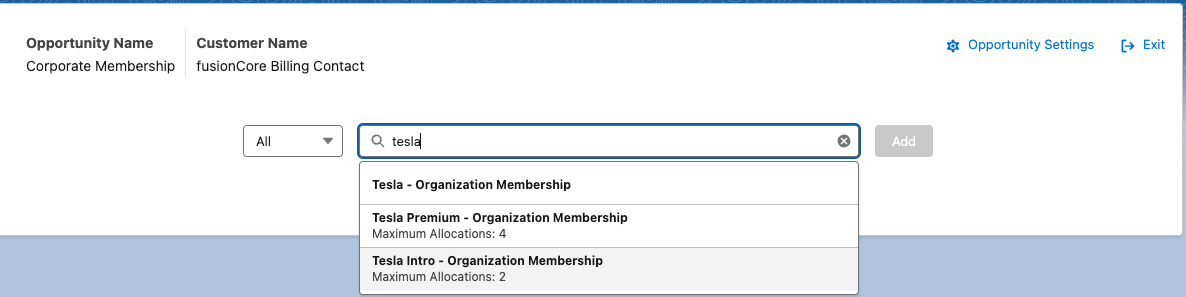
4
Add the product
Select the product, then click Add. The product appears under the Opportunity details.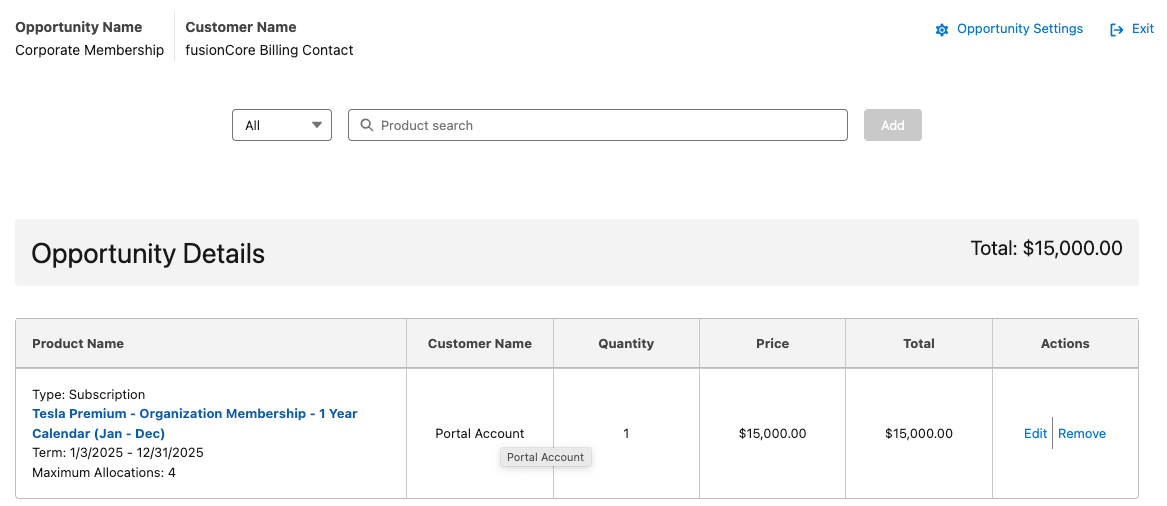
5
Adjust the quantity
Under Actions, click Edit on the right side of the product. Adjust the quantity, then click Save.
Limitations and Common Pitfalls
- At least one product is required to convert. An Opportunity must have at least one product before it can be converted to an Order — converting a product-less Opportunity is blocked.
- Opportunities use the standard price book. Pricing on an Opportunity comes from the standard price book; a non-standard price book is rejected.