

Overview
A Person Account is a single Salesforce record that combines an Account and a Contact for one individual. It merges the two so you can store everything about one individual — their name, email, and address — in a single record.Once Person Accounts are enabled in a Salesforce org, they cannot be turned off. Enable them only after you have planned for them. See Set Up Person Accounts for the configuration steps.
Why fusionCore Uses Person Accounts
Many associations sell memberships and products directly to individuals rather than to companies. Modeling each member as a Person Account lets that person directly own the things fusionCore tracks against a record:- Orders and opportunities
- Credits and a wallet balance
- Membership benefits and renewals
- Portal access through an Experience Cloud site
How to Create a Person Account
These steps cover the typical workflow for internal users — staff members or customer service representatives — who create Person Accounts by hand in Salesforce.- Click the App Launcher and type
Accounts.
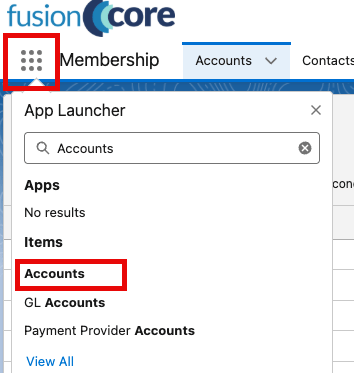
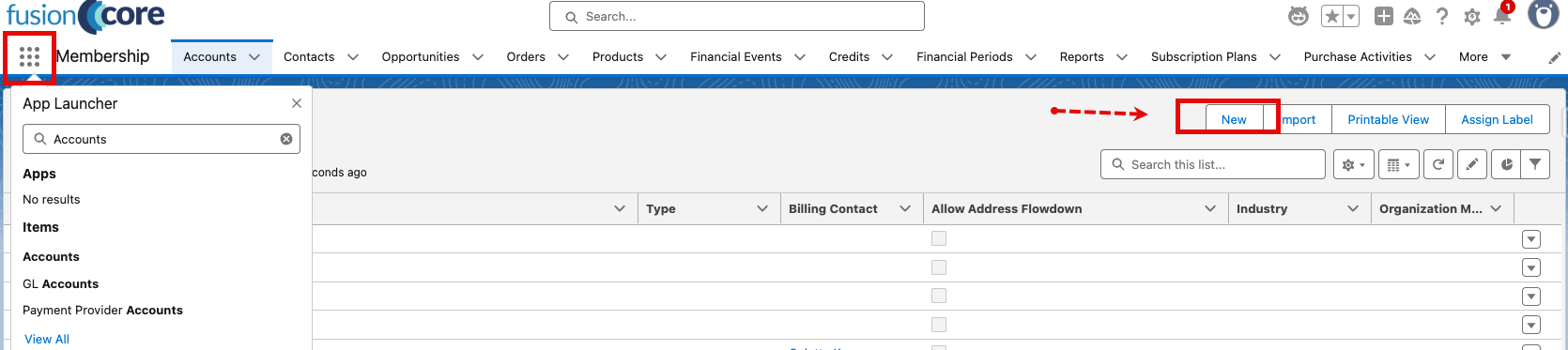
- Open Accounts, then click New at the top right.
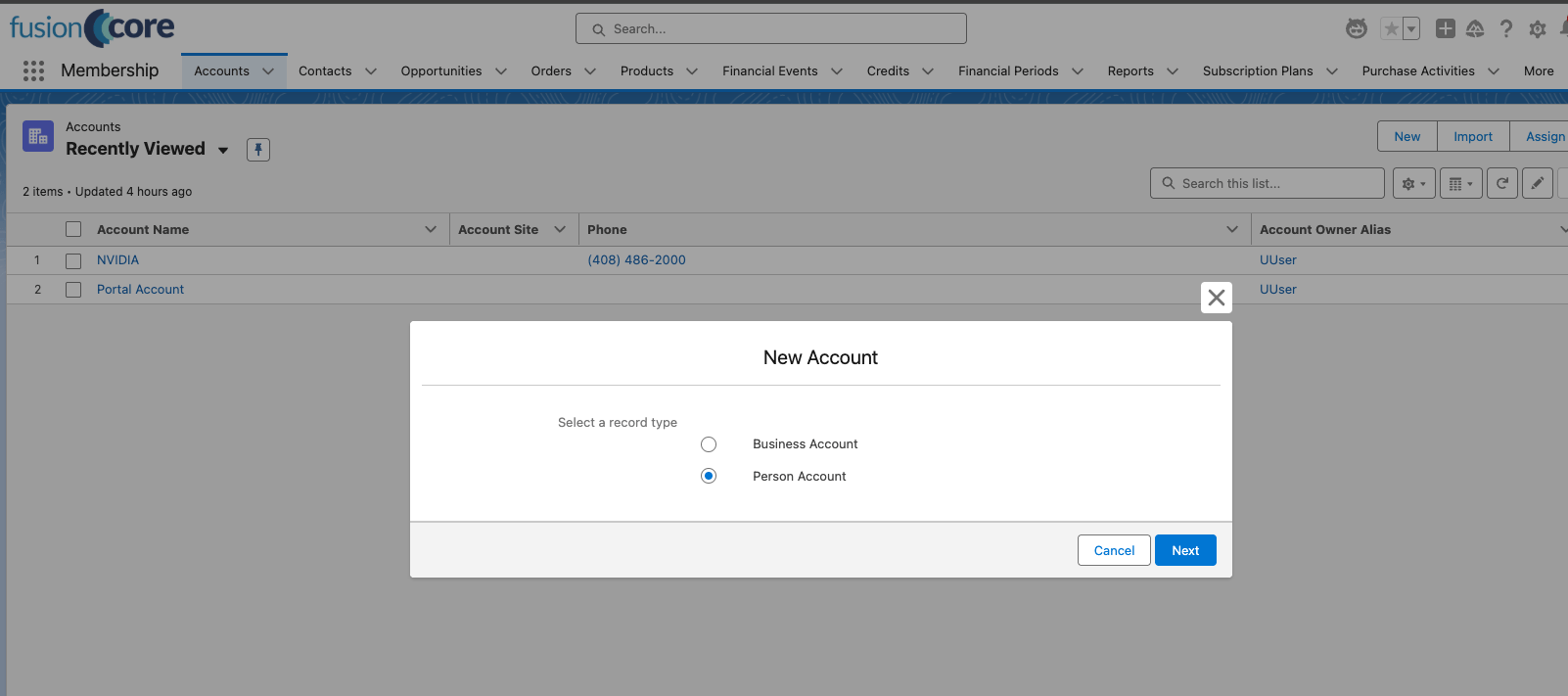
- Choose the Person Account record type, then click Next. This tells Salesforce to create an individual rather than an organization.
- Fill out the Person Account details. The fields below are the most important ones.
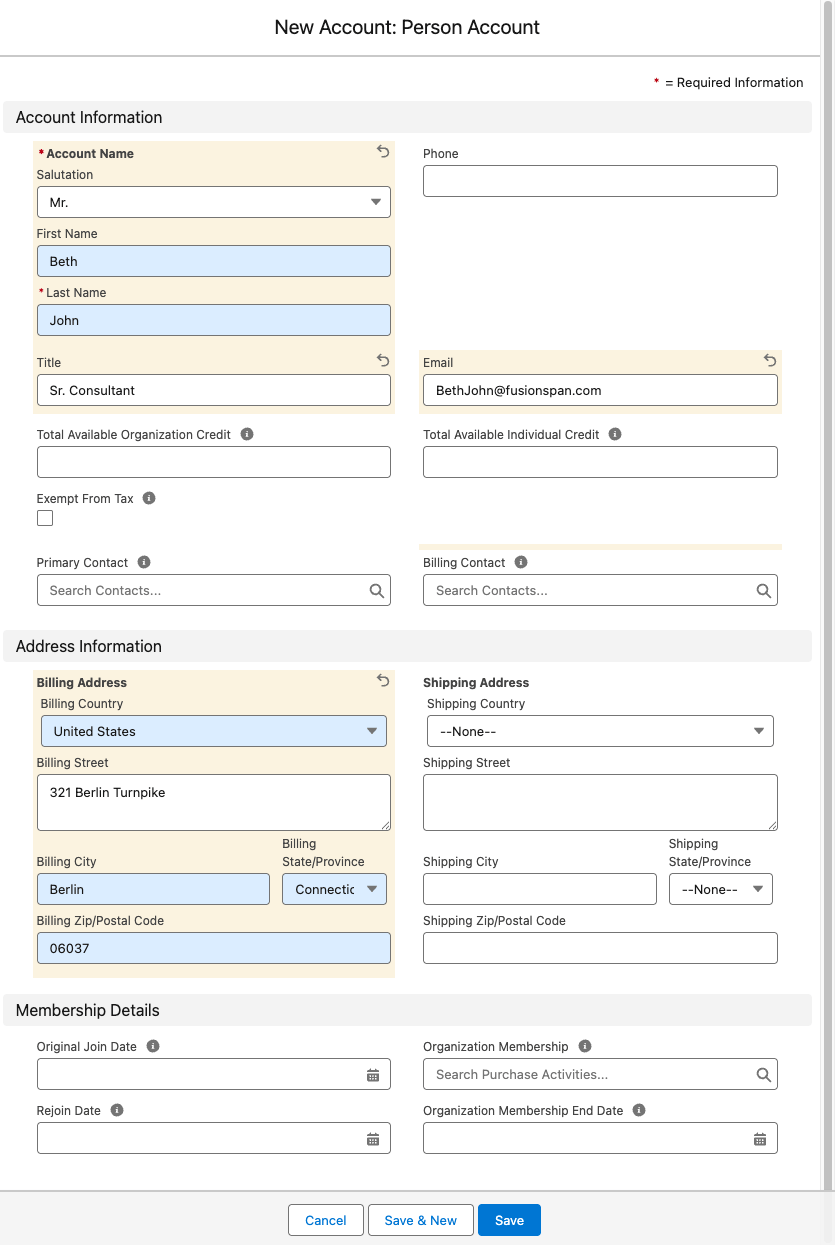
- Click Save at the bottom of the page.
Using Account Address Flowdown with Person Accounts
Account Address Flowdown copies a record’s address to its related contacts so you don’t re-enter it by hand. To learn how it works with Person Accounts, see Using Account Address Flowdown with Person Accounts.Limitations and Common Pitfalls
Keep these in mind when you work with Person Accounts.- Automatic address flow down does not apply to a Person Account. A Person Account has no separate child Contact for the address to copy to, so the automatic sync skips it. To keep its addresses aligned, use the manual Sync Address Details button instead. See Using Account Address Flowdown with Person Accounts.
- A blank Mailing Address is not filled in for you when you create the record. Saving a new Person Account with an empty Mailing Address does not copy the Billing Address into it today. After you save, use the manual Sync Address Details button to populate the Mailing Address.
- The customer name can show blank or wrong if the layouts are not updated. fusionCore uses its own Customer and Customer Name fields to resolve the individual on Order, Credit, and Purchase Activity records. If those fields have not been added to those page layouts in place of the older fields, the customer name can appear blank or incorrect for Person Accounts. Ask your administrator to add the current fusionCore customer fields to those layouts.
Related Features
Because a Person Account is both an Account and a Contact, these features apply to it the same way they apply to standard records.Contacts
The person side of a Person Account, including the Individual membership and credit fields.
Account Credit
Apply credit balances to an individual stored as a Person Account.