

Overview
Financial documents are branded PDFs that staff generate straight from a record — no Word or export step. You open them with View Document and View Summary Document buttons that sit on Order and Financial Event records. An Order is a Salesforce record representing a sale. A Financial Event (FCORE_PAY__Financial_Event__c) is a record representing a single payment, refund, or installment tied to that sale.
Which PDF opens depends on the record:
Each document opens in a new browser tab. To change which fields print or re-skin a template, see Configuring Financial Documents.
Prerequisites
- An administrator must add the View Document and View Summary Document buttons to your Order and Financial Event record pages. They do not appear automatically.
- You need both the
FS_Financial_Documents_View_Document_ActionsandFS_Financial_Documents_VF_Pagespermission sets. The first lets the button run; the second lets the PDF page render. With only the first, the button runs but the PDF fails with an access error. - The document opens via a pop-up. Allow pop-ups for your Salesforce site if the tab does not open.
Viewing Your Quotes and Invoices
1
Open the Order
Open the Order record for the sale.
2
Click View Document
Click View Document. The Quote opens on a Quote Order, and the Invoice opens on an Invoice Order, in a separate browser tab.
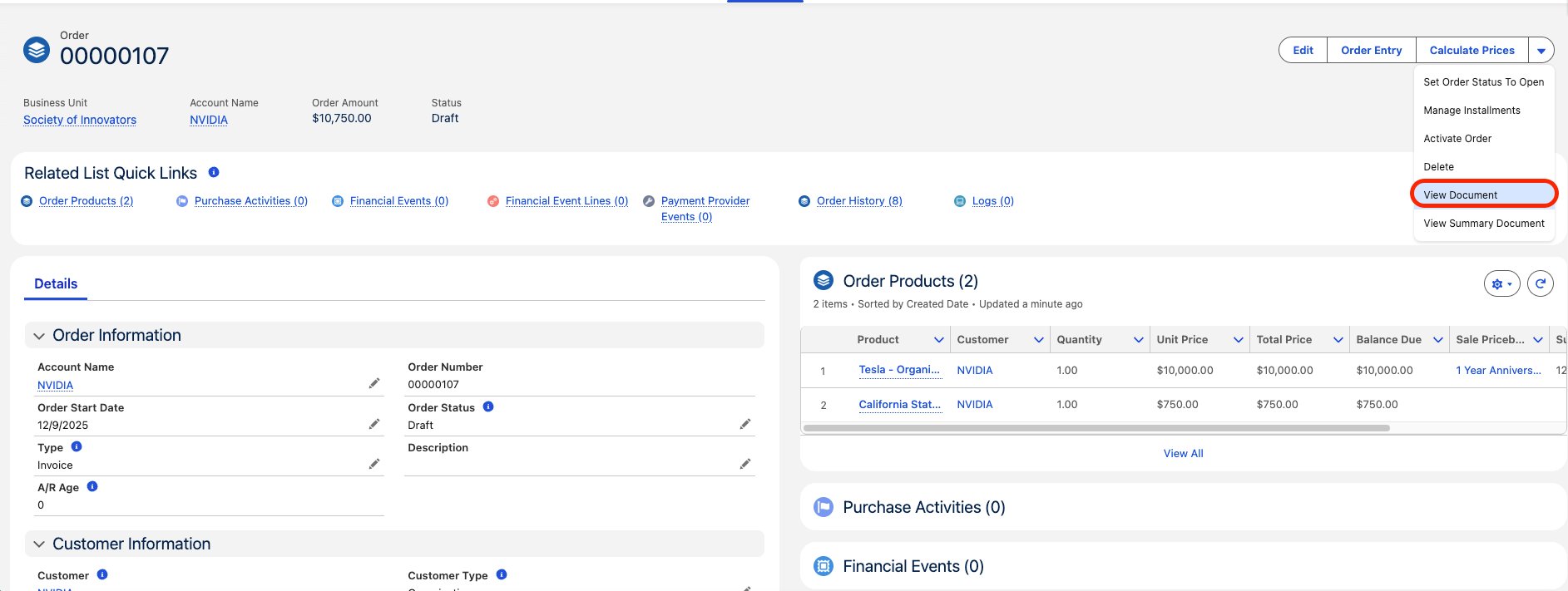
image-20251210-195456.png
Viewing Your Summary Document
1
Open the Order
Open the Order record.
2
Click View Summary Document
Click View Summary Document. The Summary document opens in a new browser tab.
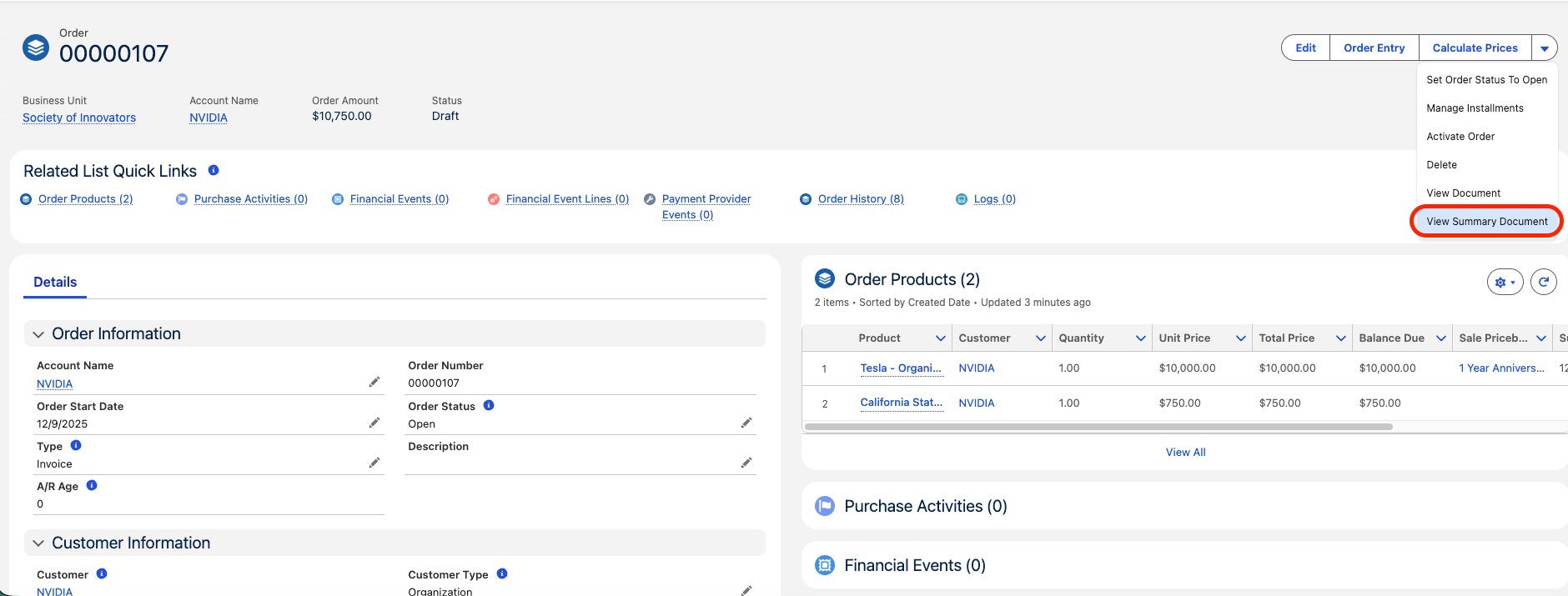
image-20251210-195737.png
Viewing Your Receipts, Refunds, and Installments
1
Open the Financial Event
Open the Payment, Refund, or Installment Financial Event record.
2
Click View Document
Click View Document. A Payment opens the Receipt document, a Refund opens the Refund document, and an Installment opens the Installment document, in a new browser tab.
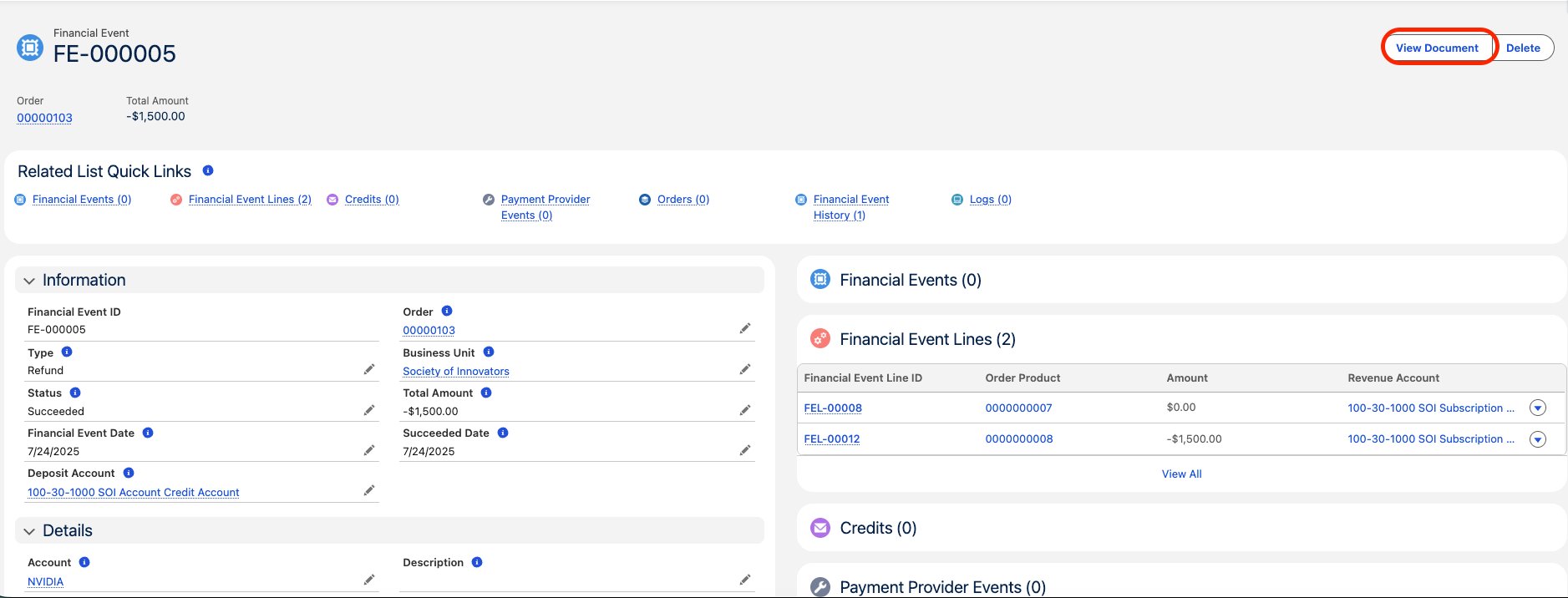
image-20251210-200346.png
Limitations and Common Pitfalls
- Order type must be Quote or Invoice. View Document and View Summary Document only work when the Order’s Type (
FCORE_PAY__Type__c) isQuoteorInvoice. Any other type returns “Order Type must be Quote or Invoice”. - The Order needs products. An Order with no order items returns “No products associated with this order. Financial documents are not available.”
- A new or unsynced Order has no UUID. The button reads the Order’s
FCORE_PAY__Order_UUID__c, which Commerce automation sets. If it is blank, the button returns “Order UUID cannot be blank”. Let the Order finish syncing before generating a document. - Payment and Refund documents require a Succeeded status. A Payment or Refund Financial Event whose Status (
FCORE_PAY__Status__c) is notSucceededreturns “Financial Event is not approved”. Installment events skip this check. - Only Payment, Refund, and Installment events are supported. Other Financial Event types (for example
VoidorAdjustment) return “Only Payment and Refund Financial Events are supported”. - Pop-up blockers can suppress the tab. The document opens in a new tab; allow pop-ups for your Salesforce site.
- Some currencies print as an ISO code, not a symbol. When a currency has no symbol available, the document prints the three-letter ISO code (for example
INR) instead. It never prints blank or “null”.