

Overview
Guest checkout lets someone buy without signing in. The shopper fills in their details at checkout, and fusionCore resolves them to a real Contact and Account behind the scenes — matching an existing person where it can, creating records where it cannot. Until that point a guest’s cart is not a Salesforce record at all: it lives in their browser. The Order is created only when they continue from the Cart page, and it is parented to placeholder records until they identify themselves at checkout.Guest checkout is off by default. Turn it on with Continue as Guest User on the Store Settings record.
Prerequisites
- Guests can reach your Store pages — see Enabling Guest Portal Users.
- A placeholder Account and Contact exist, dedicated to this purpose.
- You have decided how guests should map to Accounts.
Set Up Guest Checkout
1
Create the placeholder records
Create one Account and one Contact to own guest orders before the shopper is identified. Name them so no one mistakes them for real records — for example
Store Guest Checkout Placeholder.These records are never shown to the shopper. They exist so an Order can be saved before anyone knows who is buying.
2
Turn guest checkout on
On the Store Settings record, check Continue as Guest User and set Placeholder Account Id and Placeholder Contact Id.
3
Decide how guests map to Accounts
Set Guest Account Logic:
If Person Accounts are enabled in your org, this setting is ignored: fusionCore creates a Person Account for the guest instead. That is usually what you want, since a Person Account is the natural home for an individual buyer.
Bucket Account requires Guest Bucket Account Id, enforced by the FS_PORTAL_Guest_Bucket_Acc_Id_Required validation rule.4
Choose what details to collect
Set Additional Details Field Set to a Contact field set, and its fields appear to guests as an Additional Details sub-section at checkout, on top of the name, email, and billing address always collected. Leave it blank to hide the sub-section.The sub-section is shown to guests only — a member already has a Contact, so there is nothing to collect. Values a guest enters are used to create a new Contact when no existing one matches; they never overwrite a matched Contact.
5
Turn on reCAPTCHA
Check Validate reCAPTCHA For Guests so a guest must pass a Google reCAPTCHA challenge on the Cart page before continuing. It applies only to guests who chose Continue as Guest — members never see it.
What the Shopper Sees
1
Choose how to continue
On the Cart page a guest picks Continue as Guest or Login / Create an account. With Continue as Guest User turned off, only the login choice appears.
2
Pass the challenge
When reCAPTCHA is enabled, the guest completes it here. Failing it stops Continue with a message rather than proceeding.
3
Provide details at checkout
On the Checkout page, Your Details has three parts, and each behaves differently for a guest than for a member.
Whatever is submitted here overrides the Billing Address on the Order, for guests and members alike — so a member buying on behalf of someone else can bill elsewhere without their Contact record changing.
Guest orders hide the Account and Bill To Contact fields, and the Notification Email field — those are resolved from what the guest enters, so showing them would be confusing and editable in the wrong direction.
4
Pay
On submit, fusionCore resolves the Contact and Account, re-parents the Order from the placeholders to those real records, and processes the payment.
How a Guest Becomes a Contact
On submit, fusionCore matches the guest to an existing Contact by email and reuses it if found — so a repeat buyer accumulates orders against one Contact rather than a new one each time.To match on something other than email, write an Apex class implementing
FS_PORTAL_StoreContactMatcher and name it in Contact Matcher Class. Matching on a membership number or an external id are the usual reasons.Guest Order Token Encryption Key
In Setup → Custom Metadata Types → Constants you will need to ensure that the Guest Order Token Encryption Key for your org is set properly, like shown in the screenshot below. This code can be generated with the following code in the execute anonymous window: System.debug(EncodingUtil.base64Encode(Crypto.generateAesKey(256)));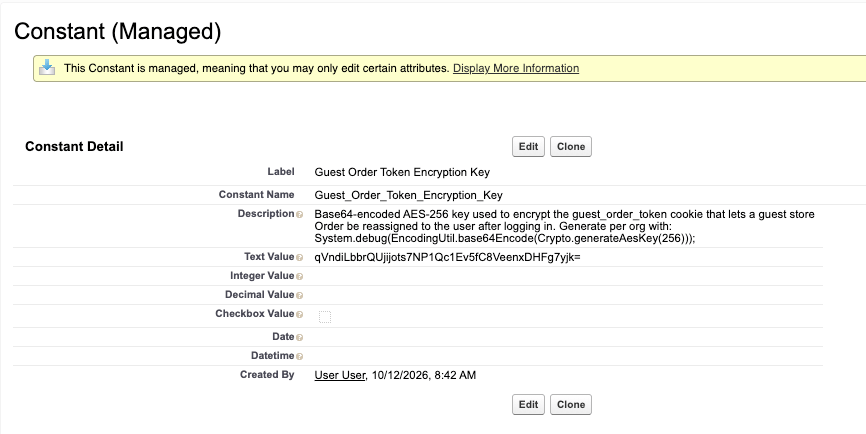
Limitations and Common Pitfalls with Guest Checkout
- A guest’s cart is browser-local and unrecoverable. No Order exists until they continue from the Cart page, so an abandoned guest cart leaves nothing behind to follow up on.
- Placeholder records must be dedicated to this. Pointing at a real Account or Contact parents every unidentified guest order onto it, polluting a customer’s record.
- Existing Contact data is never overwritten. A matched Contact keeps its current name and address even when the guest typed something different — the new address goes on the Order, not onto the person.
Bucket Accountmakes guest revenue hard to attribute. Every guest sits on one Account. PreferIndividual Account, or Person Accounts, when you care about reporting per buyer.- Person Accounts override Guest Account Logic. If they are enabled, your Bucket or Individual choice is ignored, which surprises people who set it and saw no effect.
- A long Additional Details field set costs conversions, and required fields in it are enforced at submit.
- reCAPTCHA covers the guest path only. It protects record creation at the Cart page; it is not a defense on pages a member reaches.