> ## Documentation Index
> Fetch the complete documentation index at: https://docs.fusioncore.us/llms.txt
> Use this file to discover all available pages before exploring further.
# Configuring the Batch Job
> Schedule the SubscriptionRenewalBatch renewal job, tune its batch size, and understand what makes a Purchase Activity eligible for renewal.
## Overview
The nightly renewal job runs the `SubscriptionRenewalBatch` Apex class. It finds every eligible subscription, groups the work by customer, and generates renewal Orders for the next term. The job runs as `FC: Generate Renewal Orders` and uses the default schedule `0 0 3 * * ?` (3 AM every day) unless you set your own.
You schedule the job once. After that it runs on its own every night.
## Prerequisites
* You have the **System Administrator** profile, or a permission set that grants access to Setup and the ability to run anonymous Apex.
* The `SubscriptionRenewalBatch` class is deployed in your org (it ships with the Subscriptions package).
## How to Schedule the Renewal Batch Job
You can schedule the job from the Salesforce **Setup** menu without writing any code.
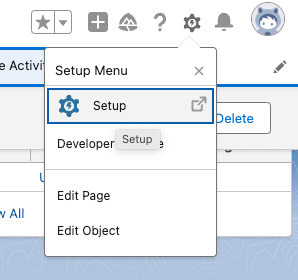
Click the gear icon at the top-right of Salesforce, then click **Setup**. The gear icon opens the administration menu.
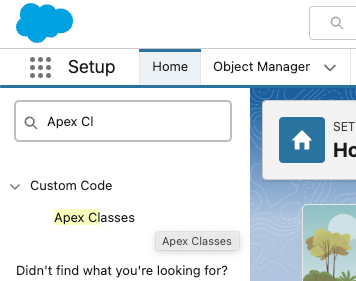
 In the **Quick Find** search box, type `Apex Classes`, then click **Apex Classes**. Quick Find is the search box on the left side of the Setup page.
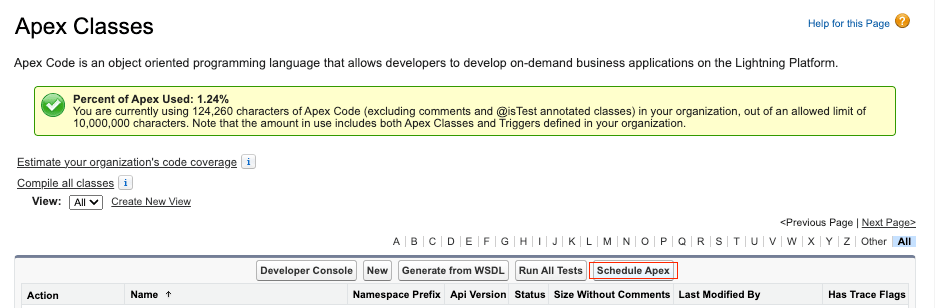
 On the Apex Classes list view, click **Schedule Apex**.
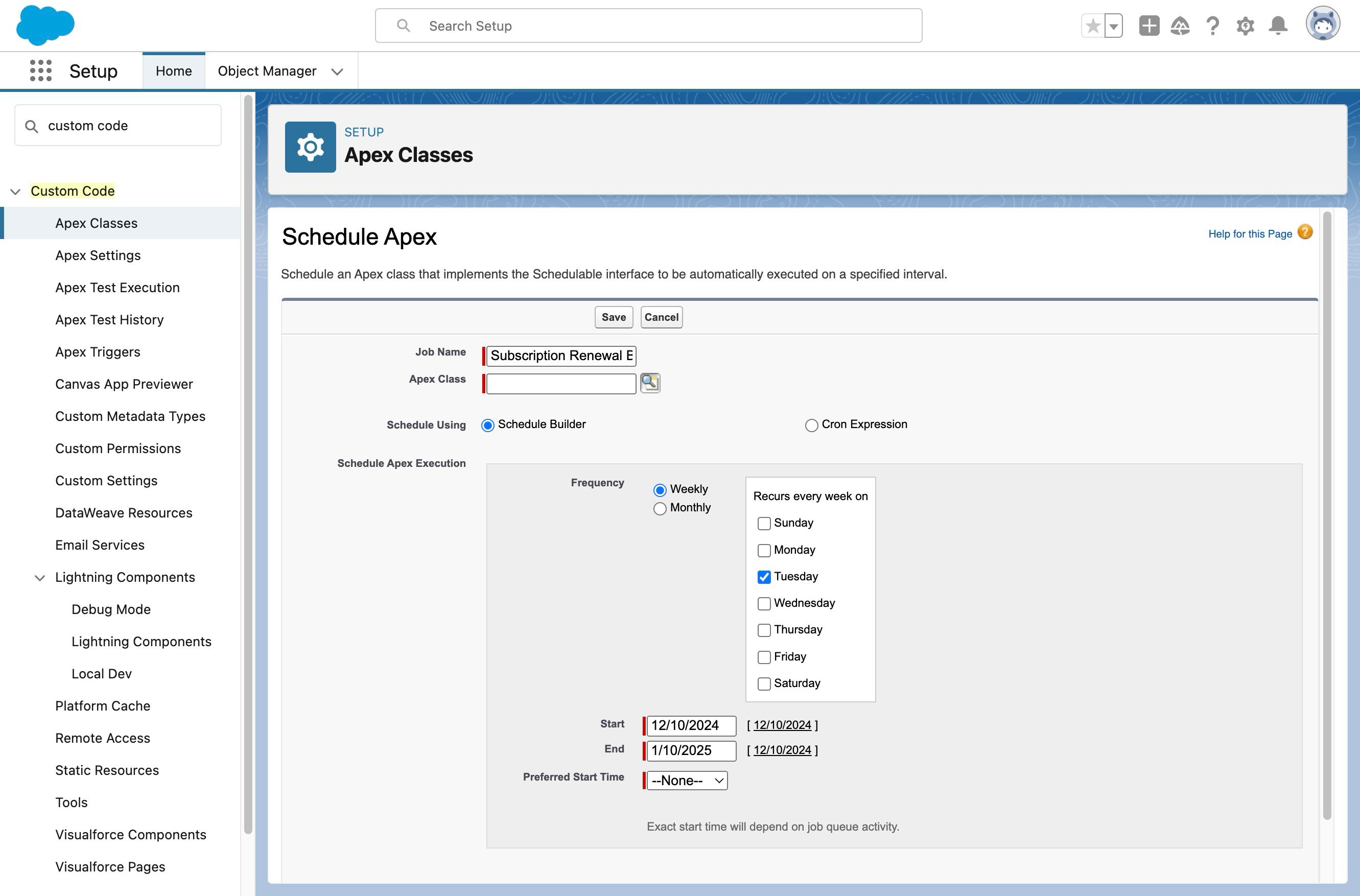
 Complete the scheduled job details:
1. Give the job a name, for example `FC: Generate Renewal Orders`.
2. For **Apex Class**, select `SubscriptionRenewalBatch`.
3. Set the job to run **Weekly** on every day, or set the frequency your org needs.
4. Set a **Start** and **End** date and a **Preferred Start Time** (3 AM matches the package default).
Complete the scheduled job details:
1. Give the job a name, for example `FC: Generate Renewal Orders`.
2. For **Apex Class**, select `SubscriptionRenewalBatch`.
3. Set the job to run **Weekly** on every day, or set the frequency your org needs.
4. Set a **Start** and **End** date and a **Preferred Start Time** (3 AM matches the package default).
 Click **Save**.
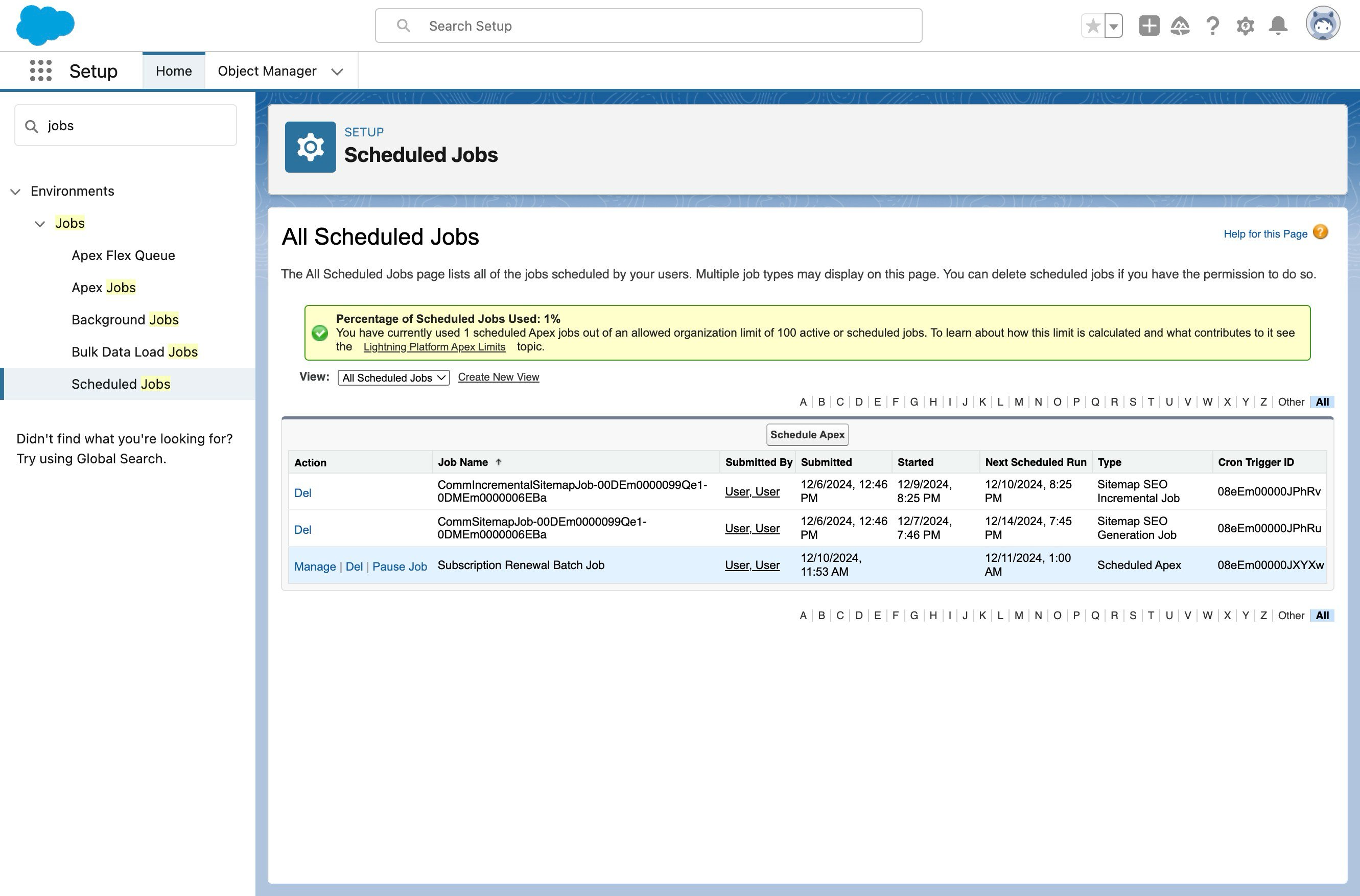
In **Quick Find**, type `Scheduled Jobs`, then click **Scheduled Jobs**. Your newly scheduled job appears in the list.
Click **Save**.
In **Quick Find**, type `Scheduled Jobs`, then click **Scheduled Jobs**. Your newly scheduled job appears in the list.
 ## How to Schedule the Job With Apex Code
If you want a custom run time, you can schedule the job from anonymous Apex instead. The class exposes two schedule methods.
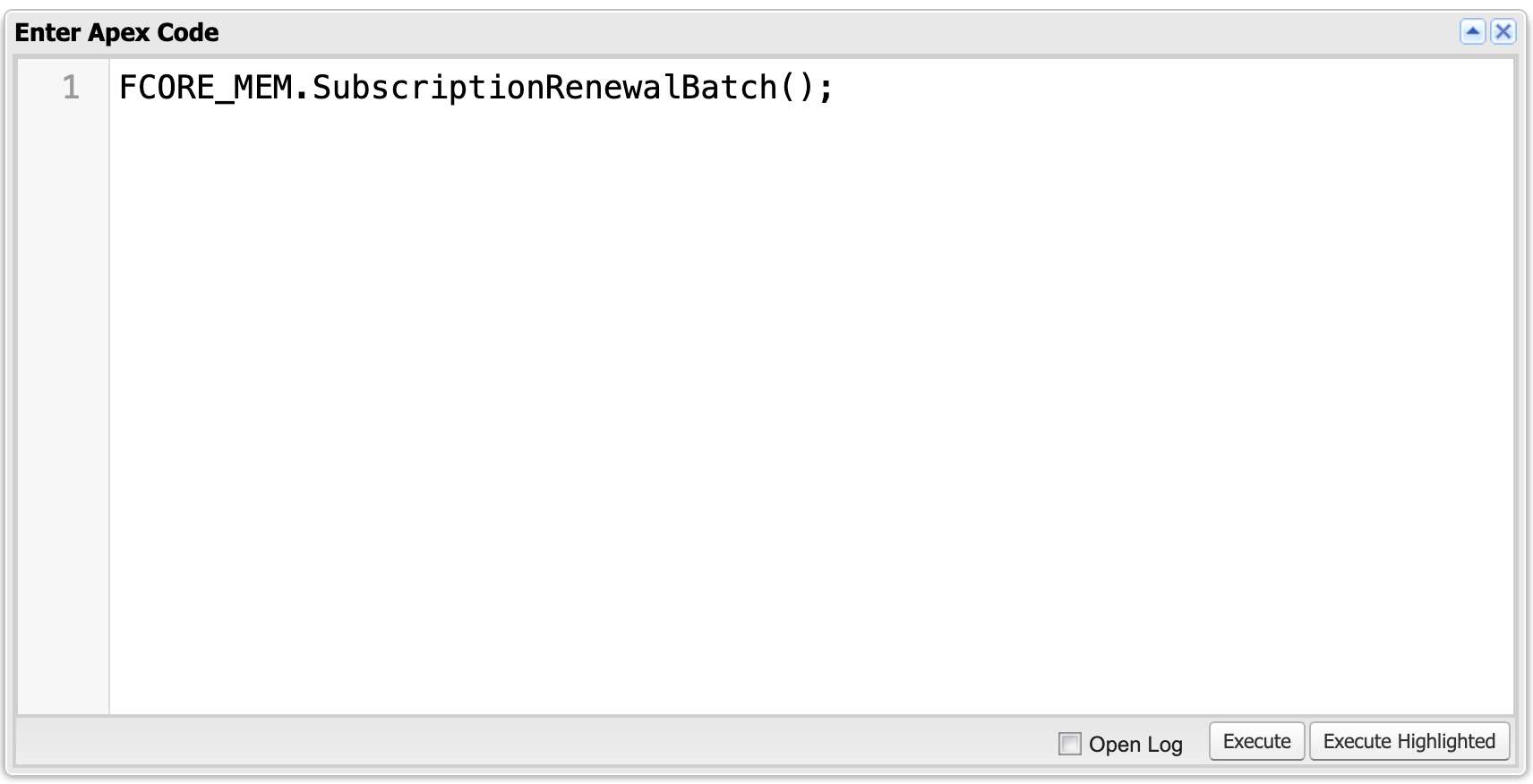
Run `SubscriptionRenewalBatch.schedule();` with no argument to use the default 3 AM daily schedule.
## How to Schedule the Job With Apex Code
If you want a custom run time, you can schedule the job from anonymous Apex instead. The class exposes two schedule methods.
Run `SubscriptionRenewalBatch.schedule();` with no argument to use the default 3 AM daily schedule.
 To choose your own run time, pass a cron expression to `SubscriptionRenewalBatch.schedule(String cron)`.
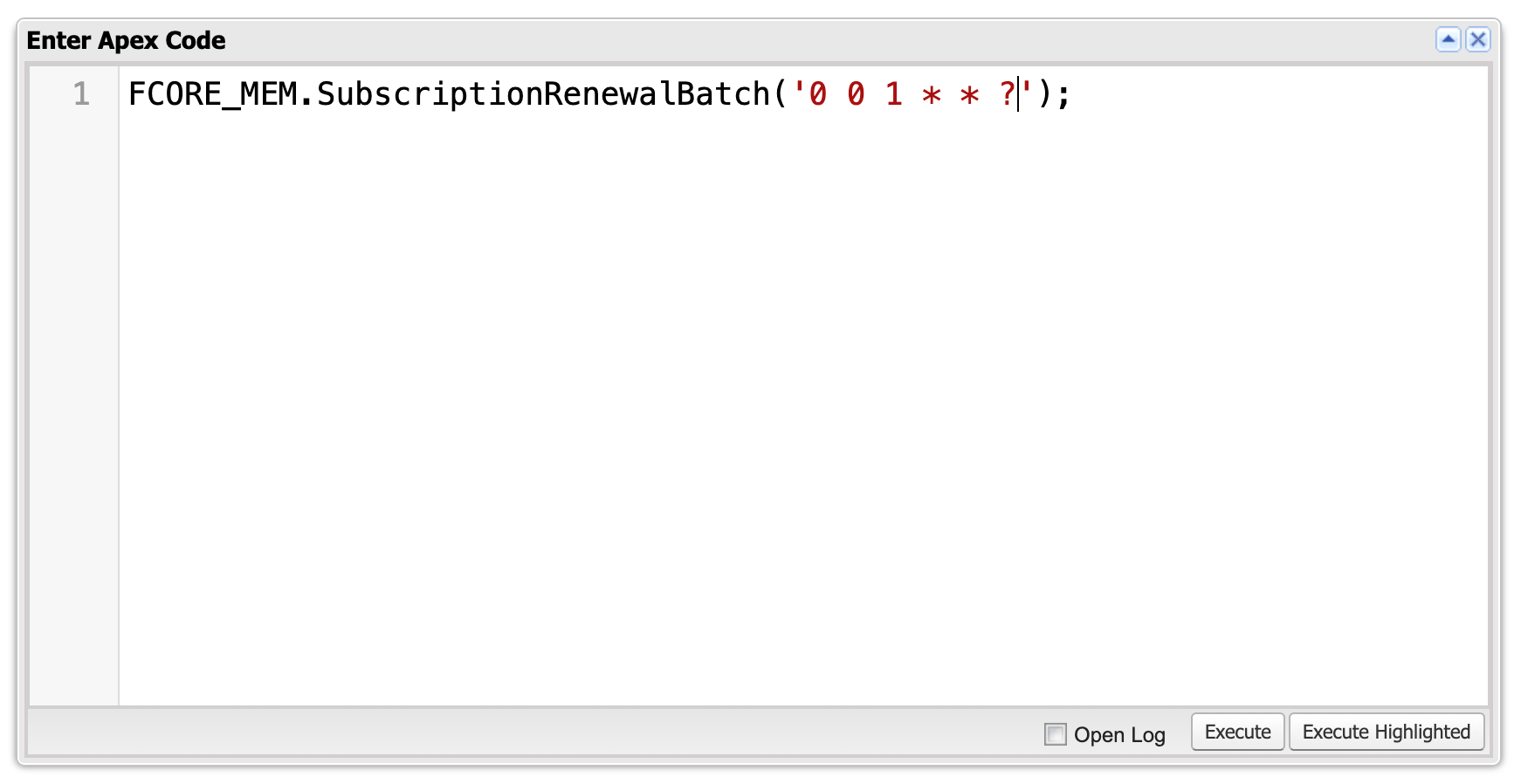 The cron expression `0 0 1 * * ?` runs the job every day at 1 AM. A cron expression is the standard Salesforce way to describe a recurring schedule.
## Tuning the Batch Size
The job processes Purchase Activities in batches. You control how many records each batch handles with a Constant record named `FS_Subscription_Renewal_Batch_Job_Size` (`FCORE_BASE__Constant__mdt`). A **Constant** is a fusionCore configuration record that holds a single setting value.
If you do not create this Constant, the batch uses a default size of **200** records per batch. Lower the value if a renewal run hits Salesforce processing limits; raise it to process more records per batch.
## What Makes a Purchase Activity Eligible
The batch only selects Purchase Activities where the `Is_Ready_For_Renewal_Job__c` checkbox is true. That checkbox is a formula, so you cannot edit it directly. It evaluates to true only when **all** of these conditions are met:
* The subscription is not cancelled.
* `Renewal_Days__c` on the Subscription Plan is not blank.
* `Days_Until_Lapse__c` is not blank and is less than or equal to `Renewal_Days__c`.
* The product has `Is_Subscription__c` set to true.
* `FCORE_PAY__Status__c` is `Active` or `Expired`.
* `Renewal_Order__c` is blank (no renewal Order has been generated yet).
* The product is not flagged `Is_Not_Renewable__c`.
* `Renewal_Status__c` is `Pending`.
The `Renewal_Days__c` field on the Subscription Plan controls how many days before the expiration date renewals are generated. For example, set `Renewal_Days__c` to 30 to start generating renewal Orders 30 days before a subscription's `End_Date__c`.
**Important notes**
* If `Is_Ready_For_Renewal_Job__c` is not true, the Purchase Activity is **not** picked up by the batch job.
* The batch consolidates multiple Purchase Activities for the same customer into a single renewal Order. If you check `Skip_Consolidation__c` on a Purchase Activity, it is **processed separately** during renewal, even when other grouping conditions match.
## Limitations and Common Pitfalls
* **The renewal engine guards against ineligible records.** If a Purchase Activity is fed to renewal with an existing renewal Order, the wrong status, `Renewal_Status__c` set to `Do Not Renew`, a status that is not `Pending`, a non-subscription product, or a product flagged `Is_Not_Renewable__c`, the renewal is rejected. Use the eligibility conditions above to predict what the batch will pick up.
* **Consolidation can merge subscriptions you expected to keep separate.** The batch groups multiple Purchase Activities per customer into one renewal Order unless they differ on customer, `End_Date__c`, `Renewal_Days__c`, `Auto_Charge__c`, or wallet item — or unless `Skip_Consolidation__c` is checked. Check `Skip_Consolidation__c` when you need a Purchase Activity renewed on its own Order.
* **A failing batch retries with a smaller batch size.** If a batch run fails, the job halves the batch size and retries, down to a size of 1, to isolate the problem record. A single bad record will not stop the rest of your renewals.
* **The job runs in system mode and without sharing.** The batch ignores record sharing rules and runs with full access, so it renews subscriptions regardless of who owns them.
* **A missing default Subscription Plan stops renewal.** If a product has no default Product Subscription Plan, renewal fails with `Default_Subscription_Plan_Is_Missing_V2`. Make sure each renewable product has exactly one default plan.
The cron expression `0 0 1 * * ?` runs the job every day at 1 AM. A cron expression is the standard Salesforce way to describe a recurring schedule.
## Tuning the Batch Size
The job processes Purchase Activities in batches. You control how many records each batch handles with a Constant record named `FS_Subscription_Renewal_Batch_Job_Size` (`FCORE_BASE__Constant__mdt`). A **Constant** is a fusionCore configuration record that holds a single setting value.
If you do not create this Constant, the batch uses a default size of **200** records per batch. Lower the value if a renewal run hits Salesforce processing limits; raise it to process more records per batch.
## What Makes a Purchase Activity Eligible
The batch only selects Purchase Activities where the `Is_Ready_For_Renewal_Job__c` checkbox is true. That checkbox is a formula, so you cannot edit it directly. It evaluates to true only when **all** of these conditions are met:
* The subscription is not cancelled.
* `Renewal_Days__c` on the Subscription Plan is not blank.
* `Days_Until_Lapse__c` is not blank and is less than or equal to `Renewal_Days__c`.
* The product has `Is_Subscription__c` set to true.
* `FCORE_PAY__Status__c` is `Active` or `Expired`.
* `Renewal_Order__c` is blank (no renewal Order has been generated yet).
* The product is not flagged `Is_Not_Renewable__c`.
* `Renewal_Status__c` is `Pending`.
The `Renewal_Days__c` field on the Subscription Plan controls how many days before the expiration date renewals are generated. For example, set `Renewal_Days__c` to 30 to start generating renewal Orders 30 days before a subscription's `End_Date__c`.
**Important notes**
* If `Is_Ready_For_Renewal_Job__c` is not true, the Purchase Activity is **not** picked up by the batch job.
* The batch consolidates multiple Purchase Activities for the same customer into a single renewal Order. If you check `Skip_Consolidation__c` on a Purchase Activity, it is **processed separately** during renewal, even when other grouping conditions match.
## Limitations and Common Pitfalls
* **The renewal engine guards against ineligible records.** If a Purchase Activity is fed to renewal with an existing renewal Order, the wrong status, `Renewal_Status__c` set to `Do Not Renew`, a status that is not `Pending`, a non-subscription product, or a product flagged `Is_Not_Renewable__c`, the renewal is rejected. Use the eligibility conditions above to predict what the batch will pick up.
* **Consolidation can merge subscriptions you expected to keep separate.** The batch groups multiple Purchase Activities per customer into one renewal Order unless they differ on customer, `End_Date__c`, `Renewal_Days__c`, `Auto_Charge__c`, or wallet item — or unless `Skip_Consolidation__c` is checked. Check `Skip_Consolidation__c` when you need a Purchase Activity renewed on its own Order.
* **A failing batch retries with a smaller batch size.** If a batch run fails, the job halves the batch size and retries, down to a size of 1, to isolate the problem record. A single bad record will not stop the rest of your renewals.
* **The job runs in system mode and without sharing.** The batch ignores record sharing rules and runs with full access, so it renews subscriptions regardless of who owns them.
* **A missing default Subscription Plan stops renewal.** If a product has no default Product Subscription Plan, renewal fails with `Default_Subscription_Plan_Is_Missing_V2`. Make sure each renewable product has exactly one default plan.