> ## Documentation Index
> Fetch the complete documentation index at: https://docs.fusioncore.us/llms.txt
> Use this file to discover all available pages before exploring further.
# Connected Account Webhook Setup
> Set up the Stripe webhook for a connected account so payment status changes sync back into fusionCore.
A **webhook** is a URL that Stripe calls to push events back into your org. When a payment succeeds, fails, or is refunded, Stripe sends a message to this URL so your **Payment Provider Account** (the Salesforce record `FCORE_PAY__Payment_Provider_Account__c` that holds one Stripe connection's configuration) and related order records stay accurate without manual updates.
This guide sets up a webhook for a **connected account** — the default model, where your org is a connected account under fusionSpan's platform Stripe account.
If you are setting up a **Stripe Direct account** (your org's own standalone Stripe account), complete the extra steps in [Stripe Direct accounts](/end-user-guides/stripe/stripe-direct-accounts/index) first, then return here for the webhook steps.
## Prerequisites
* Commerce (`FCORE_PAY`) and the Stripe addon (`FCORE_PSTRIPE`) are installed in your org.
* A `FCORE_PAY__Payment_Provider_Account__c` record exists for your Stripe connection.
* You can log into the correct Stripe **connected account** (not the fusionSpan/fusionCore platform account).
* You have access to **Setup** in Salesforce.
## Set the Permission Set for the Stripe Site Guest User
A **Salesforce Site** exposes a public URL that Stripe can reach without logging in. The **site guest user** is the anonymous user that runs requests to that URL. You give that user the permission set group it needs to process the inbound webhook.
In Salesforce, go to **Setup** and type `Sites` in the **Quick Find** search bar on the left.
Click **Sites** — *not* **All Sites**.
If a registration page appears, select the checkbox and click **Register My Salesforce Site Domain**.
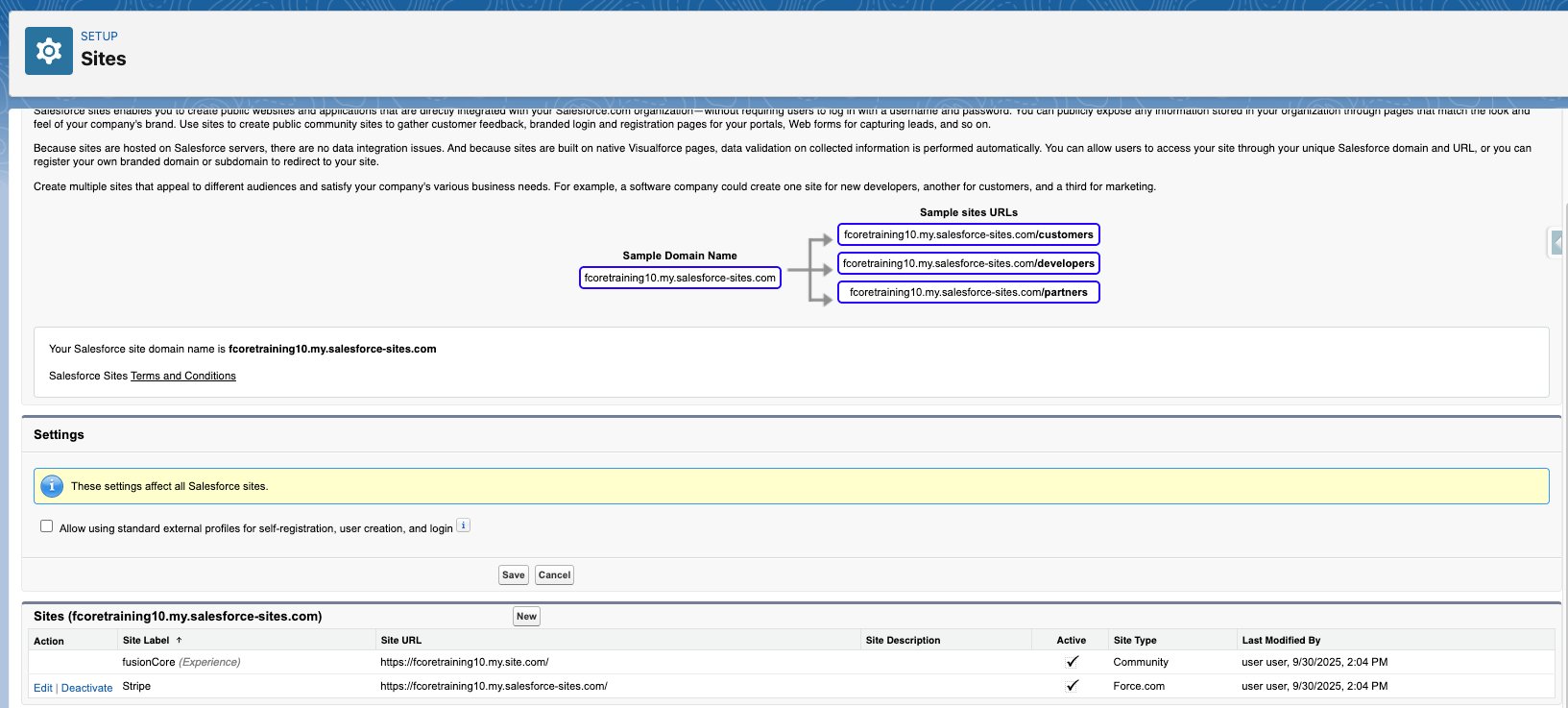 Make sure `StripeWebhook` is assigned as the home page for the site.
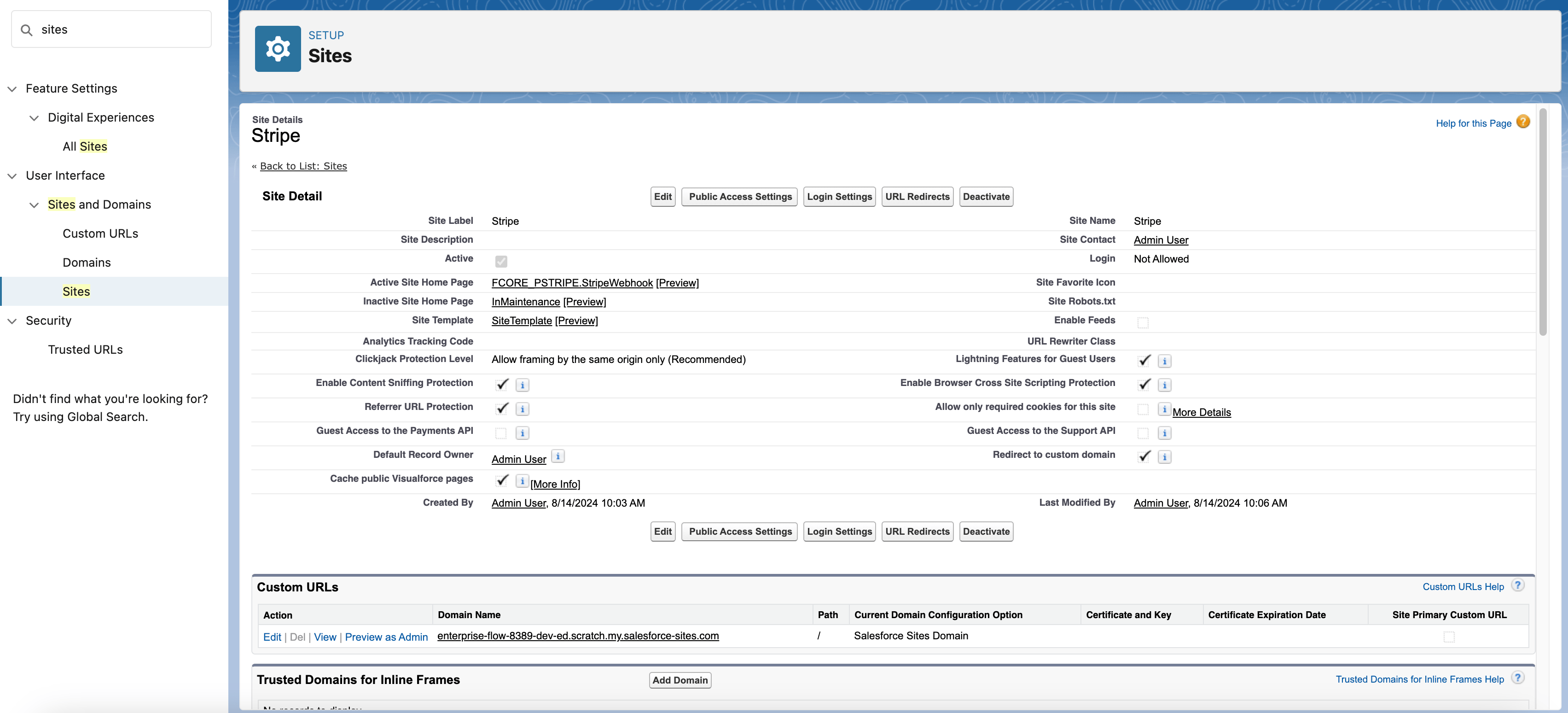 Click **Public Access Settings**, then click **View Users**, then click **Site Guest User**.
In the **Permission Set Assignments** section, click **Edit Assignments**.
Assign the permission set group `fusionCore - Stripe Site Guest User` to the site guest user, then save.
## Set Up the Stripe Webhook
You now register your Salesforce site URL with Stripe and tell Stripe which events to send.
Log into the correct **connected account** before you create the webhook — not the fusionSpan/fusionCore platform Stripe account. If the webhook is created on the platform account, the Card/ACH payment modal stays stuck on loading and will not work.
Open a separate browser tab and log into the **Stripe** connected account you want to accept payments under.
In Stripe, go to **Developers → Webhook → Create Event Destination** (bottom left).
Click **Public Access Settings**, then click **View Users**, then click **Site Guest User**.
In the **Permission Set Assignments** section, click **Edit Assignments**.
Assign the permission set group `fusionCore - Stripe Site Guest User` to the site guest user, then save.
## Set Up the Stripe Webhook
You now register your Salesforce site URL with Stripe and tell Stripe which events to send.
Log into the correct **connected account** before you create the webhook — not the fusionSpan/fusionCore platform Stripe account. If the webhook is created on the platform account, the Card/ACH payment modal stays stuck on loading and will not work.
Open a separate browser tab and log into the **Stripe** connected account you want to accept payments under.
In Stripe, go to **Developers → Webhook → Create Event Destination** (bottom left).
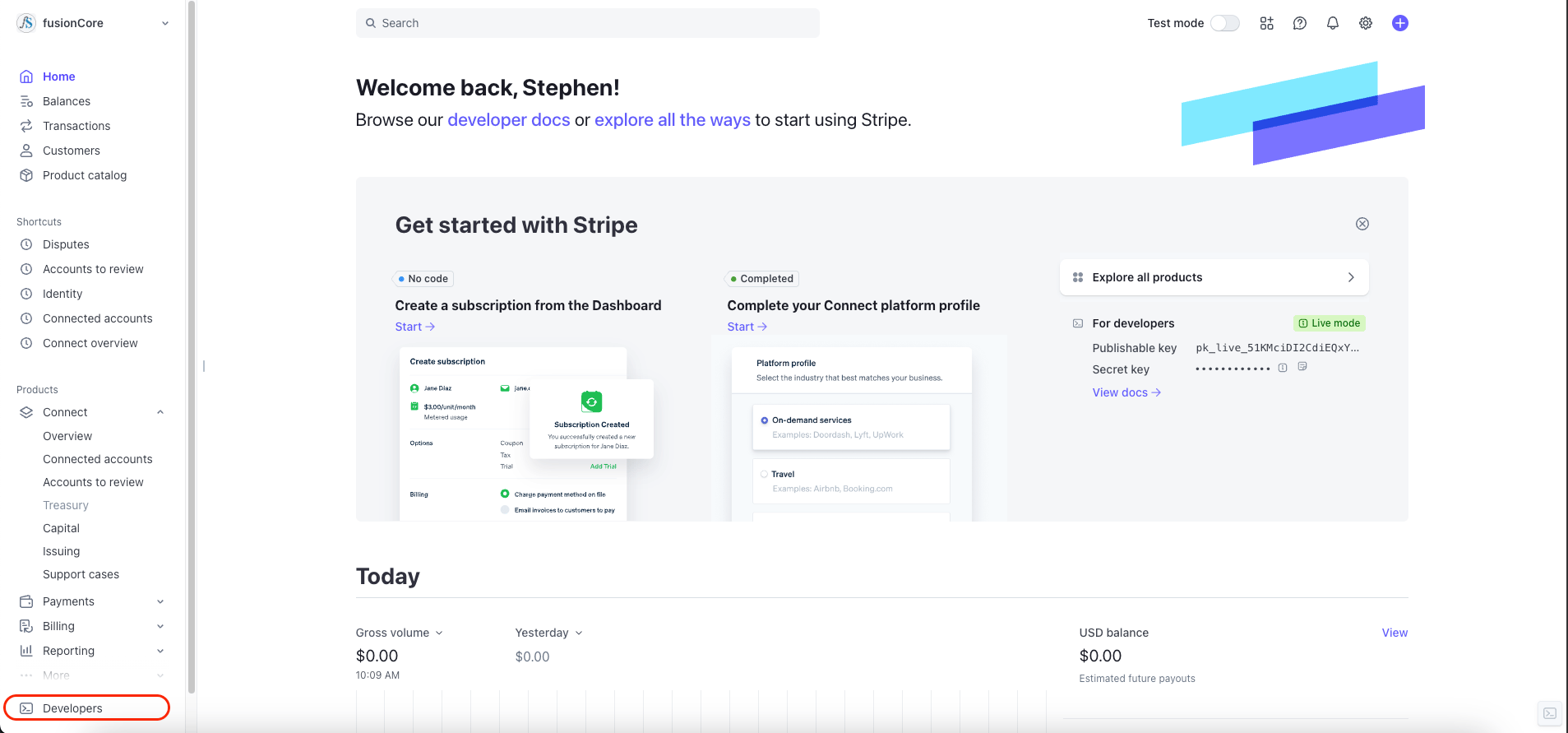
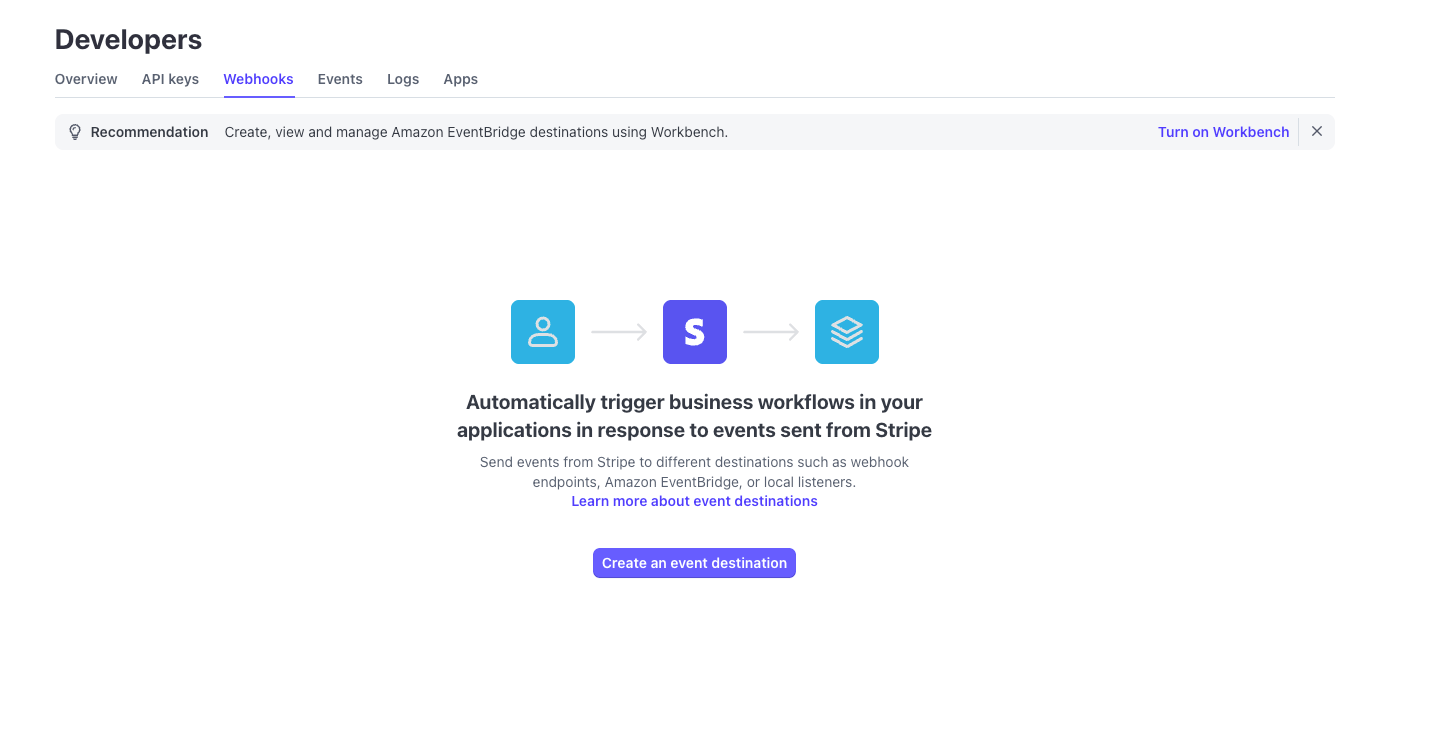 Back in Salesforce, on the **Sites** page, right-click the site URL and choose **Copy Link Address**.
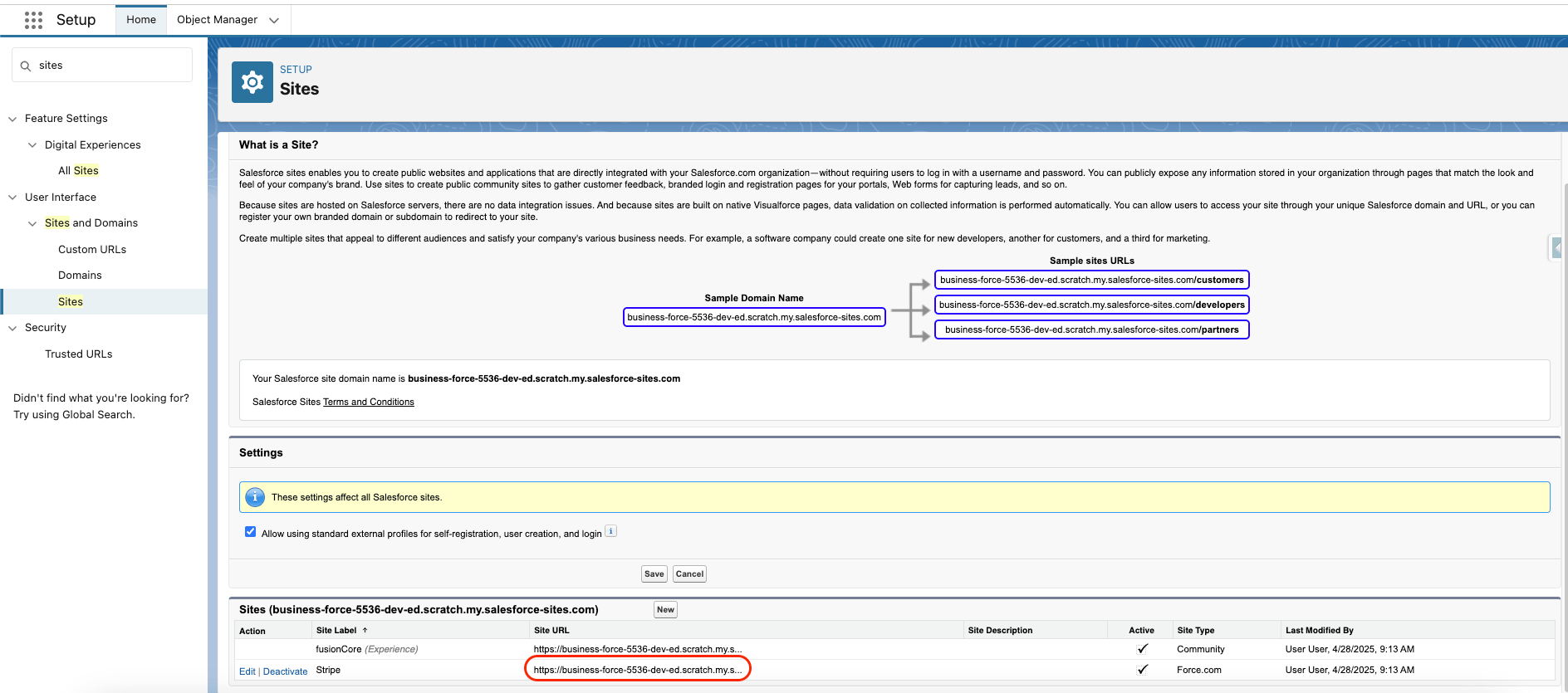 The site URL resembles `https://example-org.my.salesforce-sites.com/`.
Append `/services/apexrest/FCORE_PSTRIPE/Stripe` to your site URL. This is the Apex REST endpoint (`FCORE_PSTRIPE.StripeWebhookAPI`) that receives Stripe's events.
The final endpoint URL resembles:
`https://example-org.my.salesforce-sites.com/services/apexrest/FCORE_PSTRIPE/Stripe`
Paste this into the **Endpoint URL** field in Stripe. Use the exact URL with no extra slashes or spaces.
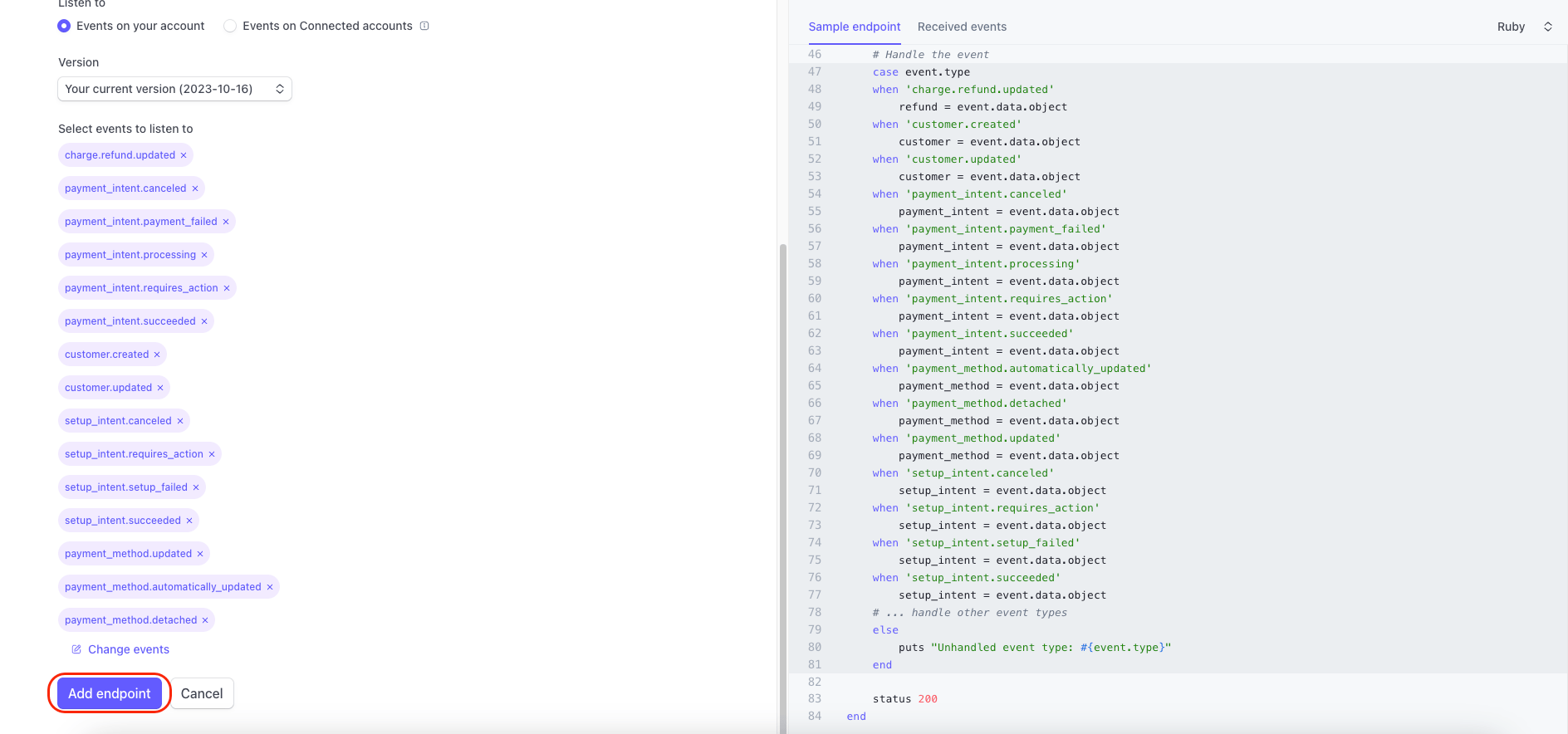
Add these 15 events for the webhook to listen to:
* `charge.refund.updated`
* `payment_intent.canceled`
* `payment_intent.payment_failed`
* `payment_intent.processing`
* `payment_intent.requires_action`
* `payment_intent.succeeded`
* `customer.created`
* `customer.updated`
* `setup_intent.canceled`
* `setup_intent.requires_action`
* `setup_intent.setup_failed`
* `setup_intent.succeeded`
* `payment_method.updated`
* `payment_method.automatically_updated`
* `payment_method.detached`
Subscribe to exactly these events. fusionCore returns an error for event types it does not handle, which adds noise to the `Stripe_API_Log__c` records. Stripe may automatically add `payment_method.card_automatically_updated`, so you might see 16 entries — that extra one is expected.
Click **Add Endpoint**.
The site URL resembles `https://example-org.my.salesforce-sites.com/`.
Append `/services/apexrest/FCORE_PSTRIPE/Stripe` to your site URL. This is the Apex REST endpoint (`FCORE_PSTRIPE.StripeWebhookAPI`) that receives Stripe's events.
The final endpoint URL resembles:
`https://example-org.my.salesforce-sites.com/services/apexrest/FCORE_PSTRIPE/Stripe`
Paste this into the **Endpoint URL** field in Stripe. Use the exact URL with no extra slashes or spaces.
Add these 15 events for the webhook to listen to:
* `charge.refund.updated`
* `payment_intent.canceled`
* `payment_intent.payment_failed`
* `payment_intent.processing`
* `payment_intent.requires_action`
* `payment_intent.succeeded`
* `customer.created`
* `customer.updated`
* `setup_intent.canceled`
* `setup_intent.requires_action`
* `setup_intent.setup_failed`
* `setup_intent.succeeded`
* `payment_method.updated`
* `payment_method.automatically_updated`
* `payment_method.detached`
Subscribe to exactly these events. fusionCore returns an error for event types it does not handle, which adds noise to the `Stripe_API_Log__c` records. Stripe may automatically add `payment_method.card_automatically_updated`, so you might see 16 entries — that extra one is expected.
Click **Add Endpoint**.
 ## Validate the Payment Provider Account
After the webhook is created, validate the Payment Provider Account to confirm the connection works end to end. **Validation** checks your keys, signing secret, and payment types, then creates a Stripe test customer. When Stripe sends the `customer.created` or `customer.updated` event back through the webhook, the validation status flips to **Succeeded**.
If you are setting up a **Stripe Direct account**, complete the steps in [Stripe Direct accounts](/end-user-guides/stripe/stripe-direct-accounts/index) before validating.
Go to the Payment Provider Account record (`FCORE_PAY__Payment_Provider_Account__c`).
Click the **Validate** button.
If everything is configured correctly, `FCORE_PAY__Validation_Status__c` changes from **Pending** to **Succeeded**. Once it reads **Succeeded**, you are ready to take payments.
If there is a problem, the **Validation Message** field (`FCORE_PAY__Validation_Message__c`) shows the reason.
## Limitations and Common Pitfalls
* **Validation is asynchronous.** Clicking **Validate** does not set **Succeeded** on its own. It creates the Stripe test customer and waits for the inbound `customer.created` or `customer.updated` webhook to flip the status. If the webhook is misconfigured, validation never completes even when your keys are correct. The customer event is also accepted only if it arrives within roughly 10 seconds, so retry validation rather than waiting on a stale event.
* **Editing key fields silently resets validation.** Changing `FCORE_PAY__External_Id__c`, `FCORE_PAY__Request_Signature_Secret__c`, or `Stripe_MDT_Prefix__c` on the account clears `FCORE_PAY__Validation_Status__c`. Re-run **Validate** after any of those edits.
* **Webhook failures are easy to miss.** If the `Stripe-Signature` header is missing or invalid, the signature does not match a Payment Provider Account's signing secret, or the request is older than 300 seconds, fusionCore returns HTTP 204 and does nothing. Stripe treats 204 as success and will not retry, so a misconfigured webhook can fail quietly. Check the `Stripe_API_Log__c` records if events are not arriving.
* **Events from the wrong org or mode are dropped.** Events whose org id does not match your org, or whose live/test mode does not match the account's mode, are accepted with HTTP 204 and ignored.
* **A Secret/Public-key validation error in production often means test mode.** If validation fails in production with a key error, the account may need `FCORE_PAY__Force_Test_Mode__c` set to true so it uses the sandbox keys. Confirm with the fusionCore team before changing this on a live account.
* **External Id must be unique.** Two Payment Provider Accounts with the same `FCORE_PAY__External_Id__c` cause validation to fail with "Multiple Payment Provider Accounts were found with the same External Id."
* **Alipay and WeChat Pay are not available on connected accounts.** Those methods require the Stripe Direct model. On a connected account, adding them is blocked.
## Validate the Payment Provider Account
After the webhook is created, validate the Payment Provider Account to confirm the connection works end to end. **Validation** checks your keys, signing secret, and payment types, then creates a Stripe test customer. When Stripe sends the `customer.created` or `customer.updated` event back through the webhook, the validation status flips to **Succeeded**.
If you are setting up a **Stripe Direct account**, complete the steps in [Stripe Direct accounts](/end-user-guides/stripe/stripe-direct-accounts/index) before validating.
Go to the Payment Provider Account record (`FCORE_PAY__Payment_Provider_Account__c`).
Click the **Validate** button.
If everything is configured correctly, `FCORE_PAY__Validation_Status__c` changes from **Pending** to **Succeeded**. Once it reads **Succeeded**, you are ready to take payments.
If there is a problem, the **Validation Message** field (`FCORE_PAY__Validation_Message__c`) shows the reason.
## Limitations and Common Pitfalls
* **Validation is asynchronous.** Clicking **Validate** does not set **Succeeded** on its own. It creates the Stripe test customer and waits for the inbound `customer.created` or `customer.updated` webhook to flip the status. If the webhook is misconfigured, validation never completes even when your keys are correct. The customer event is also accepted only if it arrives within roughly 10 seconds, so retry validation rather than waiting on a stale event.
* **Editing key fields silently resets validation.** Changing `FCORE_PAY__External_Id__c`, `FCORE_PAY__Request_Signature_Secret__c`, or `Stripe_MDT_Prefix__c` on the account clears `FCORE_PAY__Validation_Status__c`. Re-run **Validate** after any of those edits.
* **Webhook failures are easy to miss.** If the `Stripe-Signature` header is missing or invalid, the signature does not match a Payment Provider Account's signing secret, or the request is older than 300 seconds, fusionCore returns HTTP 204 and does nothing. Stripe treats 204 as success and will not retry, so a misconfigured webhook can fail quietly. Check the `Stripe_API_Log__c` records if events are not arriving.
* **Events from the wrong org or mode are dropped.** Events whose org id does not match your org, or whose live/test mode does not match the account's mode, are accepted with HTTP 204 and ignored.
* **A Secret/Public-key validation error in production often means test mode.** If validation fails in production with a key error, the account may need `FCORE_PAY__Force_Test_Mode__c` set to true so it uses the sandbox keys. Confirm with the fusionCore team before changing this on a live account.
* **External Id must be unique.** Two Payment Provider Accounts with the same `FCORE_PAY__External_Id__c` cause validation to fail with "Multiple Payment Provider Accounts were found with the same External Id."
* **Alipay and WeChat Pay are not available on connected accounts.** Those methods require the Stripe Direct model. On a connected account, adding them is blocked.