> ## Documentation Index
> Fetch the complete documentation index at: https://docs.fusioncore.us/llms.txt
> Use this file to discover all available pages before exploring further.
# Subscription Products
> Create a Subscription product — a product that renews on a schedule, such as a membership — and link it to a Subscription Plan and price book.
## What Is a Subscription Product?
A **Subscription product** is a product that renews on a schedule, such as a membership. You create it much like a [Miscellaneous product](/end-user-guides/products/product-set-up/miscellaneous-products), but it carries subscription-specific settings and must be linked to a **Subscription Plan** before it can be sold.
Each Subscription product is a Salesforce `Product2` record created with the **Subscription** record type. A few fields set it apart:
* **Is Subscription** (`FCORE_MEM__Is_Subscription__c`) and **Is Membership** (`Is_Membership__c`) explicitly mark whether the product is a subscription and/or a membership. The Subscription record type can be used for other purposes, so these flags state intent — not every product on the Subscription record type is itself a subscription.
* **Is Not Renewable** (`Is_Not_Renewable__c`) — when checked, the product is excluded from renewals.
## How to Create a Subscription Product
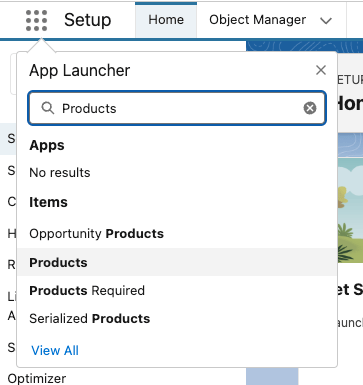
Click the **App Launcher** (the nine dots at the top left) and type **Products**, then open the **Products** list.
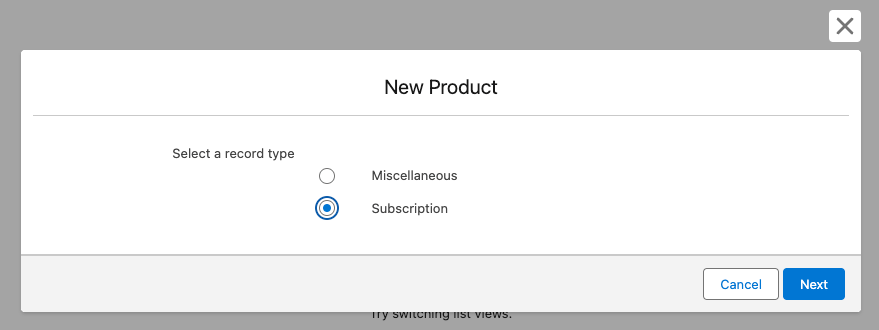
 At the top right of the product list view, click **New**, select **Subscription** as the record type, then click **Next**.
 Complete the **Product Information**:
* **Name**
* **Business Unit** — required for the product to work correctly
* **Customer Type** — `Individual` or `Organization`
* Check **Is Subscription** (`FCORE_MEM__Is_Subscription__c`); check **Is Membership** if this product is a membership; and check **Purchase Activity Creation**
* **A/R Account**
* **Revenue Account**
The Business Unit on the GL Account **must** match the one on the Product record. Otherwise, an error is thrown on save.
Complete the **Product Information**:
* **Name**
* **Business Unit** — required for the product to work correctly
* **Customer Type** — `Individual` or `Organization`
* Check **Is Subscription** (`FCORE_MEM__Is_Subscription__c`); check **Is Membership** if this product is a membership; and check **Purchase Activity Creation**
* **A/R Account**
* **Revenue Account**
The Business Unit on the GL Account **must** match the one on the Product record. Otherwise, an error is thrown on save.
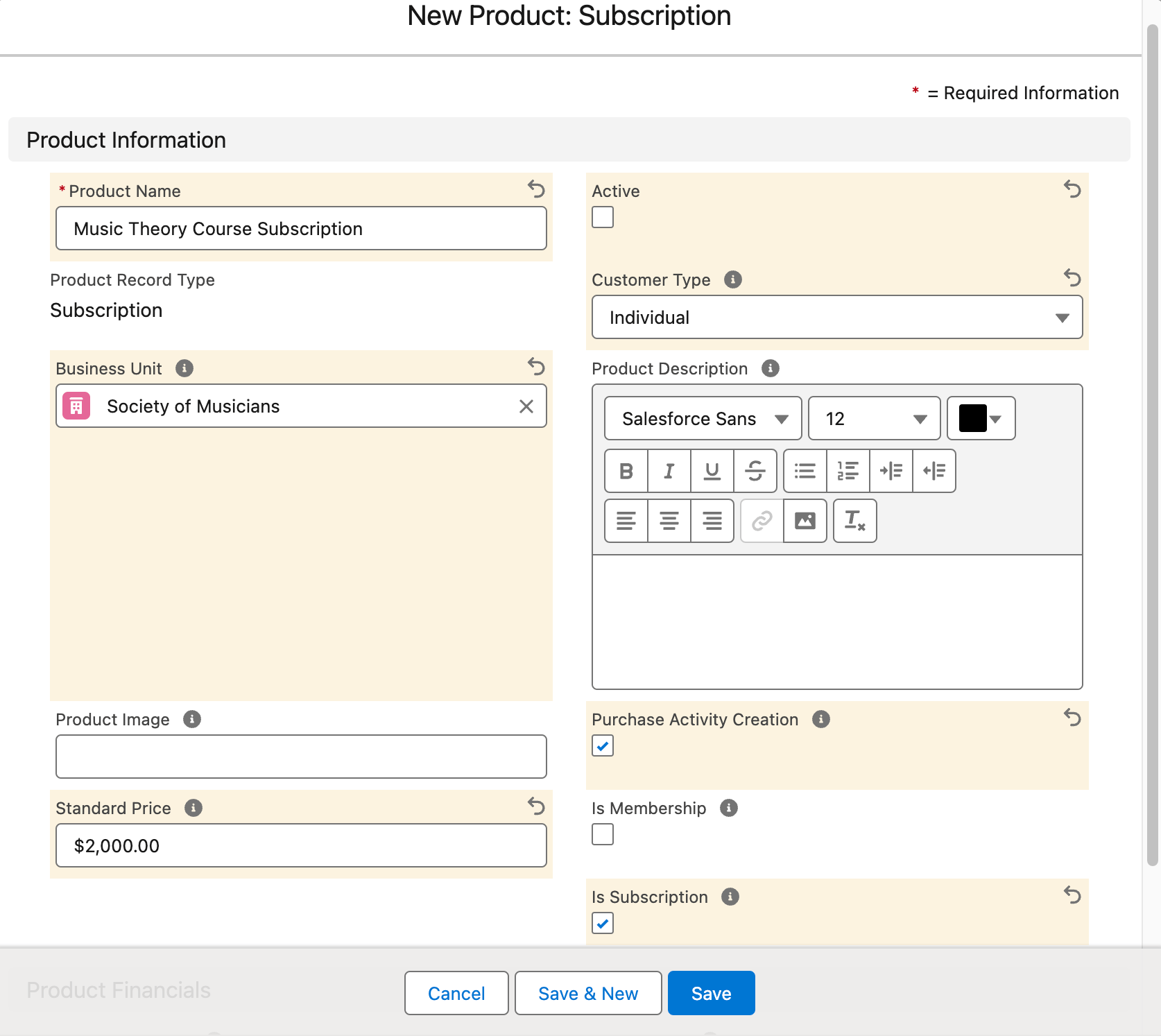 Click **Save**. Leave the standard Salesforce **Active** (`IsActive`) field unchecked until you have finished linking the product to its Subscription Plans and price books.
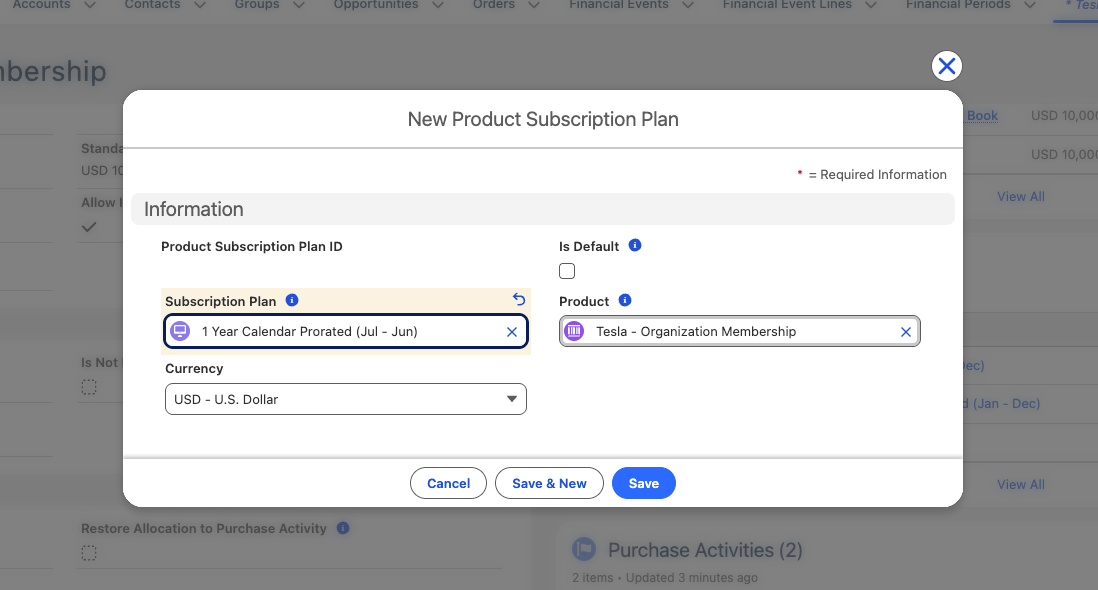
On the new Product record, go to the **Product Subscription Plans** related list and click **New**. This related list is the junction (`Product_Subscription_Plan__c`) that links the Product to its Subscription Plans — the link is not a single lookup field on the Product itself.
Click **Save**. Leave the standard Salesforce **Active** (`IsActive`) field unchecked until you have finished linking the product to its Subscription Plans and price books.
On the new Product record, go to the **Product Subscription Plans** related list and click **New**. This related list is the junction (`Product_Subscription_Plan__c`) that links the Product to its Subscription Plans — the link is not a single lookup field on the Product itself.
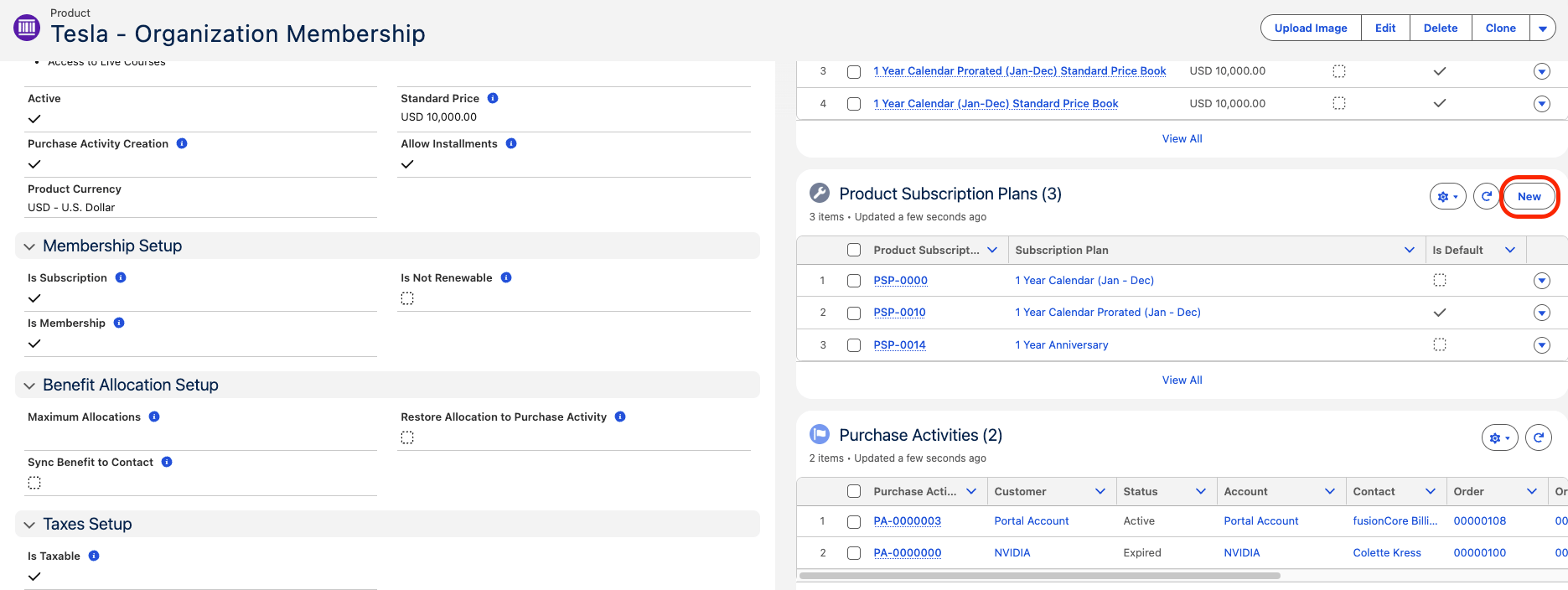 On the new **Product Subscription Plan** record, set the **Subscription Plan** field to the plan you want to link, and check **Is Default** (`Is_Default__c`) on the one plan the product should use by default. Repeat for each Subscription Plan you want this product to use. For the default-plan rule and how to link from the Subscription Plan side, see [Linking Plans to Products](/end-user-guides/subscriptions/subscription-plans/linking-plans-to-products).
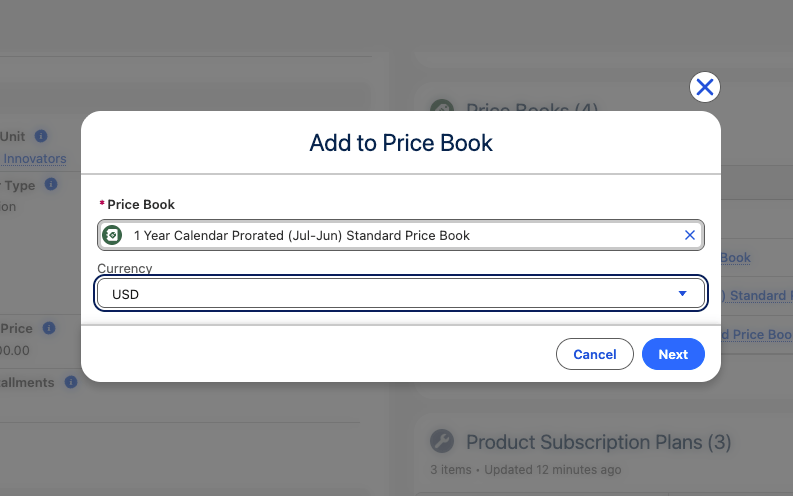
 Link your Subscription product to the Standard Price Book associated with the Subscription Plan, and to any other price books linked to that plan. Do this for each Subscription Plan's price book.
 Once the product is linked to its Subscription Plans and their price books, check the standard Salesforce **Active** (`IsActive`) field on the Product so it can be sold.
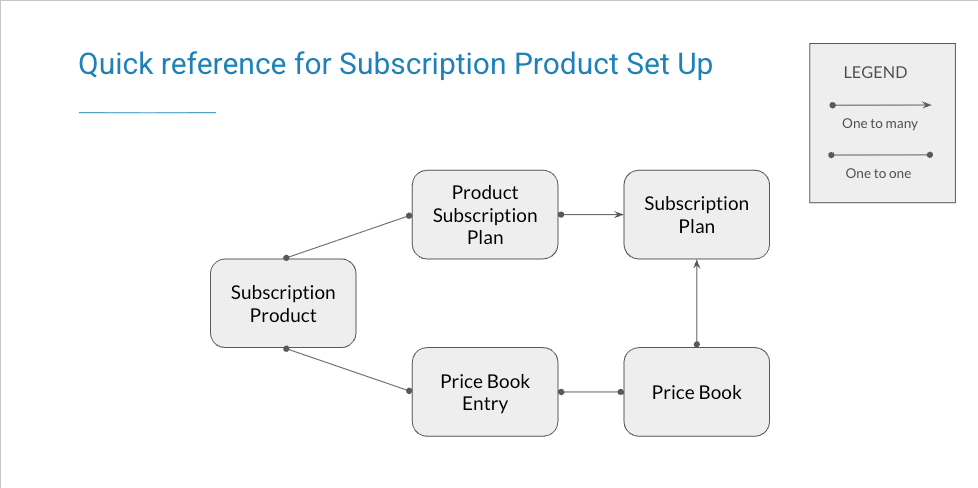
## Quick Reference for Subscription Product Set Up
Once the product is linked to its Subscription Plans and their price books, check the standard Salesforce **Active** (`IsActive`) field on the Product so it can be sold.
## Quick Reference for Subscription Product Set Up
 ## Limitations and Common Pitfalls
* **A subscription product cannot be sold until it is fully linked.** Link it to a Subscription Plan and that plan's price book before checking the standard Salesforce **Active** (`IsActive`) field.
* **Is Subscription is not set automatically.** You must check **Is Subscription** (`FCORE_MEM__Is_Subscription__c`) yourself — nothing sets it for you.
* **Business Unit must match the GL Accounts.** The Business Unit on the chosen A/R and Revenue GL Accounts must match the product's Business Unit, or the save errors.
## Limitations and Common Pitfalls
* **A subscription product cannot be sold until it is fully linked.** Link it to a Subscription Plan and that plan's price book before checking the standard Salesforce **Active** (`IsActive`) field.
* **Is Subscription is not set automatically.** You must check **Is Subscription** (`FCORE_MEM__Is_Subscription__c`) yourself — nothing sets it for you.
* **Business Unit must match the GL Accounts.** The Business Unit on the chosen A/R and Revenue GL Accounts must match the product's Business Unit, or the save errors.