> ## Documentation Index
> Fetch the complete documentation index at: https://docs.fusioncore.us/llms.txt
> Use this file to discover all available pages before exploring further.
# Adding an Opportunity Product
> Use the Opportunity Products button to search for a product and add it to an Opportunity.
## Overview
You add products to an Opportunity with the **Order Entry** component, which appears on an Opportunity as the **Opportunity Products** button. Each product you add creates an Opportunity product (`OpportunityLineItem`) record on the Opportunity. After adding a product, you can adjust its quantity.
How many products the search returns is configurable. See [Configuring Max Number of Products in Search](/end-user-guides/orders/orders/configuring-max-number-of-products-in-search).
## How to Add a Product to an Opportunity
Navigate to the **Opportunity record detail page**.
At the top right, click **Opportunity Products**.
 In the search bar, search for the product you want to add.
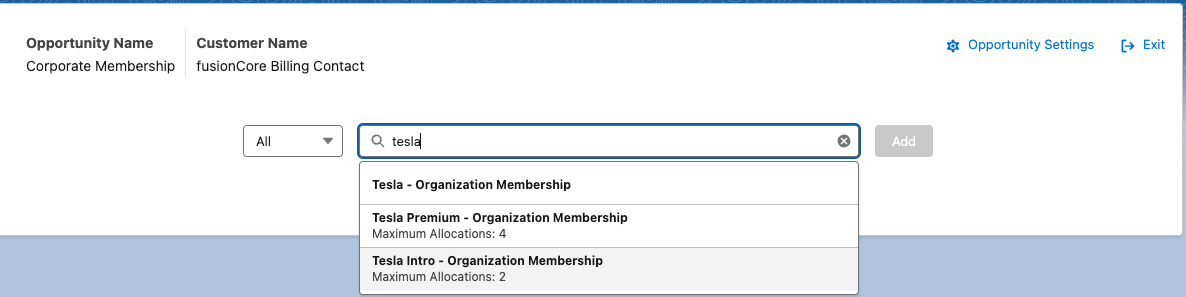 Select the product, then click **Add**. The product appears under the Opportunity details.
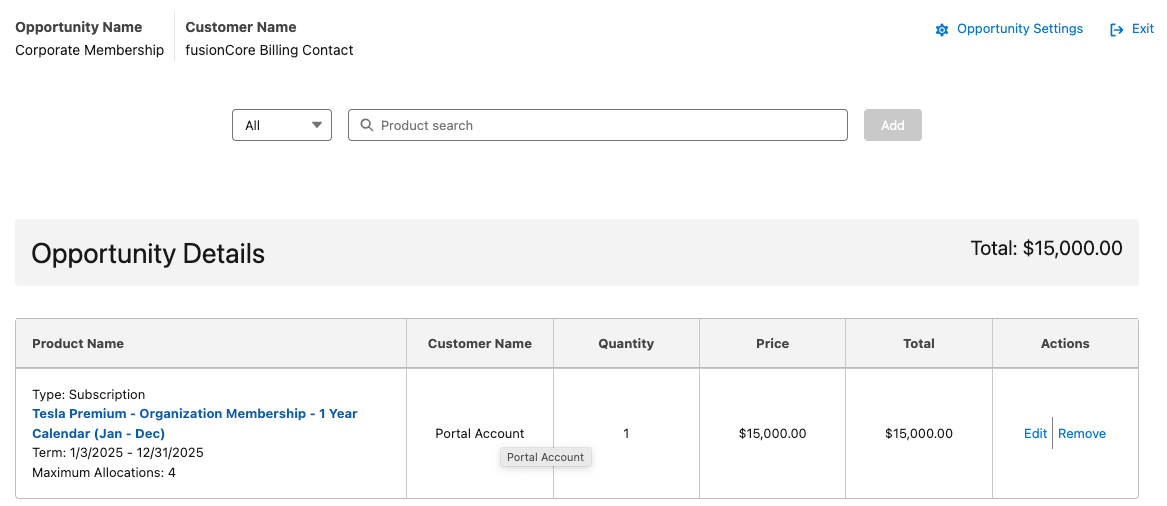 Under **Actions**, click **Edit** on the right side of the product. Adjust the quantity, then click **Save**.
## Limitations and Common Pitfalls
* **At least one product is required to convert.** An Opportunity must have at least one product before it can be converted to an Order — converting a product-less Opportunity is blocked.
* **Opportunities use the standard price book.** Pricing on an Opportunity comes from the standard price book; a non-standard price book is rejected.
Under **Actions**, click **Edit** on the right side of the product. Adjust the quantity, then click **Save**.
## Limitations and Common Pitfalls
* **At least one product is required to convert.** An Opportunity must have at least one product before it can be converted to an Order — converting a product-less Opportunity is blocked.
* **Opportunities use the standard price book.** Pricing on an Opportunity comes from the standard price book; a non-standard price book is rejected.