> ## Documentation Index
> Fetch the complete documentation index at: https://docs.fusioncore.us/llms.txt
> Use this file to discover all available pages before exploring further.
# Paying with Wallet Items
> Use a saved payment method to pay for an Order in checkout, as a Staff user in Commerce or as a portal user in the Portal.
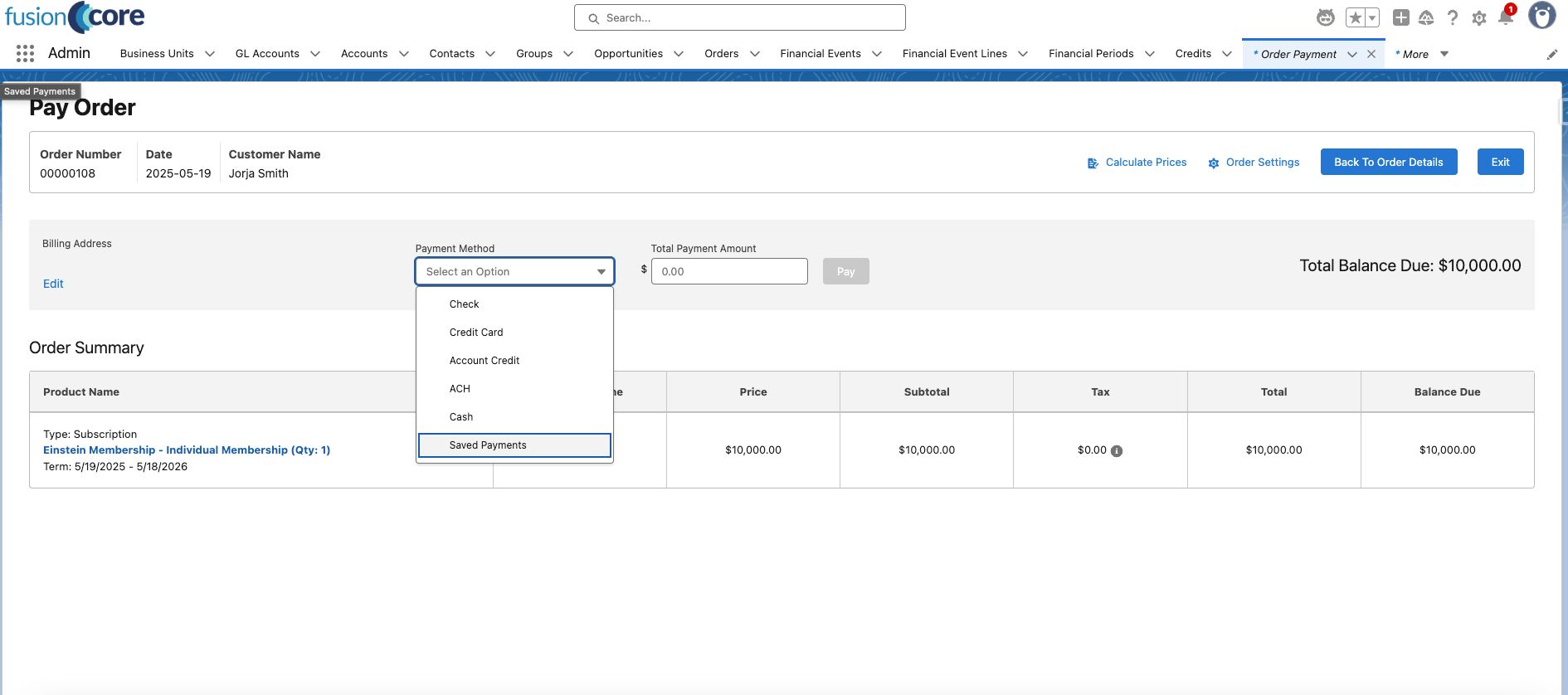
Once a contact has a saved Wallet Item, you can use it to pay for an Order without re-entering the payment details. Staff select a saved method on the Commerce Payment page; portal users select one on the Portal checkout page. Both draw from the same Commerce wallet.
## Paying with a Wallet Item as a Staff User
### Prerequisites
* The `FC Commerce - Access To Pay With Wallet Items` permission set is assigned to the staff user taking the payment.
* The contact has at least one active Wallet Item.
On the Payment page, select **Saved Payments** as the payment type.
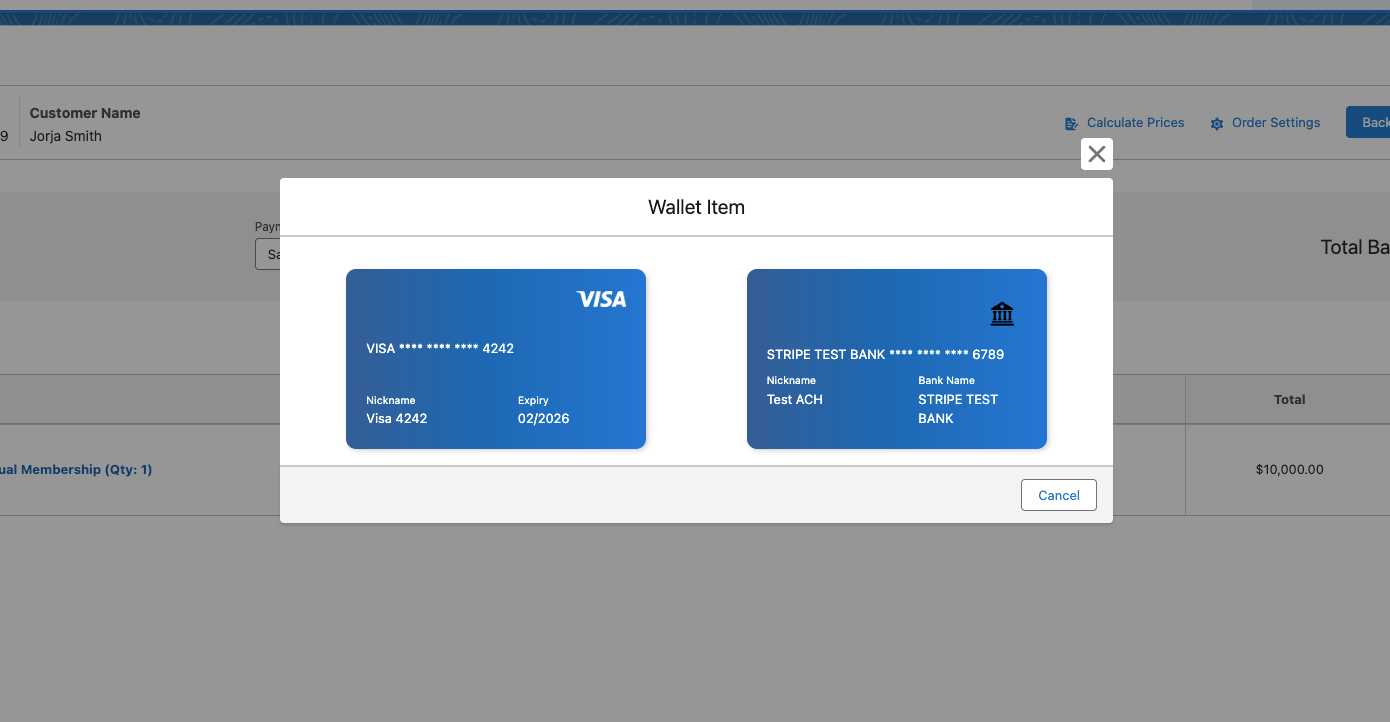
 Select one of the saved payment methods, then click **Pay**.
 ## Paying with a Wallet Item as a Portal User
### Prerequisites
* The `FC_Portal_My_Wallet` permission set is assigned to the portal user.
* The portal user has at least one active Wallet Item.
On the checkout page, choose **Saved Payment Methods** as your payment method and select the Wallet Item to pay with.
## Paying with a Wallet Item as a Portal User
### Prerequisites
* The `FC_Portal_My_Wallet` permission set is assigned to the portal user.
* The portal user has at least one active Wallet Item.
On the checkout page, choose **Saved Payment Methods** as your payment method and select the Wallet Item to pay with.
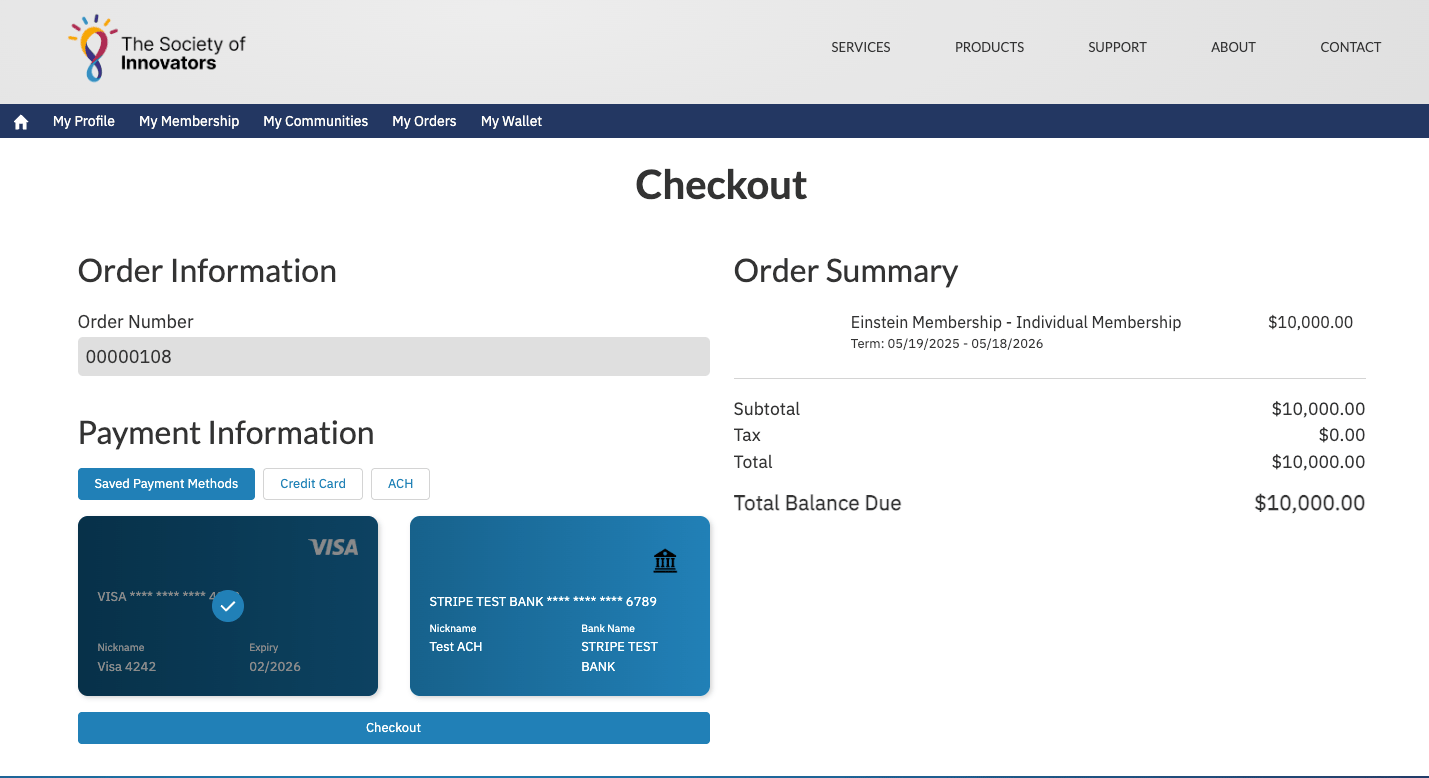 Click **Checkout** to complete the payment.
## Limitations and Common Pitfalls
* **Staff need the pay-with-wallet permission set.** Without `FC Commerce - Access To Pay With Wallet Items`, the **Saved Payments** option does not appear for a staff user.
* **An out-of-date method fails the charge.** If a saved card has expired or its details have changed at the provider, paying with it errors. Update the Wallet Item first — see [Editing Wallet Items](/end-user-guides/accounts/wallet-items/editing-wallet-items).
* **Removed methods cannot pay.** A removed Wallet Item is detached at the provider and no longer charges, even though its record still exists. Save a new method instead.
Click **Checkout** to complete the payment.
## Limitations and Common Pitfalls
* **Staff need the pay-with-wallet permission set.** Without `FC Commerce - Access To Pay With Wallet Items`, the **Saved Payments** option does not appear for a staff user.
* **An out-of-date method fails the charge.** If a saved card has expired or its details have changed at the provider, paying with it errors. Update the Wallet Item first — see [Editing Wallet Items](/end-user-guides/accounts/wallet-items/editing-wallet-items).
* **Removed methods cannot pay.** A removed Wallet Item is detached at the provider and no longer charges, even though its record still exists. Save a new method instead.