> ## Documentation Index
> Fetch the complete documentation index at: https://docs.fusioncore.us/llms.txt
> Use this file to discover all available pages before exploring further.
# Editing Wallet Items
> Rename a saved payment method or replace its details, as a Staff user in Commerce or as a portal user on the My Wallet page.
You can update a Wallet Item to change its nickname or to replace the underlying payment details. Renaming is a simple in-place edit. Changing anything beyond the nickname does not modify the existing method — fusionCore retires the old Wallet Item and creates a new one, because the payment details on the original cannot be altered in Stripe.
Staff edit Wallet Items directly in Commerce from the contact's **Wallet** action. Portal users edit their own through the **fusionCore: Wallet Items** component on the **My Wallet** page; both use the same Commerce wallet UI.
When you change any detail other than the nickname, the original Wallet Item is retired and a new one is created in its place.
## Editing a Wallet Item as a Staff User
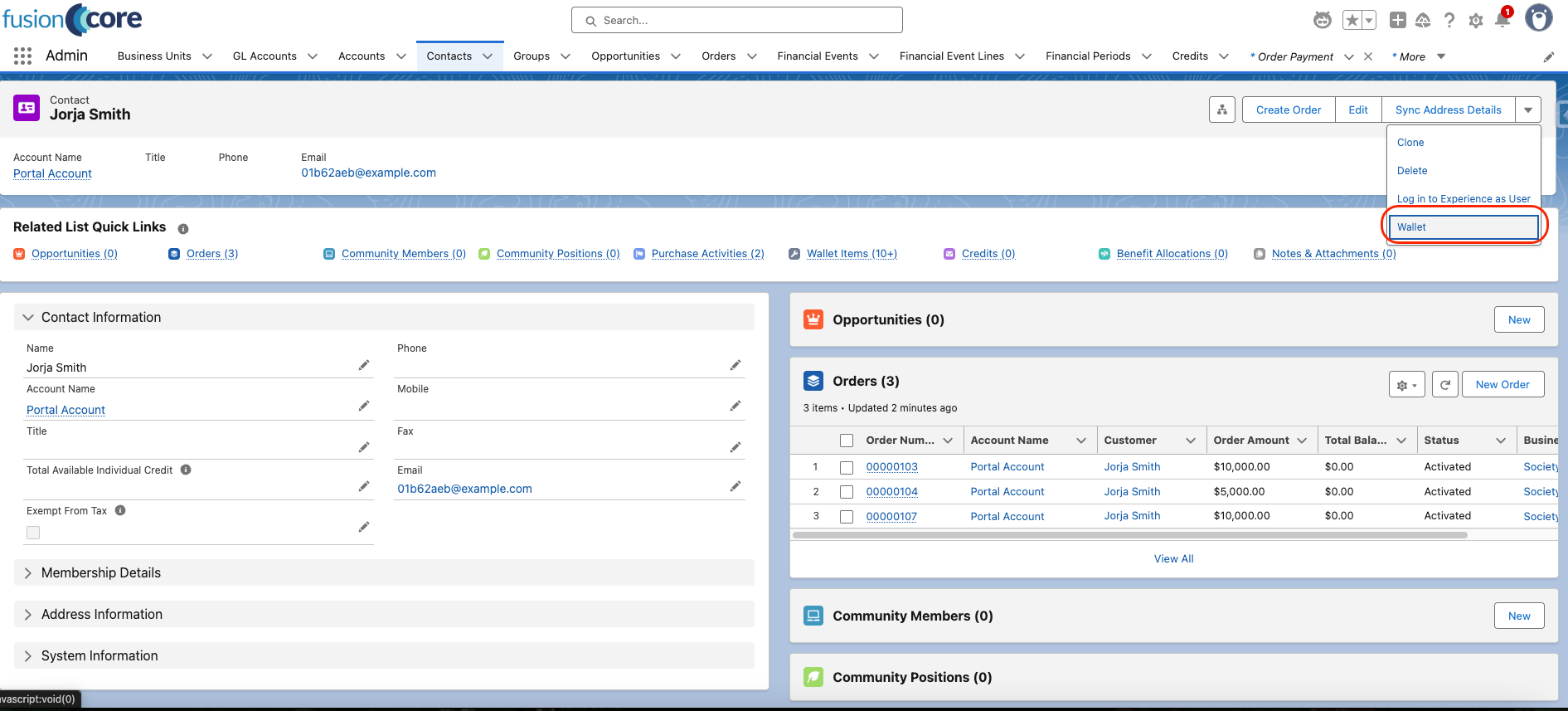
On a Contact record, click the **Wallet** action.
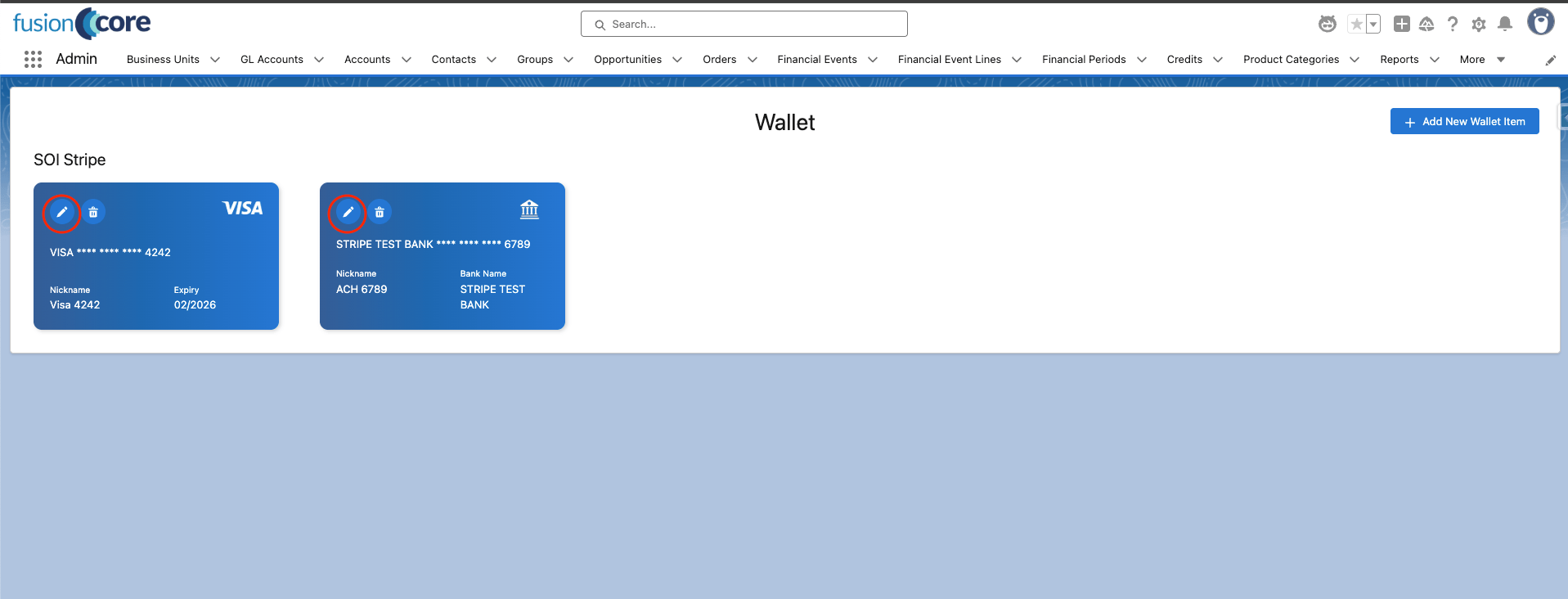
 On the wallet view, click the **pencil icon** for the Wallet Item you want to edit.
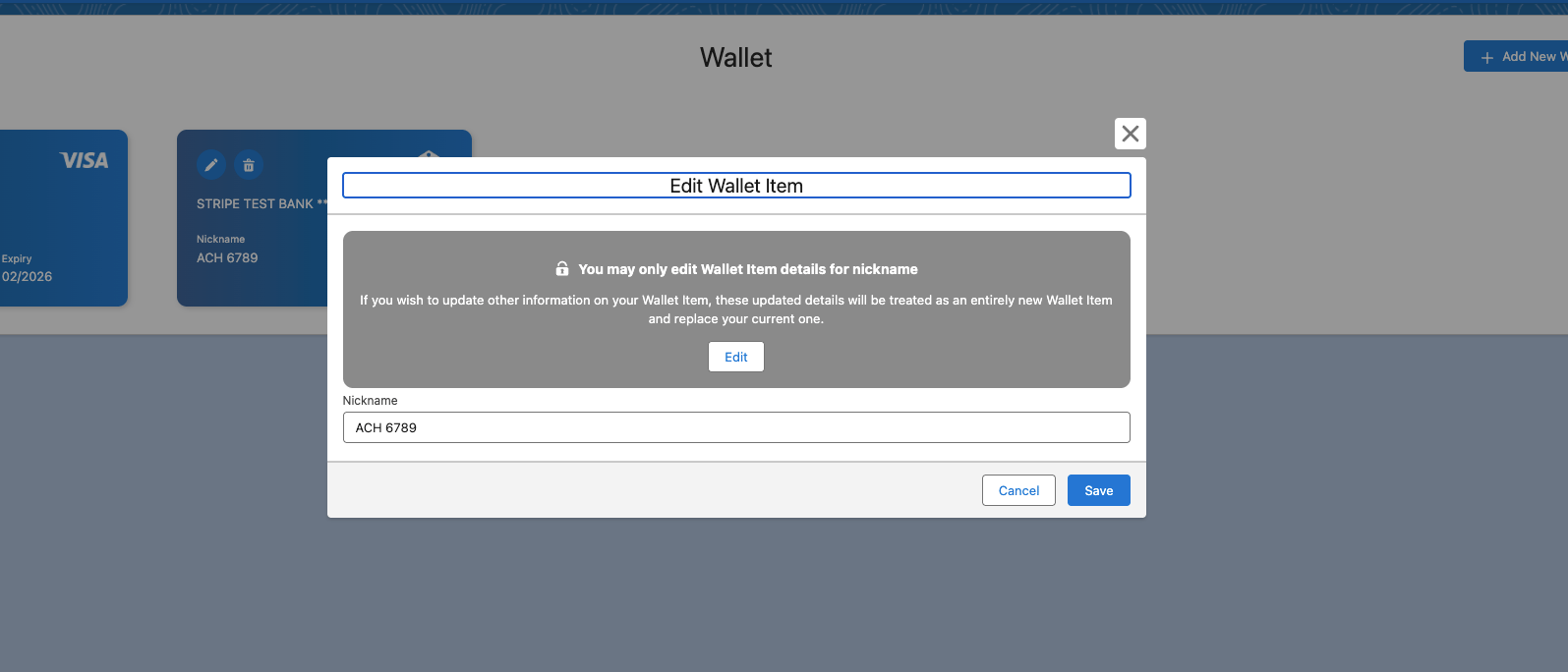
 To change only the nickname, edit that field and click **Save**.
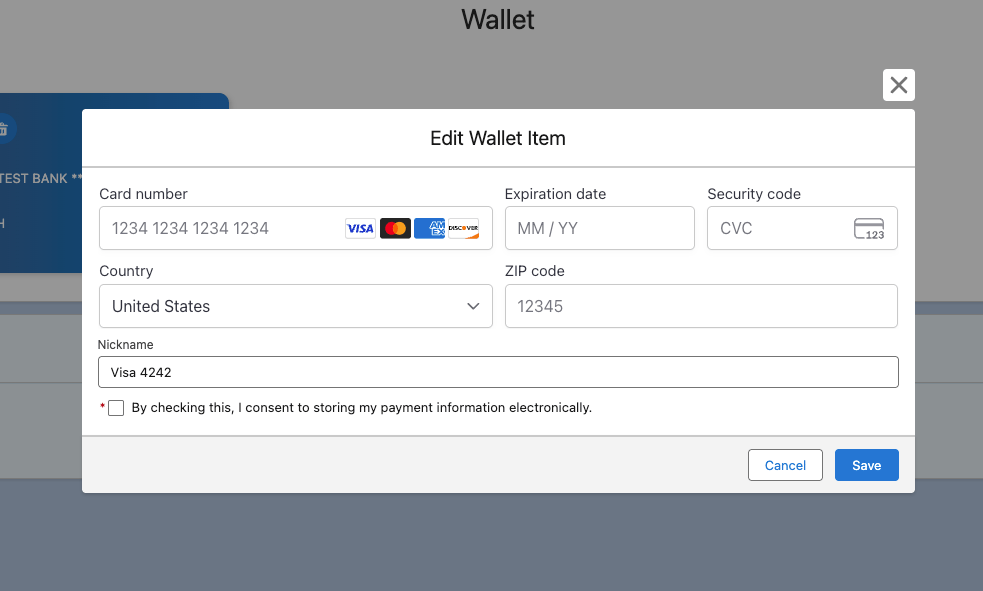
 To change other details, click **Edit**, make your changes, then click **Save**. This retires the old Wallet Item and creates a new one.
 ## Editing a Wallet Item as a Portal User
In the Portal, navigate to the **My Wallet** tab.
On the wallet view, click the **pencil icon** for the Wallet Item you want to edit.
## Editing a Wallet Item as a Portal User
In the Portal, navigate to the **My Wallet** tab.
On the wallet view, click the **pencil icon** for the Wallet Item you want to edit.
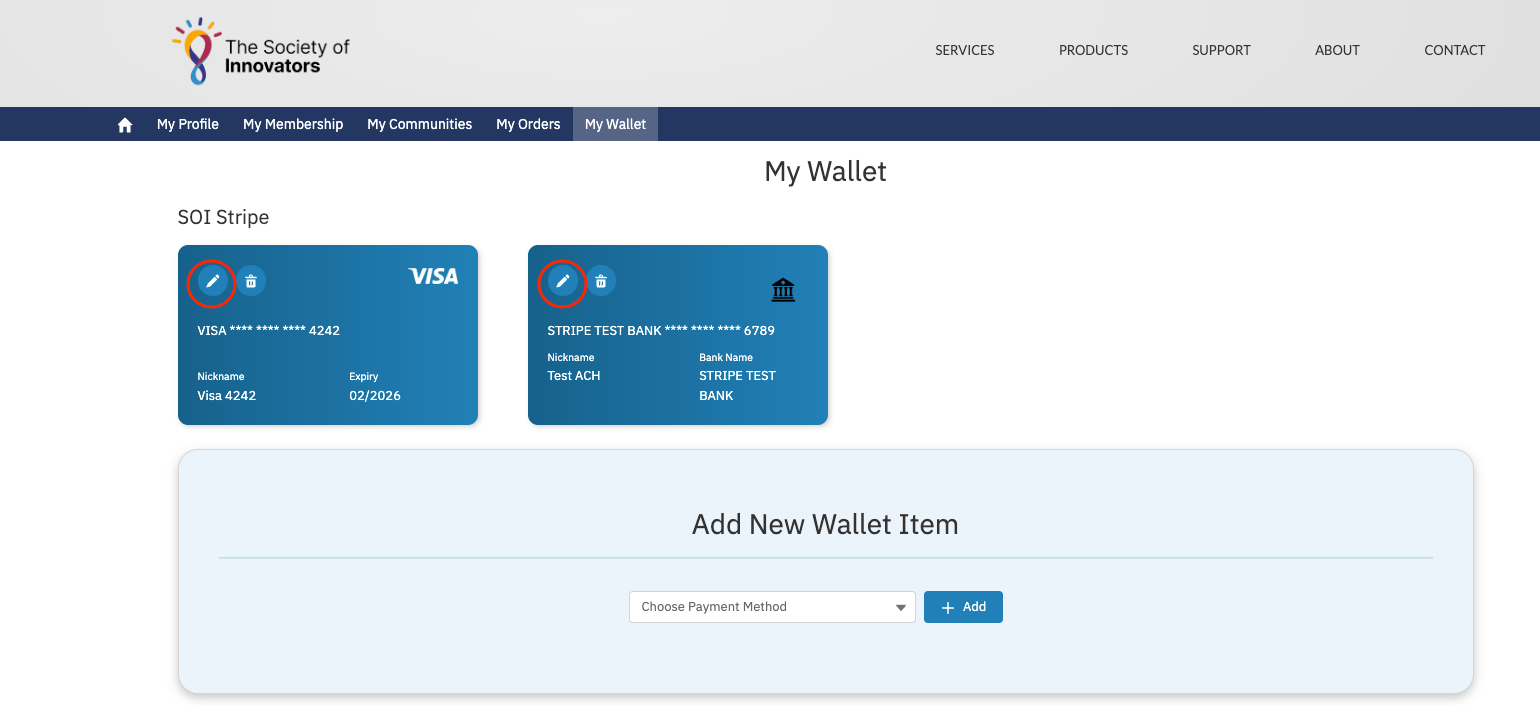 To change only the nickname, edit that field and click **Save**.
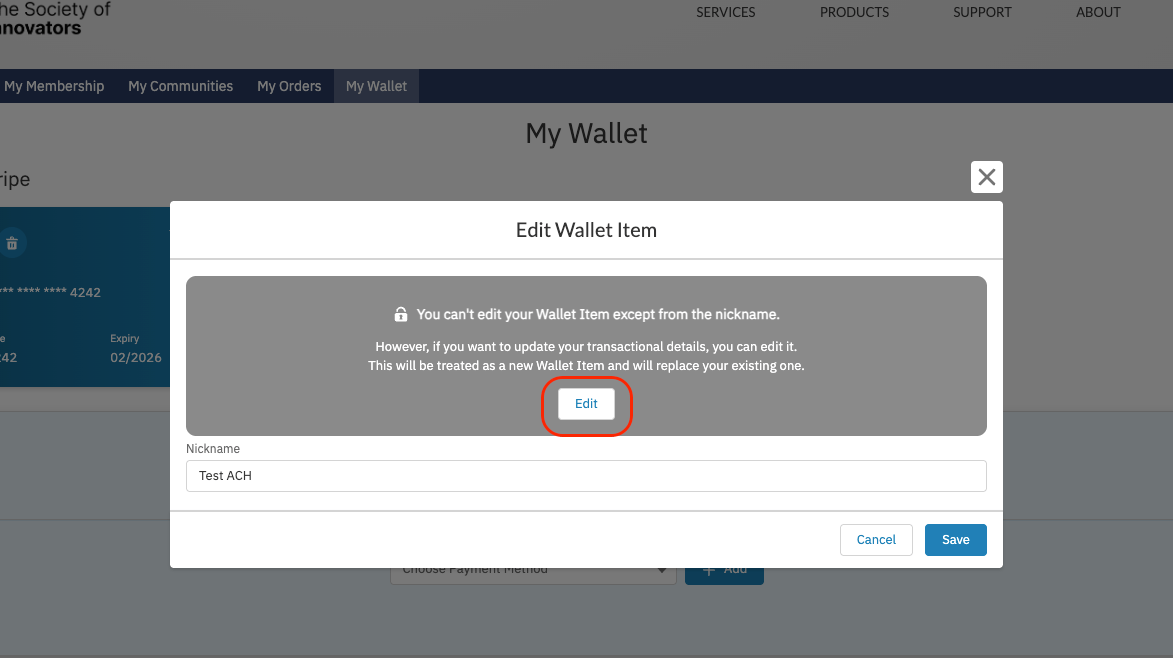 To change other details, click **Edit**, make your changes, then click **Save**. This retires the old Wallet Item and creates a new one.
## Limitations and Common Pitfalls
* **Changing details replaces the method.** Only the nickname can be edited in place. Any other change retires the original Wallet Item and creates a new one, because the stored payment details cannot be altered at the provider. Expect the old entry to disappear from the active list.
* **Removed Wallet Items are not hard-deleted.** When a Wallet Item is removed, fusionCore soft-deletes it (it sets `Is_Removed__c`, `Removal_Date__c`, and `Removal_Reason__c`) rather than deleting the record. The record persists for audit and reporting even though it no longer appears in the wallet.
* **Removal detaches the method in Stripe.** Removing a Wallet Item fires the Stripe removal handler, which detaches the method on the provider side. Once removed, the method can no longer be used to pay and cannot be reactivated — save a new one instead.
To change other details, click **Edit**, make your changes, then click **Save**. This retires the old Wallet Item and creates a new one.
## Limitations and Common Pitfalls
* **Changing details replaces the method.** Only the nickname can be edited in place. Any other change retires the original Wallet Item and creates a new one, because the stored payment details cannot be altered at the provider. Expect the old entry to disappear from the active list.
* **Removed Wallet Items are not hard-deleted.** When a Wallet Item is removed, fusionCore soft-deletes it (it sets `Is_Removed__c`, `Removal_Date__c`, and `Removal_Reason__c`) rather than deleting the record. The record persists for audit and reporting even though it no longer appears in the wallet.
* **Removal detaches the method in Stripe.** Removing a Wallet Item fires the Stripe removal handler, which detaches the method on the provider side. Once removed, the method can no longer be used to pay and cannot be reactivated — save a new one instead.