> ## Documentation Index
> Fetch the complete documentation index at: https://docs.fusioncore.us/llms.txt
> Use this file to discover all available pages before exploring further.
# Creating Wallet Items as a Staff User
> Save a payment method for a contact as a Staff user, either during checkout or from the contact's Wallet action.
As a Staff user, you create and manage Wallet Items directly in Commerce. A Wallet Item is a Commerce `FCORE_PAY__Wallet_Item__c` record, and the wallet screens you use here are the same Commerce wallet UI that the Portal surfaces to portal users. You can save a method while taking a payment, or set one up ahead of time from the contact's **Wallet** action.
## Prerequisites
* A configured and validated Payment Provider Account (`FCORE_PAY__Payment_Provider_Account__c`) for Stripe. See [Stripe](/end-user-guides/stripe/index).
* A contact to associate the Wallet Item with.
## Creating a Wallet Item in Checkout
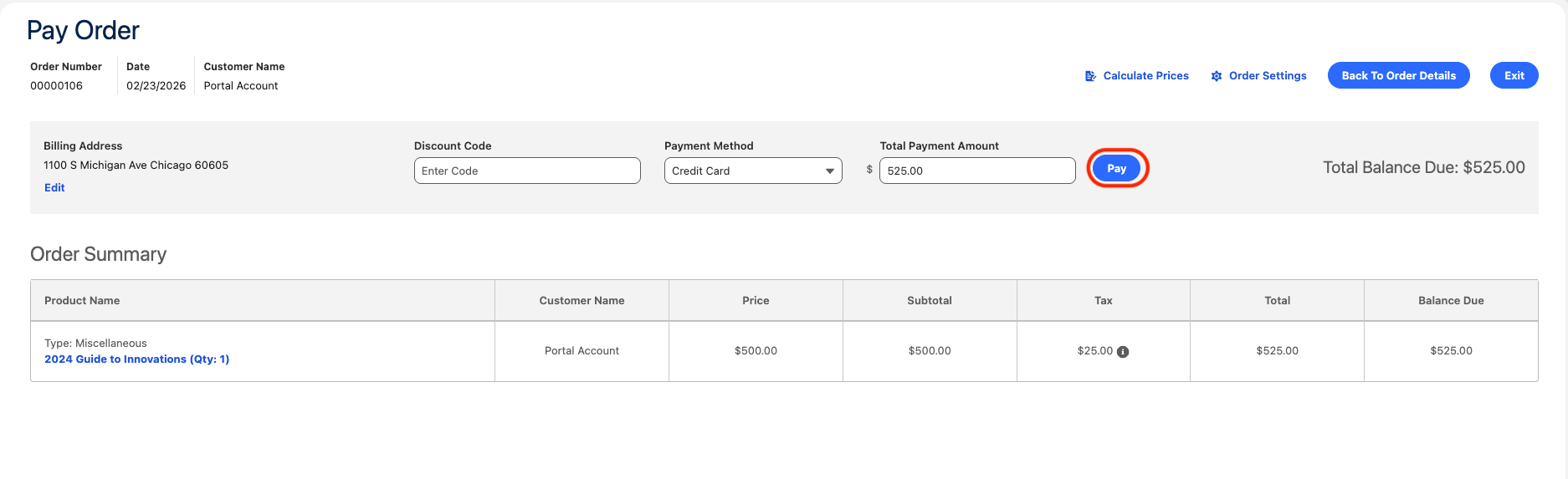
On the Payment page, select a Stripe payment type to pay with (Card or ACH), then click **Pay**.
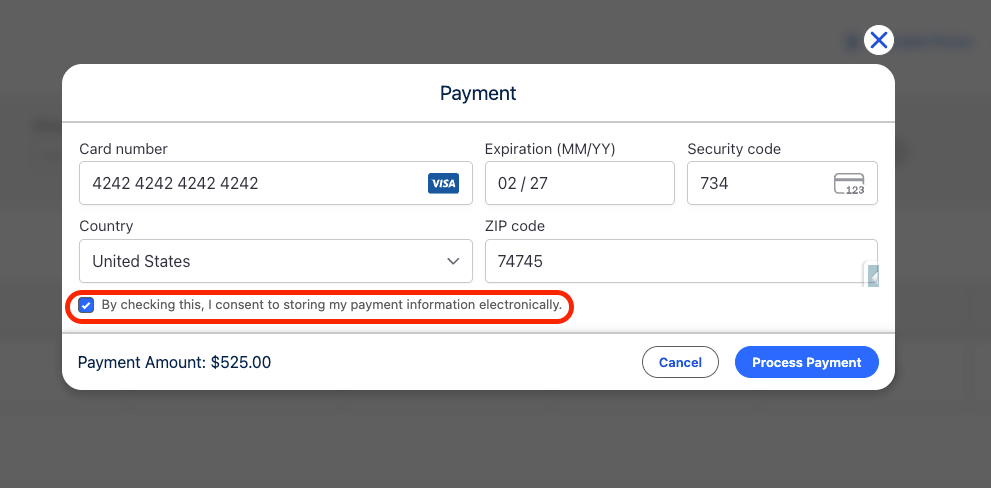
 On the **Payment Information** modal, check the box below the payment details to save the method, then click **Process Payment**.
 ## Creating a Wallet Item from the Contact's Wallet Action
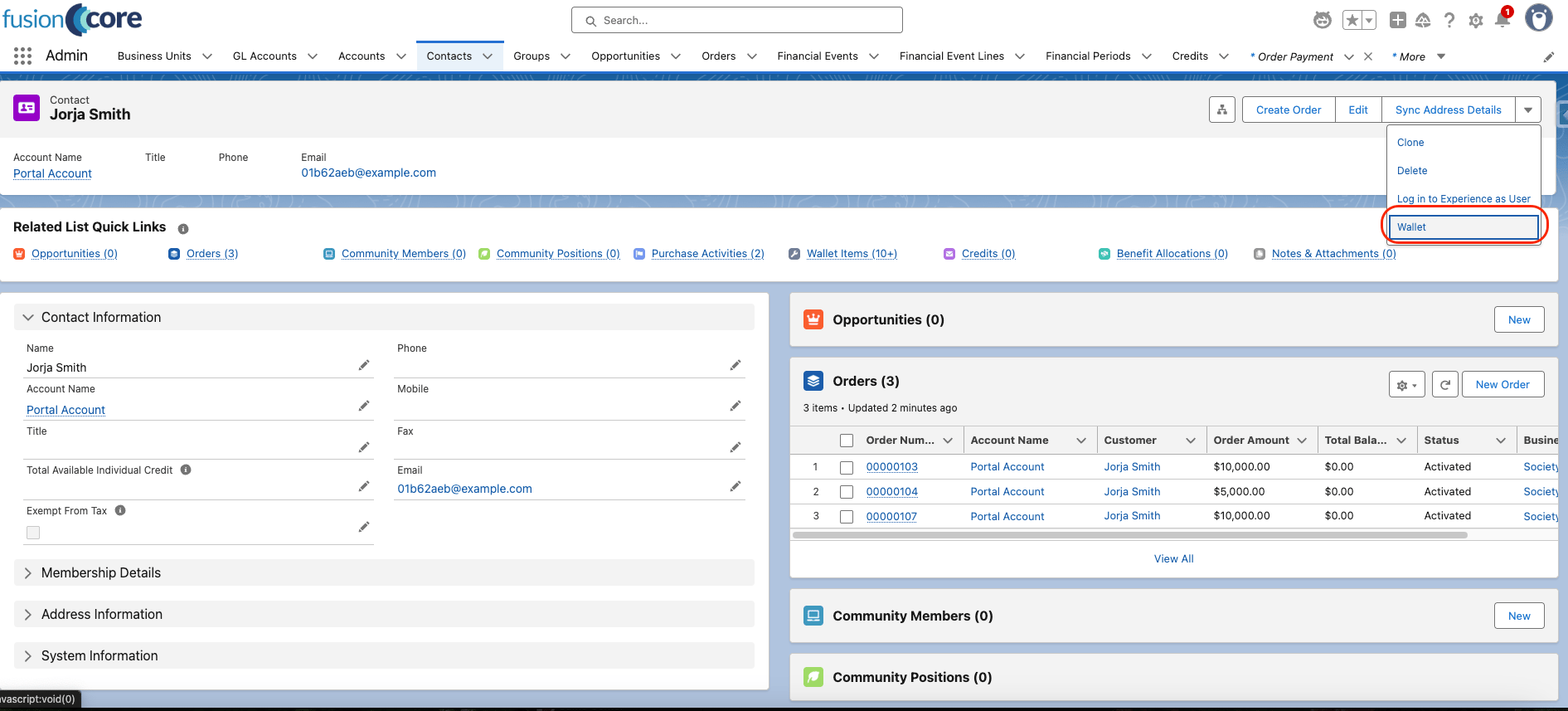
Navigate to the contact you want to create a Wallet Item for and click the **Wallet** action.
## Creating a Wallet Item from the Contact's Wallet Action
Navigate to the contact you want to create a Wallet Item for and click the **Wallet** action.
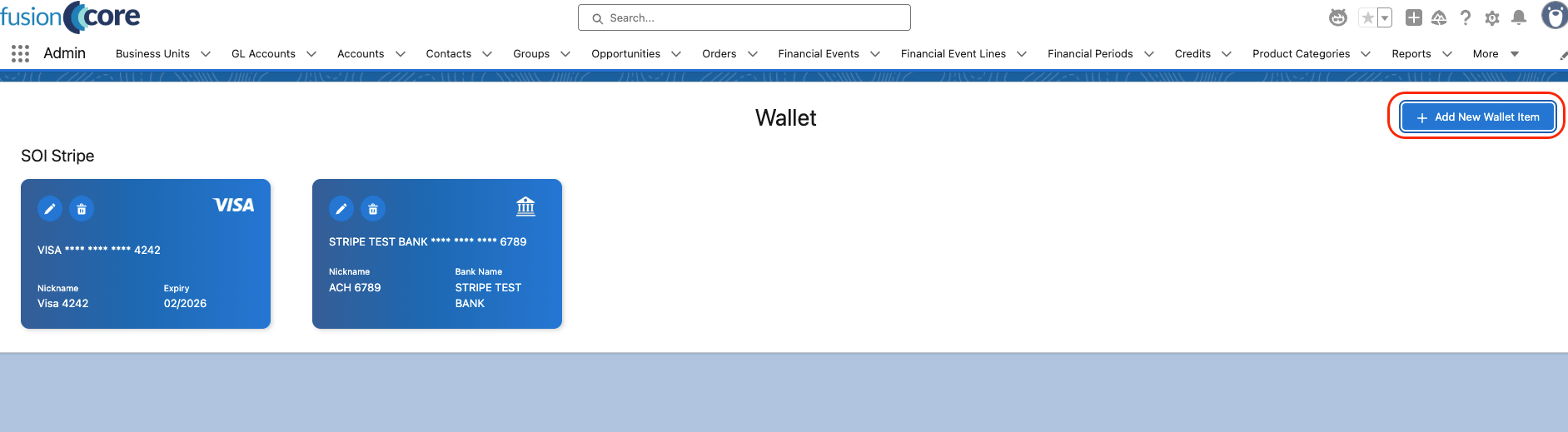
 Click **Add New Wallet Item**.
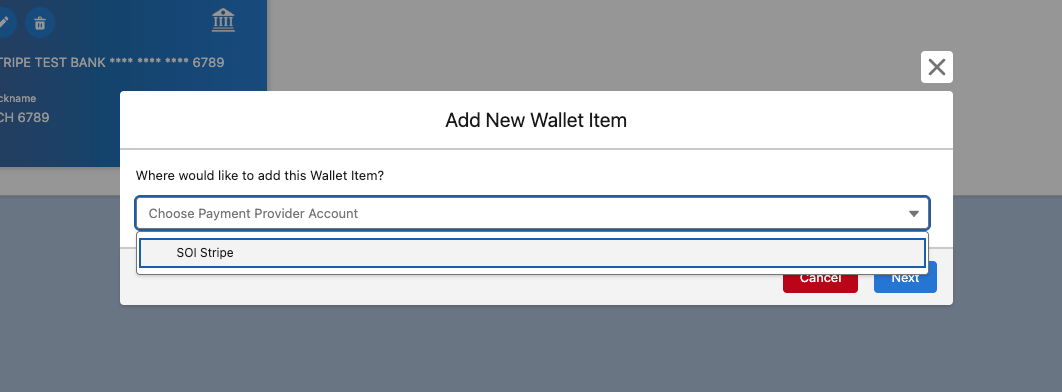
 Select the Payment Provider Account to store the method against, then click **Next**.
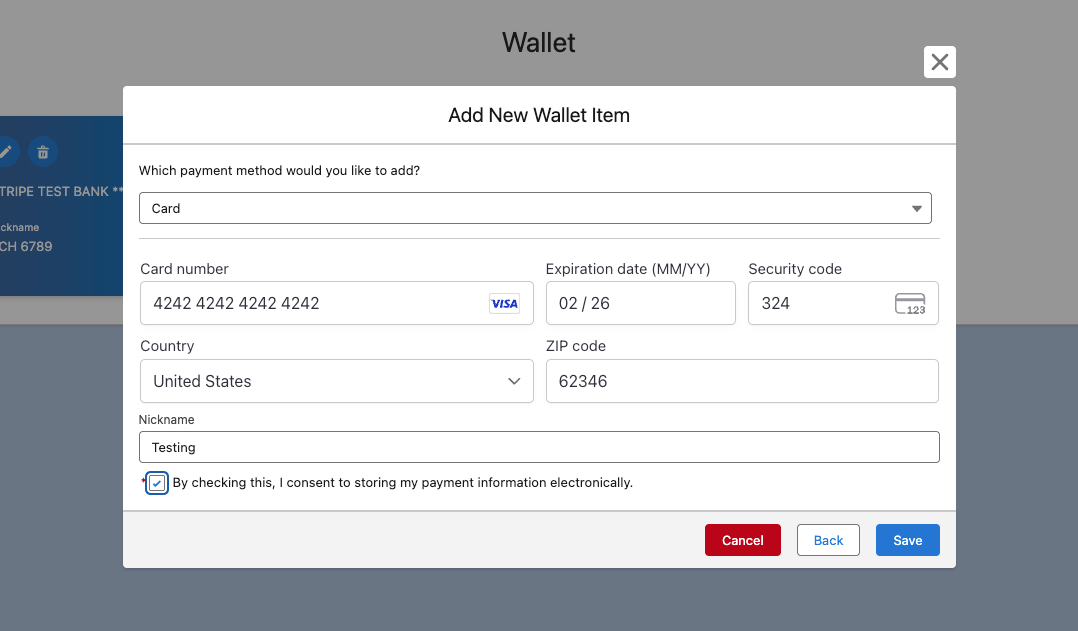
 Select a payment method, fill in its details, check the box on the bottom left to save the method, then click **Save**.
 ## Limitations and Common Pitfalls
* **No Payment Provider Account means an empty wallet.** Saved methods require a configured and validated Stripe Payment Provider Account (`FCORE_PAY__Payment_Provider_Account__c`). Without one, there is nothing to store a method against and the wallet has nothing to show. Configure Stripe first.
* **Only Card and ACH are supported.** As of version 1.5, the wallet stores only Stripe Card and ACH methods. Other payment types cannot be saved.
* **The wallet UI is managed.** The wallet screens come from the managed Commerce package. You can use them as shown, but you cannot modify the wallet UI or its behavior.
## Limitations and Common Pitfalls
* **No Payment Provider Account means an empty wallet.** Saved methods require a configured and validated Stripe Payment Provider Account (`FCORE_PAY__Payment_Provider_Account__c`). Without one, there is nothing to store a method against and the wallet has nothing to show. Configure Stripe first.
* **Only Card and ACH are supported.** As of version 1.5, the wallet stores only Stripe Card and ACH methods. Other payment types cannot be saved.
* **The wallet UI is managed.** The wallet screens come from the managed Commerce package. You can use them as shown, but you cannot modify the wallet UI or its behavior.