> ## Documentation Index
> Fetch the complete documentation index at: https://docs.fusioncore.us/llms.txt
> Use this file to discover all available pages before exploring further.
# Communities Overview
> Create and manage Communities — chapters, committees, and working groups — to track who belongs and what role they hold.
A fusionCore **Community** is a group within an association — a chapter, committee, task force, board, or working group. A Community tracks who belongs to it (members) and what role each person holds (positions) over time.
A fusionCore Community is **not** the same as a Salesforce "Community", "Digital Experience", or "Experience Cloud" site. Those are public-facing web portals. A fusionCore Community is an internal grouping feature built on three custom objects, and the fusionCore member-facing portal is a separate product. This guide covers only the fusionCore Community feature.
### How the Data Fits Together
The Community feature uses three custom objects.
* A **Community** (`FS_Community__c`) is the group itself — for example, the Membership Committee.
* A **Community Member** (`FS_Community_Member__c`) links a **Contact** (the person) to a Community.
* A **Community Position** (`FS_Community_Position__c`) is a dated role that a member holds, such as Chair or Member. One member can hold more than one position over time.
So a Community has members, and each member can have one or more positions.
### Create a Community
These steps create the Community record itself. You add members afterward.
Click the **App Launcher** (the nine dots at the top left), type **Communities**, and click **Communities**.
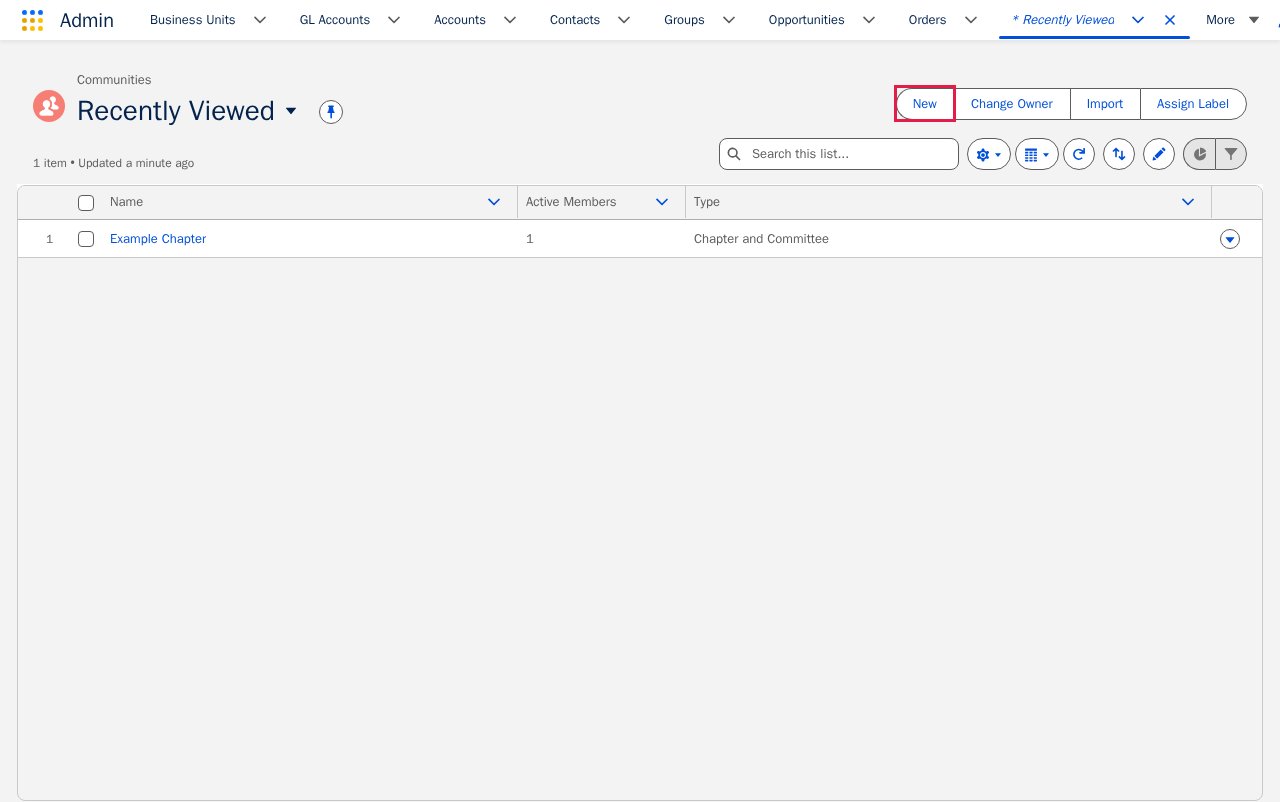
On the Communities list view, click **New**.
 Enter a **Name** for the Community. Then choose a **Type** — either **Chapter and Committee** or **Task-Force and Working Group**.
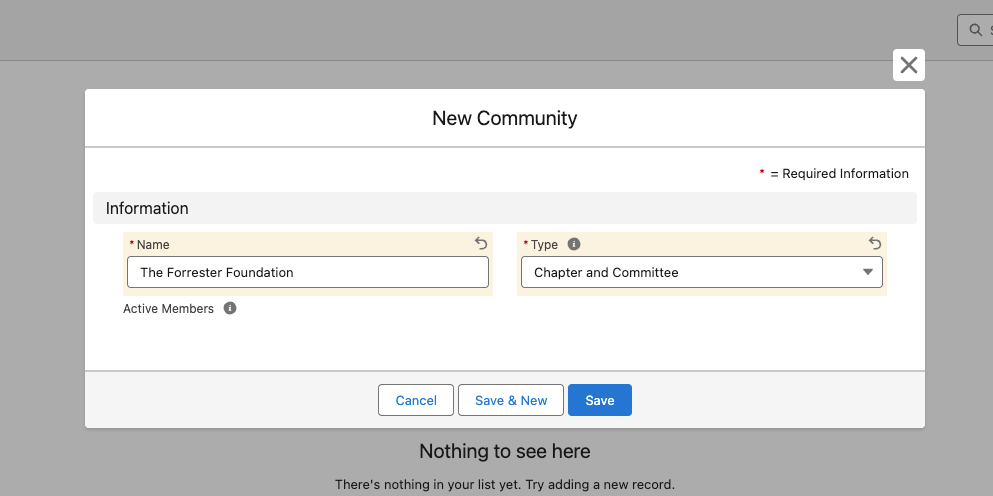 Click **Save**.
The Community **Name** must be unique. fusionCore blocks you from saving a Community with the same name as an existing one.
The Community **Type** you choose determines which **Role** values are available when you add positions to members in this Community. Choose the Type that matches the kind of group you are creating.
### Next Steps
Once the Community exists, add the people who belong to it.
* [Add a Community Member](/end-user-guides/accounts/communities/community-member/index)
### Limitations and Common Pitfalls
You cannot delete a Community that still has members. Salesforce blocks the deletion while members are attached. Remove or end the members first, then delete the Community.
### Related Features
* [Contacts](/end-user-guides/accounts/contacts) — every Community Member links to a Contact, so the people you add here are existing Contact records.
Click **Save**.
The Community **Name** must be unique. fusionCore blocks you from saving a Community with the same name as an existing one.
The Community **Type** you choose determines which **Role** values are available when you add positions to members in this Community. Choose the Type that matches the kind of group you are creating.
### Next Steps
Once the Community exists, add the people who belong to it.
* [Add a Community Member](/end-user-guides/accounts/communities/community-member/index)
### Limitations and Common Pitfalls
You cannot delete a Community that still has members. Salesforce blocks the deletion while members are attached. Remove or end the members first, then delete the Community.
### Related Features
* [Contacts](/end-user-guides/accounts/contacts) — every Community Member links to a Contact, so the people you add here are existing Contact records.