> ## Documentation Index
> Fetch the complete documentation index at: https://docs.fusioncore.us/llms.txt
> Use this file to discover all available pages before exploring further.
# Setting Up Stripe Payment Types
> Create an online (Stripe) Payment Type, then take and refund Stripe card and ACH payments from within Salesforce.
A **Payment Type** is a configuration record (`Payment_Type__c`) that tells fusionCore *how* money can move for a **Business Unit** (`Business_Unit__c`, a branded operating division of your organization). An online Payment Type connects that method to **Stripe** through a **Payment Provider Account** (`Payment_Provider_Account__c`) so card and ACH payments can be processed.
Stripe Payment Types support `Card` and `ACH` payment methods, can be shown in Portal, and can be saved by members as reusable **wallet items** (a stored card or bank account).
## Prerequisites
* You have the **FC Commerce Manage Config Data** permission set, which gives you full create and edit access to `Payment_Type__c`.
* A **Payment Provider Account** (`Payment_Provider_Account__c`) already exists for the Stripe integration you want to use.
* The **Business Unit** you are configuring already exists.
## Set Up an Online (Stripe) Payment Type
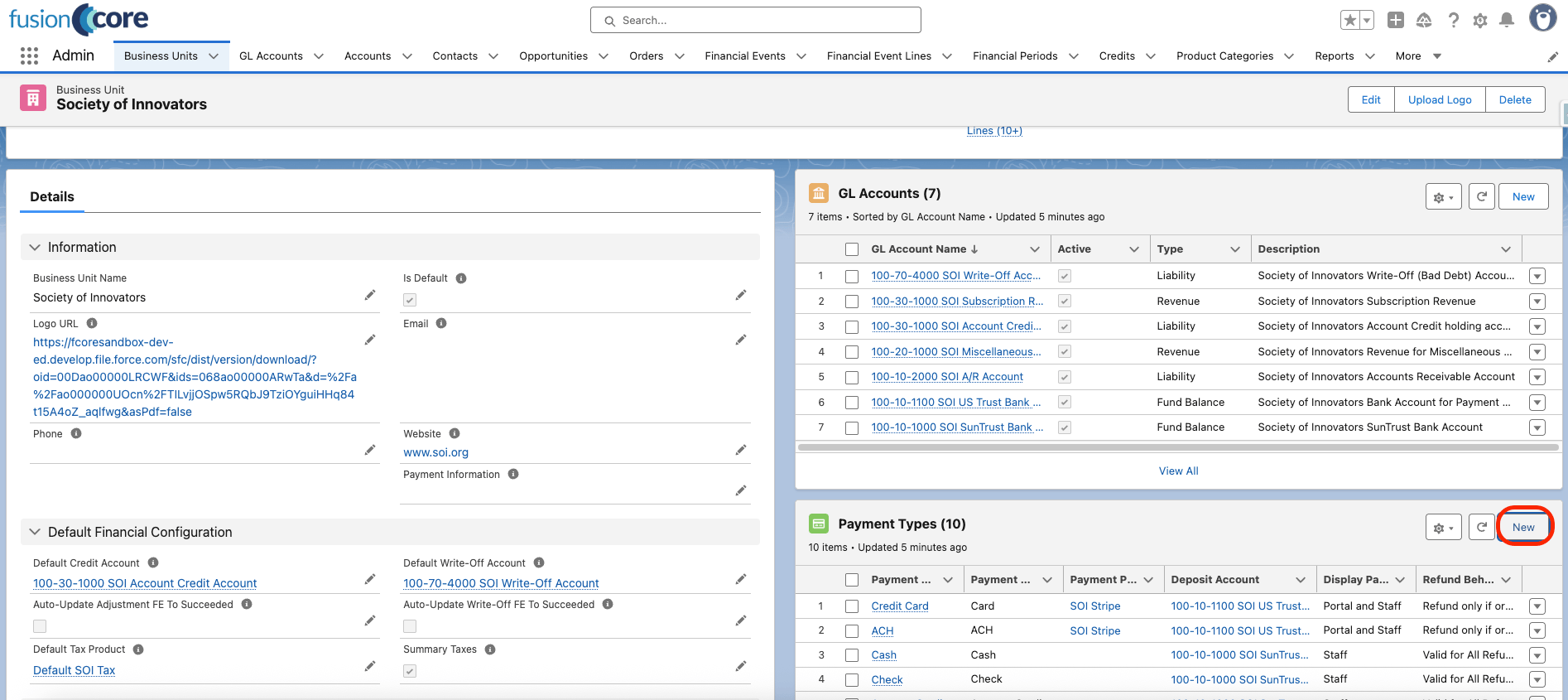
Navigate to the **Business Unit** for which you want to create the Payment Type, then click **New** on the **Payment Types** related list.
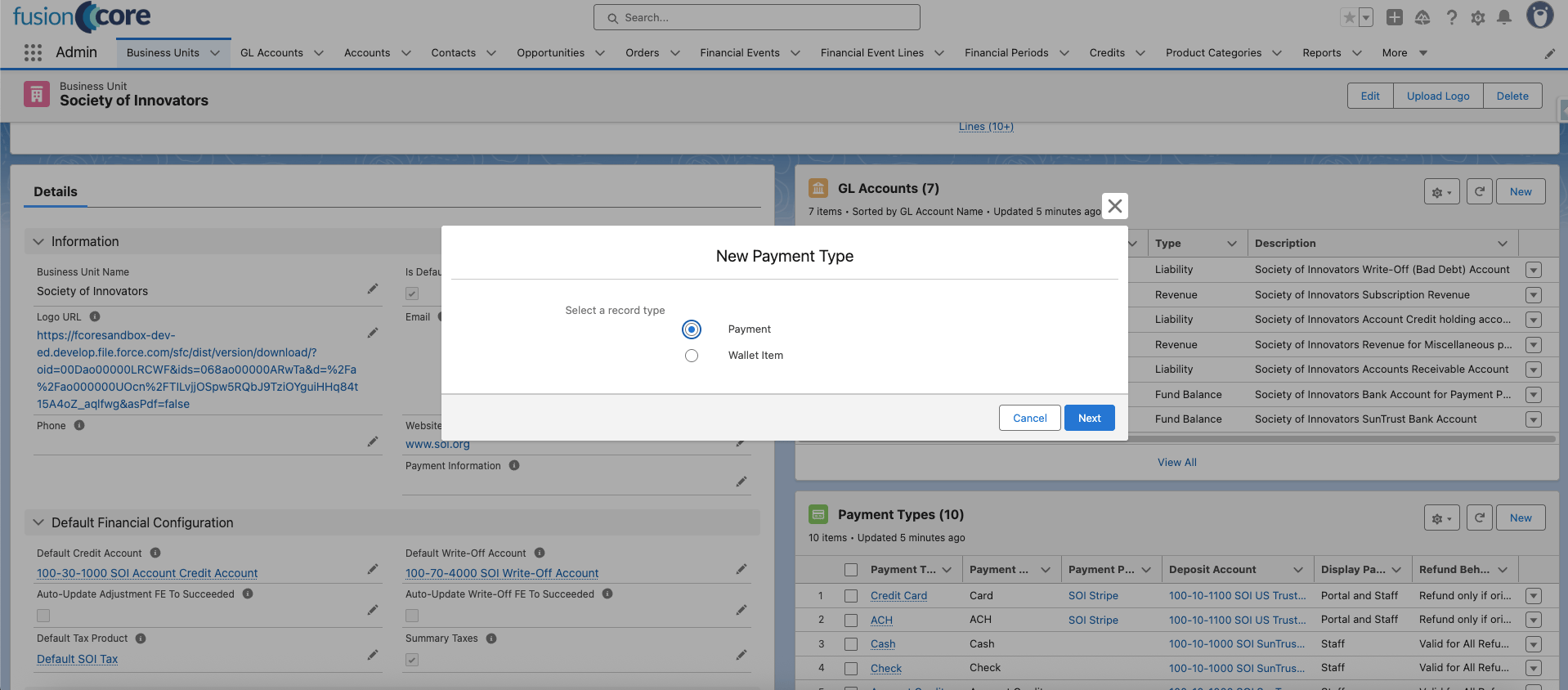
 Select **Payment** as the record type, then click **Next**.
The **Payment** record type (`FC_Payment`) is a payment option offered at checkout. The **Wallet Item** record type (`FC_Wallet_Item`) represents a saved payment method; you do not create those directly here.
Select **Payment** as the record type, then click **Next**.
The **Payment** record type (`FC_Payment`) is a payment option offered at checkout. The **Wallet Item** record type (`FC_Wallet_Item`) represents a saved payment method; you do not create those directly here.
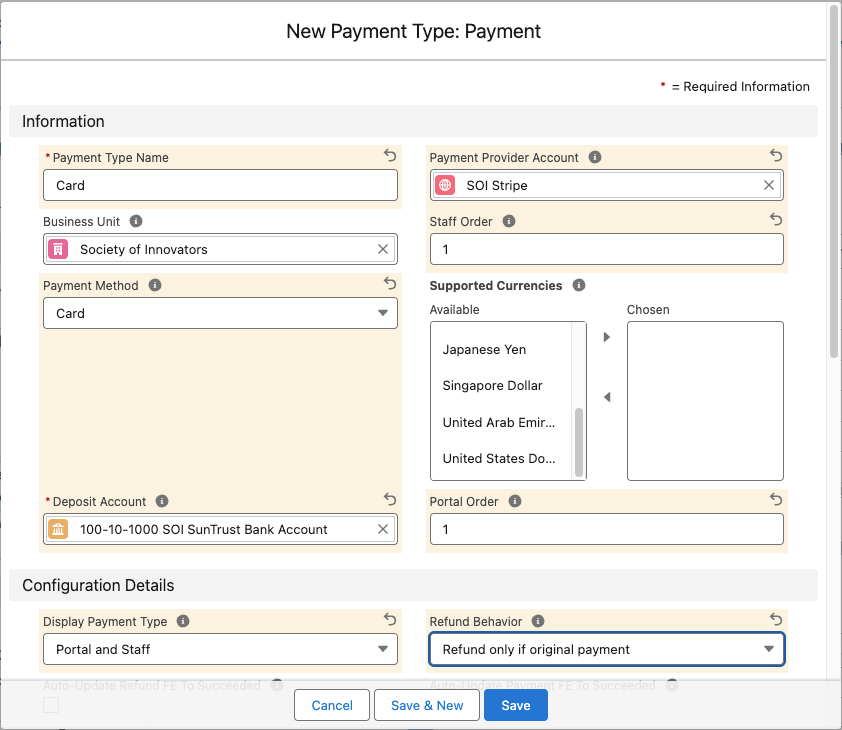
 At a minimum, define the following to make a Stripe Payment Type functional:
* **Payment Type Name** — a descriptive name, for example `Society of Innovators Credit Card` or `Society of Innovators ACH`.
* **Payment Provider Account** (`Payment_Provider_Account__c`) — the Stripe provider account this Payment Type uses. This is **required** for Stripe.
* **Business Unit** (`Business_Unit__c`) — the operating division this Payment Type belongs to.
* **Payment Method** (`Payment_Method__c`) — for Stripe this is `Card` or `ACH`.
* **Deposit Account** (`Deposit_Account__c`) — the GL account (`GL_Account__c`) that receives the funds. The lookup only shows GL accounts that belong to the same Business Unit.
* **Display Payment Type** (`Display_Payment_Type__c`) — where the Payment Type appears. The full list of values is `Portal and Staff`, `Portal`, `Staff`, and `Disabled`. Only `Staff` and `Portal and Staff` appear in the staff pay and refund screens.
* **Refund Behavior** (`Refund_Behavior__c`) — how the Payment Type handles refunds. The full list of values is `Cannot Refund`, `Refund only if original payment`, and `Valid for All Refunds`. For Stripe, use `Refund only if original payment`.
* **Staff Order** (`Staff_Order__c`) — the sort position of this Payment Type in the staff payment-method dropdown.
You can set the remaining fields later as needed.
Set **Supported Currencies** (`Supported_Currencies__c`) only in a multi-currency org. Leaving it blank supports all currencies. In a multi-currency org, a non-empty list that omits the order's currency silently hides the Payment Type from the pay screen.
At a minimum, define the following to make a Stripe Payment Type functional:
* **Payment Type Name** — a descriptive name, for example `Society of Innovators Credit Card` or `Society of Innovators ACH`.
* **Payment Provider Account** (`Payment_Provider_Account__c`) — the Stripe provider account this Payment Type uses. This is **required** for Stripe.
* **Business Unit** (`Business_Unit__c`) — the operating division this Payment Type belongs to.
* **Payment Method** (`Payment_Method__c`) — for Stripe this is `Card` or `ACH`.
* **Deposit Account** (`Deposit_Account__c`) — the GL account (`GL_Account__c`) that receives the funds. The lookup only shows GL accounts that belong to the same Business Unit.
* **Display Payment Type** (`Display_Payment_Type__c`) — where the Payment Type appears. The full list of values is `Portal and Staff`, `Portal`, `Staff`, and `Disabled`. Only `Staff` and `Portal and Staff` appear in the staff pay and refund screens.
* **Refund Behavior** (`Refund_Behavior__c`) — how the Payment Type handles refunds. The full list of values is `Cannot Refund`, `Refund only if original payment`, and `Valid for All Refunds`. For Stripe, use `Refund only if original payment`.
* **Staff Order** (`Staff_Order__c`) — the sort position of this Payment Type in the staff payment-method dropdown.
You can set the remaining fields later as needed.
Set **Supported Currencies** (`Supported_Currencies__c`) only in a multi-currency org. Leaving it blank supports all currencies. In a multi-currency org, a non-empty list that omits the order's currency silently hides the Payment Type from the pay screen.
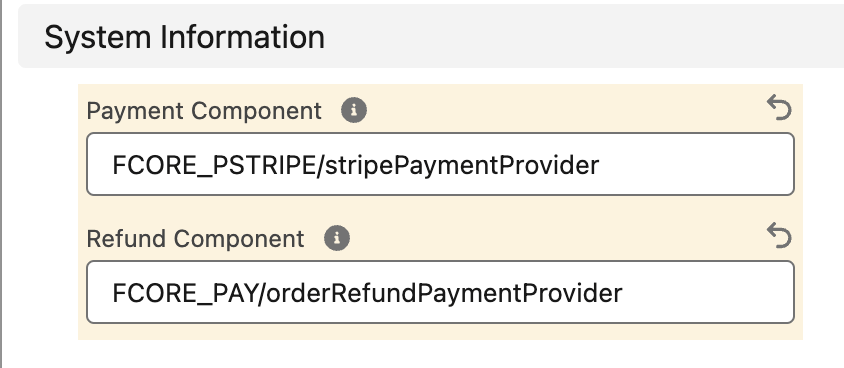
 The **System Information** section points the UI at the Lightning Web Components (Salesforce front-end components) that render at pay, refund, and wallet time. For a Stripe Payment Type, set all three:
* **Payment Component** (`Payment_Component__c`): `FCORE_PSTRIPE/stripePaymentProvider`
* **Refund Component** (`Refund_Component__c`): `FCORE_PAY/orderRefundPaymentProvider`
* **Wallet Item Component** (`Wallet_Item_Component__c`): `FCORE_PSTRIPE/stripePaymentMethod`
Populate all three components on the Card or ACH record you are setting up. If any is missing, errors will occur, and wallet item functionality will not work if **Wallet Item Component** is left blank.
The **System Information** section points the UI at the Lightning Web Components (Salesforce front-end components) that render at pay, refund, and wallet time. For a Stripe Payment Type, set all three:
* **Payment Component** (`Payment_Component__c`): `FCORE_PSTRIPE/stripePaymentProvider`
* **Refund Component** (`Refund_Component__c`): `FCORE_PAY/orderRefundPaymentProvider`
* **Wallet Item Component** (`Wallet_Item_Component__c`): `FCORE_PSTRIPE/stripePaymentMethod`
Populate all three components on the Card or ACH record you are setting up. If any is missing, errors will occur, and wallet item functionality will not work if **Wallet Item Component** is left blank.
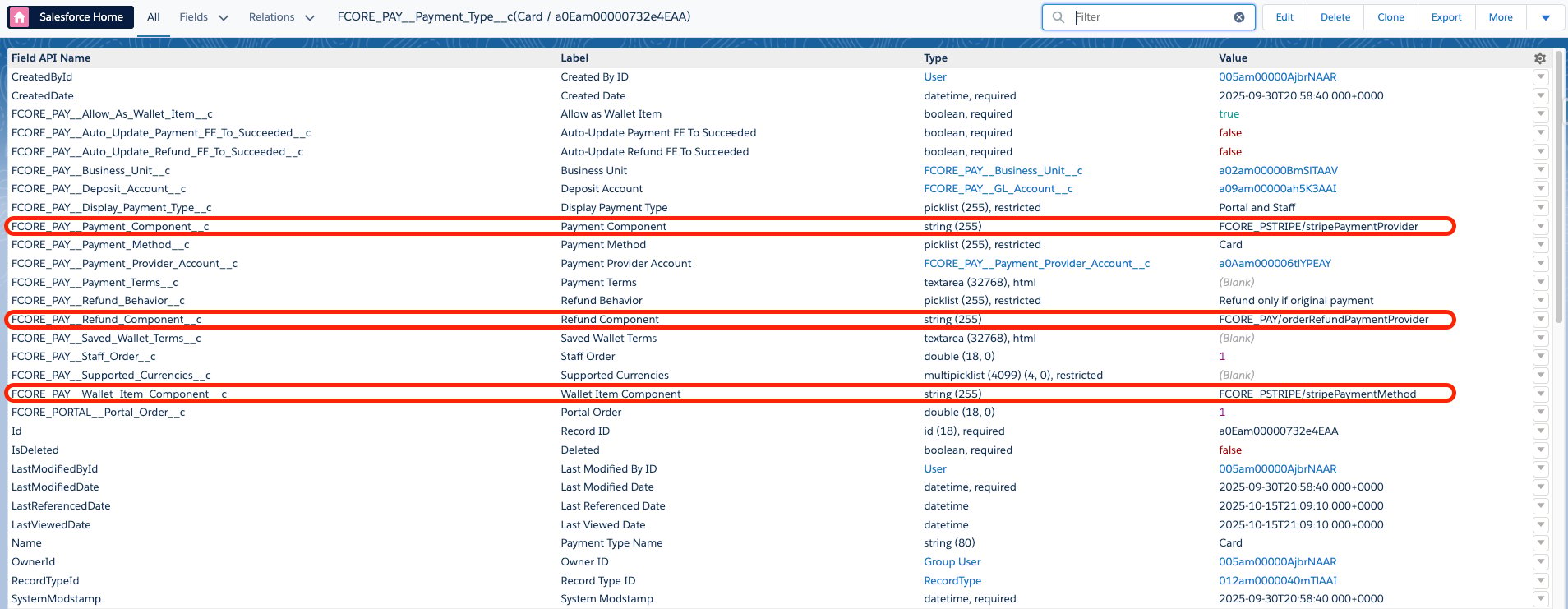 These component fields do not appear on the Payment Type layout by default. Use a Salesforce field-inspection tool, or add the fields to the page layout, to view and edit them.
Once all sections are complete, click **Save**.
## Taking and Refunding a Stripe Payment
Once your Stripe Payment Type is set up, you can take card and ACH payments and issue refunds directly inside Salesforce, so you do not have to switch to an external payment console or re-key data by hand. This section walks you through paying an Order with Stripe and refunding a payment after the fact.
When a Stripe payment succeeds, fusionCore creates a `Financial_Event__c` record with Financial Event Lines (the accounting record of the money received), plus a parallel `Payment_Provider_Event__c` record with its own lines (the record of what Stripe did). The same pairing happens for refunds.
### Prerequisites
* Complete the Stripe setup steps in [Stripe](/end-user-guides/stripe/index) before you take any payments. A missing or incorrect Stripe webhook causes payments to error or fail.
* Confirm a Stripe Payment Type exists for the Business Unit you are paying against (see the setup steps above).
* To take payments as a staff user, you need the `FC_Commerce_Order_Pay` and `FC_Stripe_Access` permission sets. To issue refunds, you also need `FC_Commerce_Refund`.
### Paying with Stripe
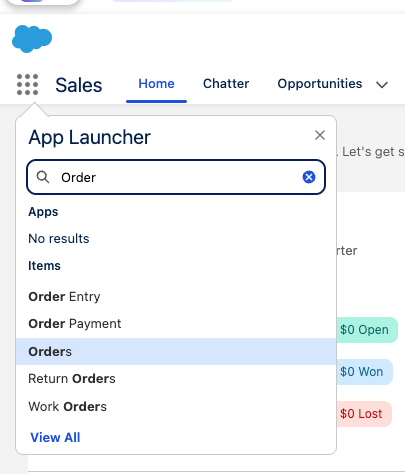
Click the **App Launcher** and search for **Order**, then open the Orders list.
These component fields do not appear on the Payment Type layout by default. Use a Salesforce field-inspection tool, or add the fields to the page layout, to view and edit them.
Once all sections are complete, click **Save**.
## Taking and Refunding a Stripe Payment
Once your Stripe Payment Type is set up, you can take card and ACH payments and issue refunds directly inside Salesforce, so you do not have to switch to an external payment console or re-key data by hand. This section walks you through paying an Order with Stripe and refunding a payment after the fact.
When a Stripe payment succeeds, fusionCore creates a `Financial_Event__c` record with Financial Event Lines (the accounting record of the money received), plus a parallel `Payment_Provider_Event__c` record with its own lines (the record of what Stripe did). The same pairing happens for refunds.
### Prerequisites
* Complete the Stripe setup steps in [Stripe](/end-user-guides/stripe/index) before you take any payments. A missing or incorrect Stripe webhook causes payments to error or fail.
* Confirm a Stripe Payment Type exists for the Business Unit you are paying against (see the setup steps above).
* To take payments as a staff user, you need the `FC_Commerce_Order_Pay` and `FC_Stripe_Access` permission sets. To issue refunds, you also need `FC_Commerce_Refund`.
### Paying with Stripe
Click the **App Launcher** and search for **Order**, then open the Orders list.
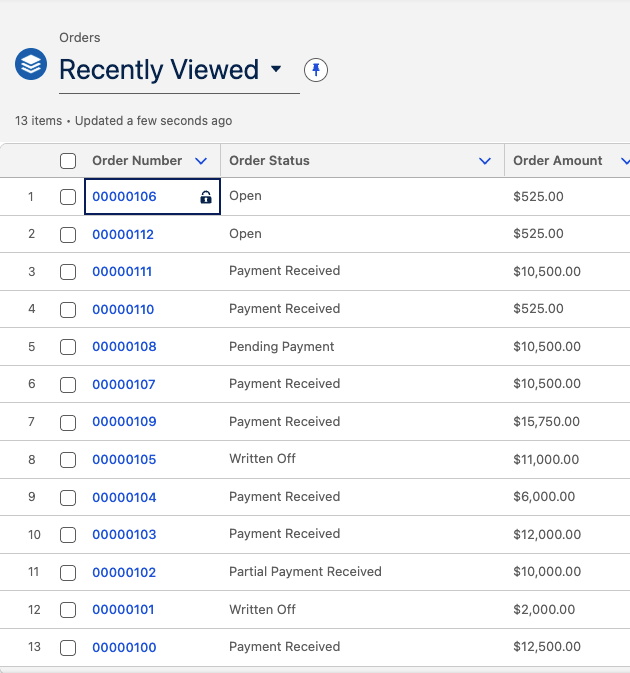
 In the Orders list view, select the Order you want to pay.
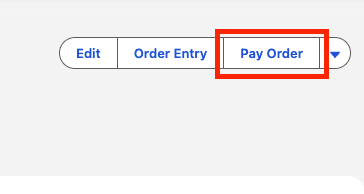
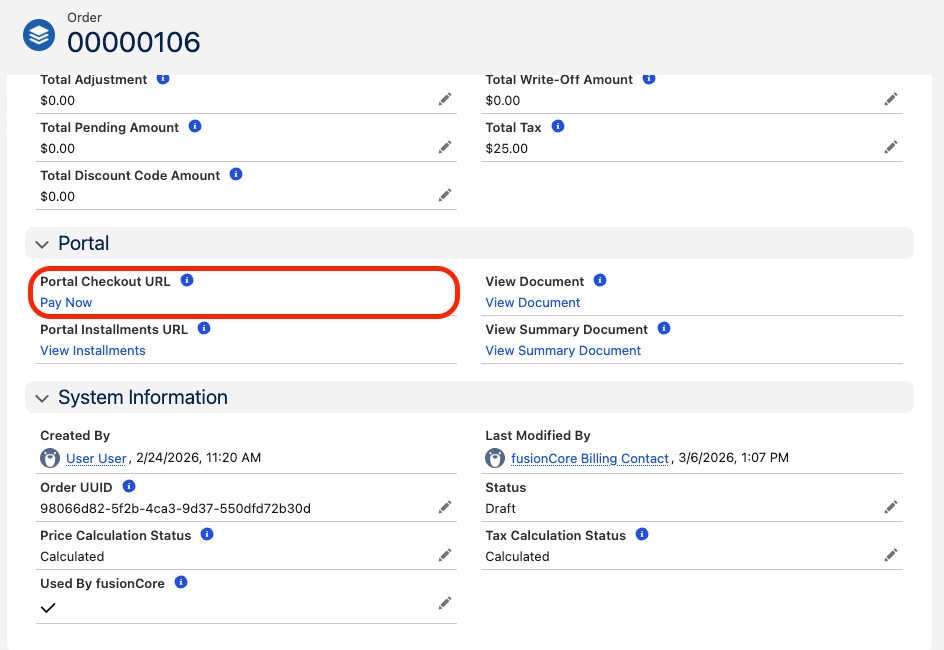
 On the Order record page, choose how you want to pay:
* To pay as a staff user, click **Pay Order**.
On the Order record page, choose how you want to pay:
* To pay as a staff user, click **Pay Order**.
 * To pay as a portal member, click the **Portal Checkout URL** link.
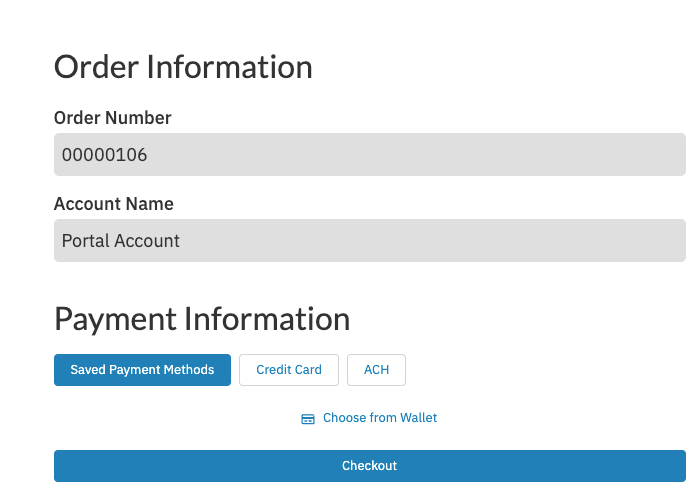
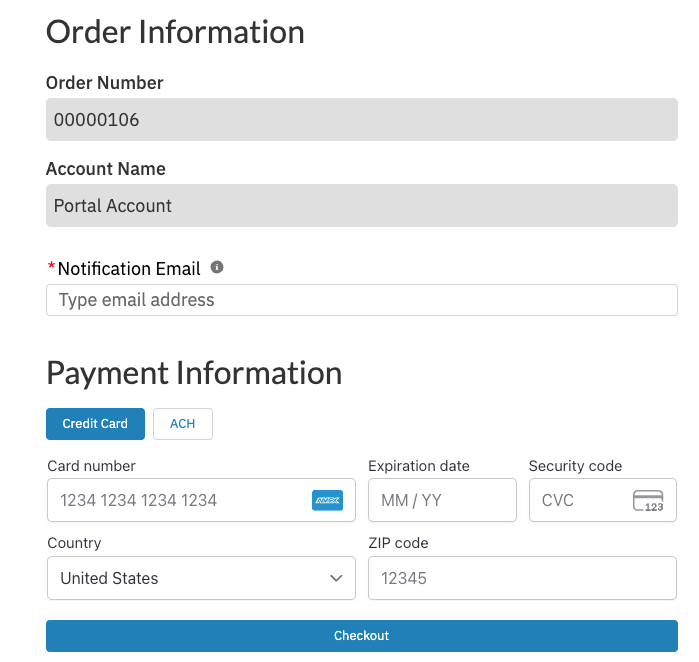
 When the checkout interface opens, select a Stripe payment method (**Card**, **ACH**, or a saved **Wallet Item**), then fill out the payment details if prompted.
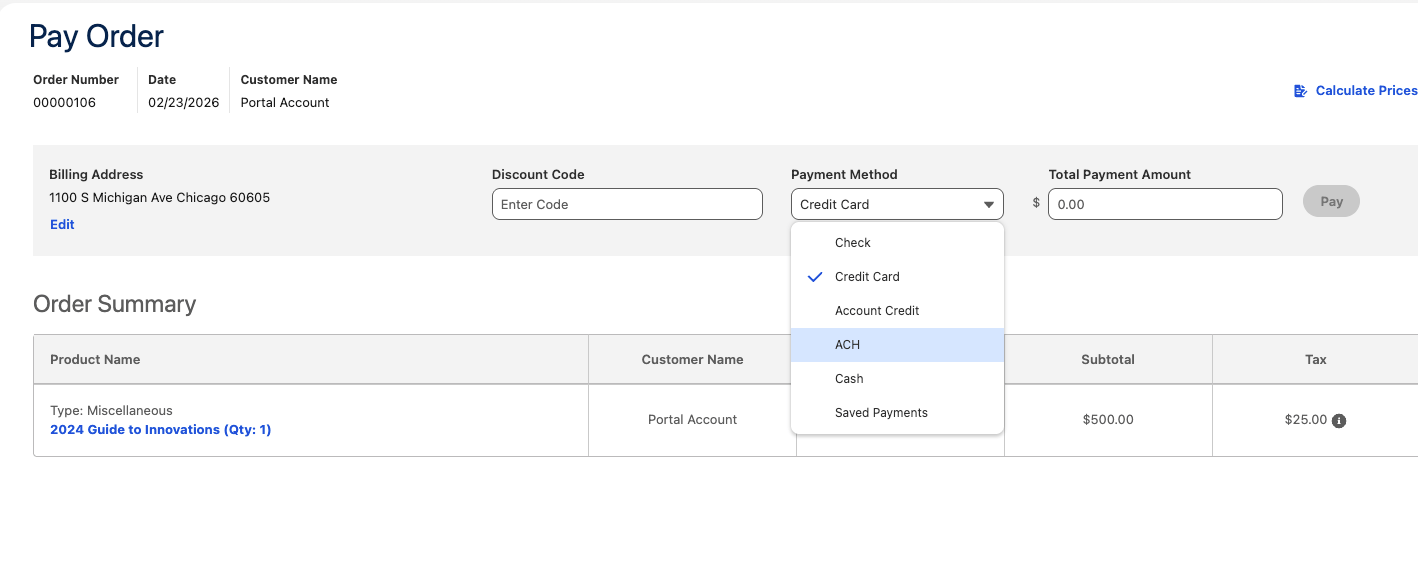
 * As a staff user, enter the amount to pay. To pay an Order partially, set the amount to pay on each Order Line, then click **Pay**.
* As a portal member, click **Checkout**.
Once the payment is processed, fusionCore creates a `Financial_Event__c` record with Financial Event Lines, plus a parallel `Payment_Provider_Event__c` record with its own lines.
### Refunds with Stripe
From the **Financial Events** related list on the Order record page, select the Financial Event you want to refund.
On the Financial Event record, click the **Refund** button in the top right.
When the refund interface opens:
1. Enter a **Refund Amount**.
2. Next to **Choose Method**, select the payment method for the refund:
* **Original payment method** (Card or ACH, depending on how the original payment was tendered) — no further input is required.
* **Check** or **Cash** — enter a **Reference Number** and a **Date**.
* **Account Credit** — confirm the **Account**, **Contact**, **Date**, **Credit GL Account**, and **Customer Type**.
Click **Process Refund**.
To refund back to the original Stripe payment method, the related Payment Type must have **Refund Behavior** (`Refund_Behavior__c`) set to **Refund only if original payment**. A Stripe Payment Type cannot use **Valid for All Refunds**.
Stripe refunds are processed asynchronously. The result is not instant in the UI: it appears once the background job finishes and Stripe's webhook reconciles the outcome back to the `Payment_Provider_Event__c`. A refund can also partially fail, in which case the provider event is marked failed with an error message rather than throwing an error on screen.
## Limitations and Common Pitfalls
These rules are enforced when you save the record. Because they run in Apex, they do not appear under **Setup > Validation Rules**; instead, save fails with an on-screen error.
* **`Card` and `ACH` require a Payment Provider Account.** Saving a Stripe Payment Type with method `Card` or `ACH` fails unless **Payment Provider Account** is set.
* **Do not combine `Valid for All Refunds` with a provider account.** A Stripe Payment Type with a Payment Provider Account cannot use `Refund_Behavior__c = Valid for All Refunds`; save is blocked. Use `Refund only if original payment` instead — provider-backed refunds flow back through the original payment.
* **Auto-succeed checkboxes are incompatible with a provider account.** When a Payment Provider Account is set, you cannot enable **Auto-Update Payment FE To Succeeded** (`Auto_Update_Payment_FE_To_Succeeded__c`) or **Auto-Update Refund FE To Succeeded** (`Auto_Update_Refund_FE_To_Succeeded__c`). Those shortcuts are only for offline methods like cash or check; Stripe events get their real status from the provider.
* **Saving a card or bank account as a wallet item is restricted.** To allow a method to be saved as a wallet item (`Allow_As_Wallet_Item__c`), the method must be `Card` or `ACH`, and a Payment Provider Account must be set.
* **You cannot edit a Payment Type that already has live wallet items.** If any member has saved a wallet item against this Payment Type, you cannot change its payment method, Payment Provider Account, or the wallet-item setting. Migrate or remove the wallet items first.
* **One wallet-item Payment Type per Business Unit and provider account.** A given combination of Business Unit and Payment Provider Account can have only one wallet-item Payment Type.
* **Wallet Item records require Business Unit and Payment Provider Account.** On the `FC_Wallet_Item` record type, both **Business Unit** and **Payment Provider Account** are mandatory.
* **Installments need a wallet-eligible Stripe method.** Installment payments require an active Payment Provider Account and a wallet-eligible method (`Card` or `ACH`). A method that is not provider-backed and wallet-eligible — such as Cash or Check — does not appear for installments, even if it works for one-time orders.
* **`Alipay` and `WeChat Pay` need "Direct Stripe" enabled.** These methods are only available on Stripe Payment Types when the `EnableDirectStripeInstance` feature parameter is on. Connected-account (non-direct) Stripe orgs cannot use them.
* **Sandbox and production accounts do not mix.** A **sandbox** is a non-production copy of your org used for testing. A live Stripe Payment Provider Account does not appear in a sandbox, and a test account does not appear in production. The Payment Type is hidden unless the provider account's environment matches. If your Stripe method is missing, confirm you are using an account that matches the environment.
* **A payment method can silently disappear in a multi-currency org.** If the Payment Type lists **Supported Currencies** (`Supported_Currencies__c`) and that list omits the Order's currency, the method is hidden from the pay screen. Leave the list empty to support all currencies. (Currency filtering only applies in multi-currency orgs.)
* **Wallet Item payments need all three Stripe components configured.** If the saved-method (Wallet Item) component is not set on the Card or ACH Payment Type, saved payment methods will not work at checkout.
* **The deposit GL account cannot be deleted while referenced.** You cannot delete a `GL_Account__c` that any Payment Type uses as its **Deposit Account**; reassign first.
* **Refunds are constrained by the original payment.** At refund time, fusionCore offers only the original Payment Type (when its behavior is `Refund only if original payment`) or Business-Unit Payment Types set to `Valid for All Refunds`, filtered to `Staff`/`Portal and Staff` display and supported currency. `Cannot Refund` types never appear.
* **Stripe refunds are asynchronous.** A refund is submitted to Stripe by a background job and may complete after a short delay; its final outcome appears once the job and webhook reconcile, not instantly in the UI.
## Related Features
Connect and validate the Payment Provider Account this Payment Type depends on.
The full field reference and the offline and custom Payment Type categories.
Let portal members save a Stripe card or bank account as a reusable wallet item.
{/* Source: https://fusionspan.atlassian.net/wiki/spaces/fcdocs/pages/3978428498/Stripe+Payments+and+Refunds */}
* As a staff user, enter the amount to pay. To pay an Order partially, set the amount to pay on each Order Line, then click **Pay**.
* As a portal member, click **Checkout**.
Once the payment is processed, fusionCore creates a `Financial_Event__c` record with Financial Event Lines, plus a parallel `Payment_Provider_Event__c` record with its own lines.
### Refunds with Stripe
From the **Financial Events** related list on the Order record page, select the Financial Event you want to refund.
On the Financial Event record, click the **Refund** button in the top right.
When the refund interface opens:
1. Enter a **Refund Amount**.
2. Next to **Choose Method**, select the payment method for the refund:
* **Original payment method** (Card or ACH, depending on how the original payment was tendered) — no further input is required.
* **Check** or **Cash** — enter a **Reference Number** and a **Date**.
* **Account Credit** — confirm the **Account**, **Contact**, **Date**, **Credit GL Account**, and **Customer Type**.
Click **Process Refund**.
To refund back to the original Stripe payment method, the related Payment Type must have **Refund Behavior** (`Refund_Behavior__c`) set to **Refund only if original payment**. A Stripe Payment Type cannot use **Valid for All Refunds**.
Stripe refunds are processed asynchronously. The result is not instant in the UI: it appears once the background job finishes and Stripe's webhook reconciles the outcome back to the `Payment_Provider_Event__c`. A refund can also partially fail, in which case the provider event is marked failed with an error message rather than throwing an error on screen.
## Limitations and Common Pitfalls
These rules are enforced when you save the record. Because they run in Apex, they do not appear under **Setup > Validation Rules**; instead, save fails with an on-screen error.
* **`Card` and `ACH` require a Payment Provider Account.** Saving a Stripe Payment Type with method `Card` or `ACH` fails unless **Payment Provider Account** is set.
* **Do not combine `Valid for All Refunds` with a provider account.** A Stripe Payment Type with a Payment Provider Account cannot use `Refund_Behavior__c = Valid for All Refunds`; save is blocked. Use `Refund only if original payment` instead — provider-backed refunds flow back through the original payment.
* **Auto-succeed checkboxes are incompatible with a provider account.** When a Payment Provider Account is set, you cannot enable **Auto-Update Payment FE To Succeeded** (`Auto_Update_Payment_FE_To_Succeeded__c`) or **Auto-Update Refund FE To Succeeded** (`Auto_Update_Refund_FE_To_Succeeded__c`). Those shortcuts are only for offline methods like cash or check; Stripe events get their real status from the provider.
* **Saving a card or bank account as a wallet item is restricted.** To allow a method to be saved as a wallet item (`Allow_As_Wallet_Item__c`), the method must be `Card` or `ACH`, and a Payment Provider Account must be set.
* **You cannot edit a Payment Type that already has live wallet items.** If any member has saved a wallet item against this Payment Type, you cannot change its payment method, Payment Provider Account, or the wallet-item setting. Migrate or remove the wallet items first.
* **One wallet-item Payment Type per Business Unit and provider account.** A given combination of Business Unit and Payment Provider Account can have only one wallet-item Payment Type.
* **Wallet Item records require Business Unit and Payment Provider Account.** On the `FC_Wallet_Item` record type, both **Business Unit** and **Payment Provider Account** are mandatory.
* **Installments need a wallet-eligible Stripe method.** Installment payments require an active Payment Provider Account and a wallet-eligible method (`Card` or `ACH`). A method that is not provider-backed and wallet-eligible — such as Cash or Check — does not appear for installments, even if it works for one-time orders.
* **`Alipay` and `WeChat Pay` need "Direct Stripe" enabled.** These methods are only available on Stripe Payment Types when the `EnableDirectStripeInstance` feature parameter is on. Connected-account (non-direct) Stripe orgs cannot use them.
* **Sandbox and production accounts do not mix.** A **sandbox** is a non-production copy of your org used for testing. A live Stripe Payment Provider Account does not appear in a sandbox, and a test account does not appear in production. The Payment Type is hidden unless the provider account's environment matches. If your Stripe method is missing, confirm you are using an account that matches the environment.
* **A payment method can silently disappear in a multi-currency org.** If the Payment Type lists **Supported Currencies** (`Supported_Currencies__c`) and that list omits the Order's currency, the method is hidden from the pay screen. Leave the list empty to support all currencies. (Currency filtering only applies in multi-currency orgs.)
* **Wallet Item payments need all three Stripe components configured.** If the saved-method (Wallet Item) component is not set on the Card or ACH Payment Type, saved payment methods will not work at checkout.
* **The deposit GL account cannot be deleted while referenced.** You cannot delete a `GL_Account__c` that any Payment Type uses as its **Deposit Account**; reassign first.
* **Refunds are constrained by the original payment.** At refund time, fusionCore offers only the original Payment Type (when its behavior is `Refund only if original payment`) or Business-Unit Payment Types set to `Valid for All Refunds`, filtered to `Staff`/`Portal and Staff` display and supported currency. `Cannot Refund` types never appear.
* **Stripe refunds are asynchronous.** A refund is submitted to Stripe by a background job and may complete after a short delay; its final outcome appears once the job and webhook reconcile, not instantly in the UI.
## Related Features
Connect and validate the Payment Provider Account this Payment Type depends on.
The full field reference and the offline and custom Payment Type categories.
Let portal members save a Stripe card or bank account as a reusable wallet item.
{/* Source: https://fusionspan.atlassian.net/wiki/spaces/fcdocs/pages/3978428498/Stripe+Payments+and+Refunds */}