> ## Documentation Index
> Fetch the complete documentation index at: https://docs.fusioncore.us/llms.txt
> Use this file to discover all available pages before exploring further.
# Updating Standard Price Validation Rule
> Make the standard-price validation rule multi-currency aware so each currency can have its own standard price.
## What This Rule Does
fusionCore ships a validation rule on the `PricebookEntry` object that stops you from editing the standard price from the price book entry itself. The `PricebookEntry` object, or *PBE*, is the row that links a product to a price book at a given price. The rule forces you to set the price on the **Standard Price** field of the product record instead, so every product has one clear source of truth for its price.
In a single-currency org this works well. In a multi-currency org, the standard price book holds one entry per currency, so you may want each currency to carry its own standard price. The shipped rule does not account for currency, so you replace it with a multi-currency-aware version.
The shipped rule is named `Block_Standard_Price_Change` and it blocks a save when all of the following are true:
* Global validations are enabled (`Org_Setting__mdt.Global_Validations_Enabled__c = TRUE`).
* The product is used by fusionCore (`Product2.Used_By_FusionCore__c = true`).
* The entry is on the standard price book.
* The entry's `UnitPrice` differs from the product's `Standard_Price__c`, or `Standard_Price__c` is blank.
## Prerequisites
* Multi-currency is enabled in your org. See [Enabling Multi-currency](/end-user-guides/accounting/multi-currency/enabling-multi-currency).
* You have permission to edit objects in **Setup** (System Administrator or equivalent).
This change is only needed if you want a different standard price per currency on the same product. If single-currency pricing is fine for your org, leave the shipped `Block_Standard_Price_Change` rule active and skip this page.
## Optional Workaround Without Changing the Rule
You can keep the shipped validation rule and still create a per-currency standard price by re-editing the product's currency. Each time you set a new product currency and standard price, Salesforce adds a matching entry to the standard price book while keeping the original.
In the **App Launcher**, type **Product** and click **Product**. Click the product you want to update.
On a product that already has a **Standard Price** in one currency, click **Edit**. Change the **Product Currency**, set the **Standard Price** for the new currency, then click **Save**. This adds a new standard price book entry in the new currency and keeps the entry in the original currency.
To return the product to its original currency, click **Edit** again and set **Product Currency** back to its former value. Make sure the **Standard Price** field still holds the correct price for that currency.
## Deactivate the Shipped Rule
Click **Setup**, then the **Object Manager** tab. In **Quick Find**, enter **Price Book Entry** and click the **Price Book Entry** object.
Click **Validation Rules** in the left panel, then click **Block\_Standard\_Price\_Change**.
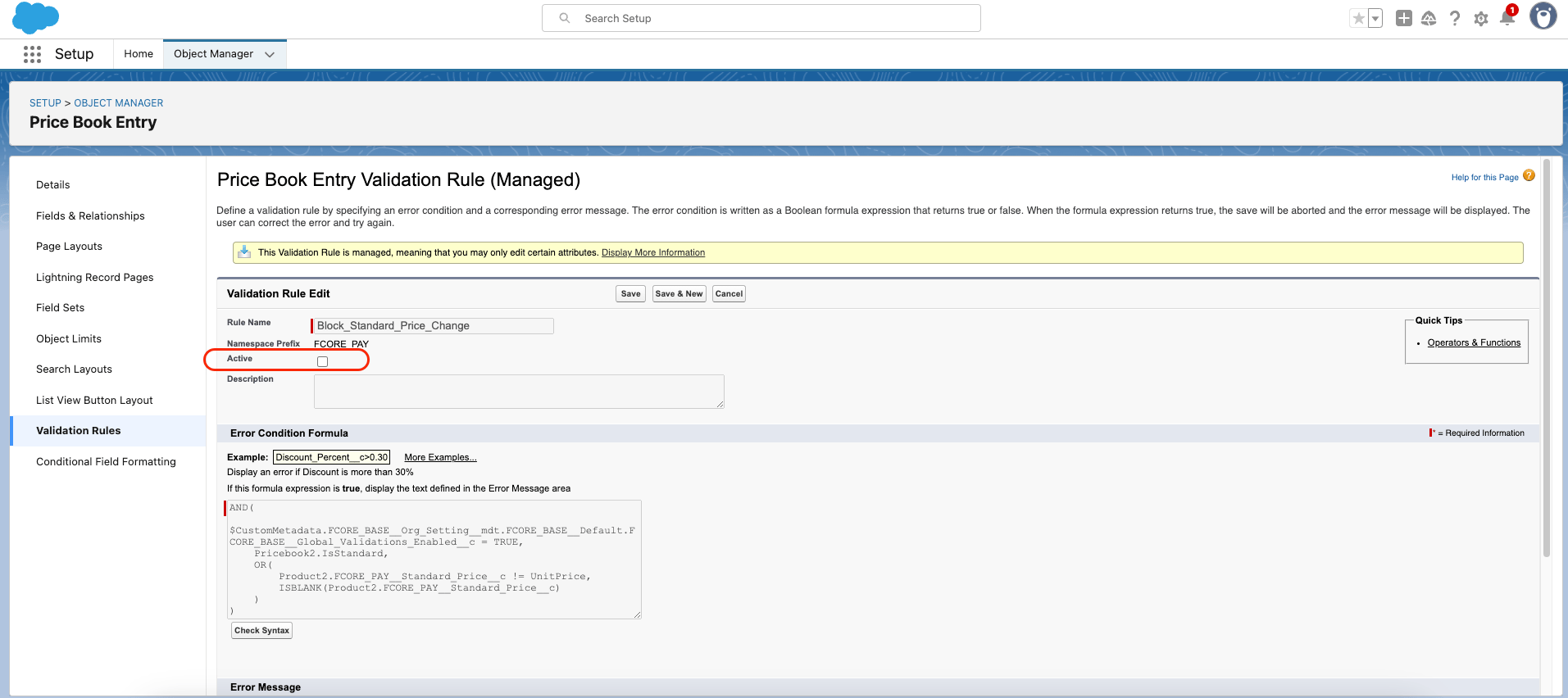
Click **Edit**, clear the **Active** checkbox, then click **Save**.
 ## Create the Multi-Currency Rule
Back on the **Price Book Entry** object, click **Validation Rules**, then click **New**.
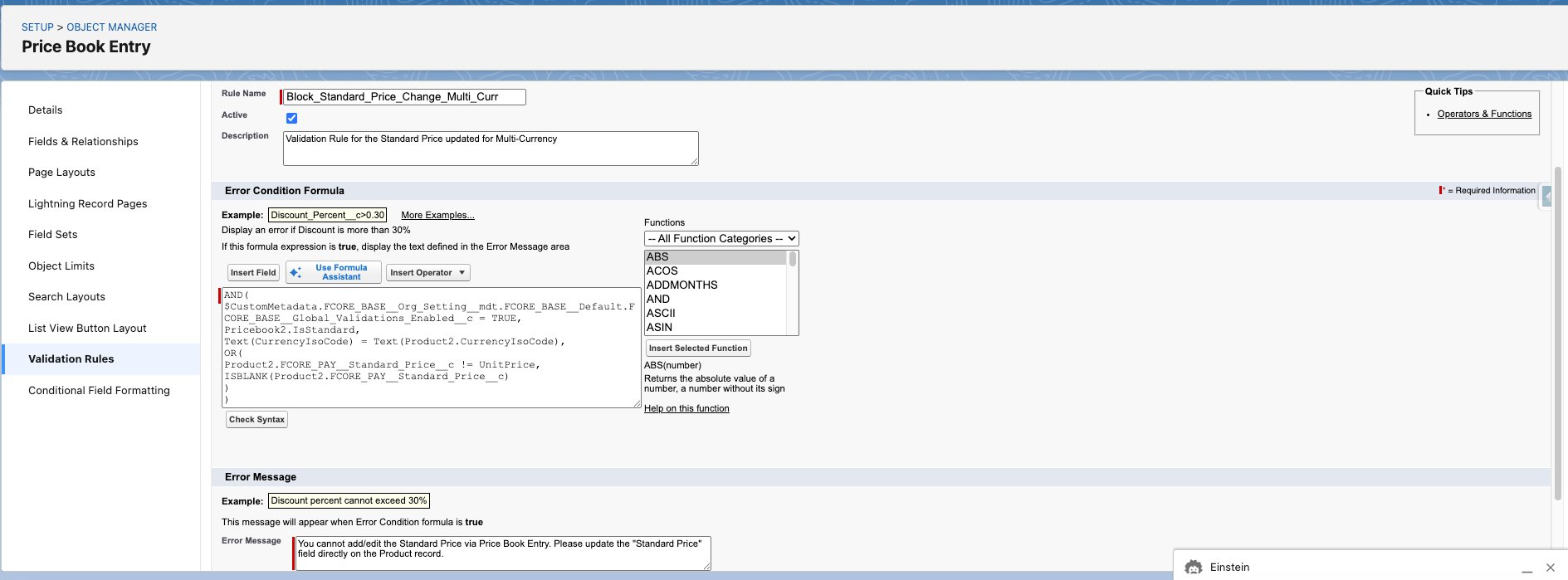
Set the **Rule Name** to `Block_Standard_Price_Change_Multi_Curr` and the **Description** to `Validation Rule for the Standard Price updated for Multi-Currency`.
Copy this formula into the **Error Condition Formula** box:
```
AND(
$CustomMetadata.FCORE_BASE__Org_Setting__mdt.FCORE_BASE__Default.FCORE_BASE__Global_Validations_Enabled__c = TRUE,
Pricebook2.IsStandard,
Text(CurrencyIsoCode) = Text(Product2.CurrencyIsoCode),
OR(
Product2.FCORE_PAY__Standard_Price__c != UnitPrice,
ISBLANK(Product2.FCORE_PAY__Standard_Price__c)
)
)
```
The added `Text(CurrencyIsoCode) = Text(Product2.CurrencyIsoCode)` line is what makes the rule currency-aware: it only blocks the save when the entry's currency matches the product's currency, so each currency can keep its own standard price.
Enter this **Error Message**: `You cannot add/edit the Standard Price via Price Book Entry. Please update the "Standard Price" field directly on the Product record.`
Leave **Error Location** set to **Top of Page**, then click **Save**.
## Create the Multi-Currency Rule
Back on the **Price Book Entry** object, click **Validation Rules**, then click **New**.
Set the **Rule Name** to `Block_Standard_Price_Change_Multi_Curr` and the **Description** to `Validation Rule for the Standard Price updated for Multi-Currency`.
Copy this formula into the **Error Condition Formula** box:
```
AND(
$CustomMetadata.FCORE_BASE__Org_Setting__mdt.FCORE_BASE__Default.FCORE_BASE__Global_Validations_Enabled__c = TRUE,
Pricebook2.IsStandard,
Text(CurrencyIsoCode) = Text(Product2.CurrencyIsoCode),
OR(
Product2.FCORE_PAY__Standard_Price__c != UnitPrice,
ISBLANK(Product2.FCORE_PAY__Standard_Price__c)
)
)
```
The added `Text(CurrencyIsoCode) = Text(Product2.CurrencyIsoCode)` line is what makes the rule currency-aware: it only blocks the save when the entry's currency matches the product's currency, so each currency can keep its own standard price.
Enter this **Error Message**: `You cannot add/edit the Standard Price via Price Book Entry. Please update the "Standard Price" field directly on the Product record.`
Leave **Error Location** set to **Top of Page**, then click **Save**.
 ## Limitations and Common Pitfalls
* The shipped `Block_Standard_Price_Change` rule only fires when global validations are enabled (`Org_Setting__mdt.Global_Validations_Enabled__c = TRUE`), the product has `Used_By_FusionCore__c = true`, and the entry is on the standard price book. If a rule is not firing, check those conditions first.
* The replacement rule above is not an exact copy of the shipped rule plus a currency clause. The shipped rule also gates on `Product2.Used_By_FusionCore__c`, which the formula above omits. As a result the new rule applies to all products on the standard price book, not only fusionCore products. Add the `Used_By_FusionCore__c` clause yourself if you want to keep that scope.
* The standard price must come from the single **Standard Price** field on the product, not from the price book entry. Editing `UnitPrice` on a standard price book entry is what these rules block.
## Limitations and Common Pitfalls
* The shipped `Block_Standard_Price_Change` rule only fires when global validations are enabled (`Org_Setting__mdt.Global_Validations_Enabled__c = TRUE`), the product has `Used_By_FusionCore__c = true`, and the entry is on the standard price book. If a rule is not firing, check those conditions first.
* The replacement rule above is not an exact copy of the shipped rule plus a currency clause. The shipped rule also gates on `Product2.Used_By_FusionCore__c`, which the formula above omits. As a result the new rule applies to all products on the standard price book, not only fusionCore products. Add the `Used_By_FusionCore__c` clause yourself if you want to keep that scope.
* The standard price must come from the single **Standard Price** field on the product, not from the price book entry. Editing `UnitPrice` on a standard price book entry is what these rules block.