> ## Documentation Index
> Fetch the complete documentation index at: https://docs.fusioncore.us/llms.txt
> Use this file to discover all available pages before exploring further.
# Configuring Automatic Write-Offs and Adjustments
> Set whether write-offs and adjustments post automatically or wait for manual review on a Business Unit.
## Overview
A Business Unit (`FCORE_PAY__Business_Unit__c`) controls how write-offs and adjustments behave for the orders tied to it. A **write-off** clears an amount the customer will not pay. An **adjustment** corrects an amount on an order. Both create a **Financial Event** — a record fusionCore uses to track money movement.
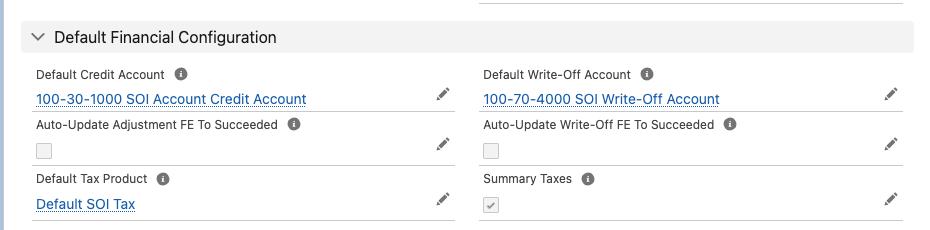
You decide whether these Financial Events post automatically or wait for someone to review them. Two checkboxes in the Business Unit's **Default Financial Configuration** section control this:
* **Auto-Update Write-Off FE To Succeeded** (`Auto_Update_Write_Off_FE_To_Succeeded__c`)
* **Auto-Update Adjustment FE To Succeeded** (`Auto_Update_Adjustment_FE_To_Succeeded__c`)
When a box is checked, the matching Financial Event is set to **Succeeded** the moment it is created — no manual approval step. When a box is unchecked, the Financial Event keeps its initial status so a person can review it first.
Both checkboxes are **enabled by default** on a new Business Unit. Write-offs and adjustments post automatically unless you uncheck the matching box.
## Before You Start
* You need permission to edit Business Units. The `FC_Commerce_Manage_Config_Data` permission set grants create and edit access to Business Units. The `FC_Commerce_View_Config_Data` permission set is read-only and is not enough to change these settings.
* The Business Unit record must already exist. See [Creating a Business Unit](/end-user-guides/accounting/business-units/creating-a-business-unit).
## Set the Automation
Open the Business Unit you want to configure and edit it.
Scroll to the **Default Financial Configuration** section, where both automation checkboxes live.
* Leave **Auto-Update Write-Off FE To Succeeded** checked to have write-off Financial Events post as **Succeeded** immediately.
* Uncheck it to leave write-off Financial Events in their initial status for manual review.
* Leave **Auto-Update Adjustment FE To Succeeded** checked to have adjustment Financial Events post as **Succeeded** immediately.
* Uncheck it to leave adjustment Financial Events in their initial status for manual review.
Click **Save**.
 ## Limitations and Common Pitfalls
* **Zero-dollar transactions always auto-succeed.** A write-off or adjustment for `$0.00` posts as **Succeeded** even when the matching checkbox is unchecked. The automatic status applies whenever the box is checked **or** the total amount is zero.
* **The Business Unit on each order item decides.** The automation reads the Business Unit on each Financial Event, not the org-wide default Business Unit. If an order item points at a different Business Unit than you expect, its write-offs and adjustments follow that unit's settings.
* **Succeeded is meant to be final.** Setting a Financial Event to **Succeeded** is treated as committing the entry, and the change feeds locked-change checks elsewhere in the system. Before you rely on auto-succeed, confirm with your administrator how a succeeded write-off or adjustment is reversed in your org.
Whether a succeeded write-off or adjustment can be reversed, and how it interacts with closed financial periods, is not yet documented here. Confirm the reversal process with your administrator before relying on automatic posting.
* **A write-off needs a Default Write-Off Account.** A write-off fails when the order item's Business Unit has no **Default Write-Off Account** (`Default_Writeoff_Account__c`) set. Make sure each Business Unit used on the order has this account configured. See [Creating a Business Unit](/end-user-guides/accounting/business-units/creating-a-business-unit).
* **Pending Financial Events are rejected.** A write-off or an adjustment cannot run against a Financial Event whose status is **Pending**. These checks run before the automatic-status step, so you may see an error before automation ever applies.
## Limitations and Common Pitfalls
* **Zero-dollar transactions always auto-succeed.** A write-off or adjustment for `$0.00` posts as **Succeeded** even when the matching checkbox is unchecked. The automatic status applies whenever the box is checked **or** the total amount is zero.
* **The Business Unit on each order item decides.** The automation reads the Business Unit on each Financial Event, not the org-wide default Business Unit. If an order item points at a different Business Unit than you expect, its write-offs and adjustments follow that unit's settings.
* **Succeeded is meant to be final.** Setting a Financial Event to **Succeeded** is treated as committing the entry, and the change feeds locked-change checks elsewhere in the system. Before you rely on auto-succeed, confirm with your administrator how a succeeded write-off or adjustment is reversed in your org.
Whether a succeeded write-off or adjustment can be reversed, and how it interacts with closed financial periods, is not yet documented here. Confirm the reversal process with your administrator before relying on automatic posting.
* **A write-off needs a Default Write-Off Account.** A write-off fails when the order item's Business Unit has no **Default Write-Off Account** (`Default_Writeoff_Account__c`) set. Make sure each Business Unit used on the order has this account configured. See [Creating a Business Unit](/end-user-guides/accounting/business-units/creating-a-business-unit).
* **Pending Financial Events are rejected.** A write-off or an adjustment cannot run against a Financial Event whose status is **Pending**. These checks run before the automatic-status step, so you may see an error before automation ever applies.