> ## Documentation Index
> Fetch the complete documentation index at: https://docs.fusioncore.us/llms.txt
> Use this file to discover all available pages before exploring further.
# Transaction Generator
> Define reusable Journal Entry Rules that auto-generate double-entry Transaction records, with a fusionCore-specific rule set and Financial Period close workflow.
## Overview
"Transaction Generator" in fusionCore is actually **two separate packages** installed together. Understanding which is which matters, because the first does nothing useful on its own:
1. **Transaction Generator** (the base package, managed, namespace `FSPTG`) is a generic, empty double-entry engine. It defines the `Journal Entry Rule`, `Transaction`, and `Transaction Entry` objects and the batch/real-time logic that turns a rule into balanced debit/credit records — but it ships with **zero rules**. Installed by itself, it has nothing to do.
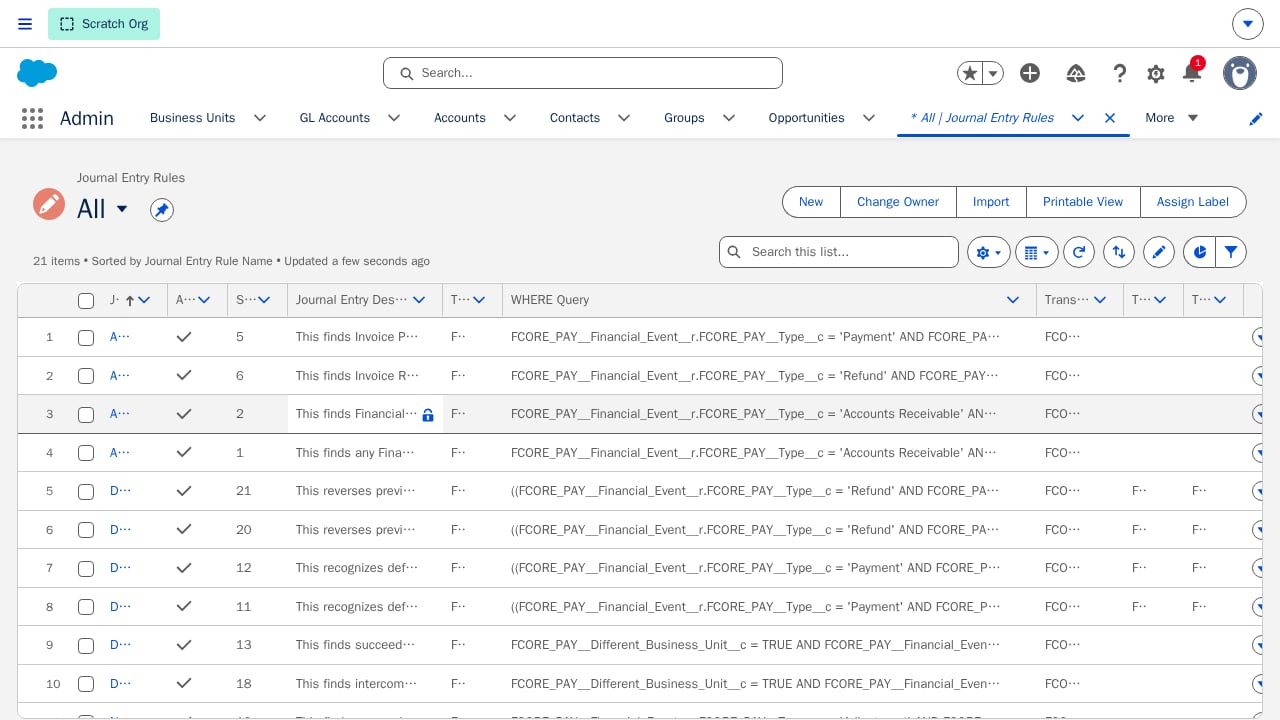
2. **fusionCore Transaction Generator Add On** (unmanaged, no namespace) is what makes it useful for a fusionCore org. It contributes three things: a one-time setup script that inserts **21 pre-built Journal Entry Rules** encoding fusionCore's standard accounting treatment; extra fields on `Transaction Entry` that trace each line back to the fusionCore `Financial Event` and `Financial Event Line` that generated it; and the wiring that plugs Transaction Generator into fusionCore's existing [Financial Period close process](/end-user-guides/accounting/financial-periods/index).
Both packages need to be installed for fusionCore's out-of-the-box accounting automation to work. If your org only has the base package, confirm the add-on and its setup script have also been installed and run.
fusionCore's standard rules model **exchange revenue** — dues, event fees, subscriptions, and other order-driven revenue recognized as goods or services are delivered. Basic unrestricted **contribution** revenue (donations) isn't in the standard set, but is handled with a custom rule — see the [worked example](#worked-example-recording-donations) below. Donor-restricted contributions and fund accounting remain outside this accelerator's scope.
 ## Key Concepts
* **Journal Entry Rule** — a reusable rule: a target object, a filter (`WHERE` clause), and a JSON definition of the debit/credit lines to post.
* **Transaction** and **Transaction Entry** — the generated double-entry records. A Transaction's `Total Debits` and `Total Credits` roll up from its entries, and a formula flags any transaction where they don't match.
* A record is only picked up once — after a Transaction is generated for it, a date field on the source record is stamped, and the engine skips already-stamped records on future runs.
## Creating a Custom Journal Entry Rule
fusionCore's [standard rules](#fusioncores-standard-journal-entry-rules-add-on) cover the common accounting treatment for fusionCore's own objects. Create your own Journal Entry Rule when you need to post entries the standard set doesn't cover — a different treatment for an existing object, or entries driven by a custom object.
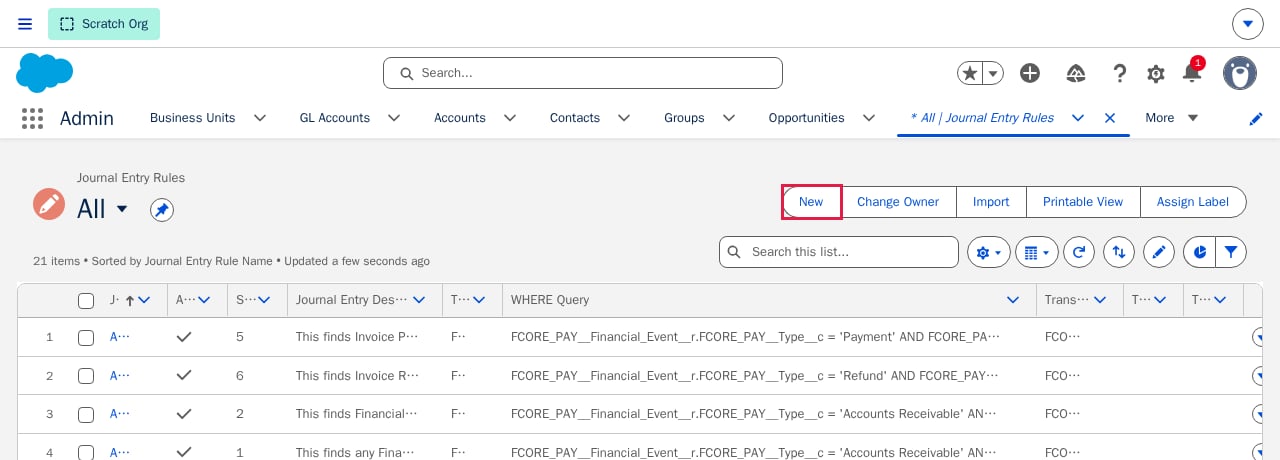
Open the **Journal Entry Rules** tab and click **New**.
## Key Concepts
* **Journal Entry Rule** — a reusable rule: a target object, a filter (`WHERE` clause), and a JSON definition of the debit/credit lines to post.
* **Transaction** and **Transaction Entry** — the generated double-entry records. A Transaction's `Total Debits` and `Total Credits` roll up from its entries, and a formula flags any transaction where they don't match.
* A record is only picked up once — after a Transaction is generated for it, a date field on the source record is stamped, and the engine skips already-stamped records on future runs.
## Creating a Custom Journal Entry Rule
fusionCore's [standard rules](#fusioncores-standard-journal-entry-rules-add-on) cover the common accounting treatment for fusionCore's own objects. Create your own Journal Entry Rule when you need to post entries the standard set doesn't cover — a different treatment for an existing object, or entries driven by a custom object.
Open the **Journal Entry Rules** tab and click **New**.
 Fill in the basics:
1. **Journal Entry Rule Name**
2. **Sequence** number (controls run order relative to your other rules)
3. **Target Object API Name** (the object whose records this rule reads)
4. **WHERE Query** (a SOQL `WHERE` clause, without the `WHERE` keyword, scoping which records it applies to).
5. **Transaction Posted Date Field** is required — the field on the target object (or reachable through a relationship from it) whose date becomes the generated Transaction's date.
Fill in the basics:
1. **Journal Entry Rule Name**
2. **Sequence** number (controls run order relative to your other rules)
3. **Target Object API Name** (the object whose records this rule reads)
4. **WHERE Query** (a SOQL `WHERE` clause, without the `WHERE` keyword, scoping which records it applies to).
5. **Transaction Posted Date Field** is required — the field on the target object (or reachable through a relationship from it) whose date becomes the generated Transaction's date.
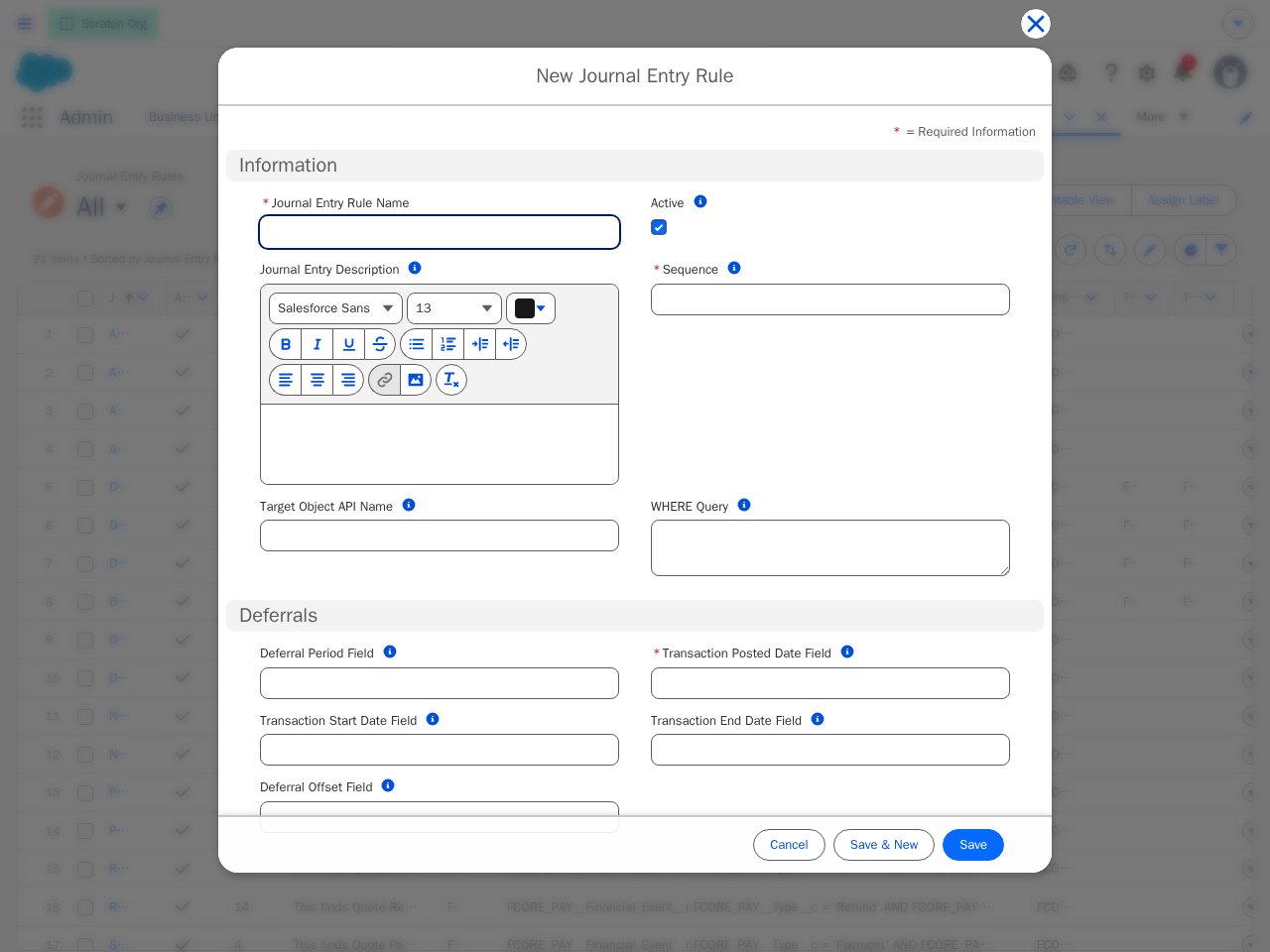 **Active is checked by default on a new rule.** A rule saved Active is picked up by the very next nightly run. If you're still designing the rule, uncheck **Active** first and re-enable it once the debit/credit lines are configured and reviewed.
If the rule targets a custom object rather than a fusionCore object, add a Date field to that object before activating the rule — this is the stamp the engine uses to avoid reprocessing the same record twice. Its API name must match your org's `Transaction Generated Date Field` setting on the `Transaction_Generator__mdt` settings record: in a fusionCore org with the add-on installed that's `FS_Transaction_Created_Date__c`; on the base package alone it's `Transaction_Created_Date__c`. If you want deferral or default-amount behavior for the custom object, the fields those options reference must exist on it too.
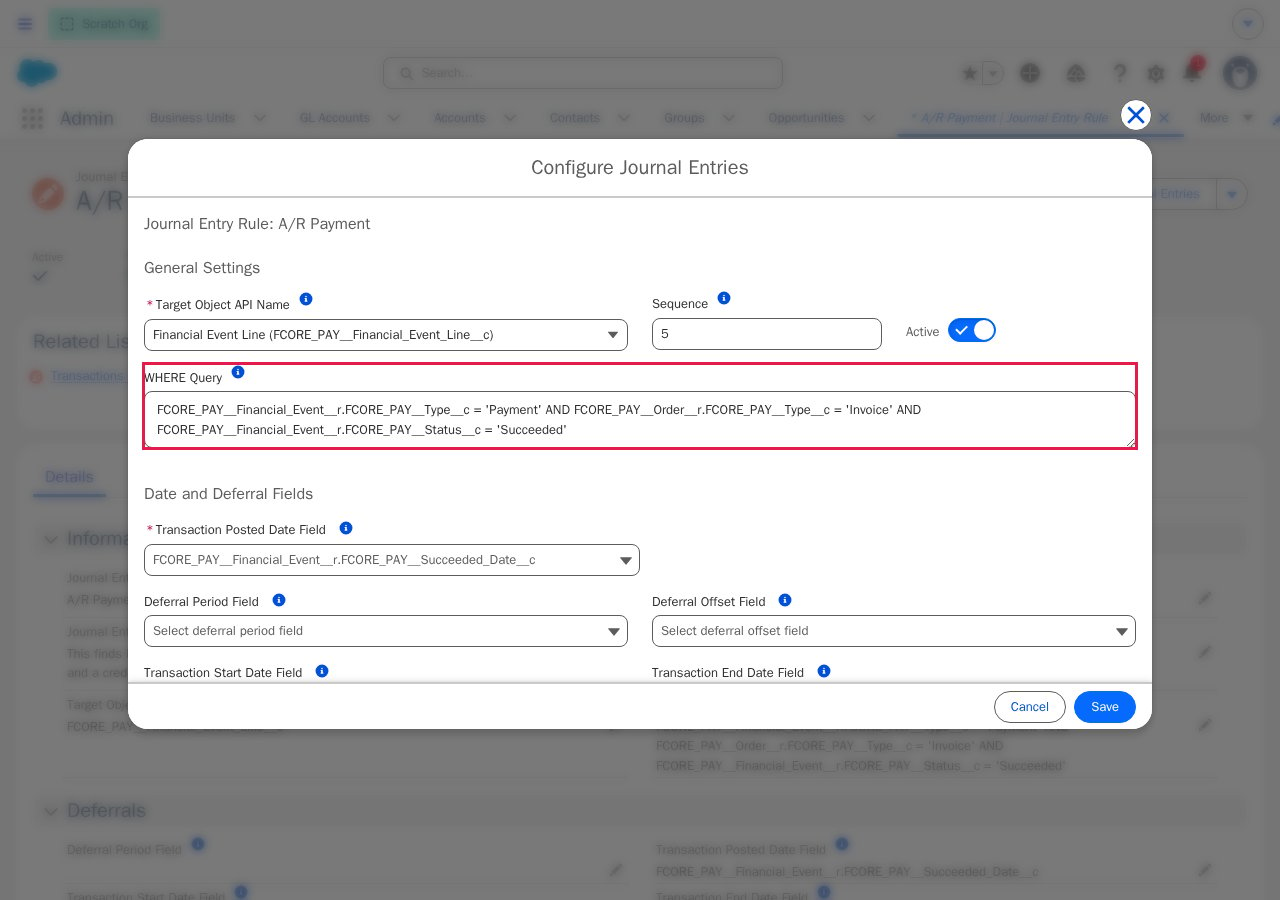
Open the rule and click **Configure Journal Entries**. The top of the modal repeats the rule's target object and `WHERE` clause — the filter that decides which records this rule fires on:
**Active is checked by default on a new rule.** A rule saved Active is picked up by the very next nightly run. If you're still designing the rule, uncheck **Active** first and re-enable it once the debit/credit lines are configured and reviewed.
If the rule targets a custom object rather than a fusionCore object, add a Date field to that object before activating the rule — this is the stamp the engine uses to avoid reprocessing the same record twice. Its API name must match your org's `Transaction Generated Date Field` setting on the `Transaction_Generator__mdt` settings record: in a fusionCore org with the add-on installed that's `FS_Transaction_Created_Date__c`; on the base package alone it's `Transaction_Created_Date__c`. If you want deferral or default-amount behavior for the custom object, the fields those options reference must exist on it too.
Open the rule and click **Configure Journal Entries**. The top of the modal repeats the rule's target object and `WHERE` clause — the filter that decides which records this rule fires on:
 Scroll down within the same modal to the **Journal Entries** section. This is where you define each debit/credit line: which side, which field holds the amount, and which field on the target record holds the GL Account. **You'll generally need at least two lines — one debit and one matching credit:**
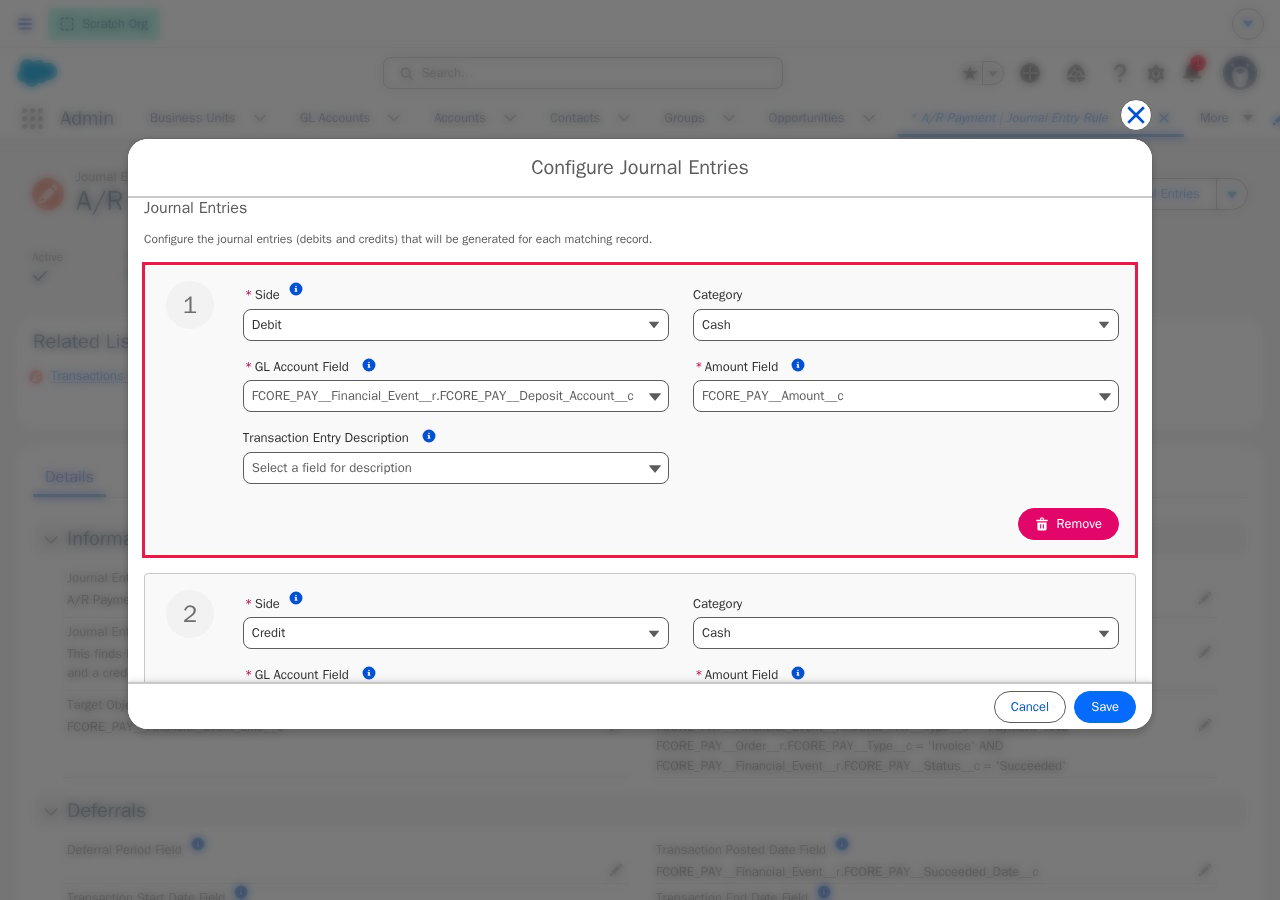 The field pickers for GL Account, Amount, and the deferral date fields can chain through relationships on the target object — for example, from a Financial Event Line through its Business Unit to a Deposit Account field. Keep chains to 4 relationships deep or fewer.
If the rule should split one amount across multiple accounting periods, set the deferral start/end/posted-date fields and a deferral period field on the rule.
Once the lines are configured and reviewed, check **Active** on the rule. A rule can't be saved as Active without a target object and a Transaction Posted Date field configured.
Active rules run automatically every night at 12:00 AM org time in a scheduled batch (the packaged `Transaction Generator` job, running `TransactionGeneratorBatch`). For immediate, on-demand generation, add the **View/Create Transaction Entries** Lightning component to the target object's record page — clicking it runs the same active rules against just that record.
Whichever way a rule runs, the result is the same: a `Transaction` record (with rolled-up `Total Debits` and `Total Credits`) and its child `Transaction Entry` lines, linked back to the rule that created them.
The field pickers for GL Account, Amount, and the deferral date fields can chain through relationships on the target object — for example, from a Financial Event Line through its Business Unit to a Deposit Account field. Keep chains to 4 relationships deep or fewer.
If the rule should split one amount across multiple accounting periods, set the deferral start/end/posted-date fields and a deferral period field on the rule.
Once the lines are configured and reviewed, check **Active** on the rule. A rule can't be saved as Active without a target object and a Transaction Posted Date field configured.
Active rules run automatically every night at 12:00 AM org time in a scheduled batch (the packaged `Transaction Generator` job, running `TransactionGeneratorBatch`). For immediate, on-demand generation, add the **View/Create Transaction Entries** Lightning component to the target object's record page — clicking it runs the same active rules against just that record.
Whichever way a rule runs, the result is the same: a `Transaction` record (with rolled-up `Total Debits` and `Total Credits`) and its child `Transaction Entry` lines, linked back to the rule that created them.
 #### **Journal Entry Rule fields quick reference:**
| **Field Name** | **Description** |
| :---------------------------- | :-------------------------------------------------------------------------------------------------------------------------------------------------- |
| Active | Indicates whether this Journal Entry Rule is active and should be processed by the batch job |
| Target Object API Name | API name of the target object from which to generate transactions |
| Sequence | Numeric order of the Journal Entry Rule |
| WHERE Query | WHERE clause to filter records from the target object for transaction generation |
| Transaction Posted Date Field | API name of the field on the target object that contains the transaction posted date. This is the date set on the Transaction when it is generated. |
| Deferral Period Field | API name of the field on the target object that contains the deferral period (Monthly, Quarterly, etc. based on associated metadata type) |
| Deferral Offset Field | Contains the API name of the field on the target object that has the deferral treatment. |
| Transaction Start Date Field | API name of the field on the target object that contains the start date for the transaction (used in deferrals) |
| Transaction End Date Field | API name of the field on the target object that contains the end date for the transaction (the last day of the deferred transaction) |
| Default Amount | Part of the default field. If this field is set, all other amount fields in the Journal Entries section will be set to this field. |
### Worked Example: Recording Donations
Donations can reach Salesforce in many ways, so this example uses one concrete setup to walk the flow end to end. **Foundation of Innovators** is an association that collects donations in a fundraising system outside of Salesforce. As each gift is collected, the external system creates a Donation record (a custom `Donation__c` object) in Salesforce, and the accounting team wants those gifts tracked as Transactions in Salesforce for ease of reporting. A custom rule does exactly that: when a Donation's Status becomes **Received**, it posts the gift to the books automatically.
**The accounting treatment.** A donation is contribution revenue, not exchange revenue — the donor receives nothing of commensurate value in return — so unlike dues or event fees there is no service period to defer it over. The rule recognizes the full amount on receipt with a single balanced entry, and configures no deferral schedule:
| Side | GL Account | Amount |
| ------ | ---------------------------------------- | ----------- |
| Debit | The Business Unit's deposit/cash account | Gift amount |
| Credit | A Contribution Revenue account | Gift amount |
Point the credit at a contribution-revenue GL Account kept **separate from your dues and other exchange-revenue accounts**, so audited statements and the Form 990 can separate contributions from program revenue. In this example the accounts belong to the Foundation Business Unit — the same association/foundation split described in [Accounting Overview](/end-user-guides/accounting/index).
**Prepare the custom object.** The example `Donation__c` object carries these fields — the two GL Account lookups are what the rule's journal entry lines will read, and the stamp field is the reprocessing guard from the earlier step:
| Field | Type | Purpose |
| -------------------------------- | ---------------------------- | ---------------------------------------------- |
| `Donor__c` | Lookup (Account) | Who gave the gift. |
| `Amount__c` | Currency | The gift amount — both entry lines read this. |
| `Received_Date__c` | Date | Becomes the Transaction's date. |
| `Status__c` | Picklist (Pledged, Received) | The rule fires only on Received. |
| `Deposit_GL_Account__c` | Lookup (GL Account) | Debited — the bank account the gift landed in. |
| `Revenue_GL_Account__c` | Lookup (GL Account) | Credited — Contribution Revenue. |
| `FS_Transaction_Created_Date__c` | Date | Stamped by the engine after generation. |
**Create the rule.** On the New Journal Entry Rule form, enter:
| Field | Value |
| ----------------------------- | --------------------------------------------------------- |
| Journal Entry Rule Name | `Donation Received` |
| Active | Unchecked, while designing |
| Sequence | `100` (a high value, so it runs after the standard rules) |
| Target Object API Name | `Donation__c` |
| WHERE Query | `Status__c = 'Received' AND Amount__c > 0` |
| Transaction Posted Date Field | `Received_Date__c` |
#### **Journal Entry Rule fields quick reference:**
| **Field Name** | **Description** |
| :---------------------------- | :-------------------------------------------------------------------------------------------------------------------------------------------------- |
| Active | Indicates whether this Journal Entry Rule is active and should be processed by the batch job |
| Target Object API Name | API name of the target object from which to generate transactions |
| Sequence | Numeric order of the Journal Entry Rule |
| WHERE Query | WHERE clause to filter records from the target object for transaction generation |
| Transaction Posted Date Field | API name of the field on the target object that contains the transaction posted date. This is the date set on the Transaction when it is generated. |
| Deferral Period Field | API name of the field on the target object that contains the deferral period (Monthly, Quarterly, etc. based on associated metadata type) |
| Deferral Offset Field | Contains the API name of the field on the target object that has the deferral treatment. |
| Transaction Start Date Field | API name of the field on the target object that contains the start date for the transaction (used in deferrals) |
| Transaction End Date Field | API name of the field on the target object that contains the end date for the transaction (the last day of the deferred transaction) |
| Default Amount | Part of the default field. If this field is set, all other amount fields in the Journal Entries section will be set to this field. |
### Worked Example: Recording Donations
Donations can reach Salesforce in many ways, so this example uses one concrete setup to walk the flow end to end. **Foundation of Innovators** is an association that collects donations in a fundraising system outside of Salesforce. As each gift is collected, the external system creates a Donation record (a custom `Donation__c` object) in Salesforce, and the accounting team wants those gifts tracked as Transactions in Salesforce for ease of reporting. A custom rule does exactly that: when a Donation's Status becomes **Received**, it posts the gift to the books automatically.
**The accounting treatment.** A donation is contribution revenue, not exchange revenue — the donor receives nothing of commensurate value in return — so unlike dues or event fees there is no service period to defer it over. The rule recognizes the full amount on receipt with a single balanced entry, and configures no deferral schedule:
| Side | GL Account | Amount |
| ------ | ---------------------------------------- | ----------- |
| Debit | The Business Unit's deposit/cash account | Gift amount |
| Credit | A Contribution Revenue account | Gift amount |
Point the credit at a contribution-revenue GL Account kept **separate from your dues and other exchange-revenue accounts**, so audited statements and the Form 990 can separate contributions from program revenue. In this example the accounts belong to the Foundation Business Unit — the same association/foundation split described in [Accounting Overview](/end-user-guides/accounting/index).
**Prepare the custom object.** The example `Donation__c` object carries these fields — the two GL Account lookups are what the rule's journal entry lines will read, and the stamp field is the reprocessing guard from the earlier step:
| Field | Type | Purpose |
| -------------------------------- | ---------------------------- | ---------------------------------------------- |
| `Donor__c` | Lookup (Account) | Who gave the gift. |
| `Amount__c` | Currency | The gift amount — both entry lines read this. |
| `Received_Date__c` | Date | Becomes the Transaction's date. |
| `Status__c` | Picklist (Pledged, Received) | The rule fires only on Received. |
| `Deposit_GL_Account__c` | Lookup (GL Account) | Debited — the bank account the gift landed in. |
| `Revenue_GL_Account__c` | Lookup (GL Account) | Credited — Contribution Revenue. |
| `FS_Transaction_Created_Date__c` | Date | Stamped by the engine after generation. |
**Create the rule.** On the New Journal Entry Rule form, enter:
| Field | Value |
| ----------------------------- | --------------------------------------------------------- |
| Journal Entry Rule Name | `Donation Received` |
| Active | Unchecked, while designing |
| Sequence | `100` (a high value, so it runs after the standard rules) |
| Target Object API Name | `Donation__c` |
| WHERE Query | `Status__c = 'Received' AND Amount__c > 0` |
| Transaction Posted Date Field | `Received_Date__c` |
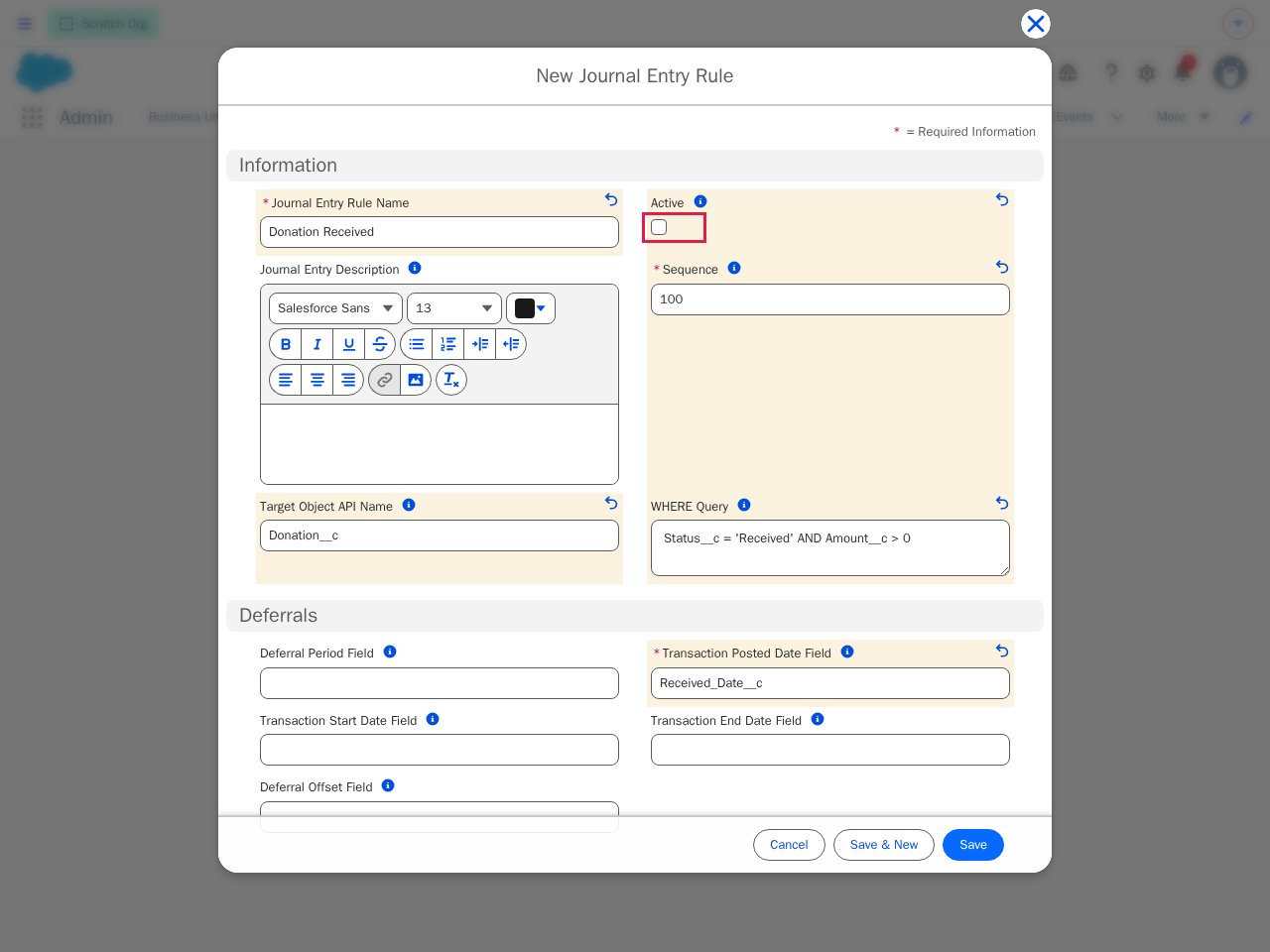 In this case, the `Amount__c > 0` guard matters: without it, a zero or negative amount would generate a zero or reversed entry, which is not the correct treatment for a corrected or returned gift — a returned gift needs its own reversing entry.
**Configure the two lines.** Save the rule, click **Configure Journal Entries**, and add one Debit and one Credit line, both reading `Amount__c`:
In this case, the `Amount__c > 0` guard matters: without it, a zero or negative amount would generate a zero or reversed entry, which is not the correct treatment for a corrected or returned gift — a returned gift needs its own reversing entry.
**Configure the two lines.** Save the rule, click **Configure Journal Entries**, and add one Debit and one Credit line, both reading `Amount__c`:
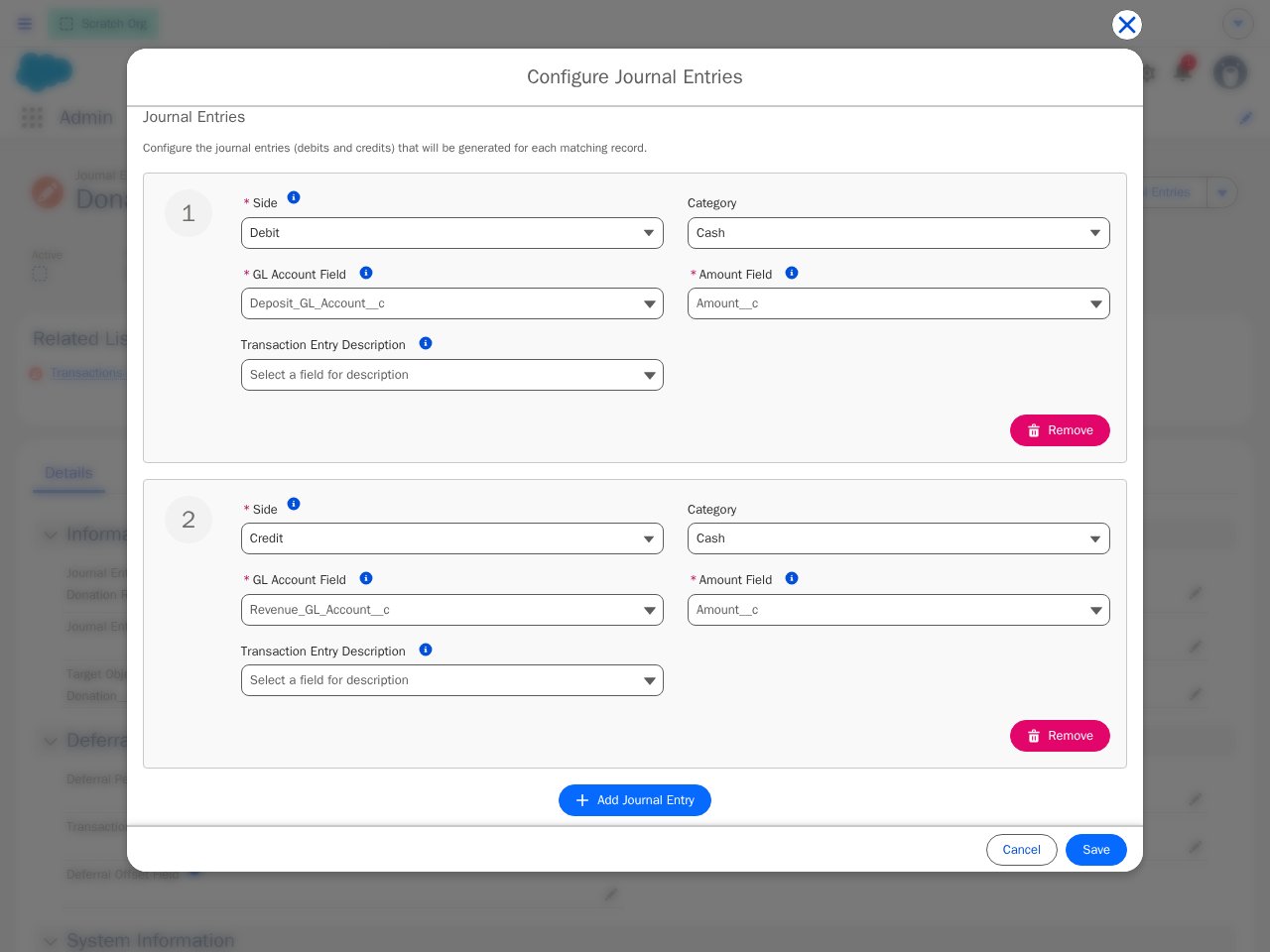 Save, then check **Active** on the rule.
**Generate and verify.** With the **View/Create Transaction Entries** component on the Donation record page (added in Lightning App Builder), a received donation shows a **Generate Transactions** button:
Save, then check **Active** on the rule.
**Generate and verify.** With the **View/Create Transaction Entries** component on the Donation record page (added in Lightning App Builder), a received donation shows a **Generate Transactions** button:
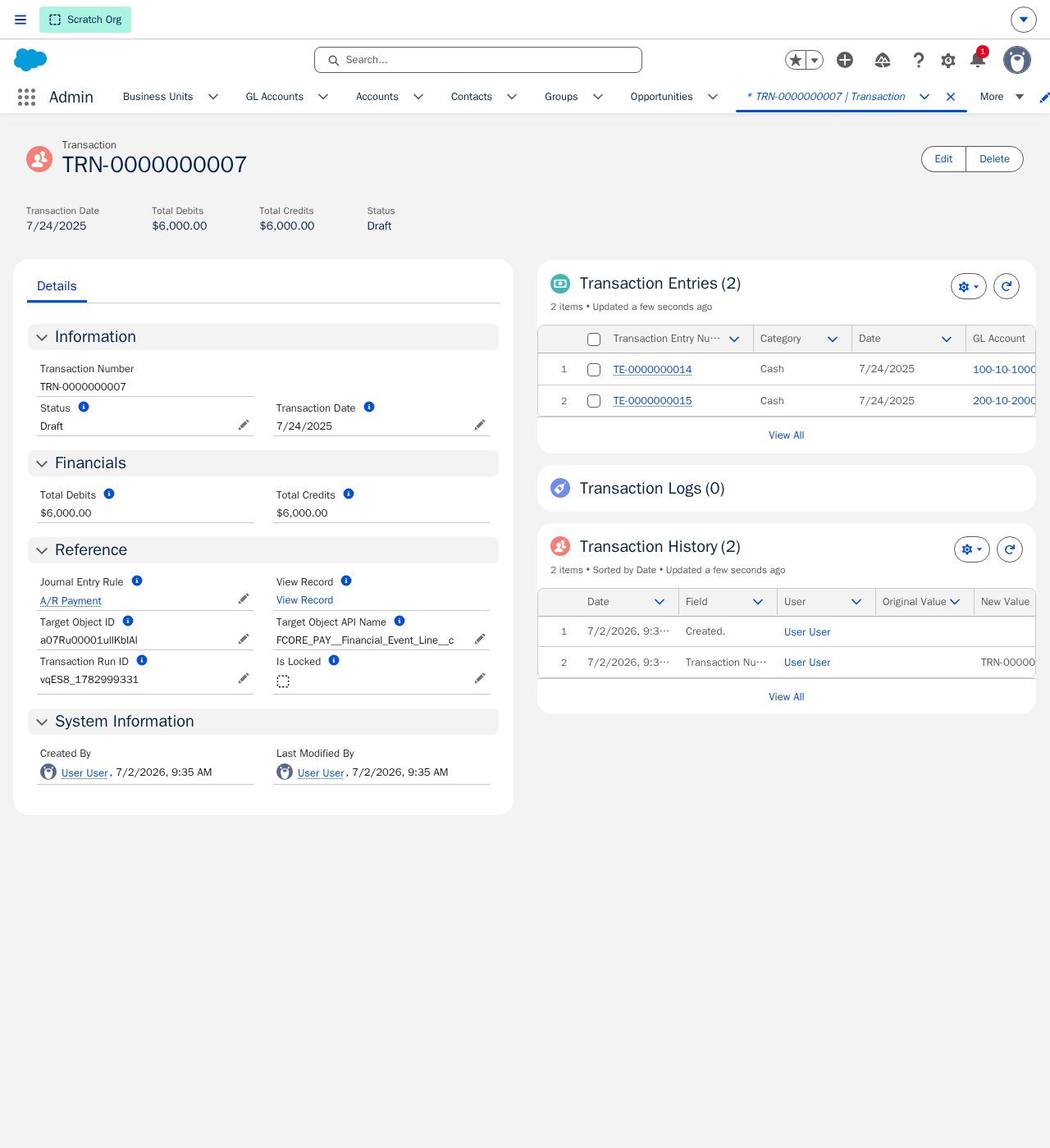
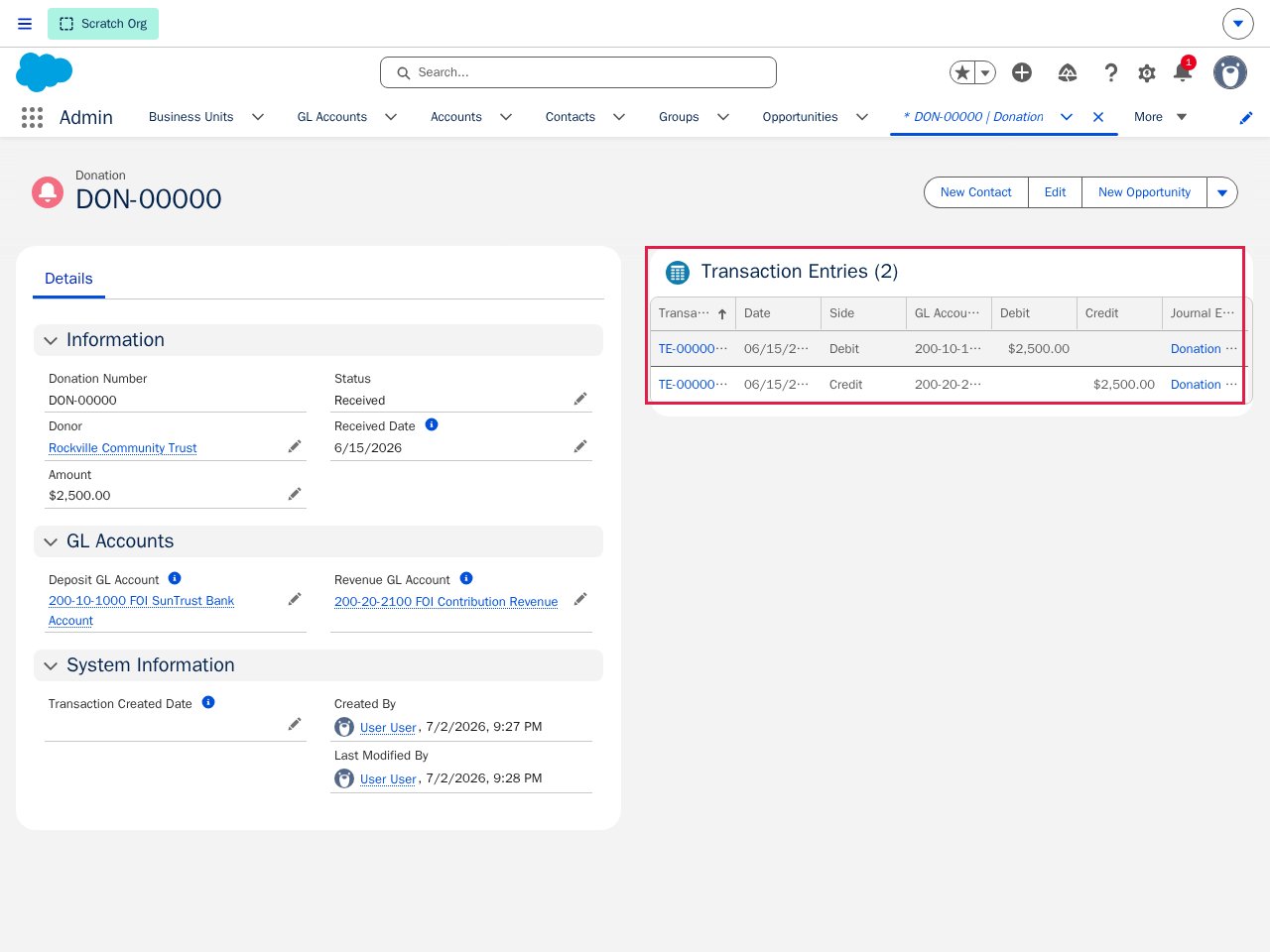
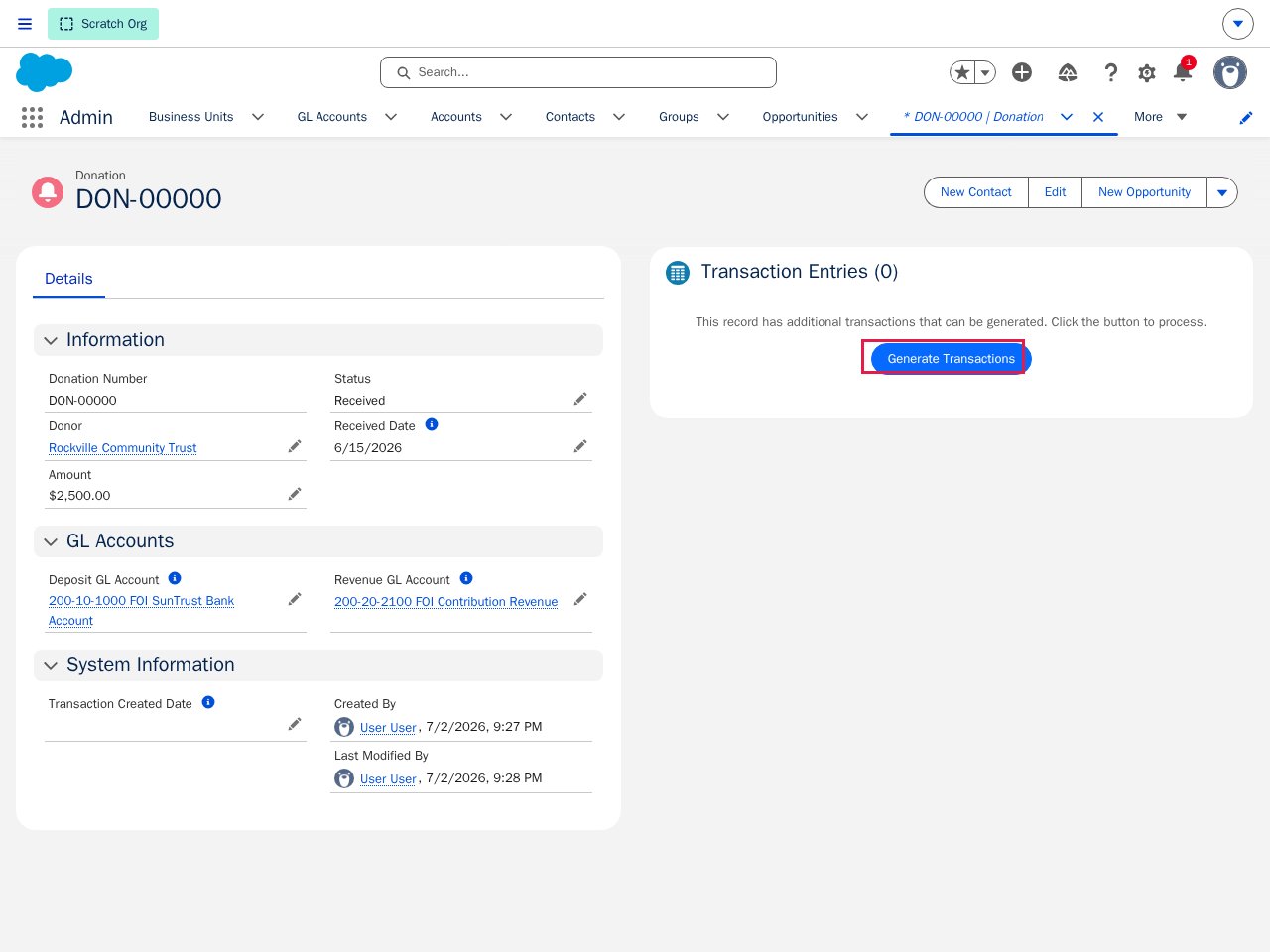 Clicking it runs the rule against just this record. The panel refreshes with the two generated entries — a \$2,500 Debit to the deposit account and a \$2,500 Credit to Contribution Revenue:
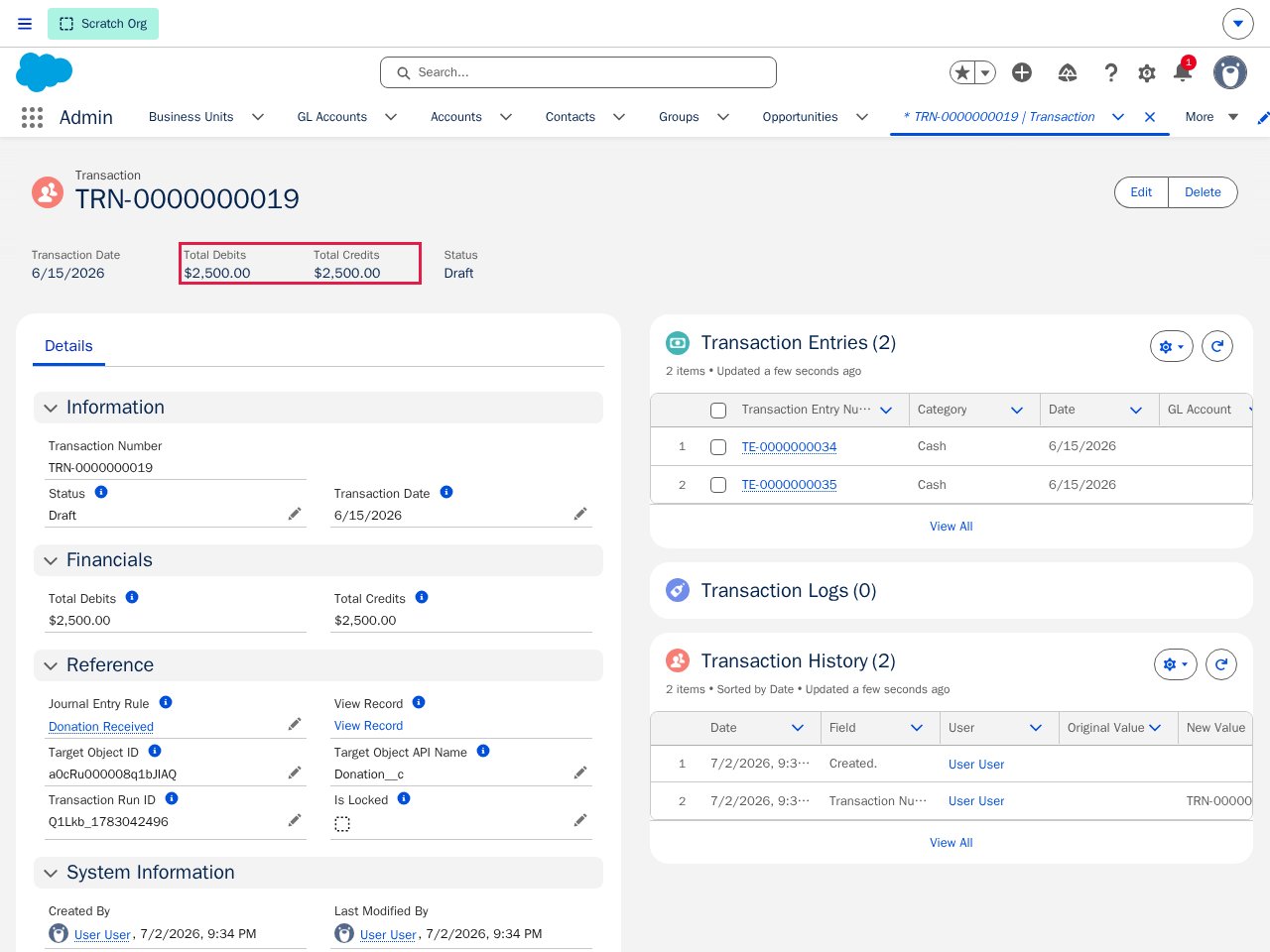
 The parent Transaction confirms the entry balances, carries the Received Date as its Transaction Date, and links back to both the rule and the Donation record. The Donation's `FS_Transaction_Created_Date__c` is now stamped, so the nightly batch won't pick it up again:
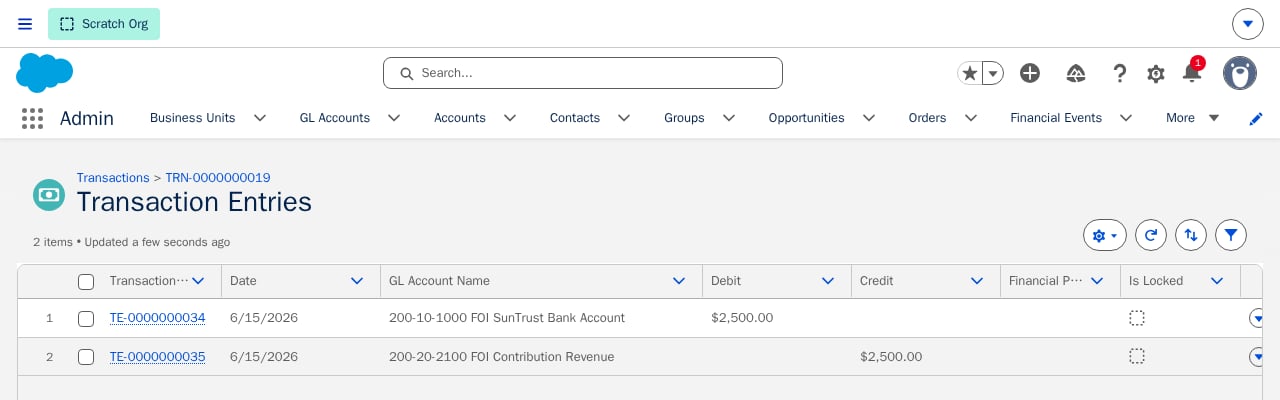
 For the clearest read of the double entry, open the Transaction's **Transaction Entries** related list (**View All**) — the full-width view puts the debit and its matching credit side by side with their dates, GL Accounts, and amounts:
 ## fusionCore's Standard Journal Entry Rules (Add-On)
Installing fusionCore's Transaction Generator add-on and running its one-time setup script inserts the 21 Journal Entry Rules below. All of them target fusionCore's Financial Event Lines, matching on the parent Financial Event's type and status, and encode fusionCore's standard accounting treatment — you don't have to design this rule set yourself. You configure your GL Accounts on Commerce (A/R Account, Revenue Account, Deferred Account, Deposit Account, Write-Off Account, Due From/To Accounts), and each rule picks the right account automatically based on the Financial Event type.
Assign **FS TG AddOn (Read-Only)** to users who need to see the reference fields the add-on stamps on Transaction Entries (covered below).
Run the packaged one-time setup script that inserts all 21 rules in the execute anonymous window in the developer console. Run it only once per org — running it twice creates duplicate rules, which double-posts every transaction.
`new FS_StandardJournalEntryRecords().create().insertRecords();`
Each rule reads its GL Account from your Commerce configuration (A/R, Revenue, Deferred, Deposit, Write-Off, and Due From/To accounts). Missing accounts mean that rule can't post correctly.
The add-on packages its own **Fetch** and **Lock** quick actions — installing it does not remove or replace the base ones already on the Financial Period page, so both versions exist side by side under the same button labels until someone swaps them in.
## fusionCore's Standard Journal Entry Rules (Add-On)
Installing fusionCore's Transaction Generator add-on and running its one-time setup script inserts the 21 Journal Entry Rules below. All of them target fusionCore's Financial Event Lines, matching on the parent Financial Event's type and status, and encode fusionCore's standard accounting treatment — you don't have to design this rule set yourself. You configure your GL Accounts on Commerce (A/R Account, Revenue Account, Deferred Account, Deposit Account, Write-Off Account, Due From/To Accounts), and each rule picks the right account automatically based on the Financial Event type.
Assign **FS TG AddOn (Read-Only)** to users who need to see the reference fields the add-on stamps on Transaction Entries (covered below).
Run the packaged one-time setup script that inserts all 21 rules in the execute anonymous window in the developer console. Run it only once per org — running it twice creates duplicate rules, which double-posts every transaction.
`new FS_StandardJournalEntryRecords().create().insertRecords();`
Each rule reads its GL Account from your Commerce configuration (A/R, Revenue, Deferred, Deposit, Write-Off, and Due From/To accounts). Missing accounts mean that rule can't post correctly.
The add-on packages its own **Fetch** and **Lock** quick actions — installing it does not remove or replace the base ones already on the Financial Period page, so both versions exist side by side under the same button labels until someone swaps them in.
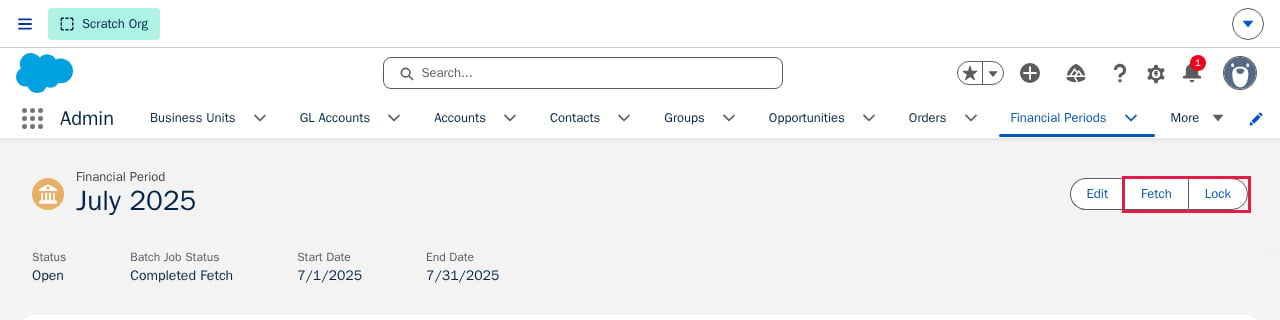 In **Setup → Lightning App Builder**, edit the Financial Period record page, select the Highlights Panel (the action bar shown above), remove the base **Fetch** and **Lock** actions, and add the add-on's versions of **Fetch** and **Lock** in their place. Save and activate the page. Skipping this step is easy to miss because both actions have identical labels — see the warning below for why it matters for Lock specifically.
Whether a rule posts "with Deferrals" or "without Deferrals" depends entirely on whether a Deferred Account is set on the Financial Event Line. If revenue is posting to the wrong account, check that field first.
The 21 rules, in the order they run:
| # | Rule | What it does |
| -- | -------------------------------------------- | ----------------------------------------------------------------------------------------------------------------------------------------------------- |
| 1 | A/R without Deferrals | Finds Financial Event Lines on an Accounts Receivable event and debits A/R, credits Revenue. |
| 2 | A/R with Deferrals | Same, but when a Deferred Account is set: debits A/R, credits Deferred Revenue. |
| 3 | Sales without Deferrals | Succeeded Quote Payments with no Deferred Account: debits Deposit/Cash, credits Revenue. |
| 4 | Sales with Deferrals | Succeeded Quote Payments with a Deferred Account: debits Deposit/Cash, credits Deferred Revenue. |
| 5 | A/R Payment | Succeeded Invoice Payments: debits Deposit/Cash, credits A/R. |
| 6 | A/R Refund | Succeeded Invoice Refunds: debits A/R, credits Deposit/Cash. |
| 7 | Positive Adjustment without Deferrals | Succeeded positive Adjustments with no Deferred Account: debits A/R, credits Revenue. |
| 8 | Positive Adjustment with Deferrals | Succeeded positive Adjustments with a Deferred Account: debits A/R, credits Deferred Revenue. |
| 9 | Negative Adjustment without Deferrals | Succeeded negative Adjustments with no Deferred Account: reverses by debiting Revenue, crediting A/R. |
| 10 | Negative Adjustment with Deferrals | Succeeded negative Adjustments with a Deferred Account: reverses by debiting Deferred Revenue, crediting A/R. |
| 11 | Deferred Revenue Recognition — Specific Date | Recognizes deferred revenue on its specific recognition date: debits Deferred Revenue, credits Revenue. |
| 12 | Deferred Revenue Recognition — Over Time | Recognizes deferred revenue over the order product's subscription term: debits Deferred Revenue, credits Revenue. |
| 13 | Due To/From | Succeeded, non-negative cross-Business-Unit Payments: debits Due From, credits Due To. |
| 14 | Refund without Deferrals | Succeeded Quote Refunds with no Deferred Account: reverses by debiting Revenue, crediting Deposit/Cash. |
| 15 | Refund with Deferrals | Succeeded Quote Refunds with a Deferred Account: reverses by debiting Deferred Revenue, crediting Deposit/Cash. |
| 16 | Void With Deferrals | Succeeded Voids with a Deferred Account: reverses by debiting Deferred Revenue, crediting A/R. |
| 17 | Void Without Deferrals | Succeeded Voids with no Deferred Account: reverses by debiting Revenue, crediting A/R. |
| 18 | Due To/From Reversal | Cross-Business-Unit Refunds with a negative amount: debits Due To, credits Due From. |
| 19 | Write-Off Account Receivable | Succeeded Write-Offs: debits the Write-Off (Bad Debt) account, credits A/R. |
| 20 | Deferrals Revenue Reversal — Specific Date | Reverses previously recognized revenue on its recognition date for Refunds, Voids, or negative Adjustments: debits Revenue, credits Deferred Revenue. |
| 21 | Deferrals Revenue Reversal — Over Time | Same, but reversed over the subscription term instead of on a single date. |
**Due To/From (rules 13 and 18) posts in addition to, not instead of, the primary entry.** A cross-Business-Unit payment matches its ordinary rule (for example, A/R Payment) *and* the Due To/From rule, generating two separate Transactions from the same Financial Event Line — one recording the cash/revenue, one recording the intercompany offset. This is the mechanism behind the association/foundation Business Unit split described in [Accounting Overview](/end-user-guides/accounting/index) — use it when one Business Unit collects money that economically belongs to another.
### How the Add-On Traces a Transaction Entry Back to fusionCore
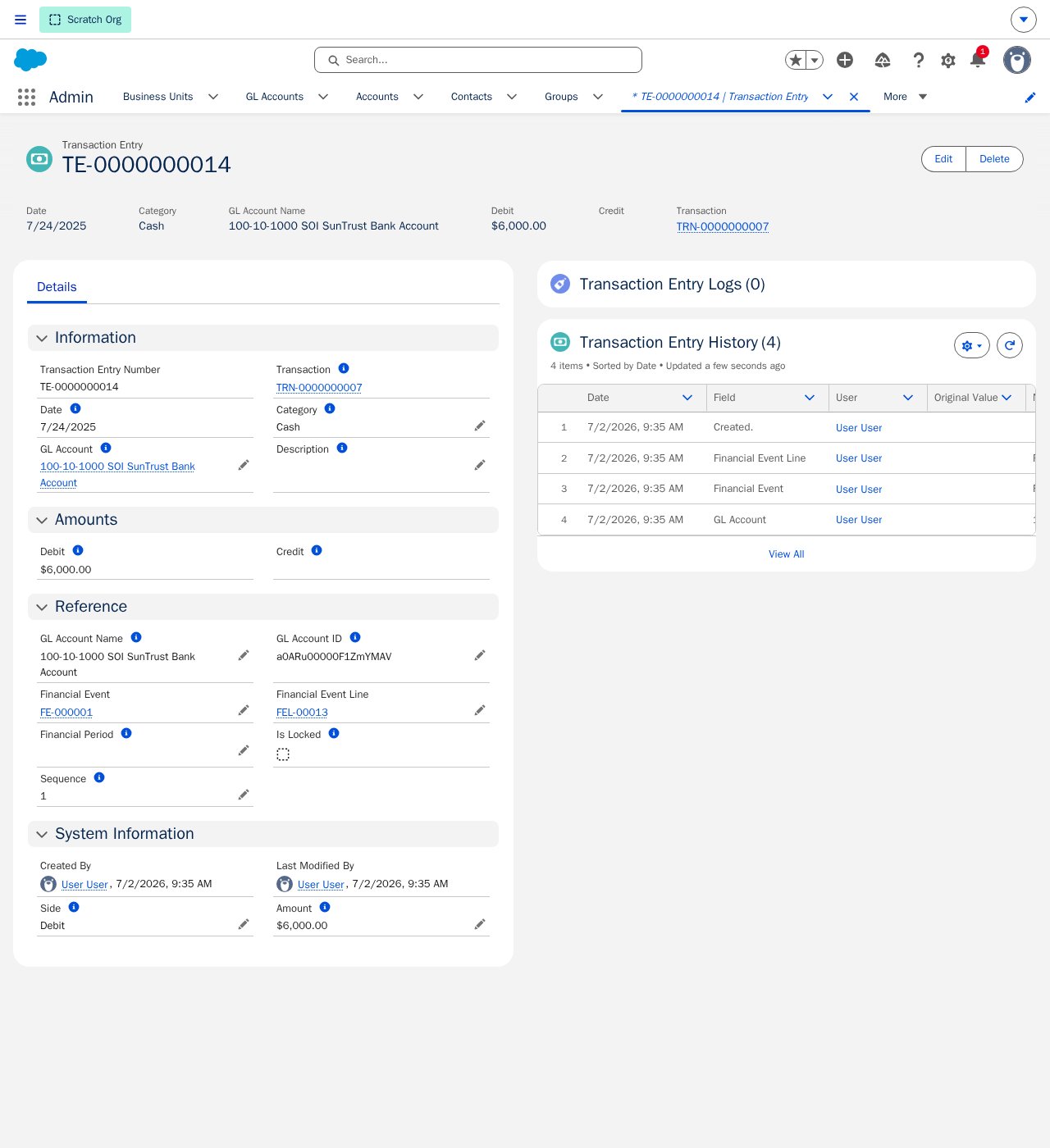
Every Transaction Entry the standard rules generate is automatically stamped with lookups back to the Commerce records that produced it — `Financial Event`, `Financial Event Line`, and `GL Account` — so accounting staff can trace a journal line back to the order or payment that caused it without leaving the Transaction Entry record.
In **Setup → Lightning App Builder**, edit the Financial Period record page, select the Highlights Panel (the action bar shown above), remove the base **Fetch** and **Lock** actions, and add the add-on's versions of **Fetch** and **Lock** in their place. Save and activate the page. Skipping this step is easy to miss because both actions have identical labels — see the warning below for why it matters for Lock specifically.
Whether a rule posts "with Deferrals" or "without Deferrals" depends entirely on whether a Deferred Account is set on the Financial Event Line. If revenue is posting to the wrong account, check that field first.
The 21 rules, in the order they run:
| # | Rule | What it does |
| -- | -------------------------------------------- | ----------------------------------------------------------------------------------------------------------------------------------------------------- |
| 1 | A/R without Deferrals | Finds Financial Event Lines on an Accounts Receivable event and debits A/R, credits Revenue. |
| 2 | A/R with Deferrals | Same, but when a Deferred Account is set: debits A/R, credits Deferred Revenue. |
| 3 | Sales without Deferrals | Succeeded Quote Payments with no Deferred Account: debits Deposit/Cash, credits Revenue. |
| 4 | Sales with Deferrals | Succeeded Quote Payments with a Deferred Account: debits Deposit/Cash, credits Deferred Revenue. |
| 5 | A/R Payment | Succeeded Invoice Payments: debits Deposit/Cash, credits A/R. |
| 6 | A/R Refund | Succeeded Invoice Refunds: debits A/R, credits Deposit/Cash. |
| 7 | Positive Adjustment without Deferrals | Succeeded positive Adjustments with no Deferred Account: debits A/R, credits Revenue. |
| 8 | Positive Adjustment with Deferrals | Succeeded positive Adjustments with a Deferred Account: debits A/R, credits Deferred Revenue. |
| 9 | Negative Adjustment without Deferrals | Succeeded negative Adjustments with no Deferred Account: reverses by debiting Revenue, crediting A/R. |
| 10 | Negative Adjustment with Deferrals | Succeeded negative Adjustments with a Deferred Account: reverses by debiting Deferred Revenue, crediting A/R. |
| 11 | Deferred Revenue Recognition — Specific Date | Recognizes deferred revenue on its specific recognition date: debits Deferred Revenue, credits Revenue. |
| 12 | Deferred Revenue Recognition — Over Time | Recognizes deferred revenue over the order product's subscription term: debits Deferred Revenue, credits Revenue. |
| 13 | Due To/From | Succeeded, non-negative cross-Business-Unit Payments: debits Due From, credits Due To. |
| 14 | Refund without Deferrals | Succeeded Quote Refunds with no Deferred Account: reverses by debiting Revenue, crediting Deposit/Cash. |
| 15 | Refund with Deferrals | Succeeded Quote Refunds with a Deferred Account: reverses by debiting Deferred Revenue, crediting Deposit/Cash. |
| 16 | Void With Deferrals | Succeeded Voids with a Deferred Account: reverses by debiting Deferred Revenue, crediting A/R. |
| 17 | Void Without Deferrals | Succeeded Voids with no Deferred Account: reverses by debiting Revenue, crediting A/R. |
| 18 | Due To/From Reversal | Cross-Business-Unit Refunds with a negative amount: debits Due To, credits Due From. |
| 19 | Write-Off Account Receivable | Succeeded Write-Offs: debits the Write-Off (Bad Debt) account, credits A/R. |
| 20 | Deferrals Revenue Reversal — Specific Date | Reverses previously recognized revenue on its recognition date for Refunds, Voids, or negative Adjustments: debits Revenue, credits Deferred Revenue. |
| 21 | Deferrals Revenue Reversal — Over Time | Same, but reversed over the subscription term instead of on a single date. |
**Due To/From (rules 13 and 18) posts in addition to, not instead of, the primary entry.** A cross-Business-Unit payment matches its ordinary rule (for example, A/R Payment) *and* the Due To/From rule, generating two separate Transactions from the same Financial Event Line — one recording the cash/revenue, one recording the intercompany offset. This is the mechanism behind the association/foundation Business Unit split described in [Accounting Overview](/end-user-guides/accounting/index) — use it when one Business Unit collects money that economically belongs to another.
### How the Add-On Traces a Transaction Entry Back to fusionCore
Every Transaction Entry the standard rules generate is automatically stamped with lookups back to the Commerce records that produced it — `Financial Event`, `Financial Event Line`, and `GL Account` — so accounting staff can trace a journal line back to the order or payment that caused it without leaving the Transaction Entry record.
 ### Financial Period Close Workflow
The add-on packages its **own** Fetch and Lock quick actions on the Financial Period, separate from the base **Fetch** and **Lock** actions already covered in [Fetching Financial Event Lines](/end-user-guides/accounting/financial-periods/fetching-financial-event-lines) and [Locking Financial Periods](/end-user-guides/accounting/financial-periods/locking-financial-periods). They carry the same button labels, which makes it easy to assume they're the same action — they aren't. Make sure the [button swap](#fusioncores-standard-journal-entry-rules-add-on) from setup was actually done before relying on either action below.
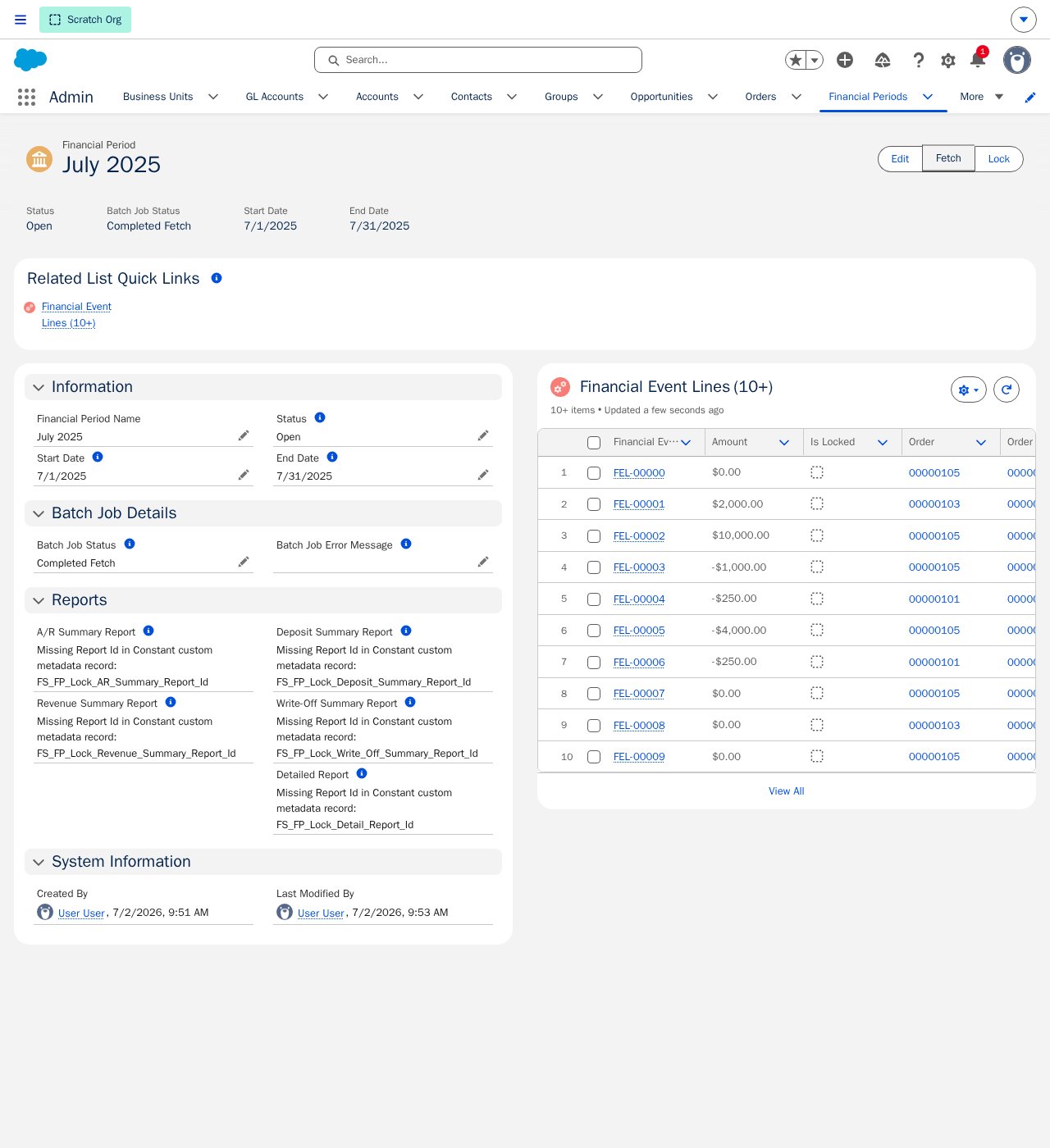
Click **Fetch**. It runs the identical underlying batch the base action runs, so it links every Transaction Entry whose posted date falls in the period's date range to that Financial Period regardless of which of the two Fetch actions you have on the page.
Click **Lock**. Unlike Fetch, the add-on's Lock action is not interchangeable with the base one — it runs extra validation before it ever reaches the base lock logic: every Financial Event in the period must have a Transaction Entry, every entry must be linked and its parent event Succeeded, and every Transaction must balance. Only then does it lock the underlying Transactions and Transaction Entries alongside the standard Financial Event Lines.
**Make sure the base Lock action was replaced with the add-on's Lock action.** The add-on's version validates that the period's generated Transactions are in a valid state — linked, Succeeded, and balanced — before locking anything. The base Lock action performs none of those checks, so it will happily lock a period whose Transactions are unbalanced or missing, and locking can't be undone.
### Financial Period Close Workflow
The add-on packages its **own** Fetch and Lock quick actions on the Financial Period, separate from the base **Fetch** and **Lock** actions already covered in [Fetching Financial Event Lines](/end-user-guides/accounting/financial-periods/fetching-financial-event-lines) and [Locking Financial Periods](/end-user-guides/accounting/financial-periods/locking-financial-periods). They carry the same button labels, which makes it easy to assume they're the same action — they aren't. Make sure the [button swap](#fusioncores-standard-journal-entry-rules-add-on) from setup was actually done before relying on either action below.
Click **Fetch**. It runs the identical underlying batch the base action runs, so it links every Transaction Entry whose posted date falls in the period's date range to that Financial Period regardless of which of the two Fetch actions you have on the page.
Click **Lock**. Unlike Fetch, the add-on's Lock action is not interchangeable with the base one — it runs extra validation before it ever reaches the base lock logic: every Financial Event in the period must have a Transaction Entry, every entry must be linked and its parent event Succeeded, and every Transaction must balance. Only then does it lock the underlying Transactions and Transaction Entries alongside the standard Financial Event Lines.
**Make sure the base Lock action was replaced with the add-on's Lock action.** The add-on's version validates that the period's generated Transactions are in a valid state — linked, Succeeded, and balanced — before locking anything. The base Lock action performs none of those checks, so it will happily lock a period whose Transactions are unbalanced or missing, and locking can't be undone.
 Locking a Financial Period is one-way and has no undo — it permanently blocks edits and deletes on the underlying Transactions and Transaction Entries, on top of the standard Financial Event Line lock described in [Locking Financial Periods](/end-user-guides/accounting/financial-periods/locking-financial-periods). Fetch first, review what it linked, and only lock once you're confident the period is ready to close.
## **Setting references on custom objects**
For any new custom objects, you will want to create a Transaction Created date (`Transaction_Created_Date`) field so that the engine can track processed records that are defined in the **Target Object** field on the Journal Entry Rule
You will also want to ensure that you have corresponding fields on the Journal Entry Rule if you wish to have fields such as Deferral Period, Deferral Offset, Transaction Start Date, Transaction End Date and Default Amount fields included in your Journal Entry Rule for the new custom object
## Limitations and Common Pitfalls
* **Rules only match Succeeded Financial Events.** Almost every one of the 21 standard rules requires the Financial Event to be in Succeeded status — events in any other status are ignored and never generate a transaction.
* **The posted date comes from the Financial Event's Succeeded date.** If that date is wrong or blank, a generated transaction lands in the wrong Financial Period (or none), even if the transaction itself is correct.
* **Deferred revenue only recognizes automatically if the Revenue Schedule field is set.** A blank revenue schedule matches neither the specific-date nor the over-time recognition rule, so that deferred revenue is never automatically recognized.
* **Write-offs don't unwind remaining deferred revenue.** The standard Write-Off rule only reverses the Accounts Receivable portion to a Bad Debt account — deferred revenue balances need a manual or custom entry.
* **The Write-Off account should be set up as an expense account.** Rule 19 debits it directly for the written-off amount. If your chart of accounts maps it to an asset or contra-asset account instead, write-offs will misstate your balance sheet rather than your income statement.
* **Locking is one-way.** Once a Financial Period is locked, its transactions and entries can't be edited or deleted, and there's no built-in "unlock" action.
* **You can only close one Financial Period at a time.** Trying to close more than one in the same bulk update or data load is blocked.
* **Locking checks are strict — but only if the add-on's Lock action is actually on the page.** If any Financial Event in the period's range has zero Transaction Entries, or any entry isn't linked, isn't Succeeded, or doesn't balance, the add-on's Lock action fails with an error naming the specific problem. The base org's original Lock action has no awareness of any of this and will lock the period anyway — see [Financial Period Close Workflow](#financial-period-close-workflow) above.
* **A failed batch scope isn't silently dropped.** If part of a nightly run fails, the base engine automatically retries that portion at a smaller batch size to isolate the problem record, rather than failing the entire night's run.
* **The four report links on a Financial Period need one-time setup.** The A/R, Deposit, Write-Off, and Detail Summary Report fields on a Financial Period each read a Salesforce Report Id from a `Constant` custom metadata record. Until those records are populated with real Report Ids, the fields show "Missing Report Id in Constant custom metadata record" instead of a link.
{/* Source: https://fusionspan.atlassian.net/wiki/spaces/fusionCore/pages/4742316044 */}
{/* Source: https://fusionspan.atlassian.net/wiki/spaces/fusionCore/pages/5053874196 */}
Locking a Financial Period is one-way and has no undo — it permanently blocks edits and deletes on the underlying Transactions and Transaction Entries, on top of the standard Financial Event Line lock described in [Locking Financial Periods](/end-user-guides/accounting/financial-periods/locking-financial-periods). Fetch first, review what it linked, and only lock once you're confident the period is ready to close.
## **Setting references on custom objects**
For any new custom objects, you will want to create a Transaction Created date (`Transaction_Created_Date`) field so that the engine can track processed records that are defined in the **Target Object** field on the Journal Entry Rule
You will also want to ensure that you have corresponding fields on the Journal Entry Rule if you wish to have fields such as Deferral Period, Deferral Offset, Transaction Start Date, Transaction End Date and Default Amount fields included in your Journal Entry Rule for the new custom object
## Limitations and Common Pitfalls
* **Rules only match Succeeded Financial Events.** Almost every one of the 21 standard rules requires the Financial Event to be in Succeeded status — events in any other status are ignored and never generate a transaction.
* **The posted date comes from the Financial Event's Succeeded date.** If that date is wrong or blank, a generated transaction lands in the wrong Financial Period (or none), even if the transaction itself is correct.
* **Deferred revenue only recognizes automatically if the Revenue Schedule field is set.** A blank revenue schedule matches neither the specific-date nor the over-time recognition rule, so that deferred revenue is never automatically recognized.
* **Write-offs don't unwind remaining deferred revenue.** The standard Write-Off rule only reverses the Accounts Receivable portion to a Bad Debt account — deferred revenue balances need a manual or custom entry.
* **The Write-Off account should be set up as an expense account.** Rule 19 debits it directly for the written-off amount. If your chart of accounts maps it to an asset or contra-asset account instead, write-offs will misstate your balance sheet rather than your income statement.
* **Locking is one-way.** Once a Financial Period is locked, its transactions and entries can't be edited or deleted, and there's no built-in "unlock" action.
* **You can only close one Financial Period at a time.** Trying to close more than one in the same bulk update or data load is blocked.
* **Locking checks are strict — but only if the add-on's Lock action is actually on the page.** If any Financial Event in the period's range has zero Transaction Entries, or any entry isn't linked, isn't Succeeded, or doesn't balance, the add-on's Lock action fails with an error naming the specific problem. The base org's original Lock action has no awareness of any of this and will lock the period anyway — see [Financial Period Close Workflow](#financial-period-close-workflow) above.
* **A failed batch scope isn't silently dropped.** If part of a nightly run fails, the base engine automatically retries that portion at a smaller batch size to isolate the problem record, rather than failing the entire night's run.
* **The four report links on a Financial Period need one-time setup.** The A/R, Deposit, Write-Off, and Detail Summary Report fields on a Financial Period each read a Salesforce Report Id from a `Constant` custom metadata record. Until those records are populated with real Report Ids, the fields show "Missing Report Id in Constant custom metadata record" instead of a link.
{/* Source: https://fusionspan.atlassian.net/wiki/spaces/fusionCore/pages/4742316044 */}
{/* Source: https://fusionspan.atlassian.net/wiki/spaces/fusionCore/pages/5053874196 */}