> ## Documentation Index
> Fetch the complete documentation index at: https://docs.fusioncore.us/llms.txt
> Use this file to discover all available pages before exploring further.
# Roster
> Give portal users a configurable table to view and edit a defined set of records, such as their organization's other users.
## Overview
The **Roster** accelerator (FS Roster) lets an admin build a no-code, portal-facing table or tile grid that shows a defined set of records and, if allowed, lets the logged-in user add, edit, or delete them. The most common use case is an organization roster: a company's primary contact logs into the portal and manages the other people tied to their account — adding a new employee, correcting a phone number, or removing someone who's left. Everything about one roster — the object, which records show, which fields are visible or editable, and who can see or edit it at all — comes from a single configuration record.
This accelerator requires the [fusionSpan Common Base Library](/end-user-guides/accelerators/fusionspan-common-base-library) as a prerequisite install, and is not part of core fusionCore.
## Prerequisites
* Install the fusionSpan Common Base Library first.
* Enable **Lightning Web Security** (Setup → Session Settings → "Use Lightning Web Security for Lightning web components and Aura components") — required for the tile display option. Test this in a sandbox first, since enabling it org-wide can affect other components.
* Assign the **FS Roster Platform** permission set to portal/end users, and **FS Roster Administration** to the admins who will build rosters.
## How to Configure
Create a `Roster_Setting__c` record. Set `Object_to_Display__c` to the API name of the object the table should show, and give it a `Roster_Title__c`.
Set `Where_Query__c` to filter the records — use the token `:usrObj.` to scope by a field on the logged-in user, for example showing only Contacts on the same Account.
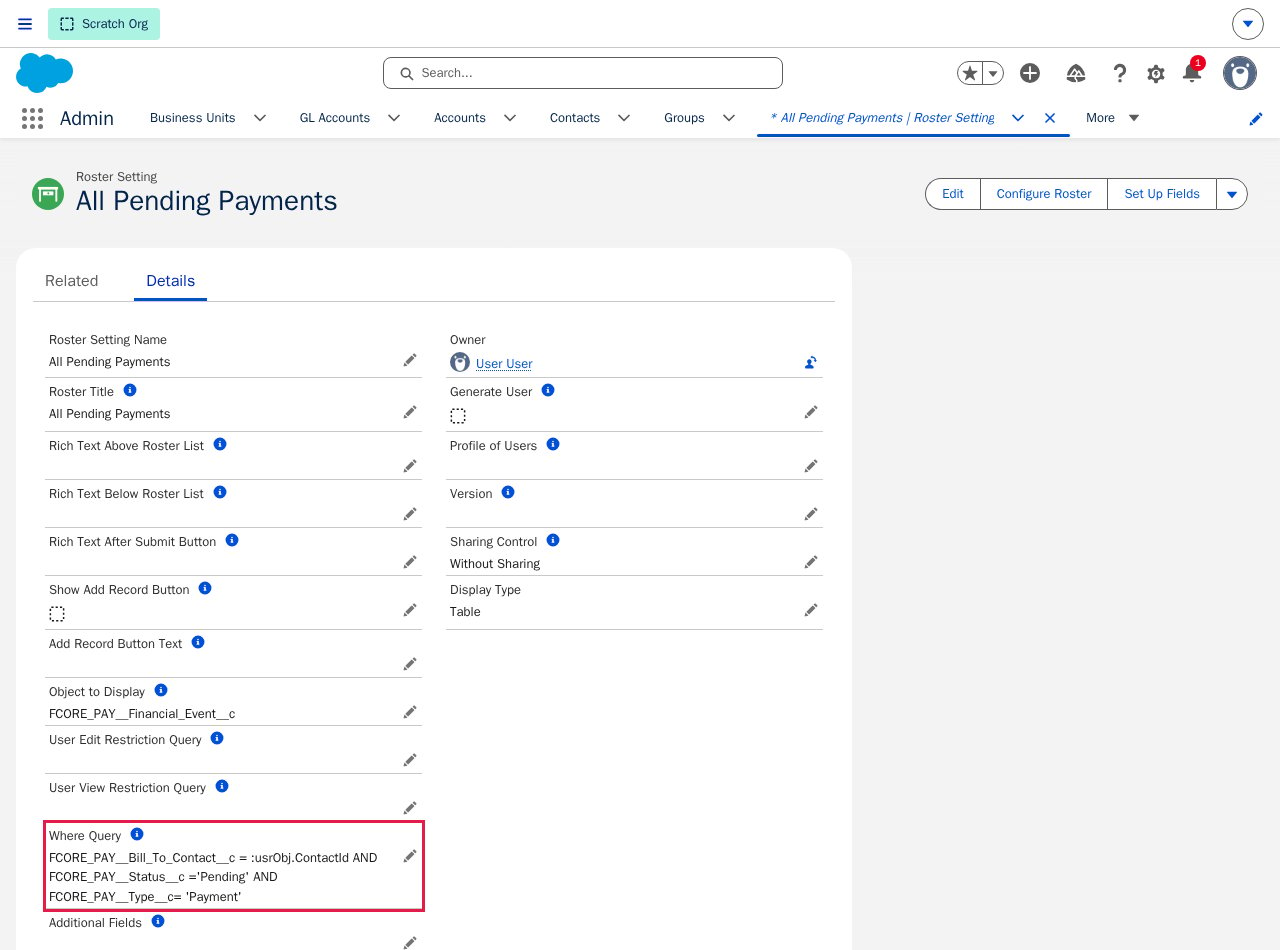 Click the record's **Set Up Fields** quick action to choose which fields the roster shows and how each one behaves — see [Setting Up Fields](#setting-up-fields) below for the full set of options.
 Configure `User_View_Restriction_Query__c` to control who can open the roster at all (failing this blocks the whole roster), and `User_Edit_Restriction_Query__c` to control who gets edit rights versus read-only access.
Set `FS_Sharing_Control__c` to **With Sharing** for internal use, or **Without Sharing** for portal scenarios where users need to see records beyond what their sharing rules would normally allow. Configure the add/delete/highlight-edits toggles and any rich text you want shown above or below the table.
Set `FS_Display_Type__c` to Table or Tile, then add the **FS Roster Table** Lightning web component to your Experience Cloud or Lightning page, pointing it at the Roster Setting record.
## Setting Up Fields
**Set Up Fields** is a quick action on every `Roster_Setting__c` record. It's the only supported way to build the field configuration — it writes a JSON blob to `Fields_Settings__c` behind the scenes, but don't edit that field directly; use the quick action so the JSON stays valid.
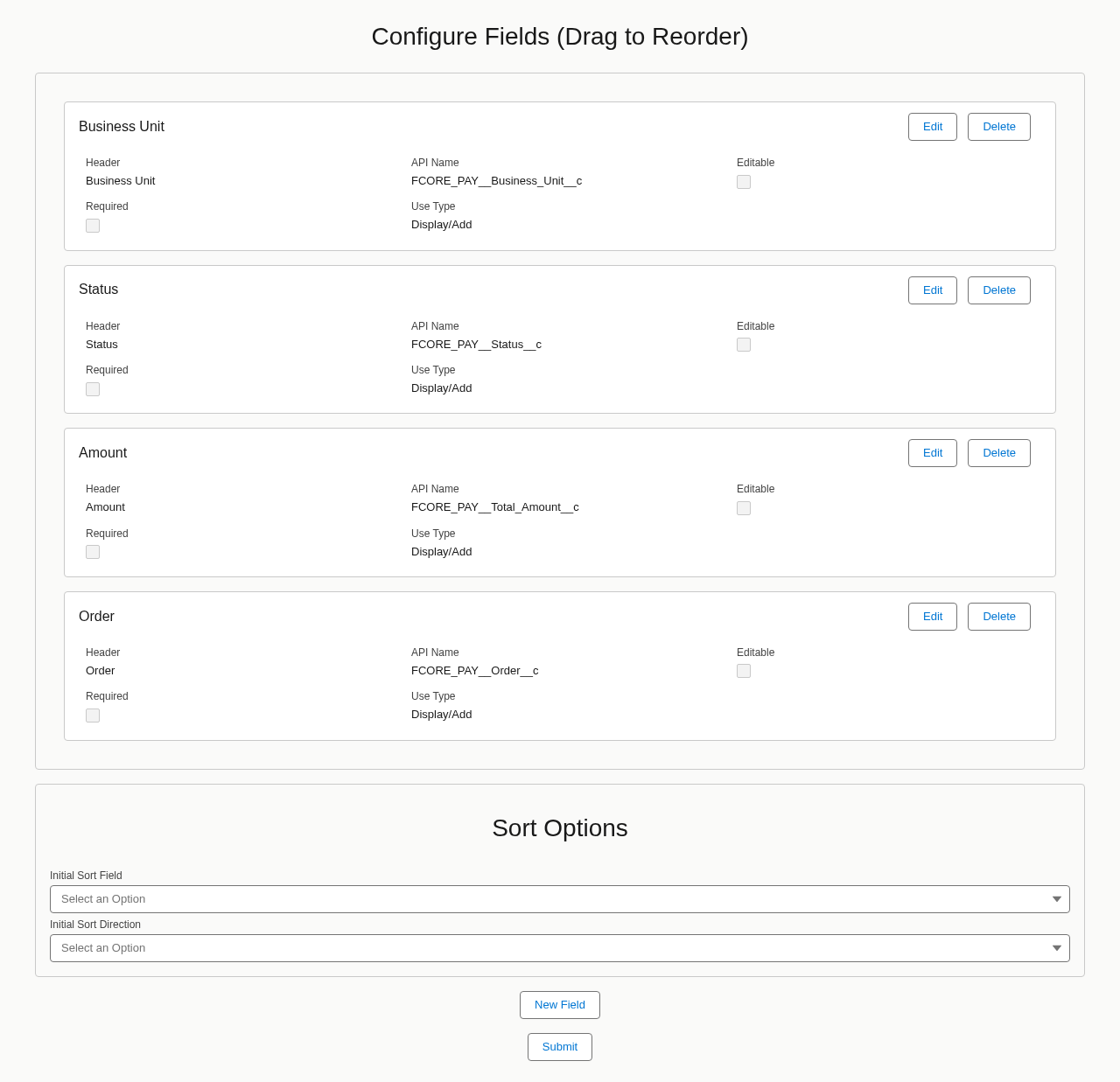
Opening it shows **Configure Fields**, a card for every field already configured, each with **Edit** and **Delete** buttons. Drag a card to reorder it — this controls both column order in the table and the order fields appear in the Add/Edit form. Below the list, **Sort Options** sets which field the roster sorts by initially and in which direction. Click **New Field** to add another, and click **Submit** (or **Next** — see below) when you're done.
Configure `User_View_Restriction_Query__c` to control who can open the roster at all (failing this blocks the whole roster), and `User_Edit_Restriction_Query__c` to control who gets edit rights versus read-only access.
Set `FS_Sharing_Control__c` to **With Sharing** for internal use, or **Without Sharing** for portal scenarios where users need to see records beyond what their sharing rules would normally allow. Configure the add/delete/highlight-edits toggles and any rich text you want shown above or below the table.
Set `FS_Display_Type__c` to Table or Tile, then add the **FS Roster Table** Lightning web component to your Experience Cloud or Lightning page, pointing it at the Roster Setting record.
## Setting Up Fields
**Set Up Fields** is a quick action on every `Roster_Setting__c` record. It's the only supported way to build the field configuration — it writes a JSON blob to `Fields_Settings__c` behind the scenes, but don't edit that field directly; use the quick action so the JSON stays valid.
Opening it shows **Configure Fields**, a card for every field already configured, each with **Edit** and **Delete** buttons. Drag a card to reorder it — this controls both column order in the table and the order fields appear in the Add/Edit form. Below the list, **Sort Options** sets which field the roster sorts by initially and in which direction. Click **New Field** to add another, and click **Submit** (or **Next** — see below) when you're done.
 ### Field Options
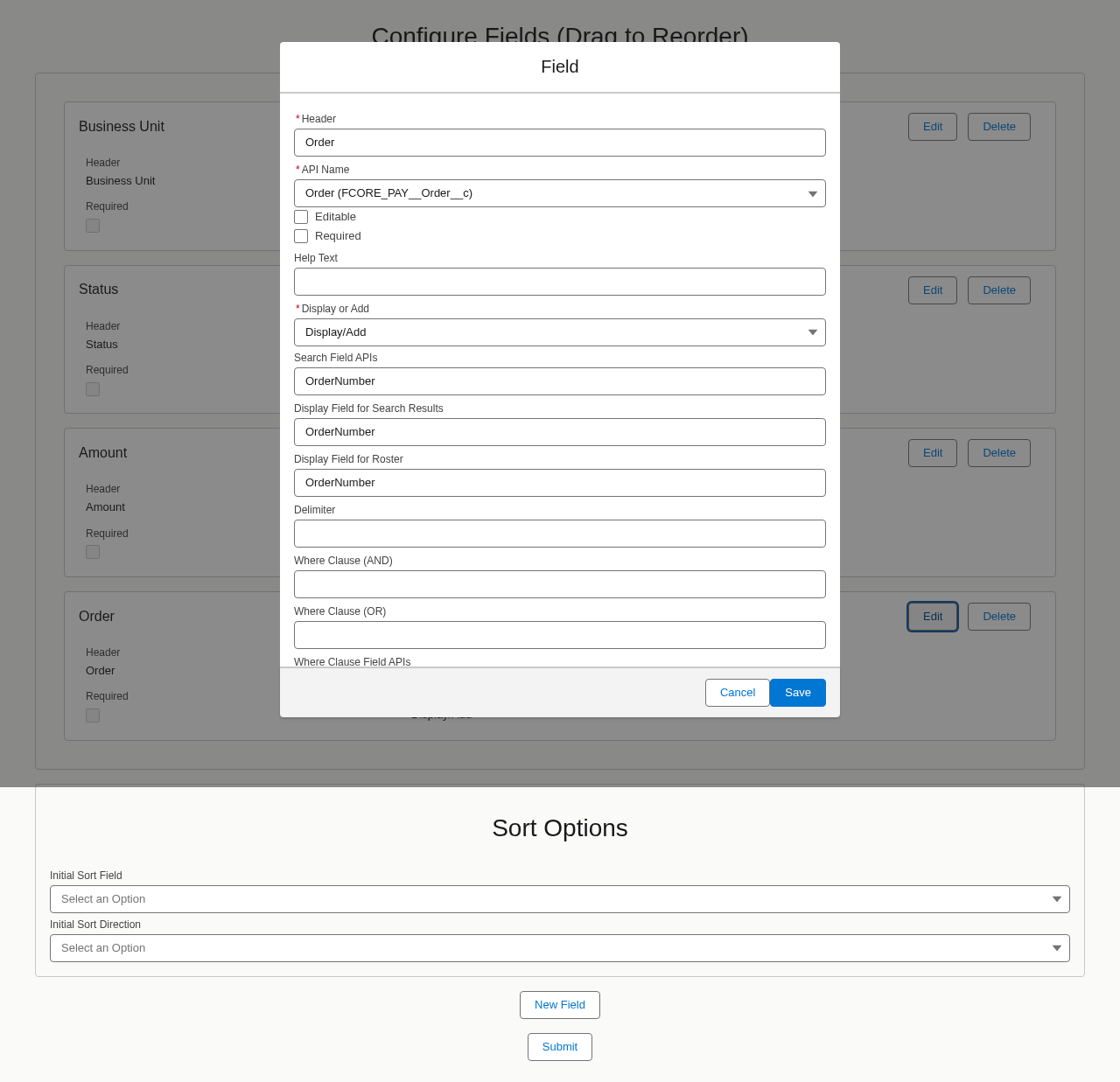
Clicking **Edit** or **New Field** opens the **Field** modal. Every field, regardless of type, has these options:
| Setting | What it does |
| ----------------------------- | ------------------------------------------------------------------------------------------------------------------------------------------------------------------------------------------------------------------------------------------------------------------------------------------------------------------------------------------------ |
| **Header** (required) | The column label shown to users. |
| **API Name** (required) | The field to show, chosen from a dropdown listing every field on the roster's `Object_to_Display__c`. You can't type an arbitrary API name — it must already exist on that object — but any field type is allowed (text, number, date, checkbox, picklist, lookup, and so on). Picklist and Lookup fields unlock extra options, described below. |
| **Display or Add** (required) | Controls where the field shows up. See the table below — the three values behave differently in a way that isn't obvious from the label. |
| **Editable** | Only matters when a user edits an *existing* record. A field always accepts input while a record is being added (as long as **Display or Add** includes Add); **Editable** decides whether the same field can still be changed once the record already exists. |
| **Required** | Makes the field mandatory wherever it renders as an input. Has no effect on a field that only ever shows as a read-only column. |
| **Help Text** | Optional field-level help text shown next to the input in the Add/Edit form. |
**Display or Add** isn't as simple as "Display = table, Add = form." The value determines three things independently:
| Value | Shows as a table/tile column | Shows in the Add form | Shows in the Edit form |
| ----------- | ---------------------------- | --------------------- | ---------------------- |
| Display | Yes | No | Yes |
| Add | No | Yes | No |
| Display/Add | Yes | Yes | Yes |
An **Add**-only field appears when a user creates a new record, but disappears once that record is saved — it never shows as a column and never appears again when the user edits the record later. Use **Display/Add** for a field you want visible everywhere.
### Lookup Fields Need More
Setting **API Name** to a lookup field adds these options, which control the search box the user sees when they click into that field in the Add/Edit form:
| Setting | What it does |
| ---------------------------------------------- | ----------------------------------------------------------------------------------------------------------------------------------------------------------------------------------- |
| **Search Field APIs** | Field(s) on the related object checked when the user types a search term. |
| **Display Field for Search Results** | Field shown for each match in the search dropdown. |
| **Display Field for Roster** | Field shown in the table or tile once a value is chosen. |
| **Delimiter** | Separator used when more than one field is concatenated for display. |
| **Where Clause (AND)** / **Where Clause (OR)** | Extra filter criteria that narrow which related records are searchable. Like `Where_Query__c`, these support the `:usrObj.` token to scope by a field on the logged-in user. |
| **Where Clause Field APIs** | The field(s) referenced by the Where Clause filters above. |
### Field Options
Clicking **Edit** or **New Field** opens the **Field** modal. Every field, regardless of type, has these options:
| Setting | What it does |
| ----------------------------- | ------------------------------------------------------------------------------------------------------------------------------------------------------------------------------------------------------------------------------------------------------------------------------------------------------------------------------------------------ |
| **Header** (required) | The column label shown to users. |
| **API Name** (required) | The field to show, chosen from a dropdown listing every field on the roster's `Object_to_Display__c`. You can't type an arbitrary API name — it must already exist on that object — but any field type is allowed (text, number, date, checkbox, picklist, lookup, and so on). Picklist and Lookup fields unlock extra options, described below. |
| **Display or Add** (required) | Controls where the field shows up. See the table below — the three values behave differently in a way that isn't obvious from the label. |
| **Editable** | Only matters when a user edits an *existing* record. A field always accepts input while a record is being added (as long as **Display or Add** includes Add); **Editable** decides whether the same field can still be changed once the record already exists. |
| **Required** | Makes the field mandatory wherever it renders as an input. Has no effect on a field that only ever shows as a read-only column. |
| **Help Text** | Optional field-level help text shown next to the input in the Add/Edit form. |
**Display or Add** isn't as simple as "Display = table, Add = form." The value determines three things independently:
| Value | Shows as a table/tile column | Shows in the Add form | Shows in the Edit form |
| ----------- | ---------------------------- | --------------------- | ---------------------- |
| Display | Yes | No | Yes |
| Add | No | Yes | No |
| Display/Add | Yes | Yes | Yes |
An **Add**-only field appears when a user creates a new record, but disappears once that record is saved — it never shows as a column and never appears again when the user edits the record later. Use **Display/Add** for a field you want visible everywhere.
### Lookup Fields Need More
Setting **API Name** to a lookup field adds these options, which control the search box the user sees when they click into that field in the Add/Edit form:
| Setting | What it does |
| ---------------------------------------------- | ----------------------------------------------------------------------------------------------------------------------------------------------------------------------------------- |
| **Search Field APIs** | Field(s) on the related object checked when the user types a search term. |
| **Display Field for Search Results** | Field shown for each match in the search dropdown. |
| **Display Field for Roster** | Field shown in the table or tile once a value is chosen. |
| **Delimiter** | Separator used when more than one field is concatenated for display. |
| **Where Clause (AND)** / **Where Clause (OR)** | Extra filter criteria that narrow which related records are searchable. Like `Where_Query__c`, these support the `:usrObj.` token to scope by a field on the logged-in user. |
| **Where Clause Field APIs** | The field(s) referenced by the Where Clause filters above. |
 ### Picklist Fields Can Show Extra Fields
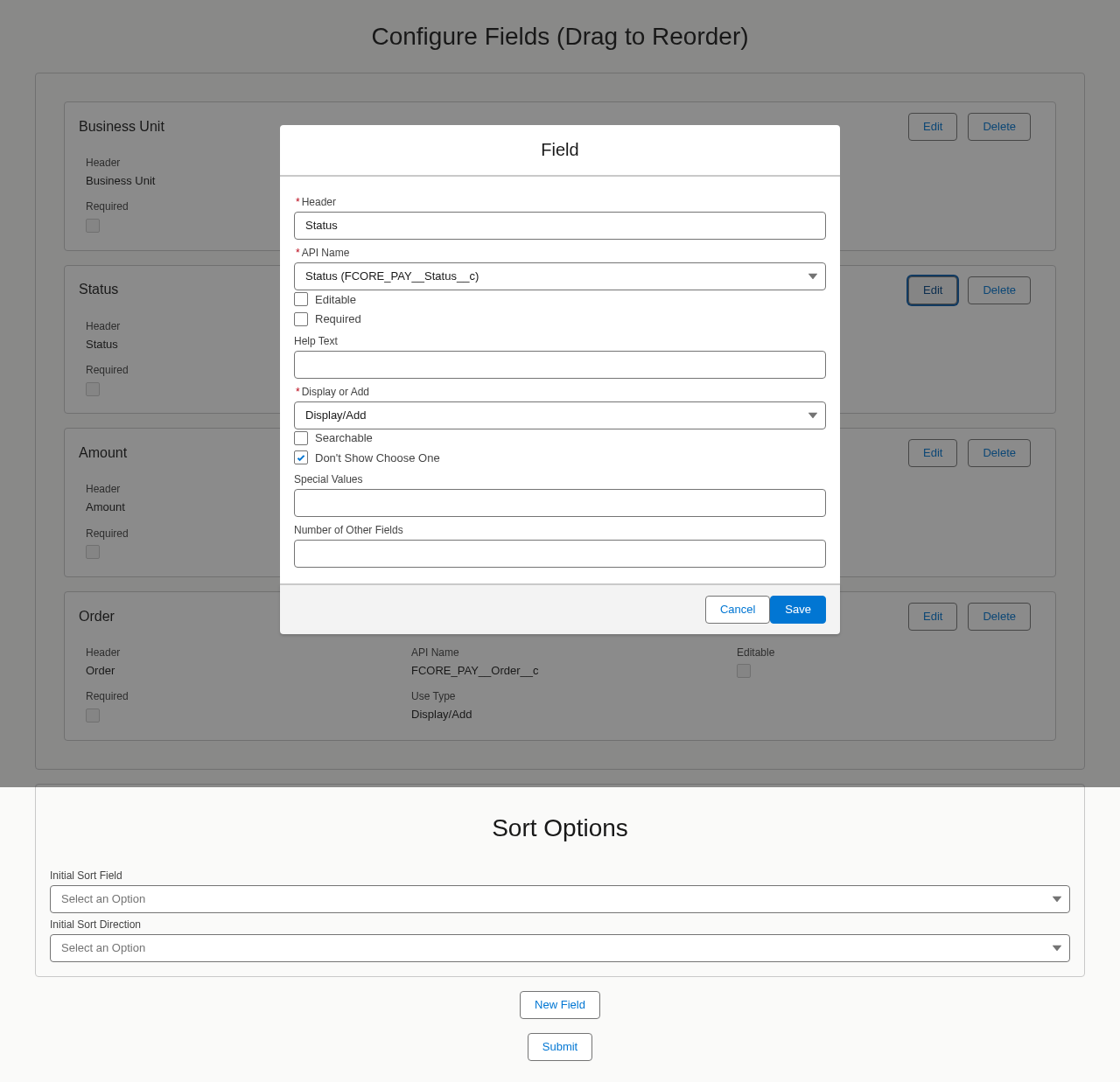
Setting **API Name** to a (single-select) picklist field adds:
| Setting | What it does |
| -------------------------- | ----------------------------------------------------------------------------------------------------------------------------------------------------------------------------------------------------------------------------------------- |
| **Searchable** | Meant to add a search box inside the picklist. |
| **Don't Show Choose One** | Meant to hide the blank default option. |
| **Special Values** | A comma-separated list of picklist values (for example `Other`) that, when selected, reveal the extra fields configured below. |
| **Number of Other Fields** | How many extra fields to reveal when a Special Value is picked. Enter a number and a row appears for each one — set its own field API, label, and help text — so a user picking "Other" can specify something the picklist doesn't cover. |
### Picklist Fields Can Show Extra Fields
Setting **API Name** to a (single-select) picklist field adds:
| Setting | What it does |
| -------------------------- | ----------------------------------------------------------------------------------------------------------------------------------------------------------------------------------------------------------------------------------------- |
| **Searchable** | Meant to add a search box inside the picklist. |
| **Don't Show Choose One** | Meant to hide the blank default option. |
| **Special Values** | A comma-separated list of picklist values (for example `Other`) that, when selected, reveal the extra fields configured below. |
| **Number of Other Fields** | How many extra fields to reveal when a Special Value is picked. Enter a number and a row appears for each one — set its own field API, label, and help text — so a user picking "Other" can specify something the picklist doesn't cover. |
 A multi-select picklist field only gets the plain options from the table above — the Searchable/Special Values extras in this section apply to single-select picklists only.
### Tile-Display Rosters Get One More Screen
If the Roster Setting's Display Type is Tile, clicking **Next** instead of **Submit** after the field list takes you to a second screen, **Configure Tile View**, where you choose how the tile itself renders (an LWC template, rich text, or raw HTML) and set filterable/sortable fields and tiles per page. The field-by-field options above are identical for Table and Tile rosters — this extra screen only configures the tile's visual layout, not the fields themselves.
## Limitations and Common Pitfalls
* **Configuration mistakes throw a specific error, not a blank table.** A blank object, blank field settings, or a referenced field the user can't access all produce a hard error rather than an empty table — read the error message, it names the specific problem.
* **The Searchable and Don't Show Choose One picklist options don't currently do anything.** They save to the configuration, but the current Add/Edit form doesn't apply them — a configured picklist field always renders as a standard dropdown with the default blank option, regardless of these two checkboxes.
* **`Fields_Settings__c` is a single Long Text Area (131,072 characters).** There's no explicit limit on how many fields you can configure, but every field's options are serialized into that one field — a roster with a very large number of fields, especially lookups or picklists with several "other fields," can run into that character ceiling.
* **View and edit restrictions behave differently.** Failing the view restriction blocks the entire roster from loading; failing the edit restriction just makes it read-only. Don't rely on the edit restriction to hide a roster from anyone — use the view restriction for that.
* **Row-count limits and field allow-lists live in separate Custom Metadata, not on the Roster Setting itself.** If you need to cap how many records a roster can return, or restrict which fields it's allowed to query, that's configured on the underlying SOQL Query Builder settings, not the Roster Setting record.
* **Automatic portal-user creation for newly added records is not fully implemented**, even though it's exposed as a setting on the Roster Setting record. Don't rely on it for production without testing it first in your org.
* **Only the current Lightning web component (`fsRosterTable`) is supported for new rosters.** Older Aura-based roster components exist in the package for backward compatibility but shouldn't be used for new work.
A multi-select picklist field only gets the plain options from the table above — the Searchable/Special Values extras in this section apply to single-select picklists only.
### Tile-Display Rosters Get One More Screen
If the Roster Setting's Display Type is Tile, clicking **Next** instead of **Submit** after the field list takes you to a second screen, **Configure Tile View**, where you choose how the tile itself renders (an LWC template, rich text, or raw HTML) and set filterable/sortable fields and tiles per page. The field-by-field options above are identical for Table and Tile rosters — this extra screen only configures the tile's visual layout, not the fields themselves.
## Limitations and Common Pitfalls
* **Configuration mistakes throw a specific error, not a blank table.** A blank object, blank field settings, or a referenced field the user can't access all produce a hard error rather than an empty table — read the error message, it names the specific problem.
* **The Searchable and Don't Show Choose One picklist options don't currently do anything.** They save to the configuration, but the current Add/Edit form doesn't apply them — a configured picklist field always renders as a standard dropdown with the default blank option, regardless of these two checkboxes.
* **`Fields_Settings__c` is a single Long Text Area (131,072 characters).** There's no explicit limit on how many fields you can configure, but every field's options are serialized into that one field — a roster with a very large number of fields, especially lookups or picklists with several "other fields," can run into that character ceiling.
* **View and edit restrictions behave differently.** Failing the view restriction blocks the entire roster from loading; failing the edit restriction just makes it read-only. Don't rely on the edit restriction to hide a roster from anyone — use the view restriction for that.
* **Row-count limits and field allow-lists live in separate Custom Metadata, not on the Roster Setting itself.** If you need to cap how many records a roster can return, or restrict which fields it's allowed to query, that's configured on the underlying SOQL Query Builder settings, not the Roster Setting record.
* **Automatic portal-user creation for newly added records is not fully implemented**, even though it's exposed as a setting on the Roster Setting record. Don't rely on it for production without testing it first in your org.
* **Only the current Lightning web component (`fsRosterTable`) is supported for new rosters.** Older Aura-based roster components exist in the package for backward compatibility but shouldn't be used for new work.